
Why Train Neo?
- Enhance AI Accuracy: Teach Neo how to better interpret situations and data specific to your environment
- Tailor Workflow Behavior: Guide Neo to make decisions and take actions that align more closely with your business processes and preferences
- Improve Automation Outcomes: Get more precise and effective results from your automated workflows by refining the AI’s instructions, and by spotting what an agent was missing
- Iterative Improvement: Continuously make Neo smarter and more helpful through an interactive feedback loop
Train Neo is for runs that should have gone differently — your feedback, and your technicians’ approval decisions, turn into better instructions. For a run that went right and that you want repeated identically, use the Skillify button on that run instead to capture it as a skill.
How It Works
- Identify an Execution: Find the past run where the outcome could have been better
- Click Train: The Neo Support chat opens with a training card attached to the message box showing the agent, ticket, and run
- Add Feedback, or Just Send: Type what went wrong, or what Neo should have done instead, and send. Feedback is optional: send the card on its own and Neo reviews the run by itself
- Neo Investigates: The Neo Support Agent reads the run’s step-by-step trace, the approval decisions technicians made on it, the configuration the run actually used, the ticket context, and its final output, alongside any feedback you gave. When the run paused for approvals, it reads every part of it — see A supervised run is several runs
- Review the Proposed Change: Neo shows you the one change it wants to make and why — the exact instruction text and where it will sit, or the tool, permission or memory the run needed — before writing anything
- Confirm and Apply: Once you agree, Neo applies it. Future runs use the updated configuration
Step-by-Step Guide to Training Neo
Let’s walk through an example using feedback on a “Triage” workflow run.Navigate to Workflow Executions
From the Neo Agent dashboard, go to Workflows. You’ll see a list of your “Triggered Workflows”. Identify the workflow you want to improve (e.g., “Triage”). Click the history icon for that workflow to open its executions.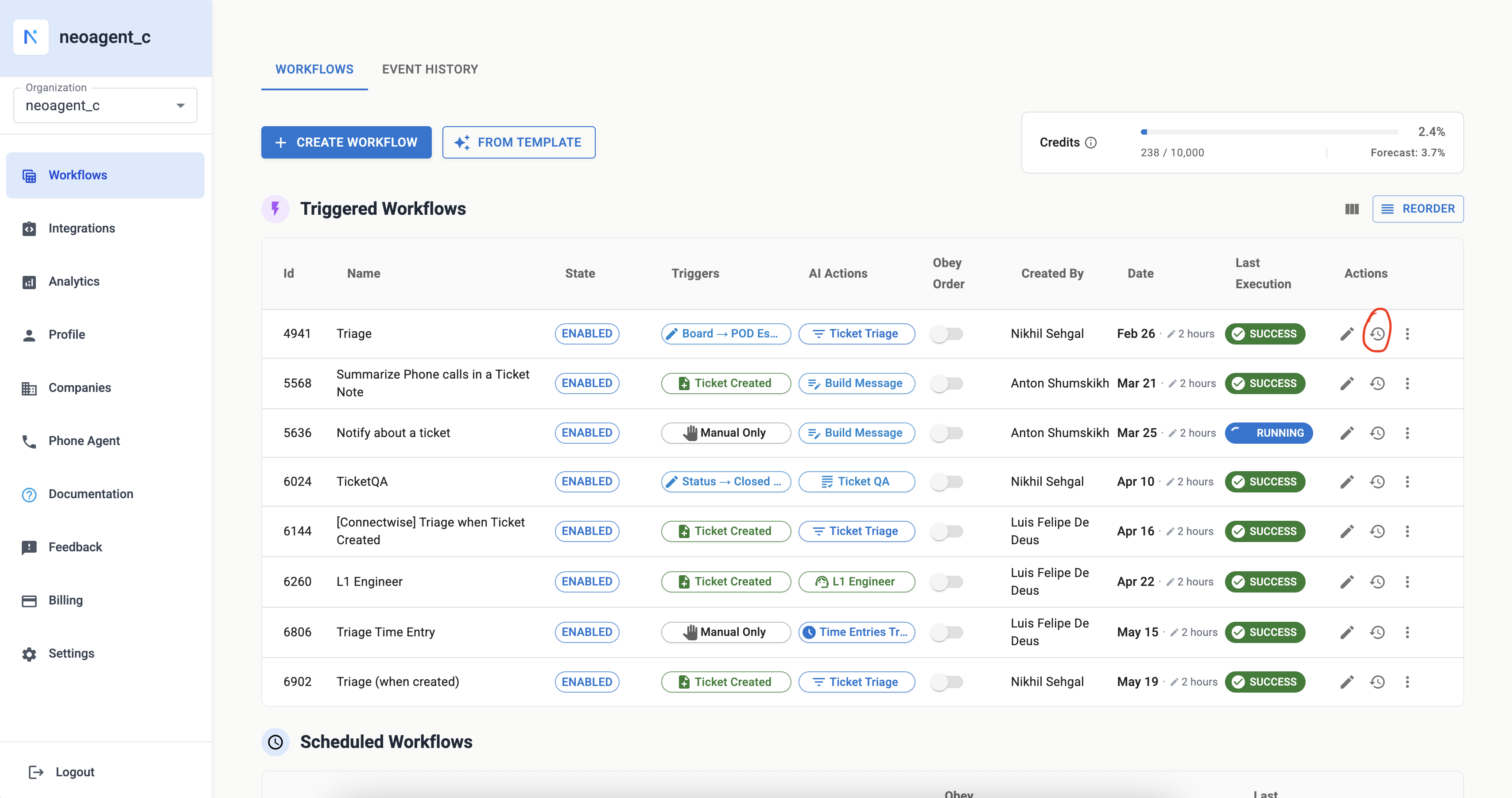
Select a Specific Event Execution
You’ll be taken to the Executions page filtered to that agent. Filter by ticket number or ticket ID to find the run you want to give feedback on, then click Train on that row.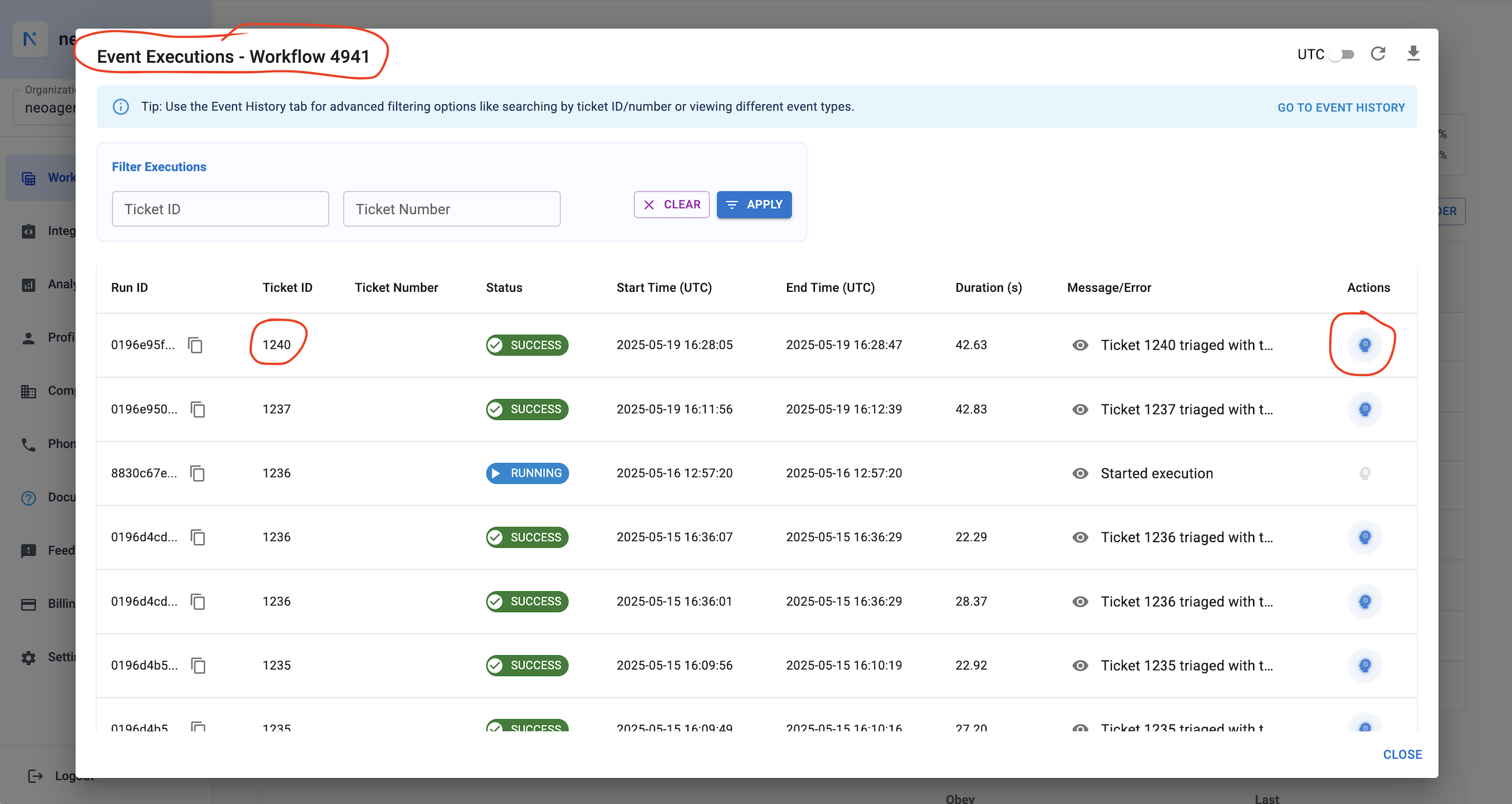
Provide Your Feedback
The Neo Support chat opens with a training card attached above the message box, showing which agent, ticket, and run you’re training on. The message box takes your feedback — type specific details about what Neo should have done differently or what it missed, then send. The run details from the card ride along with your message automatically. The more context you provide, the better Neo can learn. Example Feedback: “This ticket should have ‘Printer’ type because it’s related to the HP device in room 2.”Or Send Without Feedback
Feedback is optional. Send the card with an empty message box, and Neo works out what to change from the run itself:- Approval decisions: a change a technician rejected, a note they left on a card, and on a supervised run the plan they commented on and the choice they picked when the instructions left a decision open. When the agent asked about an unclear instruction, Neo starts from the wording the agent suggested and fits it to the technician’s answer.
- The run’s own trace: tool errors, reasoning that weighs two readings of an instruction, and a final message that does not answer what the ticket asked.
A supervised run is several runs
Every time the run stops to wait — for your answer, or for a script to finish on a device — it ends there, and what follows is a new run. Its reasoning is spread across all of them. The Execution Log already shows all of them as one flow, and Train reads them the same way — the whole execution, in order, whichever part you clicked Train on. A run that never paused is unaffected.Review the Proposed Change
Neo investigates the run — its step-by-step trace, the instructions it ran under, the ticket, and what that agent could still be given — and replies with a concrete proposal, plus the evidence from the run that motivates it. Example proposal: “The triage step settype to None because nothing in the instructions covers printer hardware. I’d add one rule to the Ticket Triage action’s instructions: ‘If the ticket references printer hardware (e.g. an HP device, printer model, or print room), set the type to Printer.’ Want me to apply that?”
Example proposal when the agent was missing something: “This run stopped at the mailbox reset and escalated instead, because that agent has no Exchange access. Exchange Mailbox Management is available on your account and switched off for this agent. Resetting a mailbox is a change, so it needs read/write — read-only would leave the next one stuck in the same place. Want me to apply that?”
Review the proposal, and refine it in the conversation if you want it worded differently or scoped more broadly or narrowly. When Neo proposes a tool or a permission, it also tells you anything that comes with it — for example that enabling a tool can raise what that agent costs per run. When a proposed edit narrows an existing rule (it removes words from the rule, or adds a condition to it), Neo names the kinds of ticket the rule would stop covering and asks whether to keep them. To fix one ticket, Neo prefers an exception beside the rule, so the rule keeps covering every ticket it did before. Every instruction proposal also goes through the checks in What Neo checks before it changes your instructions: the whole behaviour the change touches, the length before and after, and, for a triggered or scheduled agent, how recent runs would have gone.
If you later ask Neo why an agent’s behaviour changed, it checks the agent’s version history for an edit to the rule that decided the run. It names any such edit, when it was saved and who saved it, before it says the wording of your tickets caused the change. That includes an edit Neo made in an earlier conversation: Neo says the edit was saved through the API for the person in that chat, the way a Neo Support chat saves, and not in the dashboard.
Confirm and Apply
Reply to confirm, and Neo applies the change. For an instruction edit, Neo shows you each sentence it adds or changes, and it can write only the text it showed you in the conversation — it cannot apply a rule you haven’t seen. When a rewrite would drop a rule, default or condition from your instructions, Neo saves the edit only if it showed you that sentence as it stands now, or if the change you approved itself rewrites, removes or overrides that rule. It does not repeat the unchanged text around a change, even when that text is on the same line. A small wording difference that does not change what the agent does, such as a synonym, punctuation or formatting, usually needs no second confirmation; any change to a condition, a limit, a name or a step does. Every change of one edit must appear together in one message, so one confirmation applies the whole edit. If you correct a proposed change instead of confirming it, Neo shows the revised text, says it is not saved yet and asks again; nothing is applied until you confirm. An instruction edit changes only the targeted text — everything else in your instructions is left untouched. Neo confirms once it’s done, and the agent uses the updated configuration on future runs.Apply a change from a card
This is rolling out account by account; until it reaches yours, you confirm in the chat as described above. Once it does, a change to an agent’s custom instructions comes as a card instead of a question. The card shows each line Neo removes and each line it adds, in place in your instructions, and Apply change saves exactly what the card shows. Nothing is saved before you click it, and you need edit access to the agent. When you ask for different wording, Neo sends a new card, and the earlier one can no longer be applied. In Microsoft Teams and Slack, the card’s Review and apply button opens the same card in the dashboard, where you apply it signed in as yourself. Instructions on a workflow action or a triage field, and memories, are still confirmed in the chat.Important Considerations
- Usually Custom Instructions: Most runs are fixed by the plain-English
custom_instructionsguidance on your workflow actions or agent - Sometimes Something Else: A tool the agent does not have, an integration permission, a fact worth remembering, a trigger filter, or a missing action. Neo checks what that agent could still be given before it answers, so it names the switch rather than writing a rule about the limit
- When the Problem Is on Neo’s Side: Sometimes a run goes wrong because of Neo itself, not your setup — for example, Neo ignored an event that should have started the agent. Neo tells you so, shows the evidence, and offers to raise it with the Neo support team. It does not ask you to write an instruction that works around it
- When the Rule Was Already There: Before Neo suggests a new rule, it reads the instructions the run had. If they already forbade what the run did, Neo tells you so, because repeating the rule rarely changes the next run. It looks for what made the agent miss the rule, such as a rule that contradicts it, and offers to fix that. When the rule keeps a whole kind of ticket out of the agent’s work, such as domain expiry alerts, and a ticket field marks that kind (its type, subtype, board or a phrase in the summary), Neo offers to exclude those tickets in the trigger filter of the Workflow or triggered Agent instead. The filter is checked before the AI reads a ticket, so it does not rely on the AI to follow a rule. When the rule only lists when to set a field, such as when to set a ticket to Complete, and says nothing about every other ticket, the agent still decides that field on the other tickets. Neo checks whether the run could keep the current value. When it could, Neo offers one line that says what to do with the other tickets, for example “For every ticket that matches none of the rules above, keep the current status.” When the run’s record shows it had to pick a new value, Neo explains that no line stops the change. Neo counts a rule as one the run had only when it finds a record of that run’s instructions, and tells you when it cannot confirm one. If it finds nothing in your setup that explains the miss, it offers to raise it with the Neo support team. You can still ask for a temporary rule while the escalation is open
- One Change at a Time: Neo proposes the single change that covers the class of case, not a list
- Manual Updates: You can always edit the custom instructions, the toolbox or the integration permissions for any agent directly in the editor if you prefer
- Context is Key: Feedback is optional, but clear, specific feedback helps when the run carries no approval decisions to learn from
- Iterative Process: Training Neo is an ongoing process. The more feedback you provide over time, the more aligned Neo will become with your specific operational needs