
Audience: who the channel serves
Every channel has an Audience, which must match its agent’s:- Internal — a bot for your own technicians, installed into your own Microsoft 365 tenant or your own Slack workspace and running with the full MSP toolbox you give the agent (it can work across all your companies). Deploy it with the custom internal bot guide, or see Slack (Internal).
- End-user — a white-label bot for your clients’ employees, installed into each client’s Microsoft 365 tenant or Slack workspace and scoped to one company per conversation. Deploy it with the end-user Teams bot guide or the end-user Slack bot guide.
How it fits together
- Internal — the user is one of your technicians, in your own tenant. The agent runs with your full MSP toolbox, across your whole client base.
- End-user — in Teams, the user’s company is recognized automatically from the Microsoft 365 tenant their message comes from, via the tenant ID on the Company record, and every conversation is scoped to that company with a narrower toolbox (per-company instructions apply; the why and how: how end-user bots work). In Slack, the company is the one the workspace’s install link was made for; see Slack.
Managing channels
Open Chat → Channels → New Channel. The New channel page asks only for the four things a channel is made from: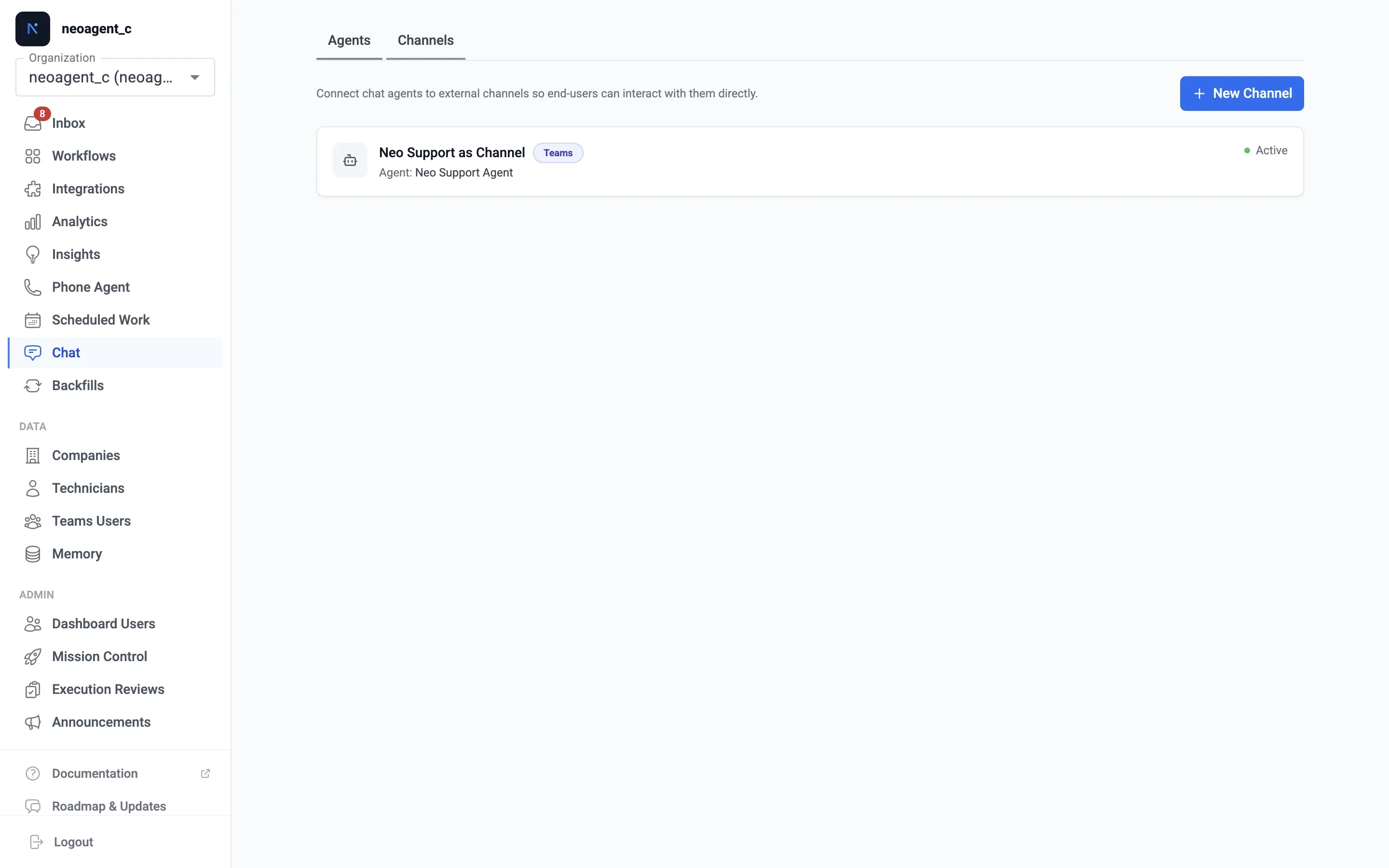
Click Create channel. The channel starts Active with Neo’s default branding and opens on its Installs tab. You set everything else on the channel’s page.
Creating a channel doesn’t make it reachable. A new channel is Active immediately, but that only means routing isn’t paused. For a Teams channel, nobody can message it until the Teams app is installed into a Microsoft 365 tenant, and only a Teams or Global administrator of that tenant can approve that. For a Slack channel, the Slack app must be requested and ready, and then installed: by each client workspace’s Slack administrator on an End-user channel (see Slack (End-user)), or by a dashboard admin in your own workspace on an Internal one (see Slack (Internal)). See Installing the bot below. Over the API, a channel that still needs installing comes back with
install_required: true and the outstanding step spelled out in install_next_step — so don’t treat a created channel as live until that field is gone. The Channels table and the channel’s page show such a channel as Not installed.The channel page
The header shows the channel’s name, which you rename in place, and badges for its transport, audience and status: Active, Disconnected, or Not installed. The ⋮ menu holds Download Teams app package (Teams channels) and Delete channel…. Delete asks you to confirm, because Neo then stops answering in every installed tenant and Slack workspace; the app stays there until it is removed there too. Below the header are three tabs. Each has its own URL (?tab=installs, ?tab=chat, ?tab=app), so a link can open the right one. Each setting saves on its own; there is no Save button.
Settings that apply at once, and settings that need a publish
The Teams app settings are part of the app installed in each tenant, so Neo has to send each tenant a new version. The Chat settings, and the assigned agent with its instructions and tools, live on Neo’s side, so no publish is involved. Show the Tickets tab gives an end-user app a Tickets tab beside the chat, with each employee’s open tickets and those closed in the last 30 days. Open the app on picks the tab people see first. A new end-user channel starts with the Tickets tab on and opens on it. Links on the Tickets tab puts up to five of your links, such as an emergency number, at the top of that tab. The links need no publish: they show the next time the Tickets tab loads or is refreshed. Everything else on this tab waits for a publish. In a client tenant where users can’t approve apps themselves, the Teams tab needs the organization-wide approval of the install link, or each employee is asked for an administrator’s approval. Details: The Tickets tab. An End-user Slack channel has the same switch and links on its Slack app tab, where the Tickets tab becomes the Slack app’s Home tab: see the Slack Tickets tab.Branding
On a Teams channel all branding is optional: a blank field uses the Neo default, so a channel works the moment you create it, and clearing a field restores its default. The display name defaults to the channel name. The preview at the top of the Teams app tab shows the app as it will look in Teams, including the Tickets tab when it’s on. A Slack channel needs a display name before its Slack app can be requested, and its icon comes from the Slack icon upload (see Slack).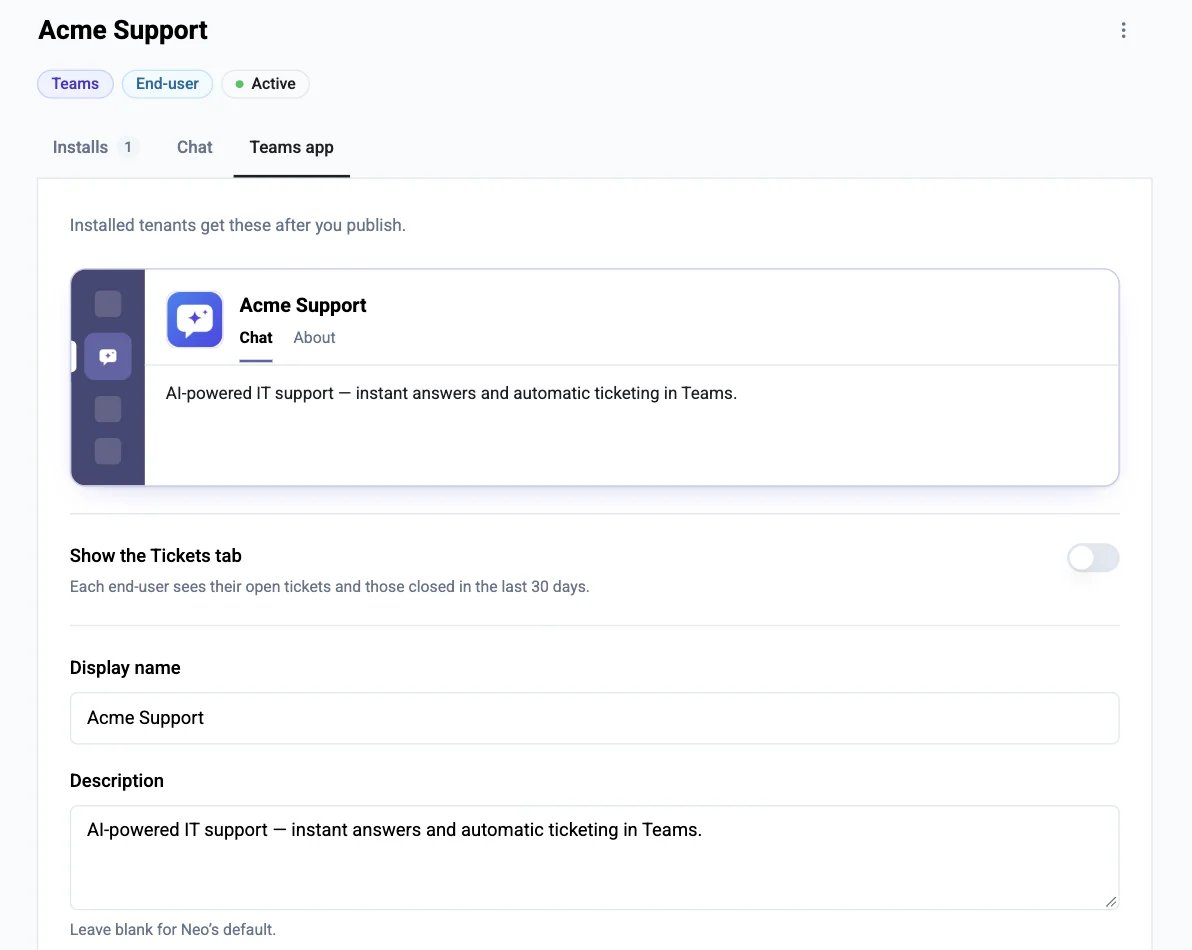
Publishing an update
Once a tenant has installed the app through an install link, the channel’s page shows when that tenant is not on the current Teams app:- A bar pinned to the bottom of the screen, on every tab. It reads Not published: and lists what waits, such as “Icon changed”, “Tickets tab turned on”, “App opens on the Tickets tab” or “1 tenant on an older version”.
- A dot on the Teams app tab.
- A Not published marker beside each field on the Teams app tab whose change waits for a publish.
- Teams shows the update after a few hours (Microsoft).
- In a tenant where the admin did Install for everyone, every user gets the update without a prompt.
- A user who added the app themselves also gets it without a prompt, unless Microsoft makes each user approve the change. For a channel, that is turning the Tickets tab on or off, or a new bot identity. Each of those users then clicks Update in Teams once. The dialog says when this applies.
Testing as an end-client
Before rolling a bot out to a client, chat with the end-user agent as a real end-user at that company — the same per-company instructions and the same restricted end-user toolbox apply, scoped to that person’s own tickets, just as they’d experience it — without installing anything in their tenant, and without needing a channel at all. It’s the fastest way to tune an agent’s per-client behavior. The test is reached from the Agents tab, because it tests the agent, not the channel. Admins and super-admins only, since the test acts as a real end-user.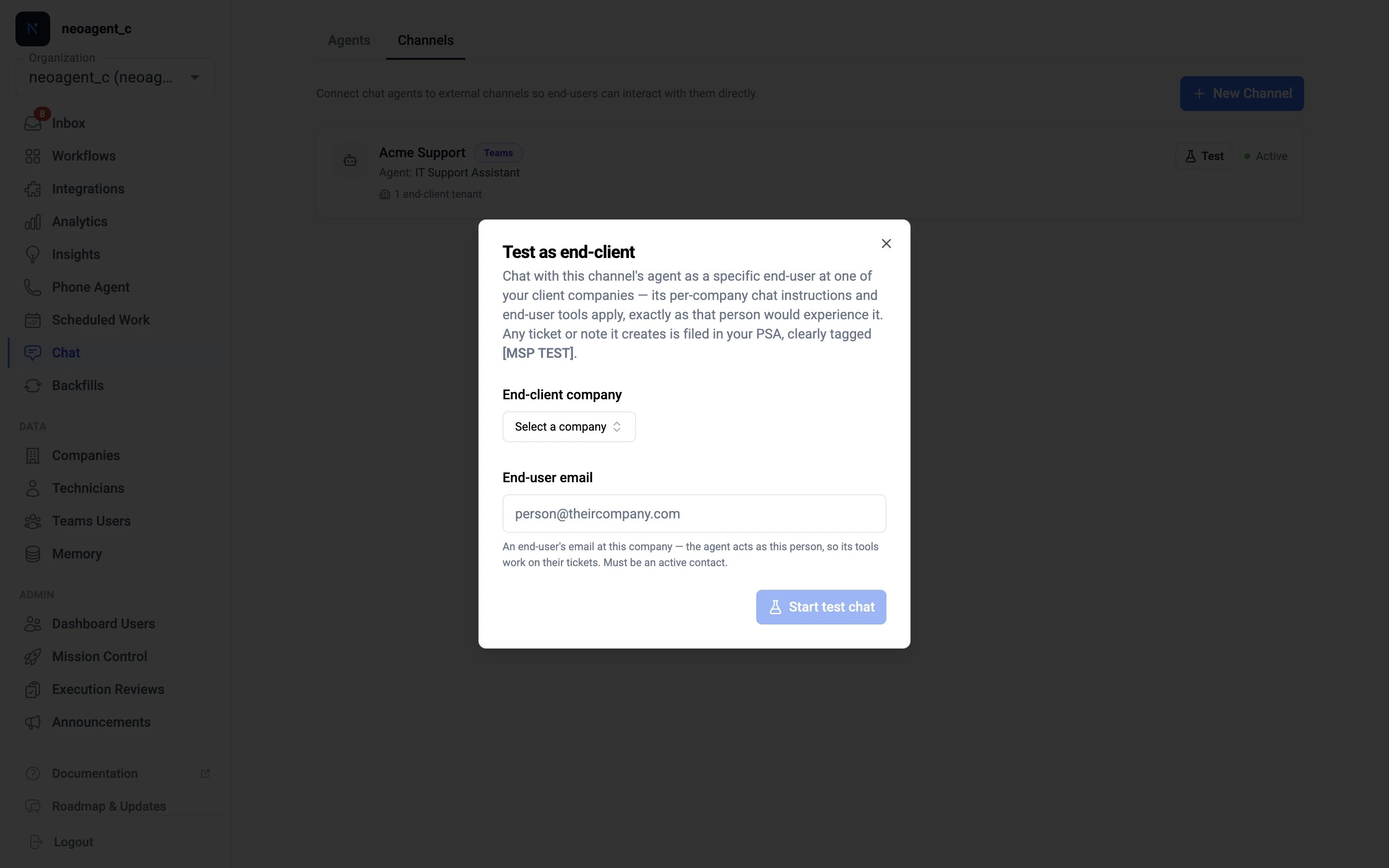
1
Open the agent's test
On Chat → Agents, click Test on the end-user agent’s row (or open the row’s ⋮ menu → Test as end-client). Internal agents show Chat here instead — they have no end-client to act as.
2
Choose who to act as
In Test as end-client, pick the End-client company, then enter an End-user email — a real, active contact at that company. The agent acts as this person, so its tools resolve to their tickets.
3
Chat
Start test chat opens a normal dashboard chat. A banner — acting as <email> at <company> — stays pinned above the conversation so the identity is always clear. New chat in the session list starts a fresh conversation as the same person, keeping the banner; open the agent’s Test again to switch to a different company or contact.
Anything the agent files lands in your PSA as a real record, but unmistakably tagged: ticket titles get an [MSP TEST] prefix and a body line noting the ticket came from a dashboard test, not a real end-user. Test sessions bill like any other dashboard chat.
Troubleshooting
Installing the bot
For a Teams channel, where the bot installs follows the audience. Both produce a branded Teams app and bind routing to this channel; the full step-by-step lives in each guide. A Slack channel installs as described in Slack (End-user) or Slack (Internal).Internal — into your own tenant
An Internal channel installs into your own Microsoft 365 tenant for your technicians. On the channel’s Installs tab, under Install in your tenant, Generate install link and open it yourself as a Teams/Global admin (or sideload the package from ⋮ → Download Teams app package). Full walkthrough: the custom internal bot guide. An Internal channel can only be installed in your own tenant — Neo refuses a client tenant, because it runs your full cross-company toolbox. Several Internal channels. Each new Internal channel gets its own bot identity, so several install side by side in your own tenant — say one for dispatch and one for documentation. The identities come from a fixed pool; once it is used up, creating another Internal channel is refused, on the New channel page and over the API alike, and the message tells you to delete an Internal channel you no longer use or to contact support.End-user — into client tenants
Send each client’s Teams or Global administrator a magic install link from the White-label installs table on the channel’s Installs tab: one sign-in publishes your branded app into their tenant and registers routing. One branded bot per client: a tenant already bound to another channel is refused. The table has one row per tenant, and each row shows where that tenant is: Link sent, Installed, Live for everyone and so on. The Channels table shows each channel’s tenant count. The step-by-step procedure, the manual zip path, verification and troubleshooting are in the end-user bot deployment guide.The company picker uses the Microsoft 365 tenant ID set on each Company — a company without one can’t be added until you set it there.
Slack (End-user)
An End-user Slack channel reaches your clients’ employees in their own Slack workspace, under your brand. A channel can’t be switched between Teams and Slack. In Slack the app’s name and icon belong to the app itself, so every Slack channel gets its own Slack app, which Neo builds for you. In short: on the channel’s Slack app tab, set the branding (a display name of at most 35 characters, and an icon of at least 512 × 512 px), click Request Slack app, and wait for Ready. Then, on the Installs tab, generate an install link per client company and send it to that client’s Slack admin. The workspace that installs with it is linked to that company, and every conversation from it is scoped to that company. The full procedure, what end users see in Slack, how it differs from Teams, and troubleshooting are in the end-user Slack bot guide.Slack (Internal)
An Internal Slack channel puts a Chat Agent you build in your own Slack workspace, for your technicians. It runs with the full MSP toolbox you give the agent, and no conversation is scoped to a client company. Like an End-user one, it gets its own Slack app with your branding, which Neo builds for you.1
Create the channel
Open Chat → Channels → New Channel. Pick the Slack transport and the Internal audience, name the channel, pick an Internal Chat Agent, and click Create channel.
2
Request the Slack app
On the channel’s Slack app tab, set the display name, description and icon, click Request Slack app, and wait for Ready.
3
Install it in your workspace
On the Installs tab, under Install in your own workspace, click Install in Slack. Only a dashboard Owner or Admin sees the button, and the install works only from the dashboard: the public API cannot make this link, and the Neo Support Agent sends you to the channel’s page. There is no company to pick. Slack opens in a new tab: sign in with the same email as your dashboard account, and click Allow. Neo checks the confirmed email on your Slack profile: it must belong to an active member of this dashboard. If Slack has not confirmed the email, or no active dashboard member has it, Neo refuses the install and removes the app from Slack again. Your workspace then shows in the list under Connected Slack workspaces.