
- Track Neo’s actions: see everything Neo has done, especially for a specific ticket
- Watch an agent: filter to one agent to see its runs, start one with Run now, and stop one that is still running
- Understand triggering: filter to a ticket and tick Include PSA events to see each time it was created or updated in your PSA and which agents that triggered, with the reason for every agent that did not match
- Hand a run back to Neo: Train sends a run to the Neo Support agent, which reads the run and the approval decisions your technicians made on it and proposes an edit to the agent’s instructions (your own feedback is optional). It is on the run’s row and on its Execution Log; Skillify turns a run that went well into a reusable skill
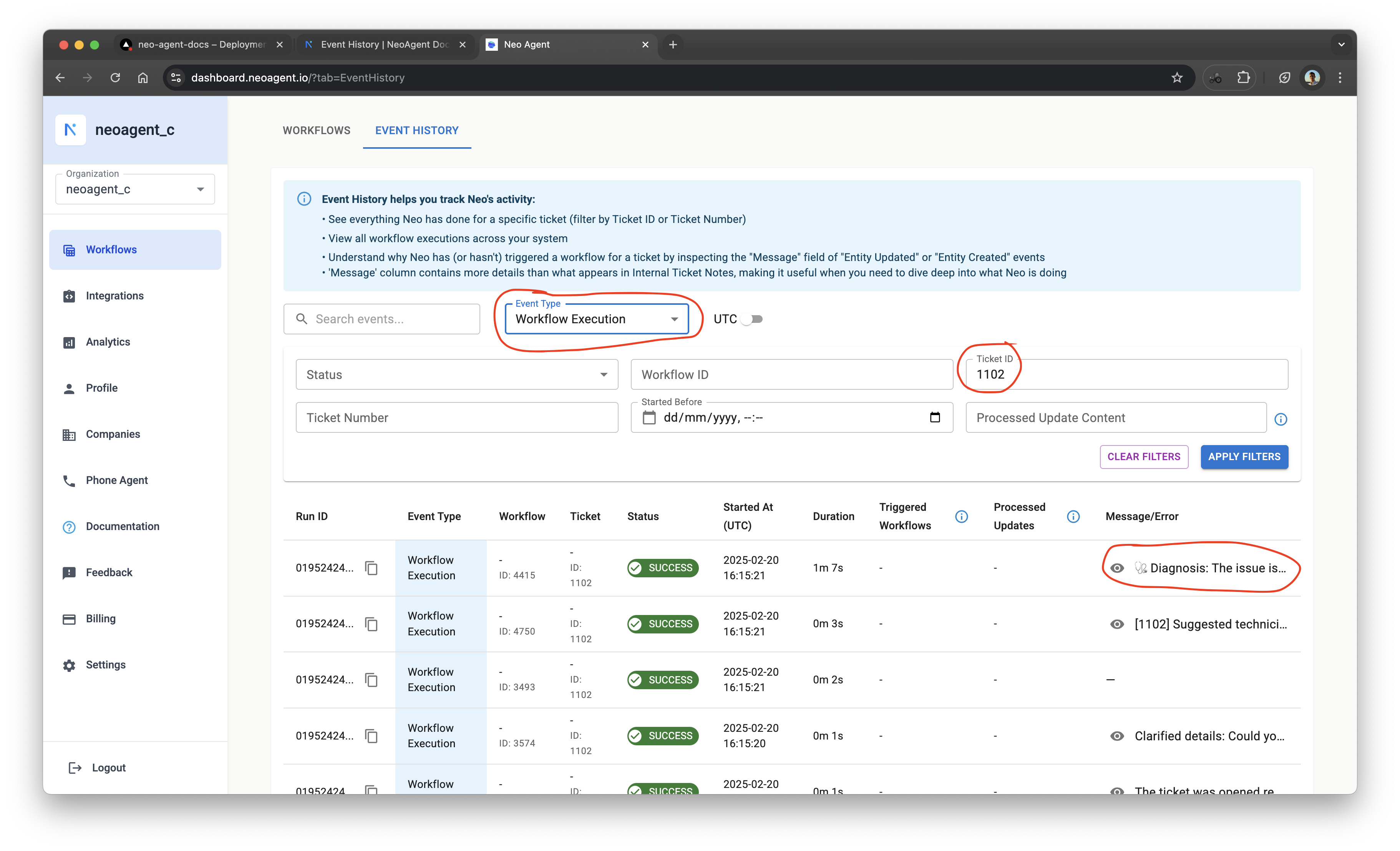
Row Types
Executions shows these kinds of rows:Workflow Execution
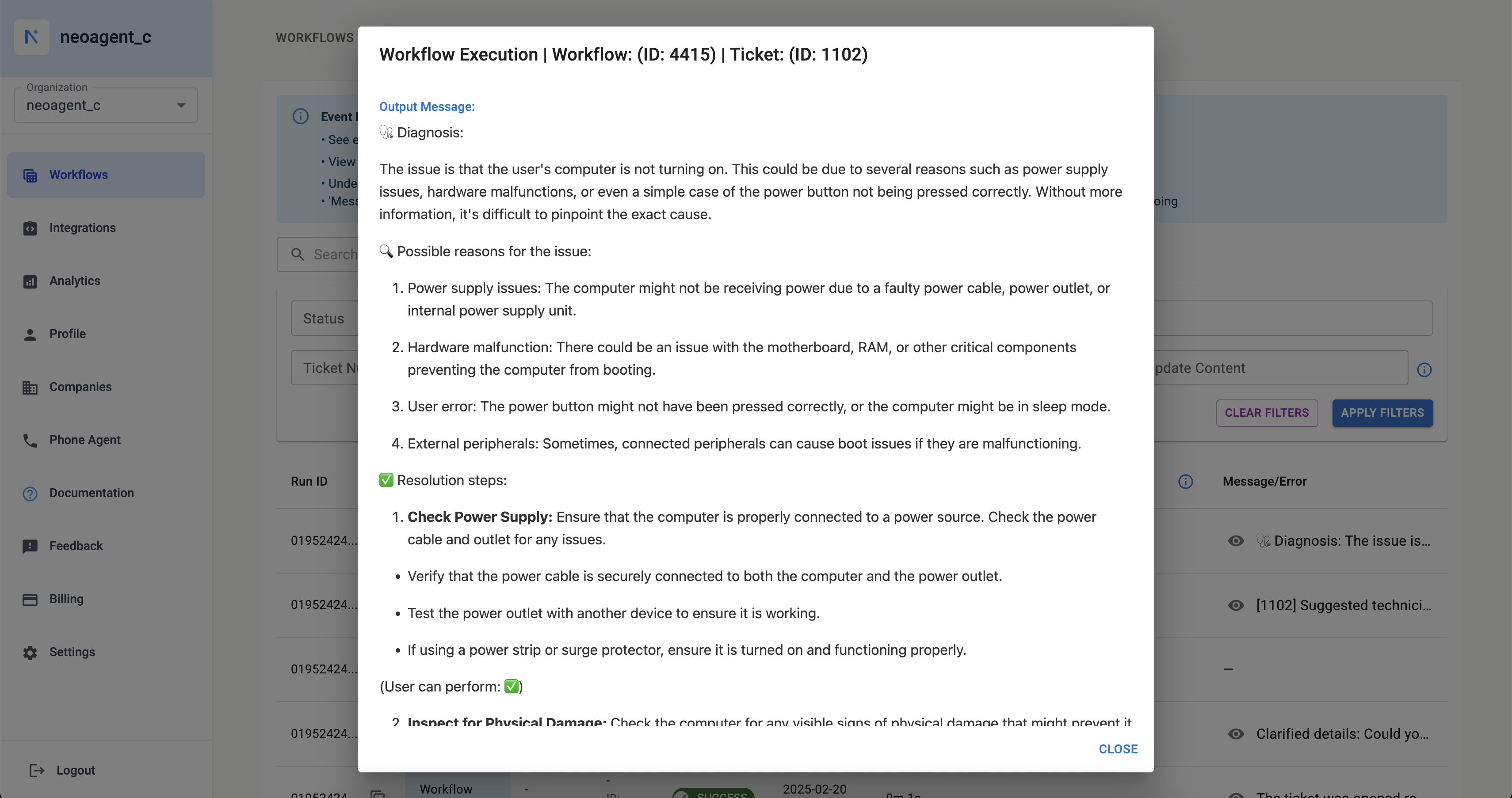
This event type logs the execution of one of your configured workflows. It shows the outcome of the workflow (e.g., Success, Failure, Skipped) and provides access to its output message or any errors encountered. Key information includes:- The specific workflow that ran
- The ticket or entity it processed
- Status, start time, duration, and credits billed for the run, with what they cost you
- For a successful run, the technician minutes it is estimated to have saved
- A detailed message, often including diagnoses, summaries, or actions taken
A Failure can still have done some of the work. If an agent is stopped part-way through — for example because a single model response stalled and Neo cut it off rather than letting it hang — the run is marked Failure even though the steps it had already completed stand. Neo retries the stalled step in place first, and only marks the run Failure if that doesn’t recover it. It deliberately does not start the agent over from the beginning, because that would repeat actions it had already taken in your PSA (duplicate notes, time entries, or emails).The run’s message says what happened and what was done. Open the run to see how far it got, then re-run it from Executions if the remaining work still needs doing.
Other Event Types
There are other types of events you should be aware of:- Entity Created: When a new entity (i.e ticket, project etc.) is created in the PSA.
- Entity Updated: When an existing entity in your PSA is modified
- Workflow Trigger Requested: When a Neo workflow triggers another workflow directly with the Trigger or Schedule Workflow tool. This hand-off is matched on the target workflow’s ID alone — it skips the target’s configured trigger event and its Filter Ticket conditions, so the target can run even when a PSA event would not have matched it.

No PSA events at all for a ticket? Check which boards Neo monitors, under Integrations → PSA Filters. An include filter accepts only the boards, queues or ticket types you list there; an exclude filter accepts every other one. Neo turns away the rest as they arrive, so a ticket the filter rejects produces no event row here, and no agent is ever considered for it. Neo keeps no record of a ticket it turned away, so an empty page here does not tell you whether your PSA sent the event. To start monitoring the board, add it to an include filter — Neo then indexes that board’s recent history too — or take it out of an exclude filter.
Filtering
Filters live in the URL, so a filtered view can be bookmarked or sent to a colleague.- Agent: one agent’s runs. The history icon on an agent’s row opens this view, and Run now appears once an agent is picked. Run now can also supervise that one run, so every change waits for a technician you name: see supervise a single run.
- Status: the default set hides filter mismatches; pick statuses to narrow further, or tick Filter mismatch to see them.
-
Ticket number / ID: runs and events for one ticket. Digits are read as the PSA’s ticket id; a value with letters, such as
T20260904.0009orINC0010530, as the ticket number. - Run ID: one run.
- Started after and Started before: rows that started inside a date and time range. Set one for an open-ended range. A grouped run with one run inside the range shows all its runs, including those outside it.
- Include PSA events: for the ticket you filtered to, also show its ticket created, ticket updated and trigger requested rows, with the Event and Triggered / Processed columns. Click Triggered by a PSA event under a run id to get there in one step.
- Local / UTC: the time zone every timestamp is shown in.
Understanding the Columns
The Executions table displays the following columns:Run ID
A unique identifier for the event.- For
Workflow Executionevents, this is the Temporal Run ID - For
Entity Created/Entity Updatedevents, this is the Callback ID
Event Type
Indicates the type of event:Workflow ExecutionEntity CreatedEntity UpdatedWorkflow Trigger Requested
Workflow
ForWorkflow Execution events, this column shows the Name and ID of the workflow that was executed.
Ticket
Displays the Ticket Number and/or internal ID of the PSA entity associated with the event. (Note: While labeled “Ticket”, this can apply to other entities like Projects or Opportunities if they trigger workflows).Status
The outcome or current state of the event processing:- SUCCESS: The workflow executed successfully, or the entity event was processed successfully (and may have triggered workflows)
- FAILURE: The workflow encountered an error during execution, or Neo failed to process the entity event. A run that was stopped part-way through also lands here — see the note under Workflow Execution on why partly-completed work is still reported as a failure. When a scheduled agent’s run fails on every retry, Neo also posts a warning to your Inbox and emails your workspace owners and admins, so you can rerun the agent with Run Now without watching this page. The Inbox card is one per agent and refreshes on each lost run; the email goes out at most once every seven days per agent
- SKIPPED: The workflow was intentionally skipped (e.g., conditions not met, “Run only once” constraint, or scheduling restrictions). For entity events, it might mean the callback was superseded by a more recent one or did not match any workflow triggers
- RUNNING: The workflow is currently in progress, or Neo is actively processing the entity event
- CANCELLED: Someone stopped the run while it was in progress. Stopping is not immediate, but nothing new starts: an agent stops before its next action, so only what it is already doing finishes first. A workflow built from a fixed list of actions stops at the end of the action running now, which can take longer
- Awaiting approval: The run is paused waiting for a technician to respond to an approval request. Once someone responds, a continuation run finishes the work
- Waiting for script: The run is paused until an RMM script finishes on the device; a continuation run then picks up the result
- Waiting for workflow: The run is paused until a workflow it started finishes, including any approval that workflow waits for; the run then continues with its outcome. See Trigger or Schedule Workflow
- Resumed: This run paused (for an approval, a script or a workflow) and a later run already continued it — nothing is stuck. You’ll see this on the individual runs inside an expanded group
- Superseded: The run continued in a different run, so nothing more happens here. It is not a cancellation and not a failure: the steps it took and the credits it billed are real. Only historical runs carry this status; untick Superseded in the Status filter to hide them
Runs the platform stopped
A run can be stopped from outside by the platform itself — most often because it reached the time limit for a single run, but also if the machine executing it was replaced mid-run. In those cases the run has no chance to record its own outcome. Neo now recovers the outcome for you. Within a day or so, such a run stops showing Running and takes its real final status:- Failed, when the run was stopped before it finished. The message says the run never recorded an outcome of its own, and you can retry it from the row.
- Success, when the run had in fact completed and only the final record was lost.
- Could not confirm, shown as Failed with a message saying so, for very old runs whose record is no longer available to check, and for the rare run that left no record of how it finished.
Entity events Neo could not process
AnEntity Created or Entity Updated event can end before Neo matches it to any workflow. The usual causes are a PSA that does not answer in time, a PSA API rate limit exhausted during a busy period, or a ticket deleted in your PSA.
These events show FAILURE, with the reason in the message column — for example Autotask API hourly rate limit exceeded. They used to show RUNNING and stay there. A deleted ticket is the exception: there is nothing left to act on and nothing to fix, so the event shows SKIPPED with the reason beside it.
No workflow ran for that event, and Neo does not retry it. Read the reason, then trigger the agent manually from its page if you still need the work done. Rate-limit errors are also reported in your Neo Inbox.
Events from before this shipped keep their old RUNNING display.
Grouped runs (approvals and script waits)
When a run pauses for a technician approval or an RMM script, the continuation is technically a separate run. Executions shows the whole thing as one row: the row carries the latest status, the start time of the first run, the combined runtime (with the waiting time shown separately, e.g.+ 3h 12m waiting for approval), and the total credits. A “N runs” badge with an expand arrow reveals the individual runs — each keeps its own Run ID, status, steps, and actions.
Runs from before this feature shipped aren’t grouped and keep their historical PAUSED label.
Started At (UTC)
The timestamp (in UTC by default, but can be adjusted with the timezone selector) when the event began.- For
Workflow Executionevents, this is when the workflow execution started - For
Entity Created/Entity Updatedevents, this is typically thecreated_in_psa_attimestamp, meaning when the change actually occurred in your PSA
Duration
ForWorkflow Execution events, this shows how long the workflow took to complete.
Credits
ForWorkflow Execution events, this shows the number of credits billed for that individual run. This makes the cost of each execution transparent — it’s especially useful for scheduled (ticketless) agents, where a run’s cost isn’t tied to a single ticket and would otherwise be hard to attribute.
Beside the credits you see what they cost at your price per credit, and for a successful run the time it saved: 2 credits ≈ $0.26 · ~6 min saved. Hover over the minutes for where they come from: the agent’s own estimate at the end of the run, a workflow’s fixed minutes per action (an action that changed nothing counts none, except triage), the minutes your team set for the workflow, or the time a chat agent logged on the ticket. A run that paused, failed or was cancelled shows no minutes; the run that finishes the work records them. A grouped row adds up its runs, and the run detail page shows the same figures in its header.
Entity events (Entity Created / Entity Updated / Workflow Trigger Requested) don’t consume credits, so this column is blank for them.
Triggered Workflows
ForEntity Created / Entity Updated events, this column lists the IDs of any workflows that were started as a result of this entity event.
Processed Updates
ForEntity Created / Entity Updated events, clicking the icon in this column opens a modal displaying the Processed Audit Trail. These are the specific changes from your PSA’s audit trail that Neo analyzed to determine if any workflow trigger conditions were met.
Message/Error
Provides a summary or detailed information about the event: Workflow Execution events only: This column shows the primary output message from the workflow (such as a diagnosis, summary, or confirmation of actions taken), or an error message if the workflow failed.Note: Message/Error is currently populated only for Workflow Execution events. Entity Created and Entity Updated events do not display messages in this column.
”This run made no tool call that can change a connected system” notice
An agent changes your PSA, RMM or Microsoft 365 tenant only by calling a tool, and Neo records every tool call as a step on the run. Some tools cannot change anything — a search, a ticket read, a skill load. When a run’s tool calls are all of that kind, or it made none at all, and its message still reports a completed change — a status change, a note, a logged time entry, a sent message — Neo appends a short system notice to the end of the message:System note from Neo: this run made no tool call that can change a connected system, so it changed nothing in any of them. Any change described above as completed was not carried out by this run — it is context carried over from earlier activity. Please verify the ticket before relying on it.This happens when an agent re-tells work from an earlier run on the same ticket as if it were its own. The notice is added, never substituted: the agent’s own message is left exactly as written, so a mandated report format keeps every part of it. A run that reports no action (“reviewed, no changes needed”) never gets the notice, and neither does a run that called at least one tool able to change something. Neo counts a tool that reads on one call and writes on the next — the PSA, Graph and RMM API tools, the sandbox — as able to change something on every call, so a run that only reads through one of those is not flagged. If you see the notice, treat the actions listed above it as unconfirmed and check the ticket itself.
Execution Log
Steps on a run’s row opens its Execution Log: its own page, at/executions/<run id>, so you can bookmark a run, share the link with a colleague, or open several runs in tabs. The Open run link in the Audit Log and the per-subagent link in a fan-out land on the same page.
The page reads the run as a story rather than a flat list of rows:
- The header names the agent and the ticket, with the run’s status, its run id to copy, how long it took, how many actions it made and how many of them failed. A supervised run carries a Supervised label, here and in the Executions list.
- Each of the agent’s reasoning steps is a heading. Click it to read the full reasoning summary.
- Under each heading, one line per action: the tool the agent used, what came back, and how long the call took. A failed call is red. Click a line for the exact arguments and the full result, with the tool’s internal name and a copy button.
- Each approval card the run raised sits at the point where the agent raised it. While it waits, an admin or a technician it was sent to can answer it right there, with the same choices as the Approvals page: only an agent’s request offers Ask for changes, every dispatch request offers Don’t auto-assign, and a dispatch proposal also offers Offer to someone else. An answered card shows the decision, who made it and their note. See Watch the run.
- A run that paused for an approval or a script, and then resumed as a new run, shows as one flow: every run’s steps in order, a line where each run starts with its run id to copy and how long it waited, and the newest run’s status and outcome. The header counts the runs, the time spent waiting and the credits of all of them.
- The run ends with its outcome: the agent’s own verdict on how far it got (resolved, partially resolved, stopped for missing tools), the reason when it fell short, and the message it wrote.
Use Executions to validate that your workflows are triggering correctly and producing the expected results. The detailed logs help you fine-tune filters and troubleshoot issues.