
How it works, in four steps
1. Build a chat agent
Create a conversational agent for end users — instructions in their language, read-only tools plus “file a ticket”. Test it in the dashboard before anyone sees it.
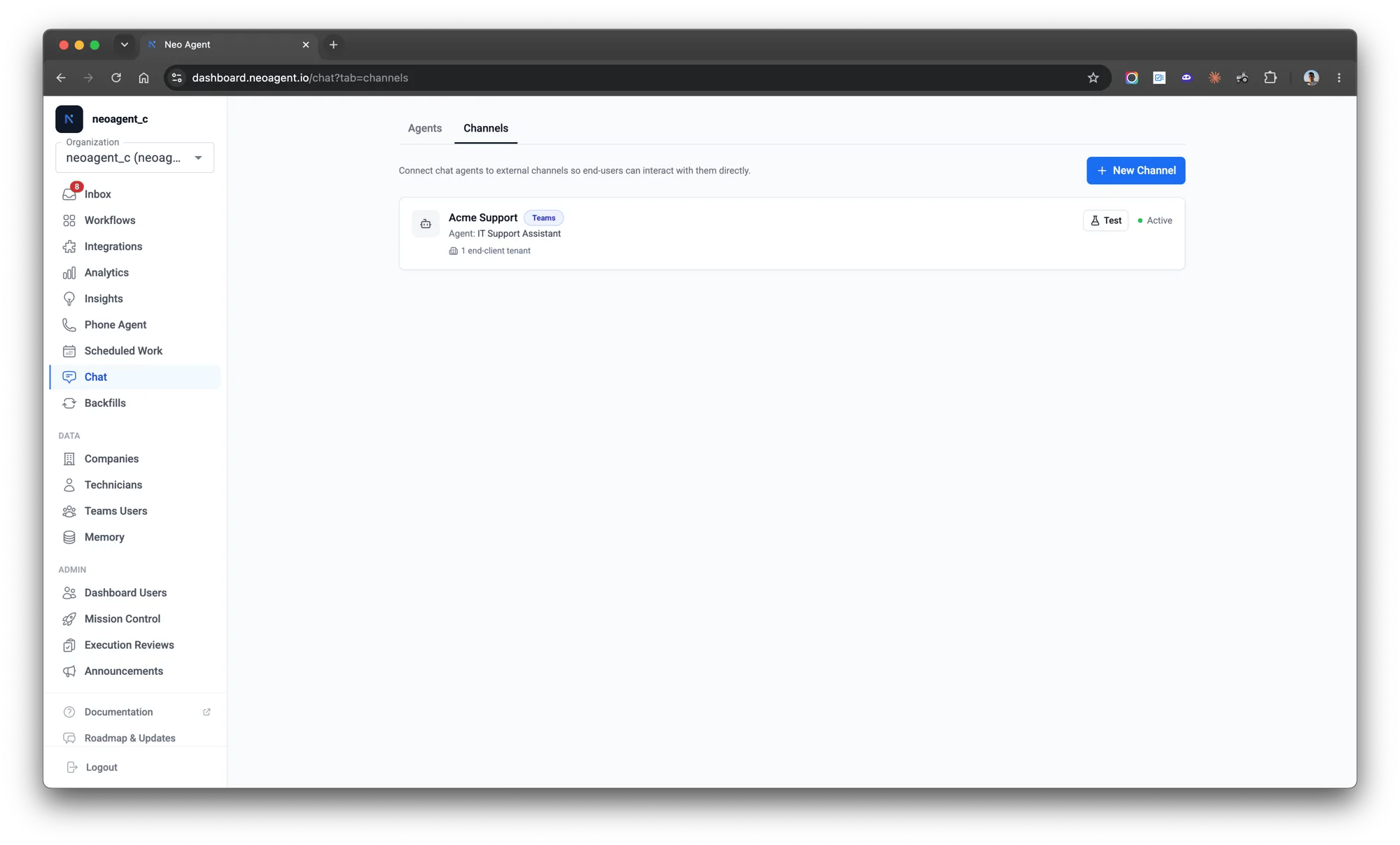
2. Brand it as a channel
A channel ties the agent to Teams and carries the branding end users see — display name, icon, welcome message. Every field is optional; blanks use a Neo default.
3. Install in a client's Teams
Generate a magic install link and send it to the client’s Microsoft 365 admin. One approval publishes your branded bot into their tenant — no zip to upload.
4. Employees get support
Their employees message the bot in Teams. It answers, files tickets, and relays live ticket updates back into the same chat — all scoped to that one company.
What your clients’ employees get
- Instant answers from your customer-facing knowledge base — no waiting on a queue for the routine stuff.
- Their own tickets — they can raise a ticket through the bot and check the status of any of their tickets at any time.
- Live updates in the same chat — when a technician posts a client-facing update on their ticket, it arrives in the Teams conversation, and their reply goes straight back onto the ticket. See live ticket updates.
- Your brand, end to end — your name, your icon, your welcome message. Neo is never visible to the end user.
Why it’s safe to put in front of end users
Every conversation through the bot is locked to the one company the employee belongs to, recognized automatically from the Microsoft 365 tenant their message comes from. The bot can only see that person’s own tickets and your customer-facing documentation — never your other clients, internal notes, or anything across your client base. That boundary is enforced by the platform, not by how you configure the agent, so there’s no toolbox setting that can accidentally over-share. The branded app published into the client tenant is messaging-only — it has no Microsoft Graph access there. All the real work happens through your integrations, under your permissions and technician approvals. The full architecture is in how end-user bots work, and the consent details a client admin might ask about are in consent and security.Test before you roll out
Two ways to try a bot before a client ever sees it:- Its behavior — chat with the agent as a real end-client at a chosen company, right in the dashboard. No install, instant.
- The Teams experience — branding, the welcome message, cards, proactive messages — by installing into your own tenant first.
Roll it out
Deployment guide
The full procedure, top to bottom — install link, Teams admin center steps, verification, updates, and troubleshooting.
Recipe: end-user support bot
A worked end-to-end example, from a tested chat agent to a branded bot answering a client’s employees.
Looking for Neo for your own technicians? That’s a different surface. The Neo AI Agent app delivers workflow notifications, approval cards, and the Neo Support Agent; or put one of your own agents in your technicians’ Teams as a custom internal bot. The Teams overview lays out which is which.