
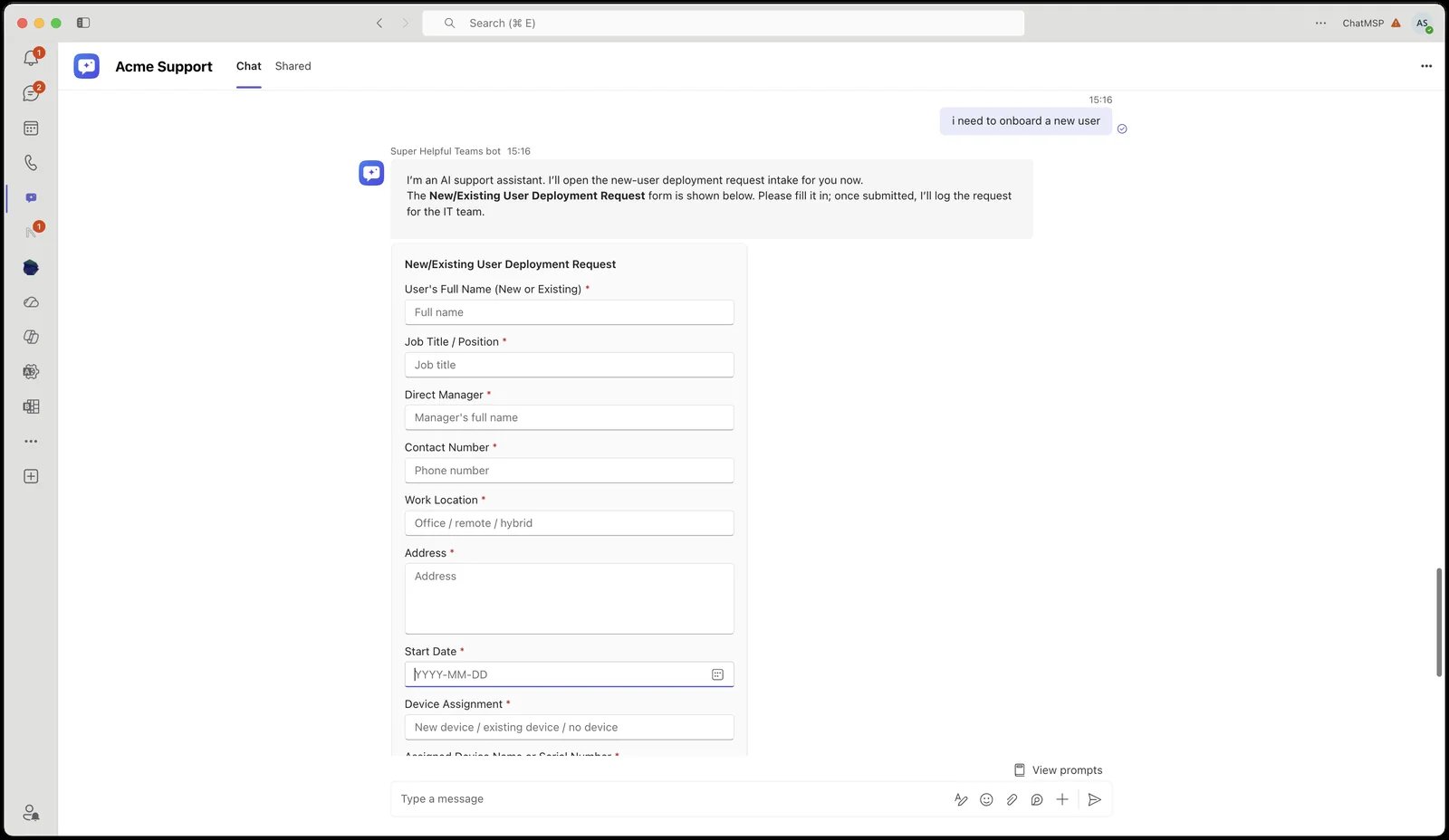
What the employee sees
The bot recognises the request from the intents offered to their company, then posts the form and waits. It doesn’t ask those questions itself and doesn’t repeat them back — the form is the intake.- Required questions are enforced in the card. A missing answer is flagged where the employee is typing, before anything is sent.
- Each form is submitted once. Scrolling back and re-tapping an old card doesn’t inject stale answers into a live conversation — the bot shows what was already sent instead.
- After Submit the card becomes a read-only summary of the answers that went through. Because the answers reach the agent as a submission rather than a typed message, that summary is the employee’s record of what they sent.
- In a group chat, the form belongs to whoever asked. Everyone can see the card, but only the person whose request produced it can submit it.
Building a form
Forms are built on the intent itself, under Form, below Questions to ask.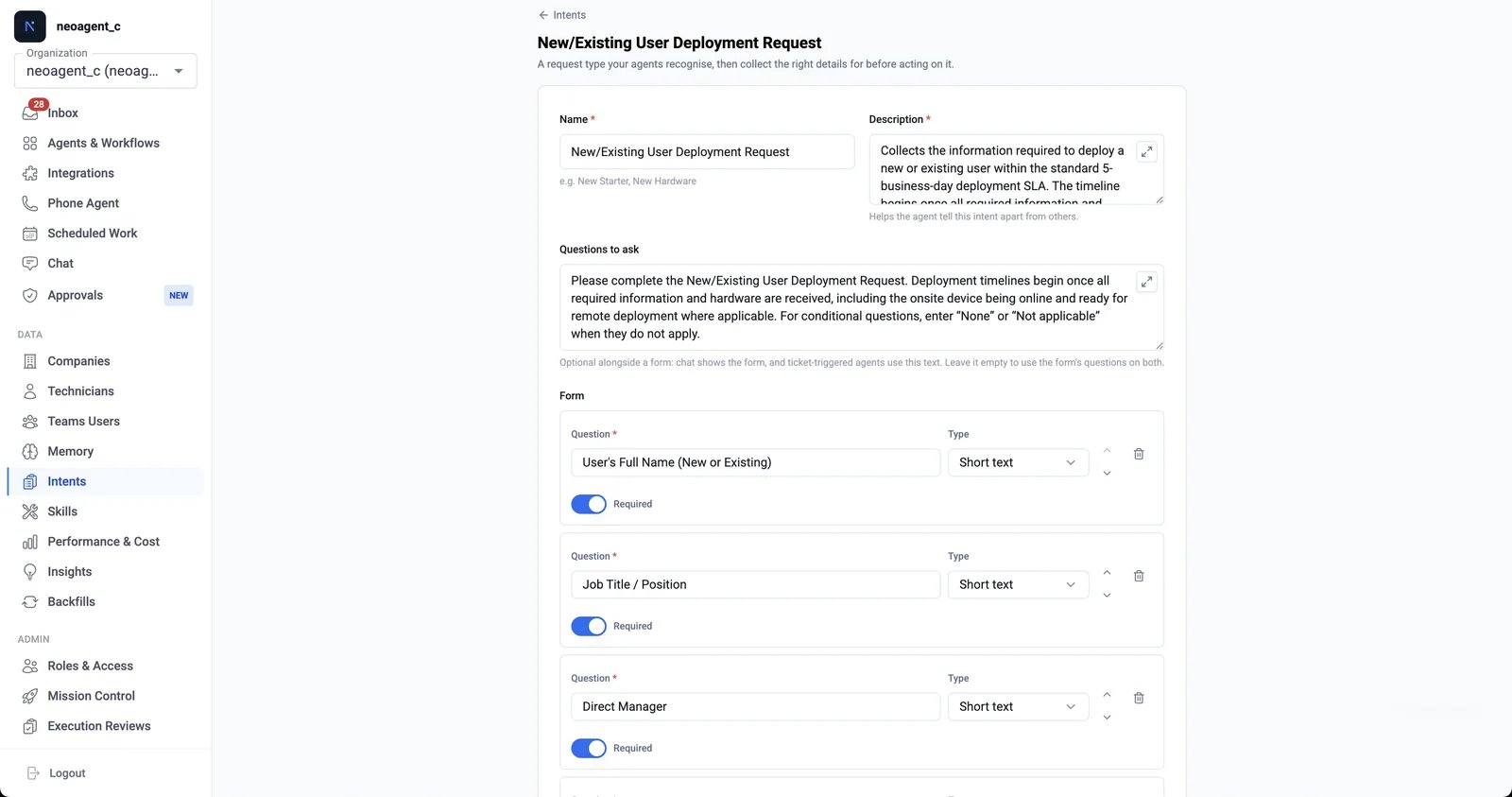
1
Open the intent
Go to Intents under Data in the left navigation and open the intent (or create one).
2
Add your questions
Under Form, select Add question. Each question has the text the employee sees, a Type, and a Required toggle. Reorder with the arrows — the form asks them in the order you list them.
3
Add a description where the question needs one
Select Add description on a question to add an optional line shown under it, for anything the question itself can’t carry — a rule, a lead time, what counts as an exception. “Please note there is a ten day lead time on all new starters” belongs here, not in the question. Most questions don’t need one, so the box only appears when you ask for it; the ✕ beside it removes the description again.It reaches every surface: under the input on a form, and in brackets after the question in the numbered list a triggered agent sends.
4
Add options where the type needs them
Dropdown and Multi-select questions take an Options list; the other types don’t.
5
Save
The form is live on the next message — you don’t need to restart a conversation that’s already open.
Question types
Dropdown and Multi-select need at least one option; the other types don’t take options at all.
Limits
An intent’s form can hold up to 25 questions, with up to 40 options on any one question and 150 options across the whole form. A description can run to 750 characters, and 5,000 characters across the whole form. None of these are taste. Everything on a form travels inside one Teams card, options twice over, and a card past 28KB doesn’t render at all. The editor shows your counts as you build and blocks a save that goes over.Forms and “Questions to ask” together
The two can coexist, and which one is used depends on where the request arrives:
Both chat surfaces can draw a form, so someone in internal chat fills in the same card an end user would. A ticket has nowhere to draw one, so on a triggered agent the same questions become a numbered list in the agent’s client-facing reply, options spelled out. Nothing is lost; it just arrives as an email.
That’s the reason to fill in both: write prose specifically for the email round-trip while chat users get the form. Leave Questions to ask empty and the form’s questions stand in on every surface.
Related
Intents
What an intent is, how it’s matched, and how to scope one to agents and companies.
How end-user bots work
The trust boundary and the bot-ticket-agent split behind every end-user conversation.
Triggered workflows
How ticket events trigger an agent — and how a customer reply re-triggers it to continue intake.
Teaching Neo
Where intents fit next to instructions, skills, and memory — and how the four compose.