
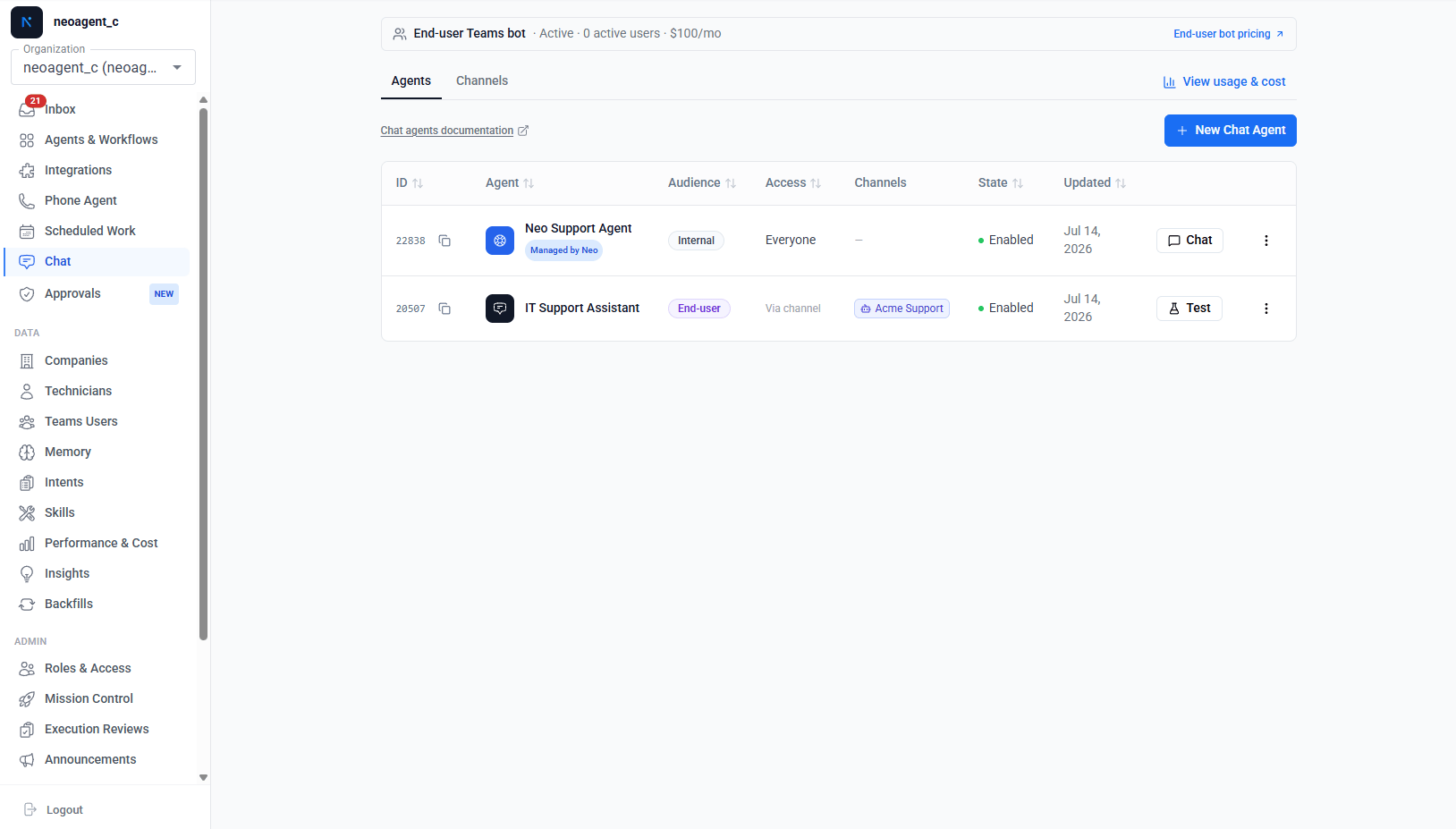
The Neo Support Agent is listed for everyone its Chat Agent Access mode admits — everyone on your team, by default — and those people also get the Need help? button in the bottom-right corner of any page. Restricting that mode removes both for the people it excludes. Which company data the agent uses is a separate per-person setting: AI chat data access.
Sessions
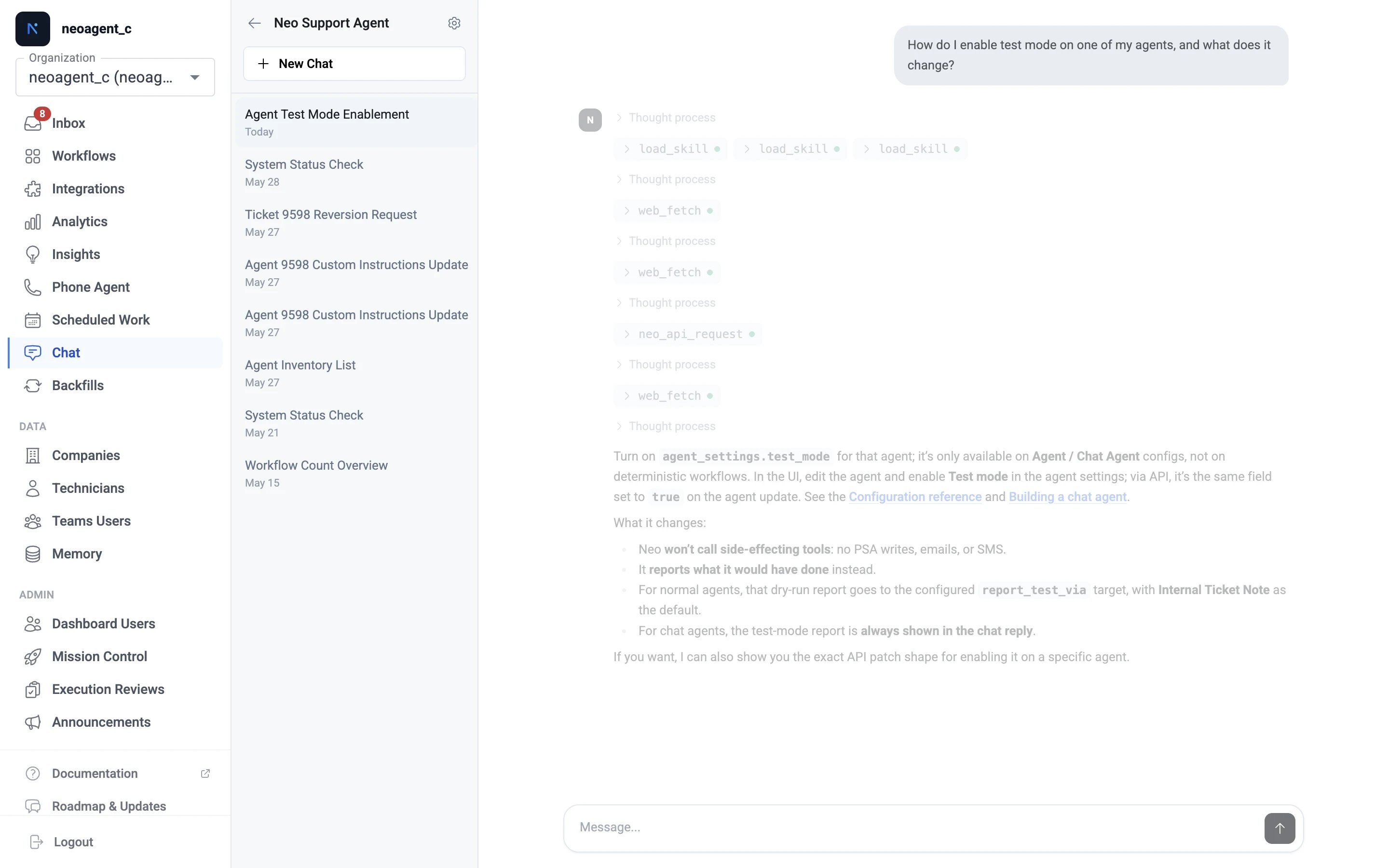
Each conversation is a session — scoped to you and the agent you picked.- New conversations start from the session sidebar. Each session keeps its own context; the agent remembers earlier turns within it.
- Auto-naming — sessions title themselves from the first exchange, so the sidebar stays scannable.
- Archiving removes a session from your sidebar. In Teams, “start a new chat” does the same and starts fresh; in Slack,
/newdoes. - Sharing — share a session with teammates; they get a read-only view of the conversation.
- Long conversations open on your most recent messages. Load earlier messages, at the top of the conversation, brings in older ones a page at a time.
If the agent replies that a request pulled in more than it can work with at once, ask again more narrowly — a shorter date range, fewer records, or only the fields you need. This is usually one oversized question (for example, “go through every ticket this year”), not a conversation that ran too long, so you can carry on in the same session.
Attaching files
Click the paperclip in the composer, or paste a screenshot, to attach up to 6 files to a message. You can attach images (PNG, JPEG, GIF, WebP) and documents: CSV, Excel (.xlsx and .xls), PDF, Word (.docx and .doc) and plain text. Hover the paperclip to see the list. Teams chat takes the same files.
- Images — the agent sees them directly, so it can read an error on a screenshot.
- Documents — your own chat agents and the Neo Support Agent copy a file into their sandbox, where they run code, when they need to read it, and work on it there. A spreadsheet is read row by row with code, and a PDF or Word document as text, so a request like “look up each Autotask ticket in this sheet and summarise it” works on every row, not a sample. In a workbook with several worksheets the agent reads the first one, so put the rows you need there or save that sheet as CSV.
- On a ticket — the agent can also put any file you shared on a PSA ticket with Attach File to Ticket.
.doc, and will ask you to save it as .docx. A scanned PDF has no text inside it, so send screenshots of the pages you need instead. Both can still go on a ticket.
End-user Chat Agents don’t read document contents. They can only put a shared file on the end user’s ticket, where your technicians open it.
Scripts that run after the reply
An RMM or on-prem PowerShell script the agent starts runs on the device, and can still be running when the reply ends. The chat does not post the result by itself when the script finishes. For a short script, the agent waits and checks within the same reply. Otherwise it tells you the script is still running, and reads the result the next time you message it, for example “is it done?”.Stopping the agent
While the agent is working, the composer’s send button becomes a Stop button. Stop tells the agent to stop — it will not start another action, and the run ends. The reply keeps whatever it had already written. A stop takes effect at the agent’s next step, so if it’s in the middle of a long-running action (a script, a large lookup), it stops once that action returns. Teams’ own stop control on a streamed reply does the same thing. If your browser loses the connection to a running conversation — you close the tab, the network drops, or you stop it — the conversation tells you the agent is still working and offers Reconnect (re-attach to the live reply) and Stop. Take that notice seriously: until the turn ends, sending a follow-up won’t reach the work already in flight. If you want to correct the agent, stop it first, then send the correction.Approvals happen in the chat
When a chat agent needs Technician-in-the-Loop approval for a sensitive action, the approval card appears inline in the conversation — you approve or reject right where you asked. Chat agents always use the in-chat approval channel; Teams card delivery doesn’t apply because you’re already in the conversation.Your own records are never withheld from you
A Chat Agent reads your systems with your MSP’s integration credentials, not with the account of the person chatting, and it reaches only the systems and tools you enabled on it. So what it retrieves is your own data, read under access your organisation granted it — a technician can get a record through an authorised agent even when their personal PSA or Microsoft 365 account could not open it. It reports those values as the source system holds them — assigned resource and technician names, contact names and email addresses, ticket titles, device and account names — without redacting, anonymising or relabelling them. There is no privacy setting in Neo that hides your organisation’s own records from you, and an agent should never tell you there is. If one of those record values comes back as a placeholder such asAssigned — redacted or [Name redacted], or the agent claims a data-protection rule stops it from naming a person or a record, that is a bug: raise it with the Neo Support Agent and link the conversation.
Three things are genuinely restricted, and each has its own scope. Not printing a secret applies to every Chat Agent and every audience: an agent never puts a secret value — a password, an API key, a token — into a reply; it replaces the value and tells you it did. Handing the value over safely is an internal Chat Agent capability. It needs the Generate Secure Link tool enabled on the agent, which puts the secret behind a link that expires and allows only a limited number of views. The link is not spent after the first open — treat it as live until it expires, so pass it only to the person who needs the secret. Anyone who reaches the link can read the value, so keep it out of a shared mailbox, a group chat, or a document your whole team reads. Recording the link itself is fine where the plaintext value would not be, so an agent that generates a credential — a password reset, a new mailbox, a rotated client secret — writes the link wherever that run has to deliver it: an internal ticket note, its own run summary, or the client-facing update the request calls for. The link is the delivery channel by design; only the plaintext value is kept out. Neo never does this on its own: no agent scans your tickets for credentials your technicians wrote, and none rewrites a note or a time entry to move one. They stay where your team left them unless one of your technicians asks an agent to change them. That tool is internal-only, so an end-user Chat Agent has no way to deliver a secret at all: it replaces the value and stops there.
Internal notes are the second. Every Chat Agent carries a standing instruction not to reproduce an internal note in a reply, so a request to quote one back can come back declined even though the note is your own. That restriction covers the note text itself and nothing else: the ticket’s own fields — title, assigned resource, contact, status — still come back verbatim, and a refusal that reaches those fields is the bug described above. To read an internal note itself, open the ticket in your PSA.
The third restriction applies to one kind of agent. An end-user Chat Agent — the agent your client’s employees talk to — is declared as a separate trust domain with a much narrower toolset, so it does not see your internal records at all. What sets this is the agent’s own declared audience, so an internal agent stays on the full internal toolset for everyone who chats with it.
Feedback
Every agent reply has thumbs-up / thumbs-down; feedback is collected per message and reviewed to improve agent behavior.History (owners)
The History tab shows every conversation in your workspace — dashboard, Teams and Slack, across all users — so you can read how an agent actually behaves without being the one chatting with it. Typical uses: checking why a change to an agent broke its replies, finding the conversations that consume the most credits, and reviewing what your clients’ employees ask an end-user bot.- Two lenses. Internal lists conversations your technicians had with internal agents; End-user lists conversations your clients’ employees had with your white-label bot, with a company filter. The End-user lens only appears when you run an end-user agent.
- Filters and sorting. Narrow by agent, user (or client company), channel, and time window, or search titles. Sort by last activity, most credits, or most turns — “most credits” is the fastest way to find expensive conversations.
- Cost per conversation. Each conversation in the list shows its credits and what they cost you, for example 42 cr ≈ $4.91, at your price per credit. The transcript header gives the total for the whole conversation.
- When each message happened. Every message in the transcript shows its date and time to the second. Most replies also show how long the agent took to answer, for example 44s; conversations from before June 2026 do not record it. The Local button in the transcript header switches every time in the conversation to UTC and back.
- Per-turn cost detail. Under each reply, the transcript shows what that turn cost and which tools it called (for example,
AUTOTASK_PSA_REQUEST ×28). A turn that consumed a large share of the conversation’s credits is highlighted, so the expensive step is visible at a glance. These are the same numbers that power sessions & billing. - Drill into any reply. Each reply expands: Reasoning shows why the agent chose what it did, and every tool call opens to the exact request it sent and the response it got back — so you can see what each of those PSA calls actually was, not just the count.
- Feedback in place. Conversations where someone rated a reply down are marked in the list, and the rating (with any comment) shows under the reply itself.
- A clean view to share. The Hide details button in the transcript header hides the reasoning, tool calls, credits and ratings, so you can screenshot the conversation for a client. The messages and their times stay. Show details brings everything back; each transcript opens with details shown.
/chat?tab=history&agent=<id>.
What the agent can do is its configuration — enabled tools, integration permissions, custom instructions. If it refuses something or lacks access, see Building a chat agent.