
What is Scheduled Work?
Scheduled Work lets you plan workflow and agent executions for the future. Instead of running a workflow immediately, you can schedule it to run at a specific date and time — perfect for tasks that need to happen later, like employee offboarding after a last day or follow-up actions after a waiting period.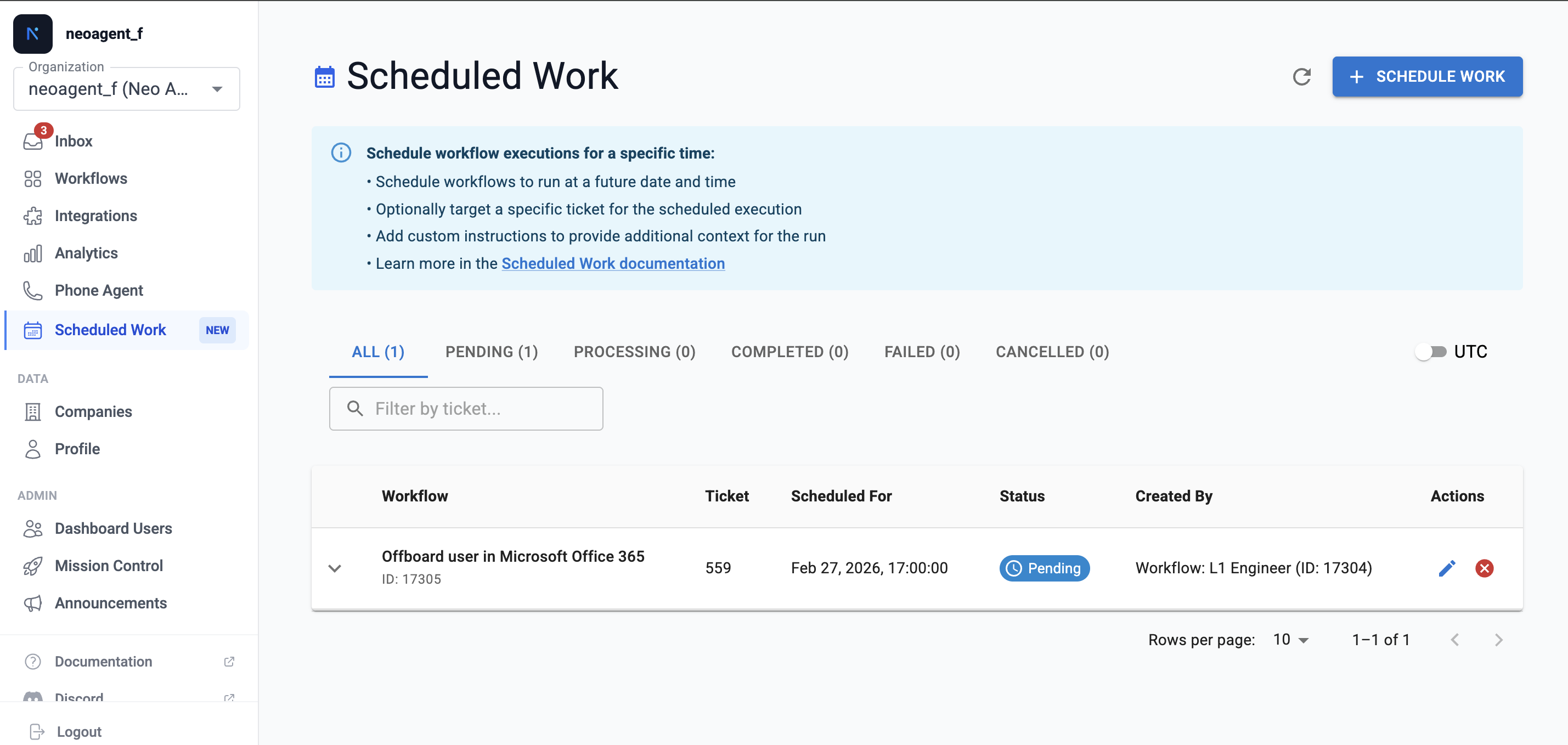
How It Works
There are two ways to create scheduled work:1. From the Dashboard
You can manually schedule any Triggered workflow to run at a future time:- Go to Scheduled Work in your dashboard
- Click Schedule New Work
- Select the workflow you want to run
- Pick the date and time for execution
- Optionally link it to a ticket and add custom instructions
2. From an Agent
Neo Agents can schedule work automatically using the Trigger or Schedule Workflow tool. This is powerful for multi-step processes where some actions need to happen later.When a ticket names a future date, an agent holds back only the work that date applies to, such as disabling a leaver’s account on their last day. Everything else its instructions ask for happens in the same run: classification, field updates, notes and time entries. An agent without the Trigger or Schedule Workflow tool cannot book the later run itself, so it notes when the dated work is due and escalates it per its instructions.
Use Cases
Employee Offboarding
When processing a termination ticket, the agent can:- Immediately remove the user from sensitive groups
- Schedule email forwarding setup for the last day
- Schedule account deletion for 30 days after departure
Follow-Up Actions
- Schedule a customer satisfaction survey to send 3 days after ticket resolution
- Schedule a check-in workflow to verify a fix is still working after a week
Compliance & Auditing
- Schedule security review workflows to run at specific compliance deadlines
- Schedule recurring cleanup tasks at month-end
Managing Scheduled Work
From the dashboard, you can view and manage all scheduled work entries:Editing Scheduled Work
While an entry is Pending, you can:- Reschedule — Change the execution date and time
- Update Instructions — Modify the additional instructions
- Cancel — Stop the scheduled work from running
What Workflows Can Be Scheduled?
Only Triggered workflows can be scheduled. Scheduled workflows (those that run on a cron schedule) already have their own timing mechanism. To schedule a workflow, it must be:- Enabled — Disabled workflows cannot be scheduled
- Triggered type — Only event-triggered workflows support scheduling
Viewing Scheduled Work Details
Each scheduled work entry shows:- Workflow — The workflow or agent that will run
- Scheduled For — When it will execute
- Ticket — The associated ticket (if any)
- Status — Current state of the entry
- Created By — Who scheduled it (dashboard user or agent)
- Additional Instructions — Any custom instructions provided
Best Practices
Use Descriptive Instructions
When scheduling work, add clear instructions so the executing agent knows the context — especially if weeks pass between scheduling and execution.
Link to Tickets
Always link scheduled work to the relevant ticket. This ensures the agent has full context when it runs.
Review Pending Work
Regularly check your pending scheduled work to ensure nothing is outdated or needs rescheduling.
Consider Time Zones
Scheduled times are in UTC. Make sure you account for time zone differences when scheduling.
Related
Trigger or Schedule Workflow
Learn how agents trigger or schedule workflows
Triggered Workflows
Understand how triggered workflows work