
- Auditing changes for compliance and troubleshooting
- Safely rolling back to a previous, stable version if an update causes unexpected behavior
- Facilitating team collaboration by providing transparency on who changed what and when
Accessing version history
You can access the version history for any workflow directly from the main Workflows page:1
Navigate to Workflows
Navigate to the Workflows section in Neo Agent.
2
Locate your workflow
Locate the workflow you want to inspect.
3
Open the menu
Click on the three-dots menu (kebab menu) on the right side of the workflow row.
4
Select Version History
Select “Version History” from the dropdown menu.
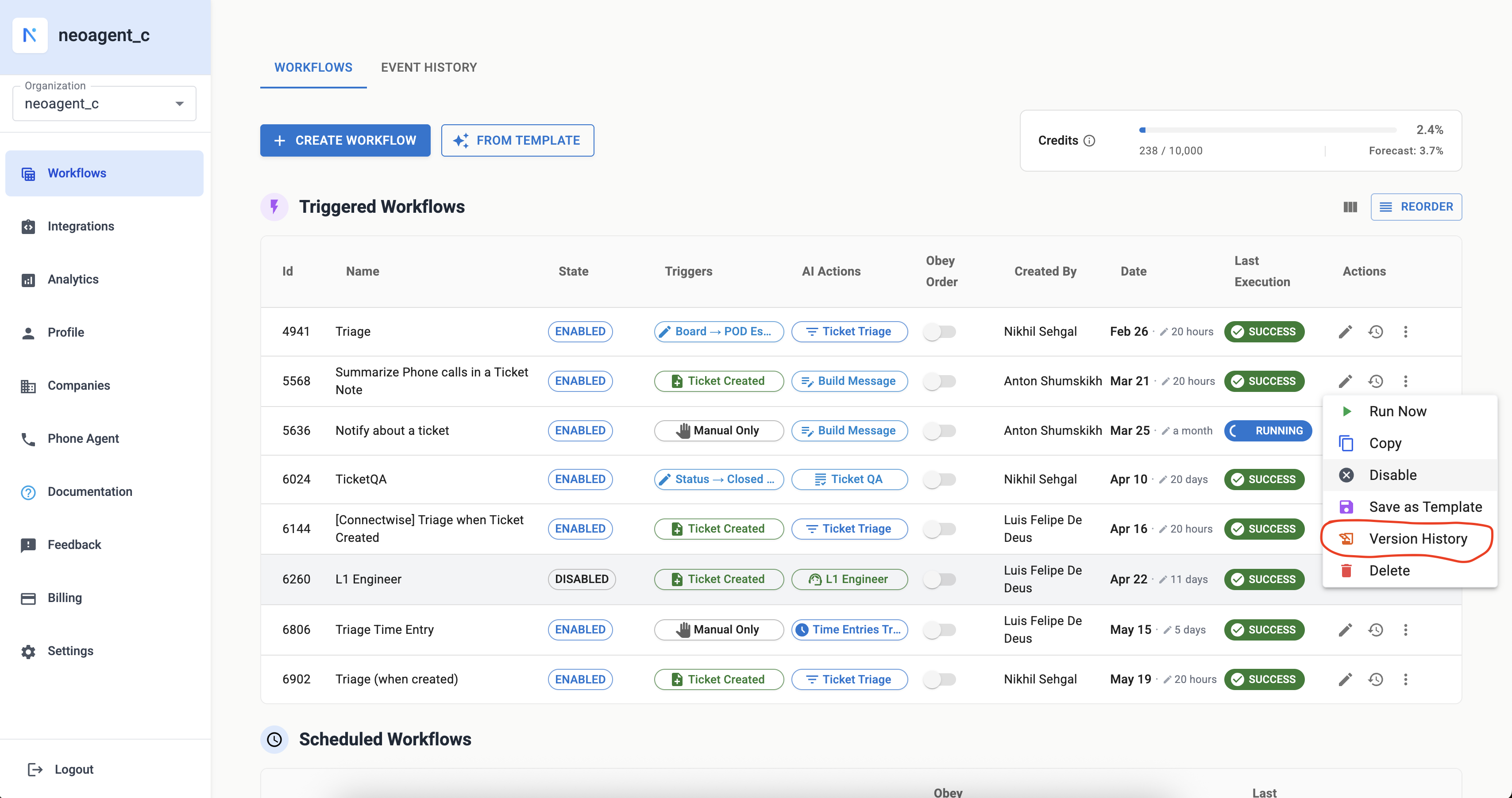
Accessing workflow version history from the workflows page
Chat agents
Chat (conversational) agents are versioned in exactly the same way — every save snapshots their custom instructions, tools, and integrations — but they don’t appear on the Workflows page, so their version history lives in a different place:1
Go to Chat → Agents
Open the Chat section and switch to the Agents tab.
2
Open the agent's menu
Click the three-dots menu on the right side of the agent’s row.
3
Select Version history
Choose “Version history” to open the same dialog described below, including the change summary for every save and the ability to restore an agent’s earlier configuration.
Understanding the version history dialog
The Version History dialog has two panes. The left pane lists every version, newest first. Each entry shows the version number (v8, v7, …), when it was saved, who saved it, and — most usefully — a set of labels summarizing what changed in that save: for example Instructions, Tools +2 −1, Trigger & filters, Enabled, or Renamed. This makes it easy to scan months of history and spot exactly which save touched the thing you care about. A version that changed nothing visible shows No config change. A change that Neo made for you in a Neo Support chat shows the name of the person in that chat; the public API’sGET /agents/<id>/versions also says how each version was saved (saved_by), so a change saved through the API for a person reads differently from one saved in the dashboard.
Click a version (or use the arrow keys) and the right pane shows the full detail of that save, compared to the version before it:
- Every changed field with its old and new value, for example
Priority filter High → Any - Lists show which entries were added or removed, for example
added Hardware, Software +2 more - Instructions (and other long text) show a line-by-line comparison with additions in green and removals in red, with unchanged lines collapsed
- Open in a new tab (arrow icon): Opens this version’s full configuration in the editor as a new, unsaved copy — in a second browser tab, while the version list stays open here. Useful for inspecting several versions in full, or comparing an old version with the current one side by side.
- Restore this version: Loads this version into the editor for the same workflow or agent. Nothing changes until you click Save Changes in the editor, so you can review first. This button is disabled on the current version.
- Open as copy: Opens this version in the editor as a new, unsaved workflow or agent, in the current tab. Useful for branching off an older configuration.
A small number of settings are not part of version snapshots — for example who may access a chat agent. A save that only touched those shows as No config change.
How versioning works
Neo Agent’s versioning mechanism is designed to capture a snapshot of your workflow whenever it’s modified.Automatic version creation
Every time a workflow is updated and saved, a new version is automatically logged in theworkflows_updates_log table in the database.
Data logged
Each entry in the log includes:- The
workflow_idto link it to the specific workflow - A complete snapshot of the workflow’s configuration at that point in time, including its
name,state,trigger_type,schedule,actions, and other settings - The
client_idandclient_namefor organizational context - Information about the
created_by_user(who made the update) - The
version_timestamp, indicating precisely when this version was created
Retrieval
When you open the “Version History” dialog, Neo Agent queries this log table, filtering by the currentworkflow_id, environment, and client_id, and orders the results by version_timestamp in descending order to show the newest versions first.
Key benefits
Audit trail
Maintain a clear record of all modifications, essential for change management and compliance.
Rollback capability
If a new workflow configuration introduces issues, you can easily revert to a previously known good state by reviewing an older version and then restoring it.
Experimentation
Feel more confident experimenting with workflow changes, knowing you can always go back.
Collaboration
Understand the evolution of a workflow, especially when multiple team members are involved in its development and maintenance.
Best practices
Regular review
Regular review
Regularly review version history, especially after making significant changes, to ensure automations are behaving as expected.
Use for troubleshooting
Use for troubleshooting
If you encounter an issue, the version history is your first stop for diagnosis and potential rollback.
Document changes
Document changes
When making significant changes, consider adding comments or notes about what was changed and why.
Review before restoring
Review before restoring
Always read the change summary of a version before restoring it, so you know exactly what will change.
Refresh before you edit
Refresh before you edit
If a teammate saved the workflow while your editor was open, your page is showing the older configuration — and saving it would write that older configuration back over their work.Neo now blocks this. You’ll see “This workflow has been updated by someone else since you started editing” instead of the save going through. Copy any changes you want to keep, refresh the page to load the current version, then re-apply them.You’ll also see it if you enable or disable a workflow from a Workflows page that’s been open for a while. Refresh and try again.