Teams only for now. You need an active end-user Teams channel, and only an admin or owner, or a person an admin gave the Send end-user notifications permission (how to give it), can send a notification or see who it reaches. An agent that runs with no person behind it, such as a triggered or scheduled agent, cannot.
Who receives it
A person receives the notification when they have your end-user app in Teams: they installed it, or they have chatted with it. A person whose organization has the app only in its app catalog has not installed it, so they cannot receive one, and they are not counted. You choose:- Companies: one or more of your clients, or everyone the app reaches. Everyone also includes people in Microsoft 365 organizations that are not linked to any of your companies.
- People: everyone in those companies, or only the people you pick.
- Chatted in the last 90 days: only people who chatted with the bot in the last 90 days.
Send one from the dashboard
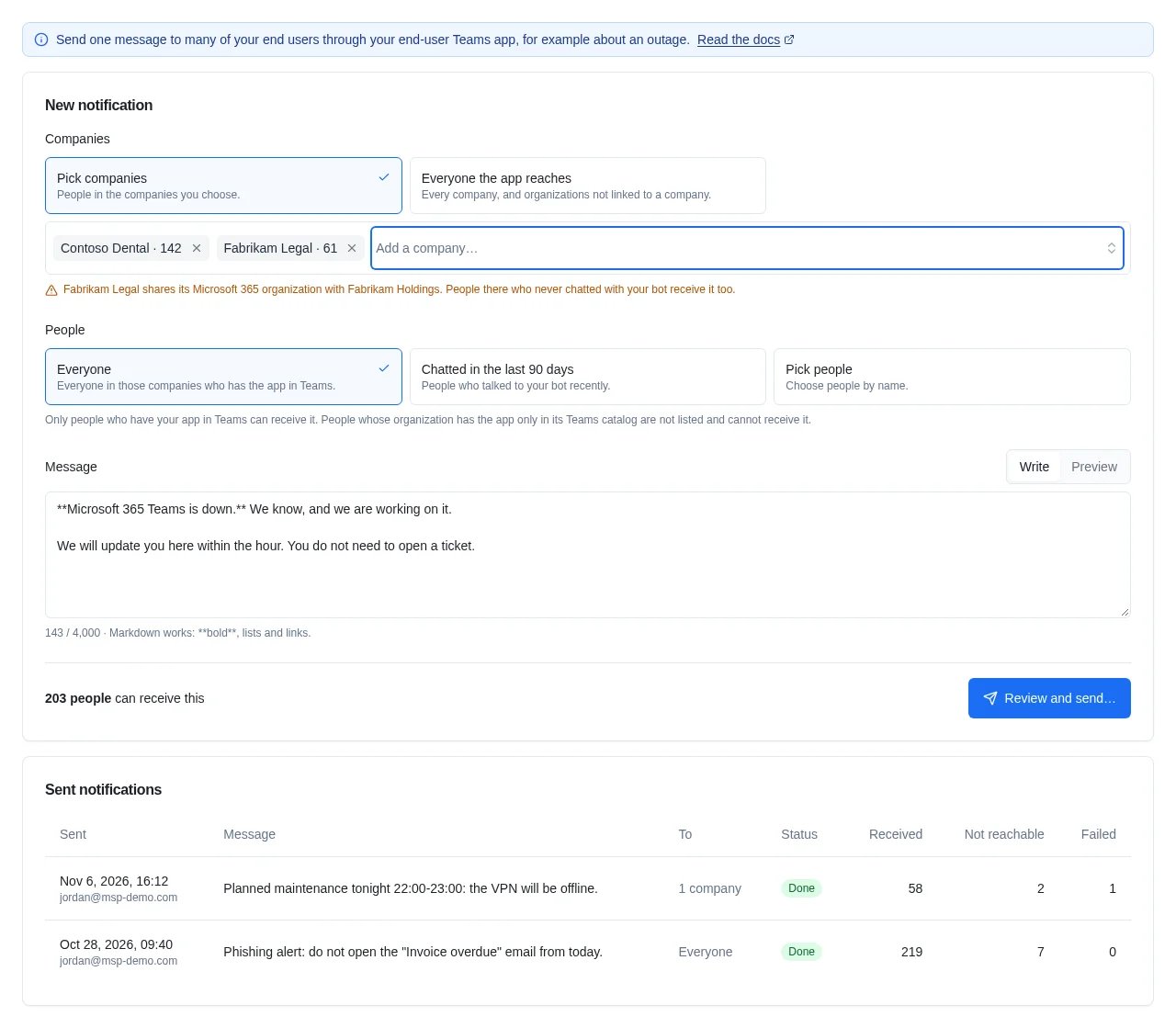
Open Chat and the Notifications tab. The tab shows when your workspace has an active end-user Teams channel.- Under Companies, pick the companies, or choose Everyone the app reaches. Each company shows how many people can receive it.
- Under People, choose Everyone, Chatted in the last 90 days, or Pick people to choose them by name.
- Write the message. Preview shows it as your end users will read it.
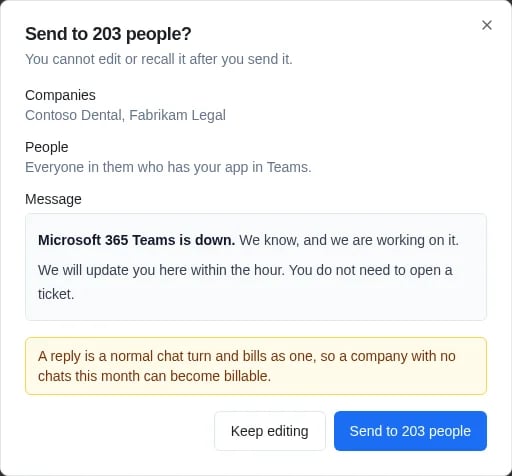
- Click Review and send. Check the number of people, the companies and the text, then click Send.
Send one by asking Neo
In the dashboard chat, ask Neo Support: “Tell everyone at Contoso and Fabrikam that Teams is down and we are on it.” Neo:- Checks how many people the notification reaches, per company.
- Shows you the exact text, the companies and the number of people, and waits for your confirmation.
- Sends it after you approve, and tells you how many people received it.
What happens after you send
- The bot sends the message to each person in a private chat. Each client company gets at most 25 notifications a minute, so a notification to a large client takes a few minutes.
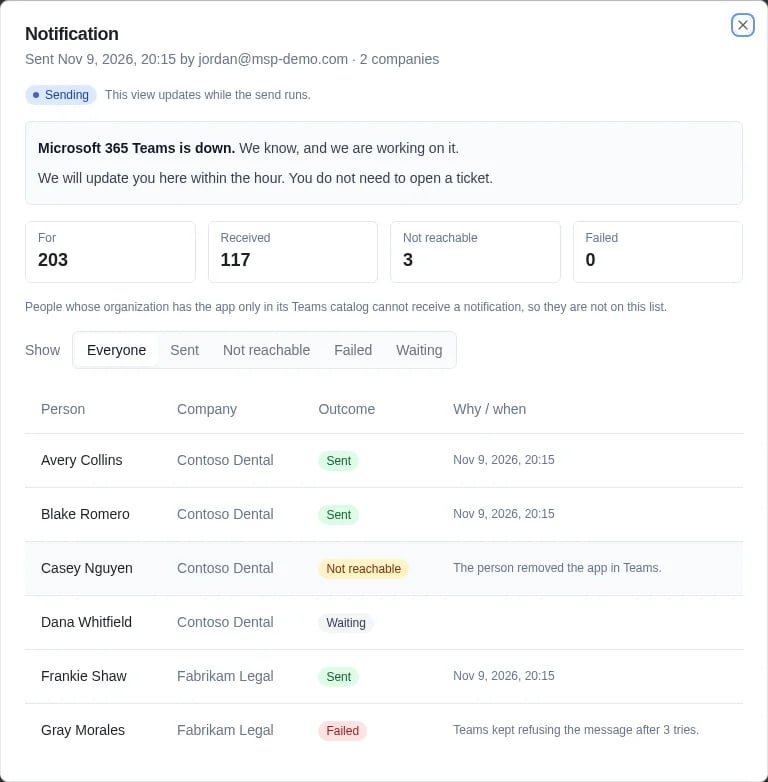
- For each person, the result is Sent, Not reachable (the bot has no chat with them) or Failed (Teams refused the message).
- A sent notification cannot be changed or taken back.
- A person can reply. The reply goes to your Chat Agent like any other message, and the agent sees the notification when the person already had an open chat.
Send one with the API
The same notifications are available on Neo’s public API, with an API key or as a person who may send them:
Use a new
idempotency_key for each notification. When you repeat a request with the same key, for example after a timeout, Neo returns the first notification and sends nothing again. One notification sends at a time, and a workspace can start up to 20 in an hour. Full reference: API reference.