
Before you start
- A chat agent you’ve tested in the dashboard.
- The client’s Microsoft 365 tenant ID, set on their company record under Companies.
- A Microsoft 365 admin in the client tenant to approve the one-time install — their admin, or you if you have delegated (GDAP) admin into their tenant. The tenant must allow custom Teams apps either way.
Test in your own tenant first
Two ways to try a bot before a client ever sees it, covering different things:- Behavior — does the agent answer the way you want for a given client? Use the dashboard Test as end-client picker — no install, instant.
- The Teams experience — branding, the welcome message, adaptive and approval cards, proactive messages, the install greeting? Install your branded app into your own Microsoft 365 tenant and message it as an employee would.
- On the channel’s Installs tab, click Test in your own Teams. It is the first step on a new channel, and at the top of the tab after a client has installed.
- Click Open install page, sign in as a Global admin of your Microsoft 365, and approve. Not an admin? Copy the link from the same window and send it to one.
- Back in the dashboard, the window changes to Open the chat in Teams. The page you land on after the approval has the same button.
Deploy
The fastest path is a magic install link: you generate it, the client’s admin clicks it once and approves, and Neo publishes your branded app into their tenant automatically — no zip to upload. (No admin access? See Install the package manually below.)Create and activate the channel
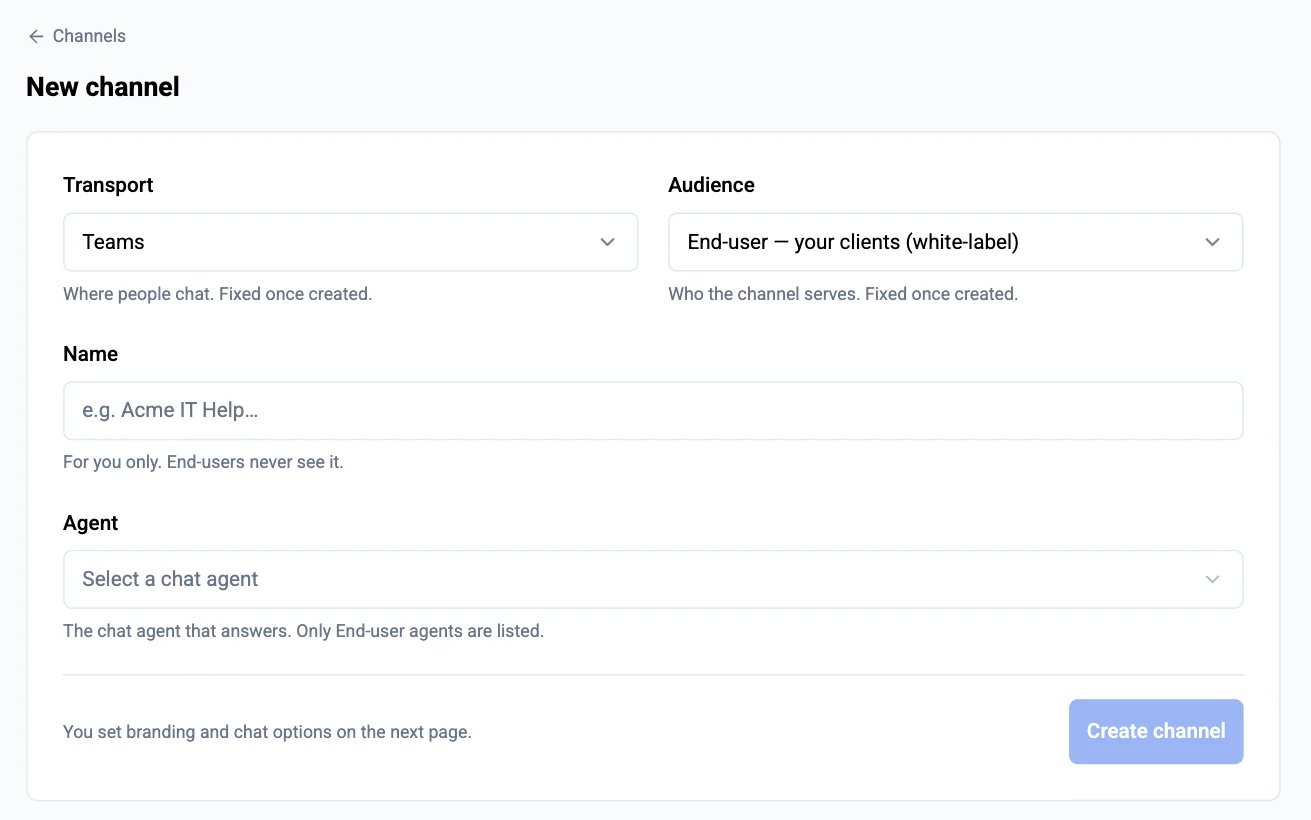
Generate the install link
Send it to the client's Teams administrator
identity and messageTeamMembers. If you have GDAP admin into the tenant, you can open the link and sign in yourself.That sign-in leaves a Neo Installer app in the tenant’s Enterprise applications — leave it in place. If a sign-in errors, have the admin re-open the link rather than deleting it to retry: deleting the app soft-deletes its service principal and blocks the next sign-in with AADSTS650051 (see Troubleshooting).Make it reach their users
Verify
- First contact shows your welcome message (or “Hi! I’m your display name” if you left it blank).
- A 1:1 question gets an answer from your agent.
- “start a new chat” acknowledges and starts a fresh conversation. It’s in the bot’s command menu, and typing it works anywhere.
Install the package manually
If the tenant blocks the consent flow, or the app is already installed and you only need to bind routing, use the zip instead of the link:Download the Teams app package
.zip containing the manifest and your icons — upload it exactly as downloaded; re-download it whenever you change branding rather than reusing an old copy.Upload it in the client's Teams admin center
.zip.Register routing on the channel
What end users can access
Every conversation through this bot is scoped to the end user’s company, resolved from the Microsoft 365 tenant the message arrives from. That scope is enforced by Neo, not by the agent’s configuration (the architecture behind it: how end-user bots work):- The bot runs a purpose-built set of end-user tools: it answers from your knowledge base (for a common how-to your knowledge base doesn’t cover, it gives brief general steps and says they are general guidance, never your company’s details), looks up the user’s own tickets, and (if you enable it) files new tickets and posts replies as the user — all scoped to that one person and their company.
- Tools that operate across your whole client base — MSP-wide ticket search, company listings, configuration/contact search, generic PSA or Microsoft Graph API access, sandbox scripting — never run in end-user conversations, even if they’re enabled on the agent’s toolbox.
- If the inbound tenant isn’t linked to any of your Companies, the bot refuses the conversation and tells the user to contact their IT support team — it never answers unscoped.
- One Microsoft 365 tenant can be linked to several companies (branch offices sharing a tenant). Neo scopes each conversation to the company whose PSA contacts hold the speaker’s verified email; if the email isn’t found there (or appears in more than one), Neo picks deterministically — the parent company (Autotask), then the lowest company ID.
- If the speaker’s email matches more than one contact record within the resolved company (some MSPs keep a duplicate contact per site), the bot treats tickets filed under any of those contacts as the user’s own — they can view, reply to, and resolve every one of them. New tickets and replies are still authored under one consistent contact for stable attribution.
- This applies to your own tenant too: a self-install of an end-user channel is company-scoped like any client install. For cross-company technician work, use the Neo AI Agent app and Neo Support — or build a custom internal bot from an Internal channel, which runs with your full MSP toolbox.
Ticket links in the chat
Whenever the bot mentions a ticket, it shows the human ticket number — and, where your PSA has a client-facing portal link, that number is a clickable link the end user can actually open. For Autotask, set this up once: copy your Client Portal address from Autotask (Admin → Client Portal Global Settings → “Generic Client Portal Login”, e.g.https://yourcompany.itclientportal.com) and paste it under Integrations → Microsoft Teams — End-user Chat Bot → Ticket links in the chat. Autotask’s API doesn’t expose that address, so Neo can’t fill it in for you. Until it’s set, the bot shows plain ticket numbers — never an internal Autotask link an end user can’t open. Note the portal only admits contacts you’ve granted Client Portal access in Autotask; if only some of your users have it, you can gate the link per contact from the agent’s instructions.
The Tickets tab
Show the Tickets tab on the channel’s Teams app tab gives the app a Tickets tab beside the chat. A new end-user channel starts with it on. It lists the signed-in employee’s open tickets, most recently updated first, and the tickets closed in the last 30 days — every ticket filed under their PSA contact, not only the ones the bot created, so a ticket they emailed or phoned in shows up too. Each row has the ticket number, title, status and dates; where your PSA has a client-portal link (see Ticket links in the chat), the number opens the ticket there. New ticket at the top of the tab opens the chat, and the bot asks what the ticket is about, in the end user’s Teams language where Neo has a translation and in English otherwise. The bot is told the user asked for a ticket, so it files one for what they describe next, also under the Troubleshoot first ticket policy, and that message is not recorded on a ticket the chat was already on (see What the ticket records). The request lasts an hour, or until the bot files or links a ticket. A ticket the bot files runs your workflows like any other. In Outlook and the Microsoft 365 app, which show the tab but not the chat, the button opens Teams on the chat. Chat about this on an open ticket moves the chat onto that ticket. The bot says which ticket the conversation is now on, with its title and status unless you hide them under Relayed technician messages, and asks what the user would like to know or add, in the same languages as New ticket. From the user’s next reply, the conversation is recorded on that ticket, and your technicians’ client-facing updates on it reach this chat. It also works for a user who has not chatted with the bot yet: their first message continues the ticket when they send it within 20 minutes of the tap. The tab follows the end user’s Teams theme, including dark and high contrast, and fits a phone screen. It is written in the user’s Teams language when that is English, French, German, Spanish, Dutch, Italian or Portuguese, and in English otherwise; dates follow their regional format. Ticket titles and status names come from your PSA as they are. Your link labels can follow the language too: see below. A Slack channel shows the same list as the Slack app’s Home tab: see the Slack Tickets tab. Open the app on picks the tab people see first. A new end-user channel opens on Tickets, with the chat next to it; a channel created before this default opens on Chat until you change it. Nobody signs in: Teams tells Neo who is looking, through the Neo Installer app the client’s admin approved with the install link, and the list is scoped exactly like the bot’s own “my tickets” answer — the user’s company, resolved from their Microsoft 365 tenant, and the PSA contacts that hold their email address. If no contact has their address, the tab says so and suggests contacting you. Under Links on the Tickets tab, add up to five links for the top of the page, such as your emergency line or your IT Glue portal. A link is a web address (https only), a phone number or an email address, with a label of up to 40 characters. A phone number can end in an extension, such as514-555-0199 x6, ext. 6 or poste 6. Under Label in other languages, a link can carry its label in any of the tab’s languages; each person sees the one for their Teams language, and the main label when you left theirs blank. The tab shows a phone number or email address as text beside its label; a tap calls the number, dialling the extension once the call connects, or opens an email, where the device can. Links need no publish: they show the next time the tab loads, or when the user clicks Refresh on it. They also show while the client’s tenant is not yet linked to one of your companies, when the tab cannot list tickets.
Three things to know:
- The tab and Open the app on are part of the installed Teams app, so they reach a client only after you publish an update. Adding or removing the tab is a change Microsoft makes each user approve: users who added the app themselves click Update in Teams once, while Install for everyone tenants update without a prompt. A change to Open the app on alone needs no approval.
- Turning the tab off also sets Open the app on back to Chat.
- The status column follows Show the ticket status below: turn that off and the tab shows no status names either.
Live ticket updates in the chat
Intake is only half of it. When work on a ticket the user raised here produces a client-facing update, that update is delivered into the same Teams conversation — and the user’s reply goes straight back onto the ticket. The Teams thread and the ticket’s client-facing notes become two views of one exchange, so a user follows their ticket without leaving Teams or digging through email.The user raises a ticket
A technician (or a Neo workflow) responds
It lands in the chat
- Show the technician’s name (the default) — the individual who wrote the note, with their profile photo where Neo can find one and coloured initials otherwise. If your PSA doesn’t tell us who wrote it, the card falls back to the label you set.
- Show your own name instead — every relayed message carries your label and your channel’s icon, and never an individual’s name. Pick this if your technicians rotate, or you’d rather present one brand to end-clients.
- Don’t label them — the note is relayed as plain text with no attribution, as it arrived before labelling existed.
The user replies in Teams
What the ticket records
Once a conversation is linked to a ticket — the bot created it, or the user replied about an existing one — every message from both sides lands on that ticket automatically, turn by turn, while the conversation stays active. Nothing depends on the bot deciding to log something, and nothing in your instructions is needed to make it happen. After more than a day of quiet, the next message starts a fresh conversation: the bot links a ticket again or files a new one before anything more is recorded. One chat covers many problems over its life, so each message is recorded on the ticket it is actually about. A follow-up, a correction, an answer to the bot’s question, a “thanks, that worked” hours later — all of that continues the ticket the conversation is on. A message that raises a different problem does not: it is held back rather than filed as a customer reply on a ticket nobody mentioned, which would have started your customer-replied rules on the wrong ticket. Once the new problem has a ticket of its own, everything said from then on is recorded on it as usual. The messages before that ticket existed are not moved onto it — if the bot asked two questions before filing, those two exchanges are in the ticket’s own description rather than as replies. That judgement is made per message, and it can fail: if your PSA won’t return the ticket Neo is comparing against, or the check itself errors, the message falls back to the older rule and is recorded on the ticket the conversation was already on. Neo would rather keep the record than lose it, so a rare wrong-ticket reply is possible when the check can’t run.- The user’s messages are recorded as customer replies in your PSA’s own shape — authored by their contact on Autotask, ConnectWise and Halo (the shape your customer-reply rules react to; on ConnectWise it also sets the ticket’s customer-updated flag), and as a visible comment carrying their name on ServiceNow and Syncro.
- The bot’s replies are recorded as internal notes, so they never email the customer or fire customer-facing rules — the user already has the reply in Teams. Technicians and Neo’s own ticket summaries still see the full exchange, in order. They’re written as plain text: PSA note fields don’t render the formatting Teams shows, so headings, bold and links are converted rather than left as
**and###characters. - A closed ticket never receives a customer reply. A customer reply on a completed ticket is what most “customer replied” rules re-open it on, so once a ticket is resolved the follow-up (“thanks, that worked”) is still recorded on it, but as internal notes on both sides — the audit trail is complete and nothing re-opens by accident. If the user comes back with the same problem, the bot files a new ticket, and the conversation follows that decision.
Choose when the bot opens a ticket
Two questions decide what your PSA ends up with, and only the first is yours to answer:- When does a ticket get opened? The bot’s decision, and you set the policy in its custom instructions — there is no hidden setting. That is this section.
- How does the conversation get onto that ticket? Neo’s job, always, from the moment a ticket is linked. Nothing you write changes it — see What the ticket records above.
/new or the idle timer), so it can tell an existing problem from a new one without being asked. “My email ticket” matches the open ticket about email; “Outlook still isn’t getting mail” as the opening message matches the open Outlook ticket instead of opening a second one. When the read fails or your PSA is slow to answer, the bot is told the list is missing and looks the tickets up with Get My Tickets before it acts on a possible follow-up or files a ticket. The list carries the time it was read: in a conversation that runs past two hours, the bot rechecks with Get My Tickets before filing, in case a ticket reached you another way meanwhile.
Three shapes cover every bot in production today. Creating an end-user agent asks you which one — the cards under Audience on the agent’s Overview tab — and the choice writes the matching block into the starter instructions for you. Nothing is stored behind it: from then on the instruction text is the only source of truth, so you change the policy by editing that text (or asking Neo Support to). To move an existing agent to another shape, replace its When to create a ticket block with one of these:
- Ticket first
- Troubleshoot first
- Record at the end
What counts as a client-facing update, per PSA
Each PSA models customer communication differently, so Neo keys off that PSA’s own signal for “the customer is meant to see this”.Autotask: narrow to a Work Type or Note Type
If your technicians log all their work on the ticket and only some of it is meant for the customer, the toggles above are too coarse — turning on time entries relays every one of them. Autotask lets you narrow further:- Limit to specific Work Types — relay a time entry only when its Autotask Work Type is one you pick. The common setup is a dedicated Communication work type (often applied by a speedcode) that technicians use whenever they contact the customer: pick it here and ordinary work time on the same ticket stays out of the chat.
- Leave out specific Work Types — relay every time entry except those of the work types you pick. Use it when most time entries are fine for the customer and only one or two work types are noise, such as an internal tech-assist speedcode. A work type you add to Autotask later still relays, with nothing to update here.
- Limit to specific Note Types — relay a published note only when its Note Type is one you pick.
Autotask: time entries need one more webhook field
Autotask sends Neo no webhook when a technician saves a time entry and changes nothing else on the ticket. So when time entries relay, Neo also subscribes your Autotask ticket webhook to the Last Activity Date field. That field changes on every save to a ticket, so Autotask sends Neo more webhooks than before. Neo adds the field at the next scheduled PSA sync, which runs about once a day. Until then, a time entry reaches the chat only when the same save also changes the ticket’s status or queue. The relay is on by default. The same panel has a master Relay ticket updates into the chat switch at the top — turn it off to stop relaying entirely (your PSA’s own customer email still goes out as usual), and the integration card shows Connected whenever it’s on. Which tickets relay. By default, only tickets your bot raised relay updates — a ticket created directly in your PSA or by email stays out of the chat, even if a user later asks about it through the bot. If you’d rather follow updates on every ticket a user picks up through the bot, turn off Only tickets the bot raised in the same panel.- The relay is delivered in addition to your PSA’s own customer email, so a user who is actively chatting with the bot may receive both a Teams message and an email for the same update.
- A user receives chat updates only once they’ve messaged the bot at least once (so there’s a live conversation to deliver into). Before that, updates reach them through your PSA’s email as usual.
Consent and security
Two separate Microsoft identities are involved. It’s worth being precise about what each can do — for your own assurance and to answer a client admin’s questions. The bot (the app published into the client tenant) is messaging-only. Its manifest requests justidentity and messageTeamMembers — receive and send Teams messages, nothing else. It has no Microsoft Graph access in the client tenant: it can’t read mail, files, directory, or anything else there. Everything the agent does runs on your integrations under your permissions, and every end-user conversation is company-scoped (see What end users can access).
The Neo Installer is the app a client admin signs into when they open a magic install link. They grant it, for their whole organization, delegated AppCatalog.ReadWrite.All (the one permission needed to publish your app to their tenant’s catalog as that admin), plus offline_access, so Neo can re-publish your branding later with Publish update instead of asking for consent again, and the sign-in permissions openid, profile and email, which the Tickets tab uses to confirm which employee is looking. A delegated permission never exceeds what the signed-in person can do, and only the consenting admin’s sign-in is ever used to publish. It is not the bot, and it grants no standing access to the client’s data. If you’d rather not have it in a tenant at all, use the manual zip path with the Tickets tab off; with the tab on, the tab still signs users in through the Neo Installer.
If you approve the Neo Installer with CIPP or another tenant management tool, give it all five delegated Microsoft Graph permissions the install link grants: openid, profile, email, offline_access and AppCatalog.ReadWrite.All. These tools set the approval to exactly the list you give, so leaving out AppCatalog.ReadWrite.All removes Neo’s permission to publish your app in every tenant the tool runs on. If the tool applies the approval as a standard or template, give it the same five, or its next run removes them again. A tenant installed from the manual zip may leave out AppCatalog.ReadWrite.All, because Neo never publishes there.
Routing is authorized server-side, not by the app package. The Teams package carries your branding and the shared bot id — it carries no authority. When a message arrives, Neo trusts only Microsoft’s signed account of it: the message is authenticated by Microsoft’s Bot Framework, and the tenant it came from is the tenant ID Microsoft stamps on it — never anything in the manifest. Neo resolves which channel (and which of your agents) handles it from the install record for that (bot, tenant), and the company scope from that tenant’s Company. So a copied or edited package can’t make the bot answer as a different MSP’s channel, reach a tenant it wasn’t installed in, or widen a conversation beyond the end user’s company.
A registration is a claim until it’s proven. When you register a tenant under White-label installs, the binding is unverified until a tenant admin completes a magic-link consent, or the bot first receives a Microsoft-verified message from that tenant — then it’s verified and locked to your channel. An unverified claim can be replaced (register the wrong tenant ID, or two providers race on the same one, and a real install wins); a verified install can’t be taken over — to move it, remove the holding channel’s registration first. Installs into your own tenant are verified automatically.
Updating the bot after rollout
Settings on the channel’s Chat tab (the welcome message and the assigned agent among them) apply at once. Settings on the Teams app tab (display name, description, icons, the Tickets tab) reach a client only after you publish them from the bar pinned to the bottom of the channel’s page, which needs no re-consent and no admin-center step. How it works and what users see: Publishing an update. If a user’s Teams then says You cannot send messages to this bot, see Troubleshooting.Automating with GDAP (CIPP-style)
If you run delegated admin (GDAP) across your clients, you don’t need to wait on each client’s admin — open the install link yourself for any tenant you administer (you’ll sign in with your delegated admin rights). For full automation, the same publish is a Microsoft Graph call against the client tenant with a delegated admin token holdingAppCatalog.ReadWrite.All — POST /appCatalogs/teamsApps with the package from Download Teams app package (then POST .../appDefinitions to update) — which slots into a CIPP-style runbook. (Graph’s Teams-catalog publish is delegated-only; there is no app-only equivalent.)
Offboarding a client
Remove the company’s row under White-label installs — routing stops immediately and the bot no longer responds in that tenant. Then have the client’s admin remove the app from their Teams admin center so users don’t message a dead bot.Troubleshooting
The admin approved the link but got an error
The admin approved the link but got an error
Publishing failed — the tenant blocks custom apps
Publishing failed — the tenant blocks custom apps
The install fails with AADSTS650051 — 'service principal name is already present'
The install fails with AADSTS650051 — 'service principal name is already present'
AADSTS650051.The catch: a soft-deleted service principal is not listed on the Entra portal’s Deleted applications page — that page shows deleted App registrations, not deleted Enterprise apps. Find and purge it with Microsoft Graph (Graph Explorer works), then re-open the link:GET https://graph.microsoft.com/v1.0/directory/deletedItems/microsoft.graph.servicePrincipal?$filter=appId eq 'a77de2a9-75e6-4627-b50c-82c19e5d28b4'— the Neo Installer’s app ID is the same in every tenant.DELETE https://graph.microsoft.com/v1.0/directory/deletedItems/{id}, using theidfrom step 1, to permanently remove it.
Publish update says some tenants didn't update
Publish update says some tenants didn't update
- Update pending: Microsoft Teams was busy or still hid the app. Neo’s daily run sends it again when it can (above); publishing once more also works.
- Needs a new install link: the sign-in Neo stored for the tenant no longer works. Use the row’s ⋮ menu → Send re-consent link.
- Needs a Teams admin: the person who approved the link is not a Teams or Global administrator, or the tenant blocks custom apps.
- Check the app availability: the app is in the tenant but hidden from the admin who approved it. See the last item below.
- Last update failed: anything else. The detail under the line says what Microsoft, or Neo, reported.
GET /public-api/channels/{id}/teams-installs, which the Neo Support Agent also reads.When the reason is status 429, status 502, or Value cannot be null, Microsoft Teams was busy, or was still hiding the app from the admin’s view after an install or an update. Value cannot be null often means Microsoft applied the update and then answered with an error. Once a day, Neo tries again: it sends the app you last published to each tenant that doesn’t have it yet and still holds its admin’s sign-in, as long as the publish reached at least one tenant, you haven’t changed the app since, and its icons are uploaded images rather than web links (Neo can’t tell whether the image behind a link changed). A tenant still behind a day later needs one of the fixes below. If you want it sooner, publish once more (who a publish reaches).Otherwise, that tenant either removed the Neo Installer app (revoking publish rights) or now blocks custom apps. Send its admin a fresh install link to re-consent; the next publish then succeeds.Variants worth telling apart from the error text:- “Consent expired or was revoked”: the admin’s sign-in that Neo stored for that tenant can no longer publish to its Teams app catalog. Either it expired or was revoked, or a later change to the Neo Installer’s permissions in that tenant removed the catalog permission, as a CIPP approval without
AppCatalog.ReadWrite.Alldoes (Consent and security). A fresh install link, approved by a Teams or Global administrator, restores it. Neo also checks every tenant’s sign-in once a day, marks a tenant that needs a new link on the Installs tab, and sends a notice to your Neo Inbox naming it. When the sign-in works again, both clear by themselves. - “TenantAppDefinitionManifestVersionAlreadyExists”: the tenant already holds an app version with the number in the error, so Neo did not count this publish as done. Publish once more: each publish sends a higher version number. The admin’s role is not the cause.
- “valid Office365 license” — the person who originally consented has since lost their Microsoft 365 licence, so Microsoft won’t let them manage the app catalogue any more. A fresh install link, consented by a licensed admin, fixes it.
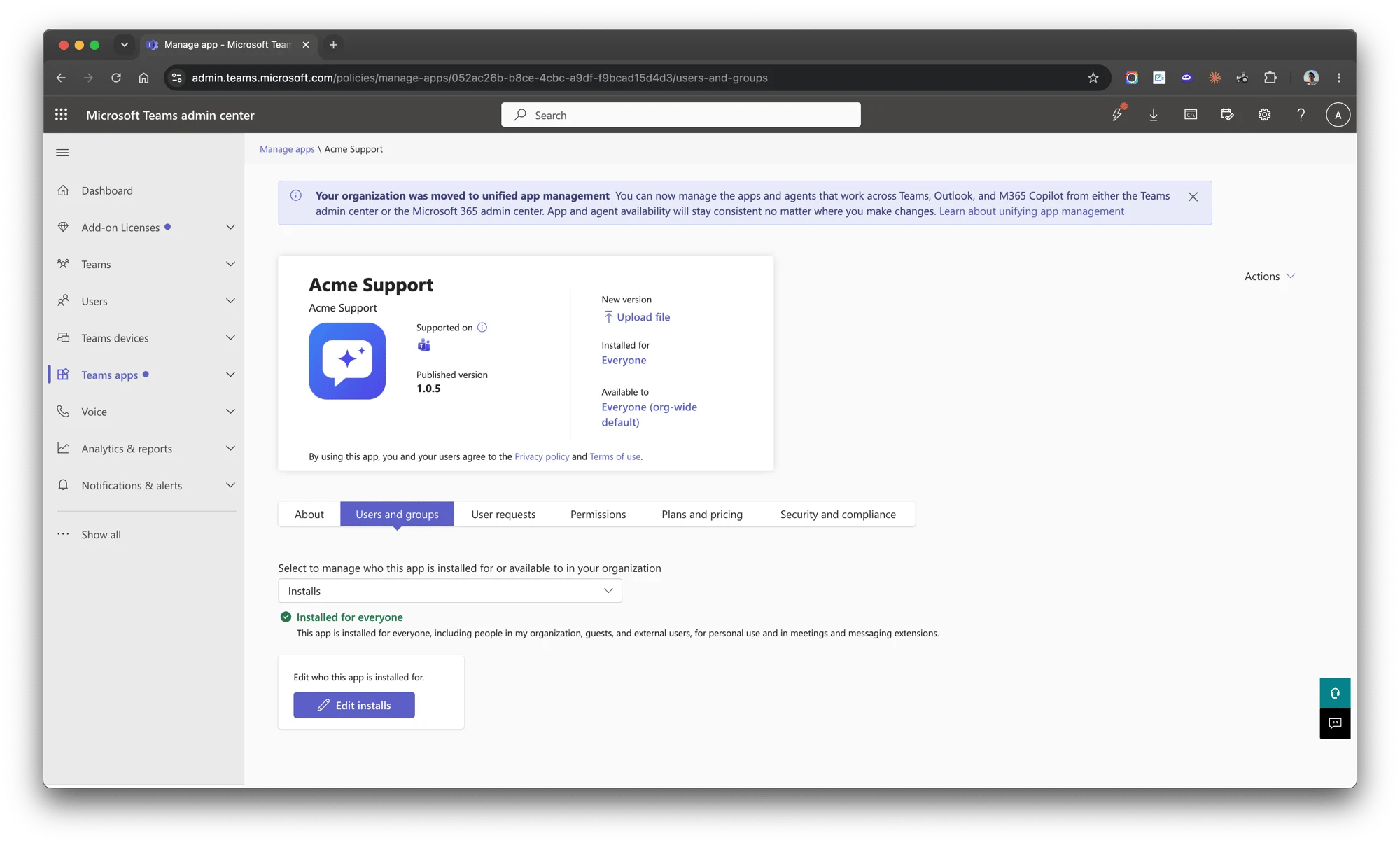
- “does not show it to the admin who signed in” — the app is in the tenant, but Microsoft’s catalogue hides it from the admin who opened the install link, so Neo can’t find it to update it. Keep the app installed: its users still have it. The usual cause is the app’s Availability. In the Teams admin center → Teams apps → Manage apps, open your app, click Edit availability, include that admin (Everyone is simplest) and Apply, then publish again. Microsoft can take a day or more to apply the change. Right after an install or an update, Teams can also hide the app for a short time, so if the error shows once, publish again later first. Only if Manage apps doesn’t list your app was it added another way, such as a hand upload: then remove it and install again from a fresh link.
The Tickets tab asks for approval, or says the app needs approval
The Tickets tab asks for approval, or says the app needs approval
- A Global Administrator opens a fresh install link: the row’s ⋮ menu → Send re-consent link. It also publishes the app again.
- Or a Global Administrator or Cloud Application Administrator approves the pending request in the Microsoft Entra admin center under Enterprise applications → Admin consent requests → Neo Installer. The request is there, not in the Teams admin center.
- Or, with CIPP or a similar tool, approve the Neo Installer for the whole organization with the five permissions listed under Consent and security.
Users don't see the change, or the Tickets tab, after Publish update
Users don't see the change, or the Tickets tab, after Publish update
After Publish update, Teams says 'You cannot send messages to this bot'
After Publish update, Teams says 'You cannot send messages to this bot'
Users got a 'finishing setup' greeting instead of my welcome message
Users got a 'finishing setup' greeting instead of my welcome message
In a channel thread it can't see the post I'm replying to
In a channel thread it can't see the post I'm replying to
My technicians' internal-bot chat now answers as the end-user bot
My technicians' internal-bot chat now answers as the end-user bot
A technician's old chat shows a name we don't recognise and says 'Failed to send'
A technician's old chat shows a name we don't recognise and says 'Failed to send'
The bot doesn't respond at all
The bot doesn't respond at all
The bot says it couldn't reach the service, or couldn't finish
The bot says it couldn't reach the service, or couldn't finish
A user can't chat, gets no reply, or their chat box is greyed out
A user can't chat, gets no reply, or their chat box is greyed out
blocked_by_admin_at in GET /public-api/channels/{id}/teams-installs). A row without the warning proves nothing: a block Neo did not see leaves no trace, and a new chat or a new install from any user of that tenant clears it. (This is distinct from the tenant blocking custom app uploads — that’s the publishing-failed accordion above.)It answers 1:1 but ignores group chats
It answers 1:1 but ignores group chats
The bot says the app isn't fully set up and to contact the IT support team
The bot says the app isn't fully set up and to contact the IT support team
The bot says the assistant isn't active any more
The bot says the assistant isn't active any more
Autotask: users' replies land under your API user, not under the customer
Autotask: users' replies land under your API user, not under the customer
I can't add the company to White-label installs
I can't add the company to White-label installs