
IT providers: this page is written for your clients’ staff. Send them the link, or copy the text into your own help pages. Some of what they see depends on how you set the bot up; what your setup changes at the end lists it.
Find the bot
- Microsoft Teams
- Slack
Your IT admin usually installs the bot for everyone, so it is already in your Teams. Look for your IT provider’s name on the left sidebar. If it isn’t there, select Apps, or the … on the sidebar, and search for the name.Open it and send a message. The first time, it greets you with a welcome message.
- A 1:1 chat with the bot always gets an answer.
- In a group chat or a channel where the bot was added, @mention it, and it answers that message.
What you can ask
How do I…? Questions such as “how do I set up the VPN on my laptop?” or “how do I add the shared mailbox in Outlook?”. The bot answers from the help articles your IT provider keeps for your company. When those articles don’t cover a common question, it gives brief general steps and says they are general guidance. Something is broken. Describe what happens, for example “Outlook says it can’t connect” or “the printer on floor 2 prints blank pages”. The bot asks a few questions, often as buttons you tap, and may suggest a safe thing to try. When you need a technician, it raises a ticket for you with what you said and what you tried. Some IT providers have the bot raise a ticket at once for every new problem. A common request. A new starter, a new laptop, a mailbox change: for requests like these the bot may show a short form to fill in, so your IT team gets every detail the first time.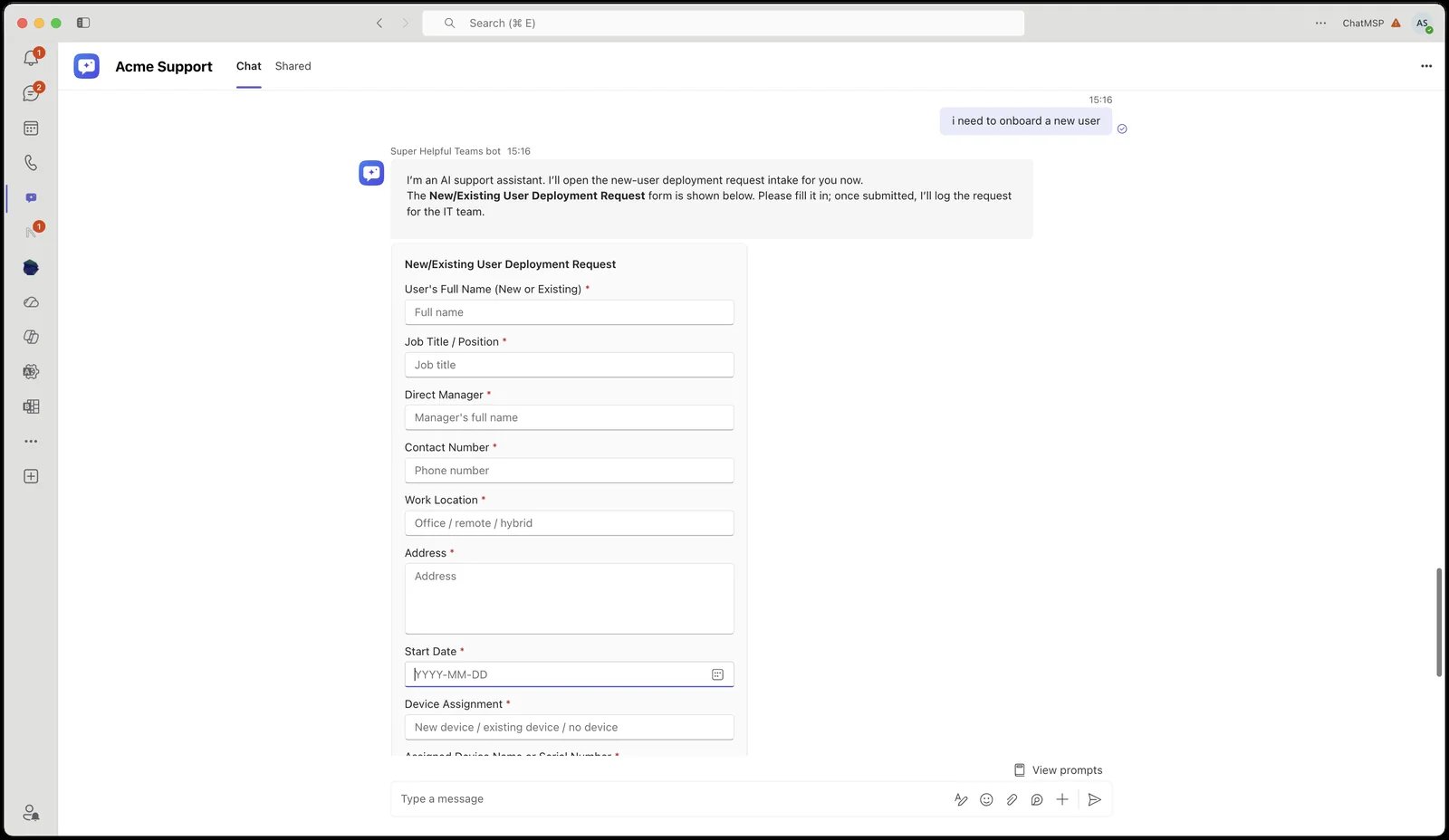
Get a better answer, faster
- Say what you see, word for word: the error message, or a screenshot of it.
- Say when it started, and whether colleagues have the same problem.
- Keep one problem per message. When you raise a different problem in the same chat, the bot gives it its own ticket.
Reach a person
Ask for one: “I’d like a technician to look at this”. The bot passes your ticket to your IT team with a note of what you need and what you already tried, so you don’t have to explain it again. Technicians don’t type in the bot’s chat. A technician answers on your ticket, and that answer arrives in the same chat as the bot’s next message. It shows who replied, usually the technician’s name and picture, so you can tell a person from the bot. Under it are the ticket’s number, title and status. Reply in the chat, and your reply goes onto the ticket for the technician to read.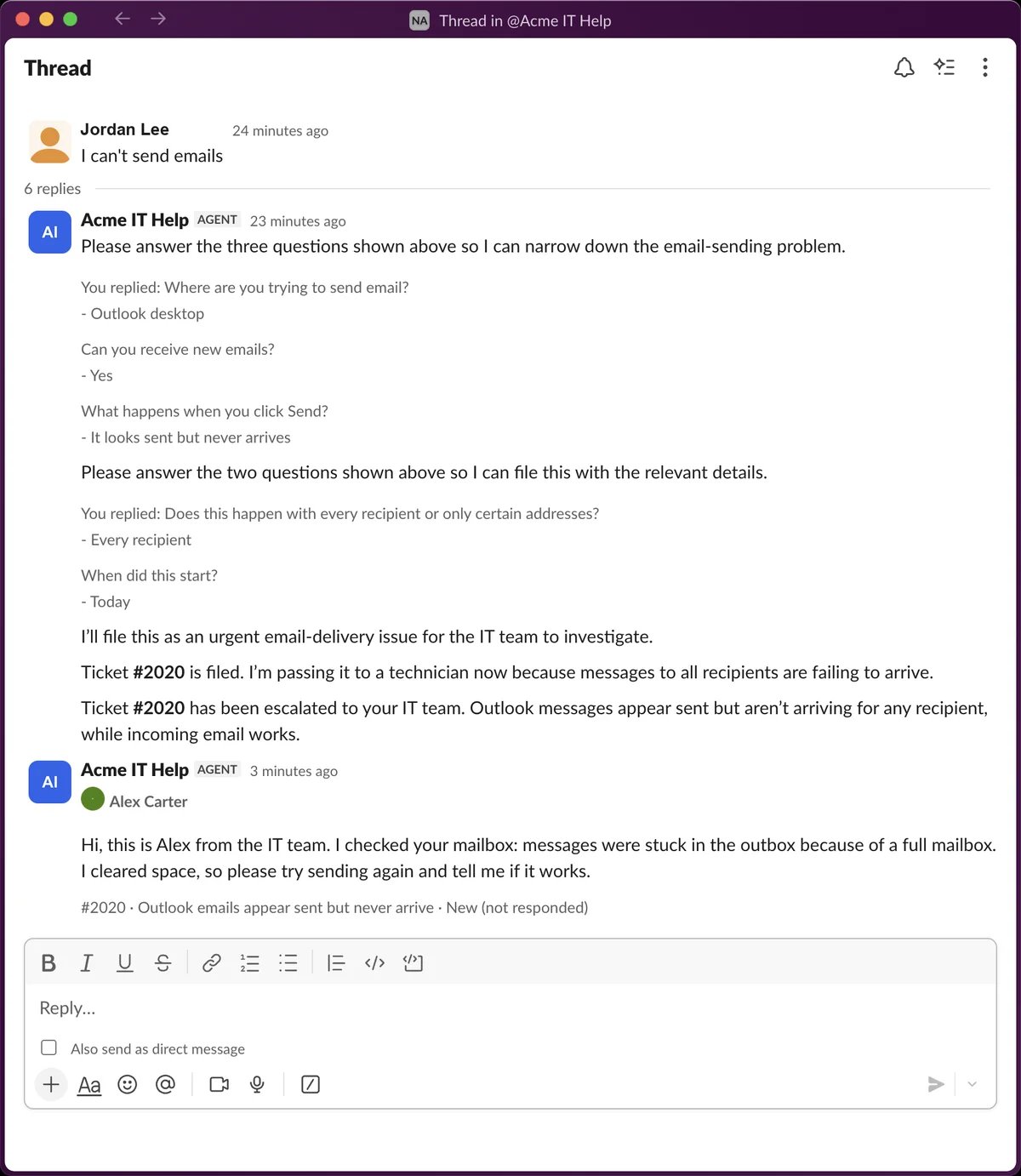
The Tickets tab
Your IT provider can give the bot a list of your tickets: the Tickets tab next to the chat in Teams, or the Home tab of the app in Slack. It shows your open tickets, newest activity first, and the tickets closed in the last 30 days. Each row has the ticket’s number, title, status and date.- New ticket opens the chat, where the bot asks what the ticket is about.
- Chat about this, on an open ticket, moves the chat onto that ticket. What you write next goes onto it, and your technician’s answers come back to the chat.
- Refresh reads the list again.
What happens to your ticket
- Your IT team sees the whole conversation. Once the chat is on a ticket, each message you send about that problem is saved on the ticket as your reply, and the bot’s answers are saved there as notes for your IT team.
- A new problem gets a new ticket. The bot records each message on the ticket it is about, so a different problem in the same chat doesn’t land on the wrong ticket.
- A closed ticket stays closed. A “thanks, that worked” after the ticket is closed doesn’t reopen it. If the same problem comes back, tell the bot, and it raises a new ticket that names the old one.
Start a new conversation
The bot remembers the conversation, so you can come back the next day without explaining again. To start fresh:- Teams: type start a new chat. It is also in the bot’s command menu.
- Slack: send a new message in the Messages tab, or a new @mention in a channel. To start an existing thread over, type start a new chat in it.
What the bot can see
The bot works only for you and your company:- Your tickets, and the updates your IT team wrote for you. It never sees other people’s tickets, or the notes technicians keep for themselves.
- Your IT provider’s help articles for your company.
- Your name, email, phone and job title, from your IT provider’s contact record for you, so you don’t have to introduce yourself.
When the bot can’t help
For IT providers: what your setup changes
The page above describes the bot with every user-facing feature on. Your settings change some of what your clients’ staff see:
How the bot keeps each conversation to one company and one person: how end-user bots work.