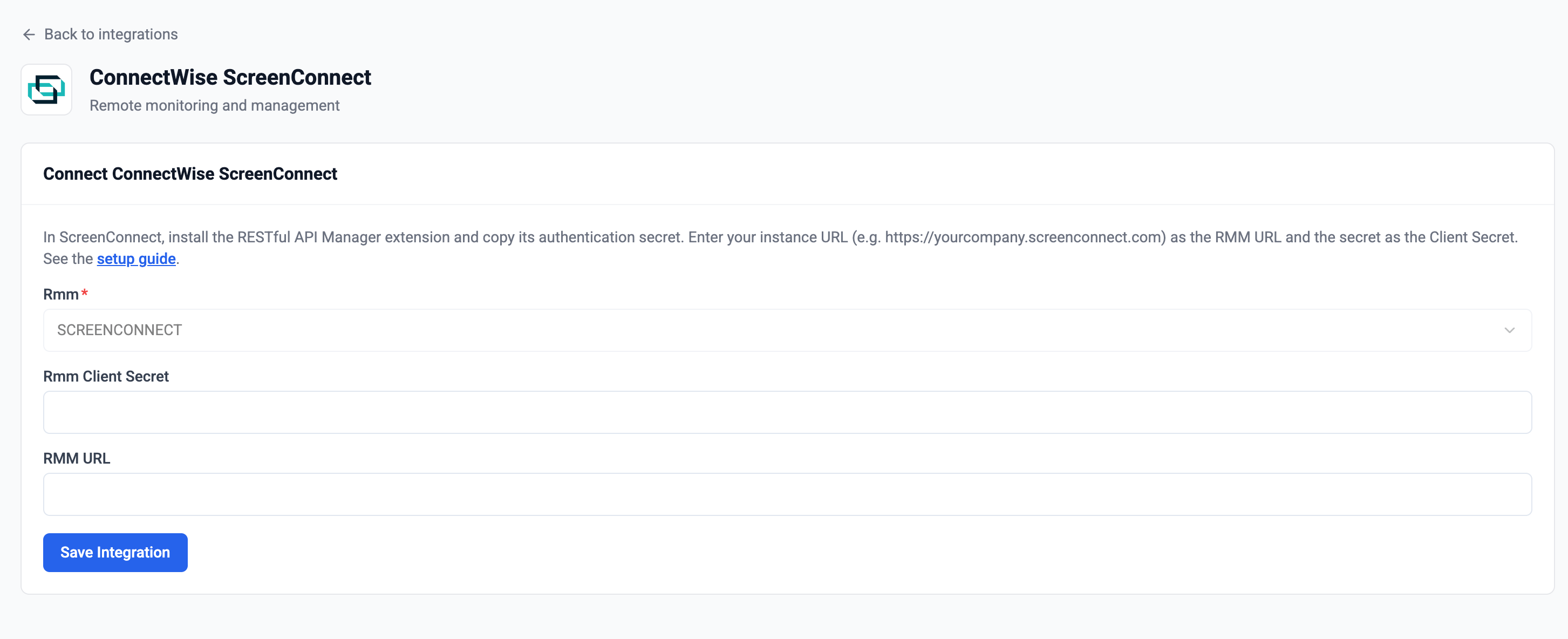
Verify the authentication secret is correct and copied without extra spaces
Confirm the RESTful API Manager extension is installed and enabled
Check that the secret hasn’t been rotated in the extension settings since you copied it
Confirm the instance URL is correct (just the host, e.g. https://yourcompany.screenconnect.com)
API Endpoint Not Found (404)
A 404 means the request reached your ScreenConnect instance but never reached the RESTful API Manager, so the secret was never checked. There are two causes:
The RESTful API Manager extension is not installed (or is disabled) on the instance — see Creating the Secret
The instance URL is wrong — enter only the host, e.g. https://yourcompany.screenconnect.com, with no path
If this happens after the integration is already connected, Neo posts an Action Required message to your Inbox and emails your admins, then retries on the next device sync. Once the extension is installed or the URL is corrected, the next sync succeeds and no new message is posted — mark the existing message as read in your Inbox to clear it.
Devices Not Appearing
Wait a few minutes for the initial sync to complete after connecting
Confirm the instance has installed (access) agents — Neo reads ScreenConnect Access sessions as devices
Once connected, open Agent Settings → Permission Groups to choose what the agent may do in ScreenConnect. Each group can be Disabled, Read-only, or Read & Write:
Send a shell/PowerShell command and read the output
Toolbox & Messaging
—
Run a pre-staged Toolbox item, send a chat message to the end user
ScreenConnect commands run as SYSTEM (Windows) or root (macOS/Linux). Enable Require approval on the Commands group to gate every command behind a technician before it runs.