
Supported platforms
- Pax8
- D&H Cloud Marketplace
- Ingram Micro Cloud Marketplace
- Sherweb
- TD SYNNEX StreamOne ION
- TD SYNNEX StreamOne Stellr
- OpenText Secure Cloud (formerly AppRiver)
- Microsoft Partner Center
What you can automate
- Purchase or cancel license seats, targeting a specific subscription when multiple exist for the same license
- Assign or unassign licenses as part of user lifecycle
- Adjust license seats during onboarding/offboarding
- Sync product and subscription data to drive checks
Subscription targeting
Many MSPs maintain multiple subscriptions for the same Microsoft license (e.g., an 80/20 yearly/monthly split). Neo Agent targets the exact subscription by first calling List License Subscriptions to discover all subscriptions for a license — including their IDs, billing terms, commitment terms, and seat counts — and then passing the chosen subscription ID to the purchase or cancel tool. Use custom instructions to guide which subscription the agent should target (e.g., “always add seats to the Monthly subscription”).Setup overview
Marketplace integration requires two steps:- Connect your platform (once per MSP) — Save your API credentials under Integrations → Other. This lets Neo communicate with the marketplace API.
- Map each company (per end-client) — On the Companies page, add a Marketplace Company ID for each company that needs license management. This tells Neo which marketplace customer corresponds to which PSA company. Ingram Micro, TD SYNNEX ION, TD SYNNEX Stellr and OpenText Secure Cloud customers are matched to PSA companies automatically after each PSA sync (see Ingram Micro, TD SYNNEX ION, TD SYNNEX Stellr and OpenText Secure Cloud); a typed ID is only needed to override or fill a gap.
The Marketplace Company ID is the customer identifier from your marketplace provider (e.g., the Ingram Micro
customerId, Pax8 company UUID, D&H account ID, or Sherweb customer ID) — not the Autotask or ConnectWise company ID. Find it in your marketplace portal under the customer’s account details. For Sherweb, pick the customer from the dropdown instead (see Sherweb).Step 1 — Connect your platform
Pax8
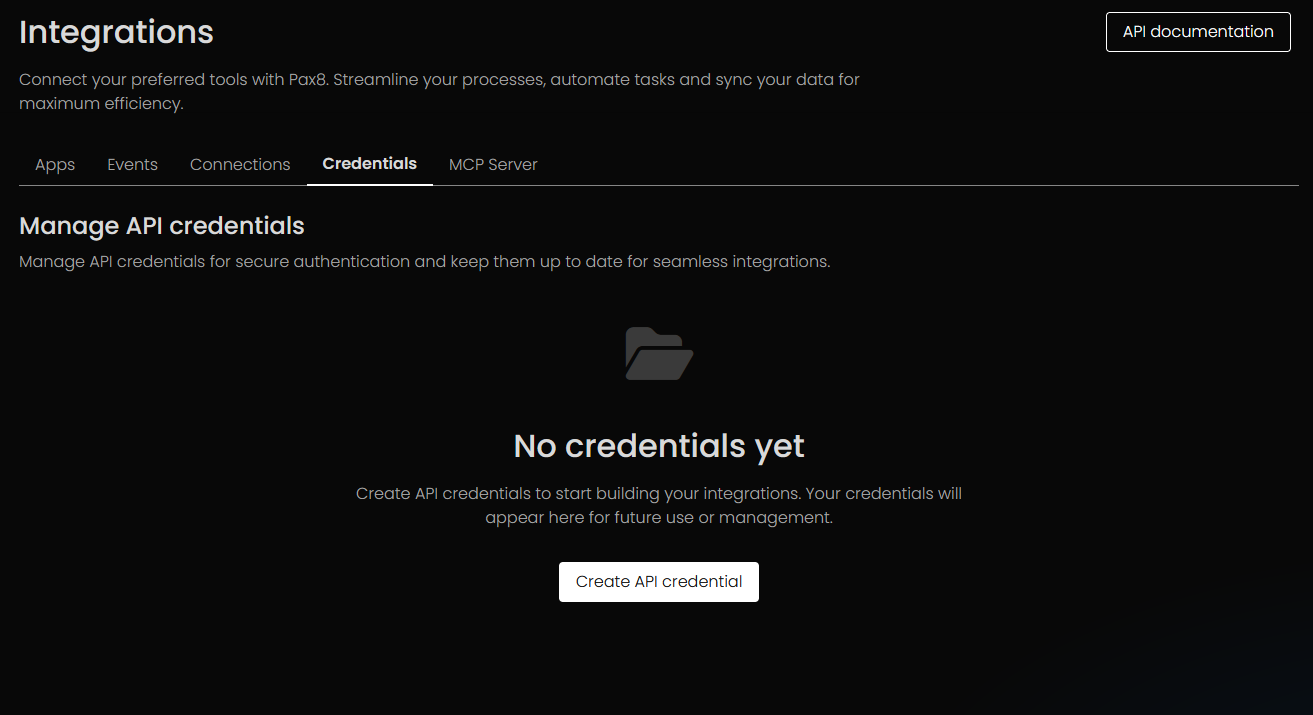
- Open Pax8 Integrations → Credentials and create API credentials.
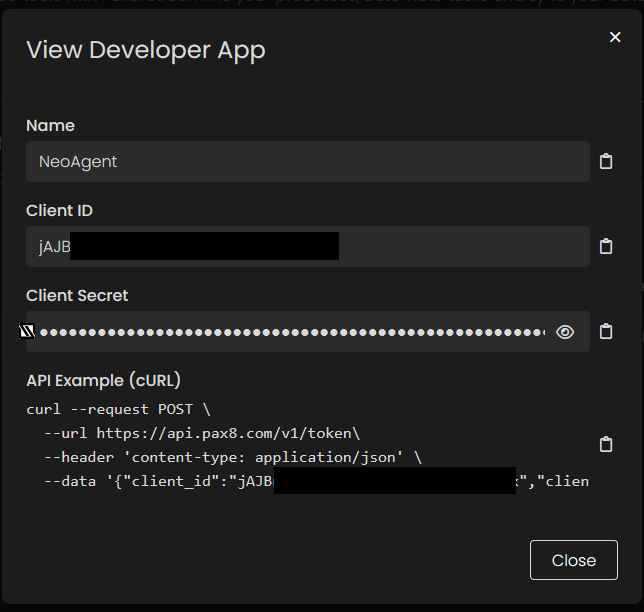
- View the credential to copy Client ID and Client Secret.
- In Neo, go to Integrations → Other and save the credentials.
D&H
- Create a D&H user with required access.
- Find your AccountID from the MSP company URL, for example:
https://cp.dandhcloudsolutions.com/#/Account/View/54632/Overview. - In Neo, save username, password, and AccountID under Integrations → Other.
Ingram Micro Cloud Marketplace
Neo connects to the Ingram Micro Cloud Marketplace API to manage subscriptions and license seats. You will need five pieces of information:Ingram Micro has consolidated its partner experience under XVantage, which is where you now manage cloud subscriptions and activate the Marketplace API add-on. For background on the underlying API, see Ingram’s Cloud Marketplace API — Getting Started guide.
Step 1 — Activate the Marketplace API product (free)
- Sign in to XVantage (or your regional Cloud Marketplace portal, e.g.
https://portal.cloud.im/). - Search the storefront for “Marketplace API” — it lives under the Integration and Tools category.
- Add it to your cart and place the order. This is free ($0.00) — no charge is added to your account, but placing the order is what activates the API.
- Once activated, a new Marketplace API menu item appears in your portal.
Step 2 — Collect your API credentials
- Open the Marketplace API menu in XVantage (or the Cloud Marketplace portal).
- Copy the Username, API URL, and Subscription Key shown on that page.
- If you don’t have a password yet or need a reset, contact Ingram Micro Cloud support:
- US:
imcloudservicedesk.us@cloud.im - General integration support:
usxvantageintegrations@ingrammicro.com
- US:
Step 3 — Determine your marketplace code
The API URL from Step 2 already points Neo at the right regional host (for example, North America is served by…/marketplace/na, Europe and the UK by …/marketplace/eu, and Oceania by …/marketplace/oc) — so you don’t enter a region separately.
You still need your marketplace code: the specific country marketplace Ingram tags each request with. One API URL can serve multiple marketplaces, so the host and the marketplace code are not the same value:
If you skip the marketplace value, the token request fails with
401 Unauthorized from Ingram — this is what Ingram means when they ask whether you’re tagging requests with the correct country code.Step 4 — Save credentials in Neo
- In Neo, go to Integrations → Other.
- Select Ingram Micro from the integration dropdown.
- Enter your username, password, subscription key, API URL, and marketplace.
- Click Save. Neo runs a live token call to confirm the credentials before saving, so a wrong API URL or marketplace code is caught here rather than failing silently later.
Finding your customer IDs
After connecting your credentials, Neo maps your Ingram Micro customers to PSA companies for you. On every PSA sync it lists your marketplace customers and matches each one to a PSA company by name (exact, then legal-suffix-tolerant, then an AI suggestion for the long tail). Review the result under Integrations → Other → Ingram Micro → Organization Mapping: map any customer left unmapped, or correct a match — a manual mapping is kept across syncs. Only an exact, one-to-one name match is used on its own. Everything else — a legal-suffix match, an AI suggestion, two companies sharing a name, or two customers matching one company — is shown for confirmation only, and Neo never places or cancels an order against it. To override the automatic match for a company, enter its Customer ID as the Marketplace Company ID on the Companies page (see Step 2); a typed ID always wins:- Sign in to XVantage (or your regional Cloud Marketplace portal).
- Navigate to Customers and open the customer account.
- The Customer ID is displayed in the customer details — this is the value to enter as the Marketplace Company ID in Neo.
Neo’s integration uses Ingram’s Cloud Marketplace API (the API URL you provide, e.g.
https://api.cloud.im/marketplace/na), which covers SaaS subscription lifecycle — purchase, change quantity, cancel. Ingram’s separate XVantage Integration (XI) API covers product catalog, orders, quotes, invoices, and renewals for hardware/traditional SKUs, and is not currently used by Neo for M365 license management.Sherweb
Neo connects to the Sherweb Service Provider API to manage subscriptions and license seats. You will need three pieces of information:Collecting your API credentials
- Sign in to the Sherweb Cumulus portal.
- Navigate to Security → APIs.
- Create or view your API credentials to obtain the Client ID, Client Secret, and Subscription Key.
Saving credentials in Neo
- In Neo, go to Integrations → Other.
- Select Sherweb from the integration dropdown.
- Enter your Client ID, Client Secret, and Subscription Key.
- Click Save.
Mapping companies to Sherweb customers
- Go to the Companies page and open (or add) a company.
- Under Marketplace Company IDs, add a row and select Sherweb.
- Pick the customer from the searchable dropdown and click Save.
TD SYNNEX
TD SYNNEX runs two platforms with separate APIs; connect the one your portal is.- StreamOne ION: connect with your Account ID and a refresh token. See TD SYNNEX ION.
- StreamOne Stellr: connect with a Client ID and Client Secret from the Stellr Developer Portal. See TD SYNNEX Stellr.
OpenText Secure Cloud
OpenText Secure Cloud connects with a Client ID, a Client secret and a refresh token, and maps its customers to PSA companies on its own Organization Mapping tab. Agents use it through the Vendor API tool to create users and assign or remove their Microsoft 365 licences, and change seat quantities with Change License Seats. For a company typed by hand, the Marketplace Company ID is the Secure Cloud customer ID (a GUID). See Connecting OpenText Secure Cloud to Neo.Microsoft Partner Center
- Sign in to Partner Center with a Global Admin account.
- Select Settings (gear icon) → Account settings → App management.
- Direct link: https://partner.microsoft.com/dashboard/v2/account-settings/appmanagement
- If you don’t see this option, try with a different Global Admin user.
- Add a new web app.
- Copy the App ID and Key (client secret).
- In Neo, go to Integrations → Other, select Microsoft Partner Center, and save the credentials.
Step 2 — Map companies to marketplace customers
Once your platform credentials are saved, link each end-client company to its marketplace customer:- Go to the Companies page in Neo.
- Click a company to open it.
- Under Marketplace Company IDs, click Add Marketplace.
- Select your marketplace provider (e.g., Ingram Micro) from the dropdown.
- Enter the customer ID from your marketplace portal — this is the ID your marketplace provider uses to identify this customer, not the PSA company ID. For Sherweb, pick the customer from the dropdown instead (see Sherweb).
- Click Save.