What it is
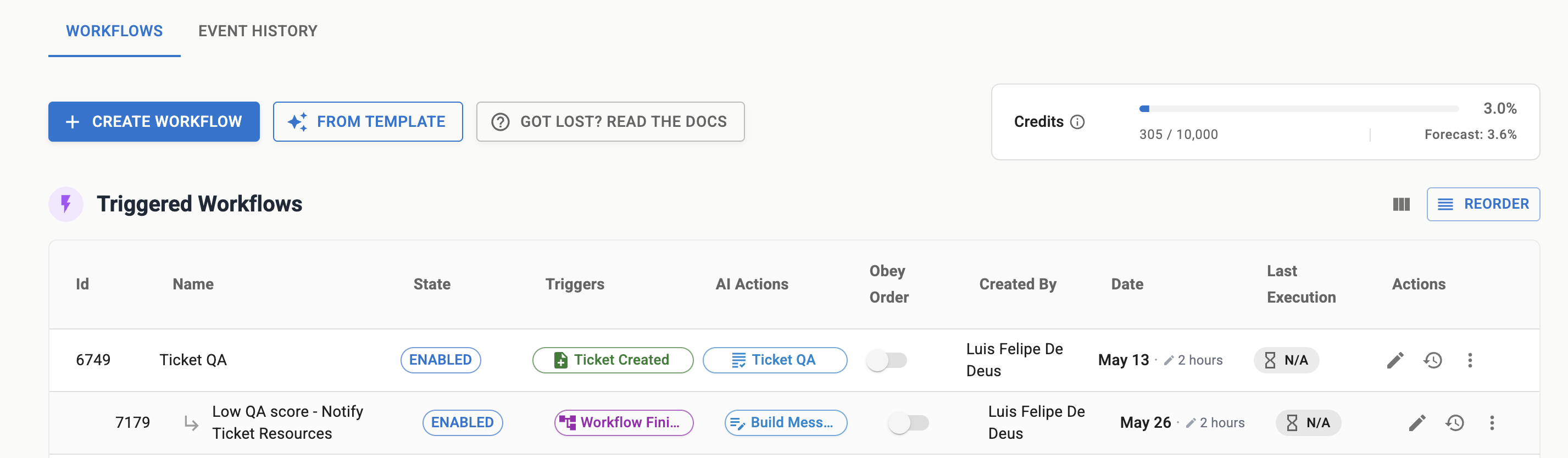
Triggered workflows start automatically when a specific event occurs in your PSA, such as a ticket being created, updated, or closed, or when a time entry is posted. They enable near-real-time automation.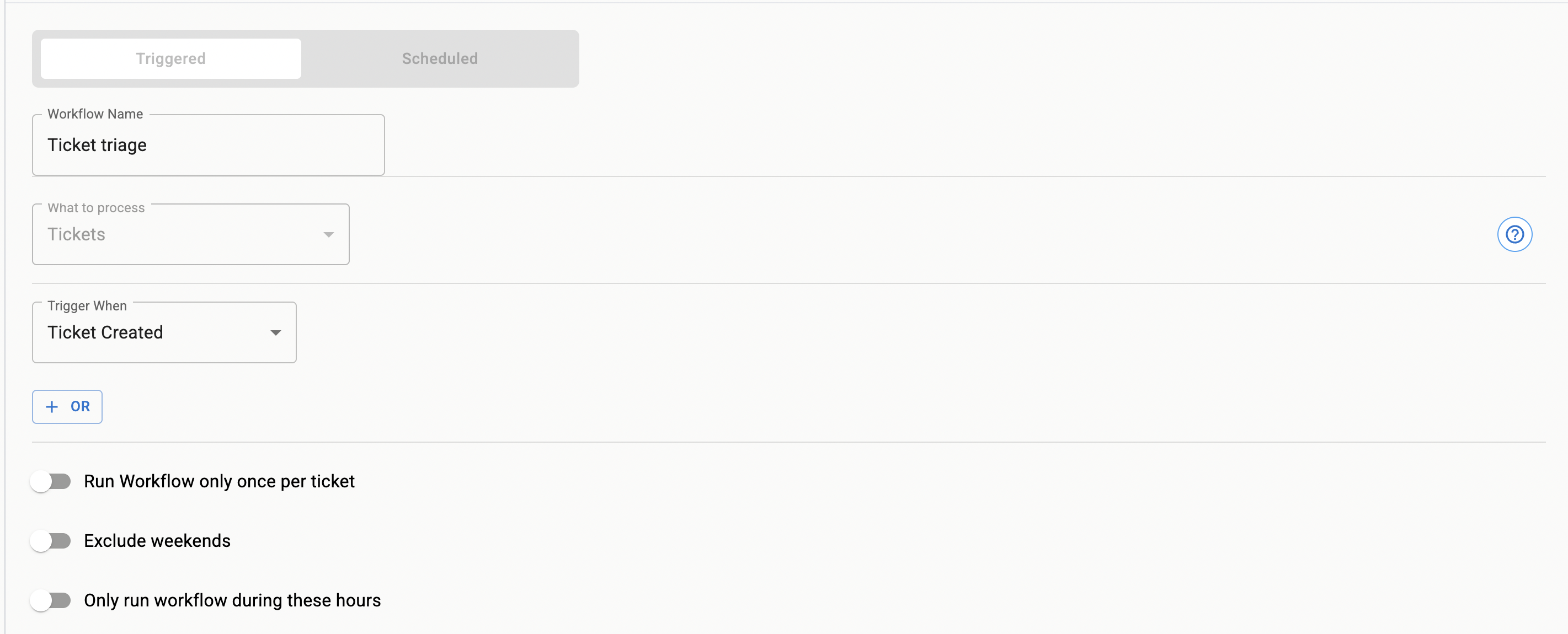
Examples of ticket-based triggers
Common use cases
- Auto-assign new incidents by queue, priority, or keywords
- Route after-hours requests to on-call channels
- Add comments when tickets lack required information
- Enforce required fields when closing tickets
How it runs
1
An event occurs
Your PSA emits an event (for example, ticket created). NeoAgent receives the event.
2
Filters apply
Deterministic rules run first, then optional AI filters. If an item matches, the workflow proceeds.
3
Actions execute
Actions run in order. Use safe ordering (validate, comment, then modify fields) to reduce risk.
4
Results recorded
Outputs and any errors appear in Executions for traceability.
Verification
Create a test ticket that matches your filters. Confirm the workflow appears in Executions, and the expected actions completed in sequence.
Configuration options
Beyond selecting the trigger event, you have several options to fine-tune when and how your triggered workflow executes:Multiple triggers
You can define multiple trigger conditions for a ticket using the+ OR button. For example, a workflow could run if:
- A ticket is created, OR
- Its status changes to “Pending Customer”
Run once per ticket
Enable this option to ensure a workflow runs only once for each unique ticket, even if the trigger condition is met multiple times for that same ticket. This prevents repeated executions for the same underlying cause on the same ticket.Process entities sequentially
Enable this option to process entities (tickets, time entries, etc.) in the order they are received, one by one. This is crucial for workflows where the outcome of processing one entity can affect how subsequent entities should be handled, or where simultaneous processing could lead to conflicts. Here are some examples where sequential processing is beneficial:Ticket dispatch
Ticket dispatch
When multiple new tickets arrive around the same time, processing them sequentially ensures that the dispatch logic has the most up-to-date information about technician availability and current workload. This prevents scenarios where multiple tickets are assigned to the same technician simultaneously because the system hasn’t yet registered the first assignment.
Ticket merge
Ticket merge
If two tickets (Ticket A and Ticket B) are created very close in time and are candidates for merging, sequential processing prevents a race condition. Without it, the system might try to merge Ticket A into Ticket B, and simultaneously merge Ticket B into Ticket A, leading to errors or an inconsistent state.
Execution window
Turn on Restrict execution time windows to let the workflow run only at set times. A trigger event outside those times is ignored.- Time windows per day: Each day of the week has its own list of windows, and a day can hold more than one (for example 07:00–12:00 and 13:00–19:00). A day with no windows does not run. A window whose end is earlier than its start, such as 22:00–06:00, covers that day from midnight to the end time and from the start time to midnight; it does not continue into the next day.
- Copy: The copy button under a day, such as Copy Mon under Tuesday, gives that day the same windows as the day before it. Copy to all gives every day of the week the windows of that day. Set one day, copy it, then change the days that differ.
- Quick presets: Fill the week with Mon–Fri 9am–5pm, Mon–Fri all day, or weekends all day.
- Timezone: The timezone that every window follows.
Supported trigger events
A triggered workflow fires on one of a fixed set of PSA events. When you configure a trigger, you choose from:- Ticket created
- Ticket updated — any change, or narrowed to a change of one standard field: status, priority, board / queue, or ticket type
- Customer replied to the ticket
- Technician replied to the customer
- Note added to the ticket — any note (public or internal) from any non-Neo author, including customer notes and system/automation notes
- Technician added a note — a human technician added a note (public or internal). Unlike Note added, this skips customer notes and system/workflow/automation notes (e.g. Autotask workflow rule notes), so it’s the credit-efficient choice for “react when a tech documents work” agents such as automatic time entry. On ServiceNow, only internal work notes fire this trigger — ServiceNow doesn’t record who authored a public comment, so those are left to Technician replied to customer to avoid firing on customer comments
- Time entry created on the ticket (see Time entry triggers)
- Another workflow finished — chain one workflow off another
Narrowing a Ticket updated trigger to specific values
When you narrow Ticket updated to a standard field, From value and To value limit the trigger to specific values of that field. Leave either blank to match any value. Add more than one value to match any of them. Pick from the dropdown, or type a value and press Enter. Type the value exactly as your PSA shows it; matching ignores upper and lower case. Type it in when your PSA uses a value the dropdown does not list. On ServiceNow, the Status dropdown covers the states of every ticket type — incident, request, request item (RITM), task, change request and problem. Request items use their own states, such as Work in Progress and Awaiting Approval.What counts as a customer reply on ConnectWise. ConnectWise records a customer’s reply and a technician’s own client-facing note in the same way, so Neo pairs the event with the note behind it before firing. The note has to be one ConnectWise attributes to a contact.A reply from an address that is also a ConnectWise member is attributed to that member, which makes it a technician note, so Customer replied does not fire for it. That is ConnectWise’s own classification, and it is what keeps a technician’s note — and Neo’s own reply — from starting the agent again. It surprises people testing from their own work mailbox: see Testing an agent before you trust it.Replies from senders ConnectWise holds as neither a contact nor a member, such as a colleague copied into the thread, are a separate setting: Replies from unregistered contacts. It is on the trigger, not on the ConnectWise integration page. Open the agent’s Triggers & Filters tab, or a workflow’s Schedule/Select step, and add a Customer replied condition. Below the conditions, next to “In ConnectWise, a reply only counts when the sender is a registered contact”, click Configure, turn on Let these replies trigger your agents and workflows, and save. You can also ask the Neo Support Agent to turn it on or to edit the Exceptions list for you.The switch and its Exceptions list are account-wide: they apply to every ConnectWise agent and workflow, not only the one you opened them from. Turning the switch on also lets other mail on a ticket count as a reply, such as a supplier’s helpdesk auto-acknowledgement, so add those senders to Exceptions. Neo applies the switch when it processes a reply, so a reply it already skipped does not start an agent later.The email that opens a ticket is not a reply. ConnectWise records a ticket’s first note in the same way as a reply, so when a customer’s note is the ticket’s first and was written within 15 seconds of the ticket’s creation, Neo leaves it out and Customer replied does not fire for it. A first customer note written later counts as a reply. To start an agent on new tickets, use a Ticket created trigger.
The trigger event and Filter Ticket settings gate PSA events, not direct hand-offs from another agent. When another agent invokes this workflow with the Trigger or Schedule Workflow tool, the hand-off skips this workflow’s configured trigger event, its Filter Ticket conditions, and its execution window. Only Enabled, Triggered type, and entity type still apply. A workflow set to Manual only can therefore still be invoked by another agent. To control which tickets get handed off, control it on the source agent — see Which target settings apply to a direct invocation.
Custom fields and UDFs are not trigger events
There is no “custom field changed” trigger, and a custom field / UDF cannot be the standard field that narrows a Ticket updated trigger — that is limited to status, priority, board / queue, and type. To act on a custom field, trigger on Ticket created or Ticket updated and add a filter condition on it. Filter conditions match any PSA field by its exact name, including custom fields and UDFs — see Filter tickets and the Configuration reference.Gotchas and tips
Avoid race conditions
Avoid race conditions
When multiple workflows target the same field, set clear ordering and use conditions to prevent ping-pong updates.
Idempotency matters
Idempotency matters
Design actions so re-running them is safe. Use markers like labels or comments to detect previous runs.
Narrow filters before expanding
Narrow filters before expanding
Start with a tight scope (specific queue or company) to validate. Expand only after consistent results.
Handling missing data
Handling missing data
If required fields are absent, prefer commenting and requesting info rather than failing silently.
Visual confirmation