
The events Neo subscribes to
“Ticket Updated” fires on every property change, and HaloPSA requires at least one criterion on it. Neo narrows it to status changes so you receive one notification per status change instead of one per edited field.
Checking the events
1
Open the webhook
In HaloPSA, go to Configuration → Integrations → Webhooks and click Neo Tickets callback [ALL].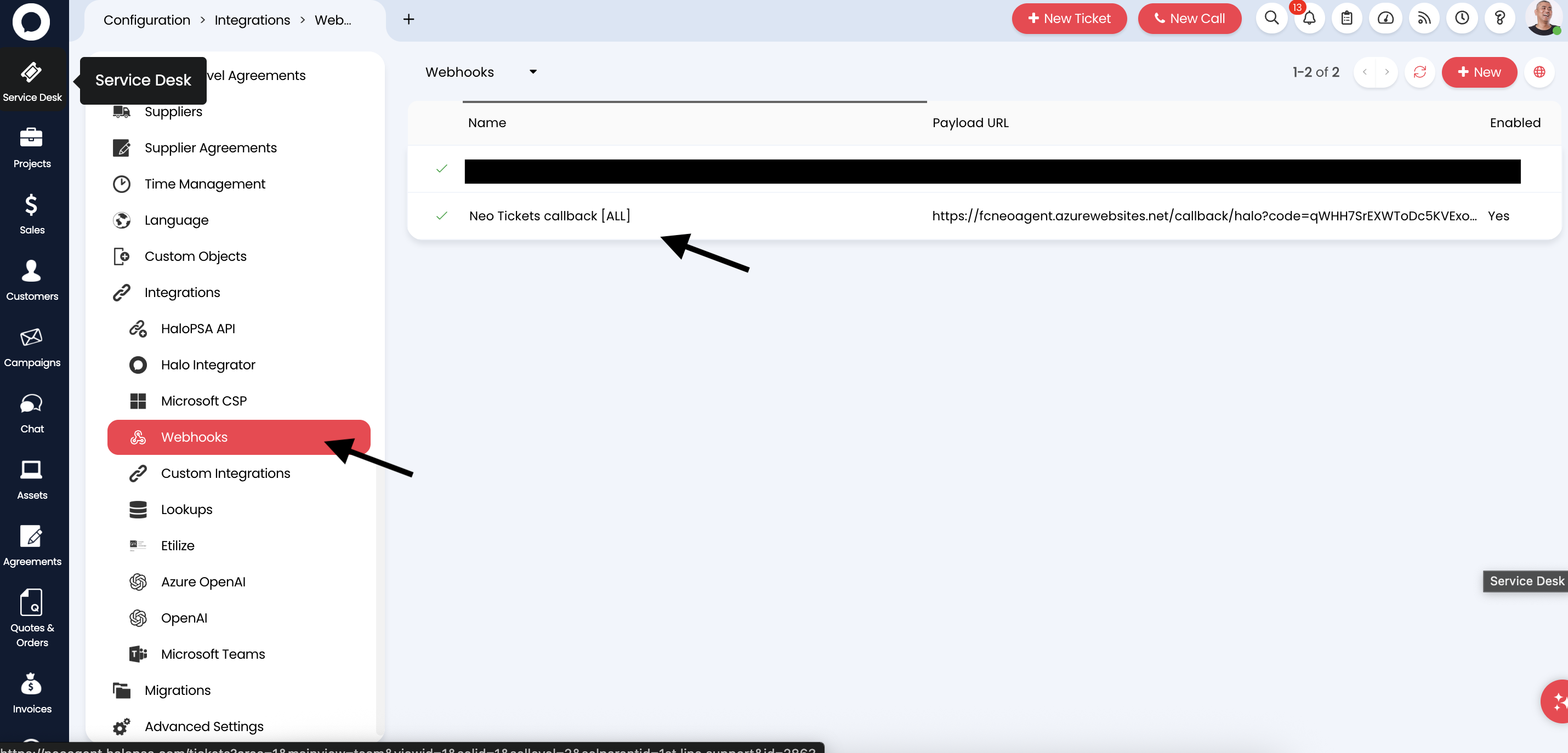
2
Check the Events section
The Events section lists the four events above, with the Status criterion on Ticket Updated. Enabled is Yes.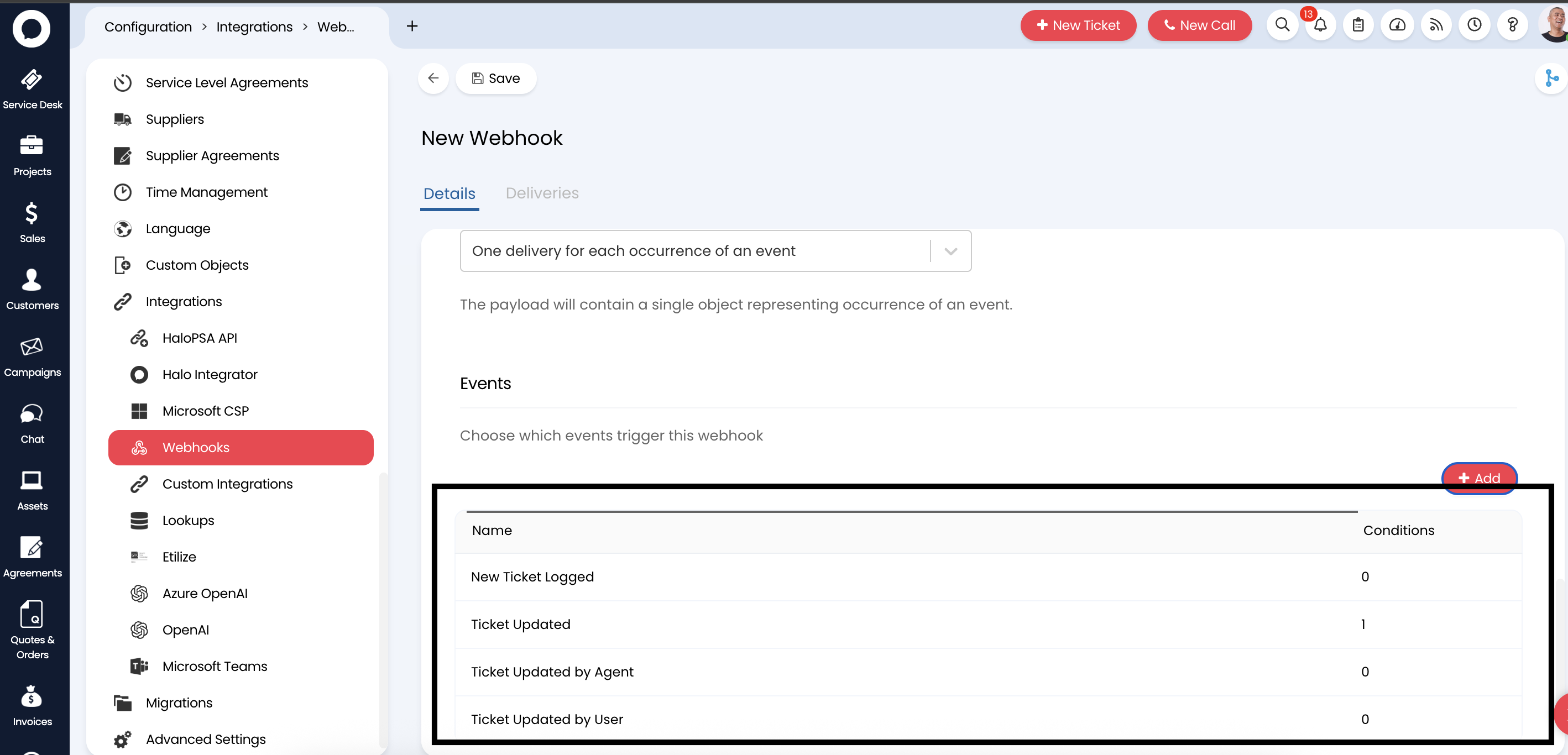
3
Check a delivery
Open the Deliveries tab, then create or update a test ticket. A new delivery with a
200 response means the event reached Neo Agent.Adding your own events
You can add further events to the webhook, for example an out-of-hours update event. Click Edit, then + Add in the Events section, pick the event, and Save. Neo Agent leaves events you add in place.Webhooks created before September 2026
If you connected HaloPSA before Neo Agent created the events itself, the webhook may still carry the events you added by hand. Those keep working; nothing changes for you. If the webhook has no events at all, Neo Agent adds the four events on its own during its next scheduled sync of your HaloPSA data. To fix it right away, open your PSA on the Neo Agent Integrations page and click Save & run checks.Troubleshooting
Webhook not found
Webhook not found
- Confirm you have connected HaloPSA to Neo Agent. The webhook is created when the connection is saved.
- Confirm your API application has the admin:webhooks scope set to Yes (see Creating an API Application). Without it, webhook creation fails with a 401 Unauthorized.
- After enabling the scope, open your PSA on the Integrations page and click Save & run checks again.
Webhook has no events
Webhook has no events
- Neo Agent adds the four events to a Neo webhook that has none, both on the next scheduled sync and when you click Save & run checks on your PSA on the Integrations page.
- If your only Neo webhook still has no events afterwards, the API application lacks the admin:webhooks scope. Enable it and save again.
- If your HaloPSA system carries two webhooks pointing at Neo Agent, Neo Agent fills only one of them. Two webhooks deliver every ticket event twice, so the second one stays empty on purpose. Delete the empty one if you want a tidy list.
Webhook is missing some of the four events
Webhook is missing some of the four events
Neo Agent only adds events to a webhook that has none, because a webhook with some events looks the same as one you set up the way you want it. When a Neo webhook carries some of the four but not all, Neo Agent puts an item in your dashboard Inbox naming the events that are missing, and emails your workspace owners and admins.
- Open Configuration → Integrations → Webhooks in HaloPSA, click Neo Tickets callback [ALL], then Edit and + Add in the Events section to add each event the Inbox item names. Use the criteria in the table above.
- The Inbox item clears once all four events are in place, at the next scheduled sync or the next time you click Save & run checks.
- If an event later goes missing again, the item comes back unread and you are emailed again, so a webhook someone edits months from now is not a silent one.
Webhook not triggering
Webhook not triggering
- Verify the webhook is set to Enabled: Yes.
- Verify the four events are present.
- Create a test ticket and check the Deliveries tab.
Delivery failures
Delivery failures
- Check that your Neo Agent subscription is active.
- Ensure no firewall rule blocks outbound connections from HaloPSA.
- Review the Deliveries tab for the error returned.
What’s Next?
Neo Agent now receives ticket activity from HaloPSA as it happens. You can:- Create Workflows: Build automations that trigger the moment a ticket is created or updated
- Configure Responses: Set how Neo Agent responds to each kind of ticket event
- Monitor Activity: Follow Neo Agent’s interactions with your HaloPSA tickets in Executions