
Creating the API Member
1
Navigate to Resources/Users section
Go to Admin → Organization Settings & Users → Resources/Users (HR) to begin creating a new API member.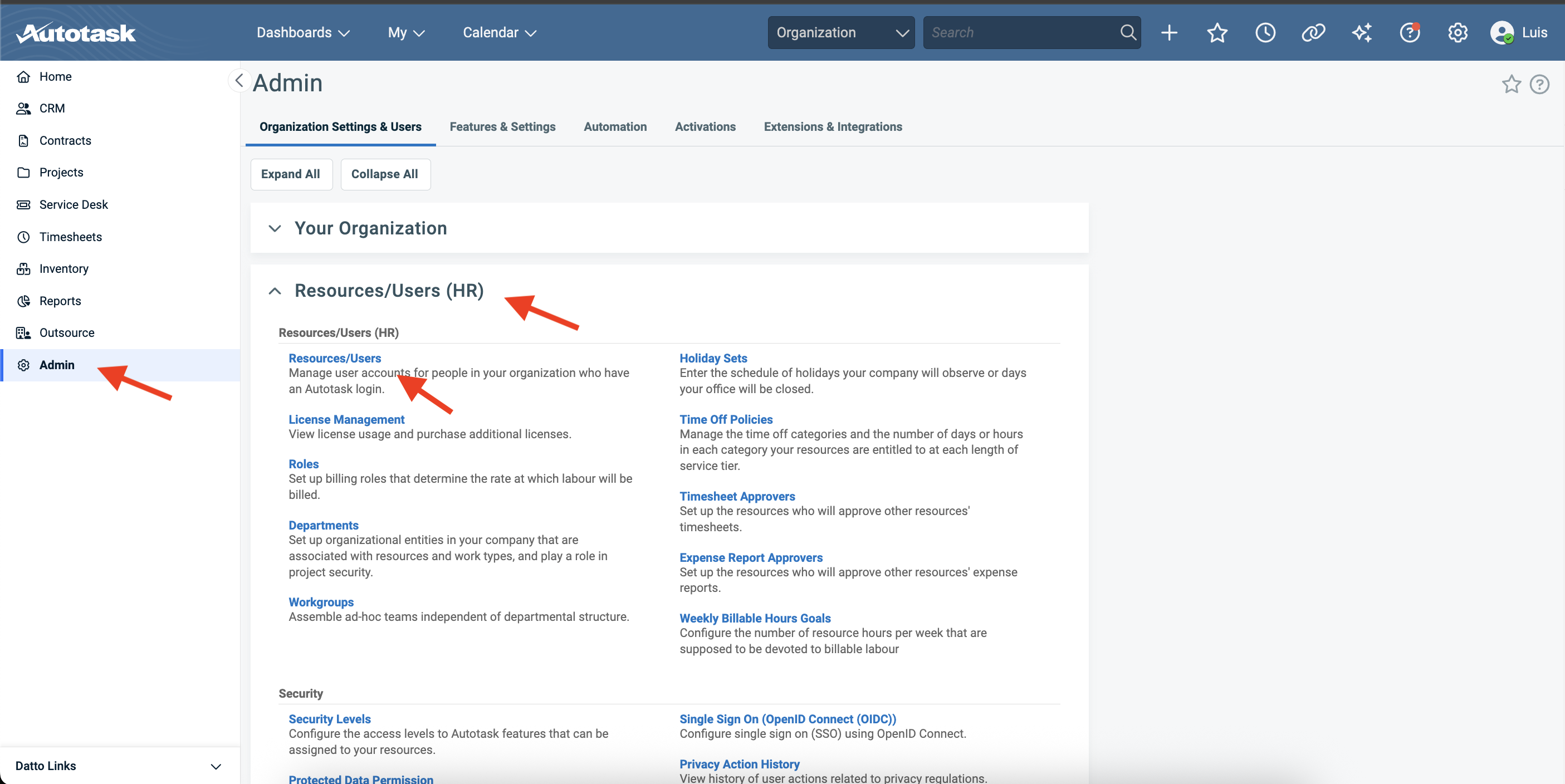
2
Initiate API member creation
Click to add a new resource and select the option to create an API-only member, not a regular user.
3
Configure basic API member details
Fill in the form: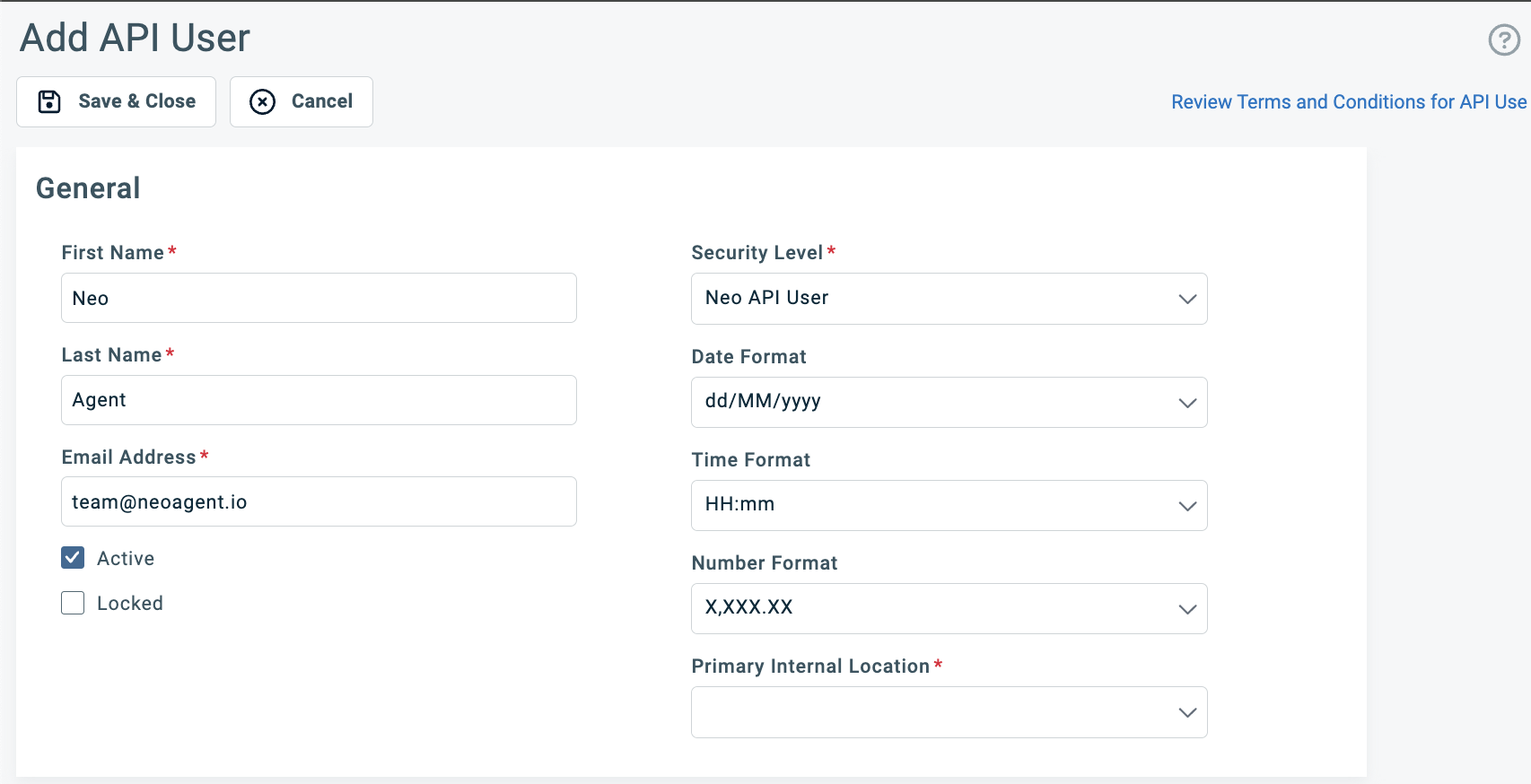
- First Name: Neo
- Last Name: API
- Email:
psa-noreply@neoagent.io, or a dedicated address on your own domain. Autotask mails resource notifications to this address, andpsa-noreply@neoagent.iodiscards them. Never use another Neo address such asteam@neoagent.io— that sends your ticket notifications to a Neo inbox - Security Level: the Neo API User security level you created earlier
- Status: Active
4
Set the API tracking identifier
Under API Tracking Identifier, choose Integration Vendor, then select Neo Agent. There is no code to copy from this screen — Neo supplies its own, and its activity appears under that name in Autotask’s API usage reports.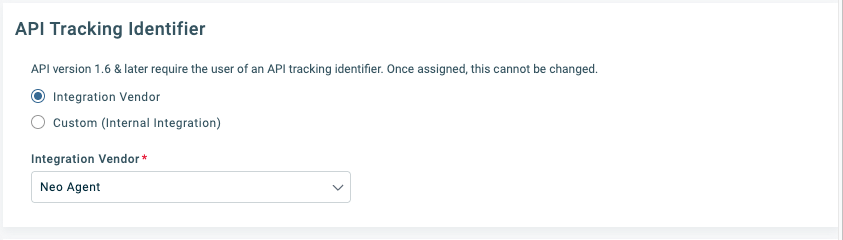
Set Neo up before it joined the Integration Hub? Your API user is on a Custom identifier and keeps working. To move it, change it here first, then clear the Your own API tracking identifier box on Neo’s Autotask integration page.
5
Generate API credentials
After saving the API member, generate the API credentials: the username (Generate Key) and the secret (Generate Secret).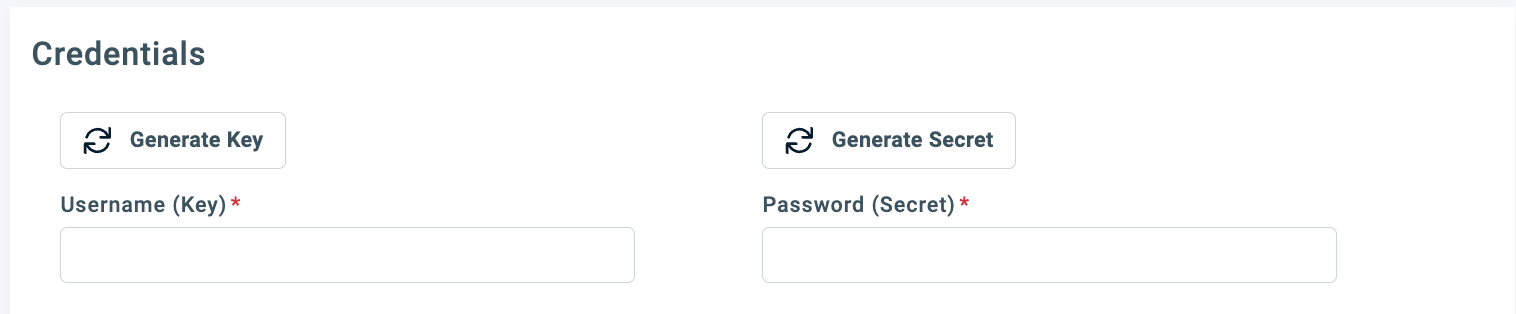
Creating a Regular User
Create this before you connect Autotask to Neo. After you save your credentials, Neo asks which Autotask user it should be recorded as and lists your users to pick from — choose the user you created, or decline by selecting “Neo has no Autotask user”. If this user already exists, you pick it and you are done. Autotask does not allow API-only users to be assigned to tickets or create time entries. Neo needs a regular (non-API) user to take ticket ownership or log time under its own name. It consumes an Autotask licence, so it is optional: without it Neo still writes notes, updates tickets, and logs time against the technician who asked in chat.1
Create a regular user account
Create a new regular user (not an API member) with a dedicated name like “Neo Agent”. Neo records this user as the owner of ticket assignments and time entries.
2
Configure regular user security level
Assign a security level to the regular user. This can be the Neo API User security level or a different one, based on your requirements.
3
Enable impersonation for the regular user
Open the security level assigned to the regular user and enable impersonation: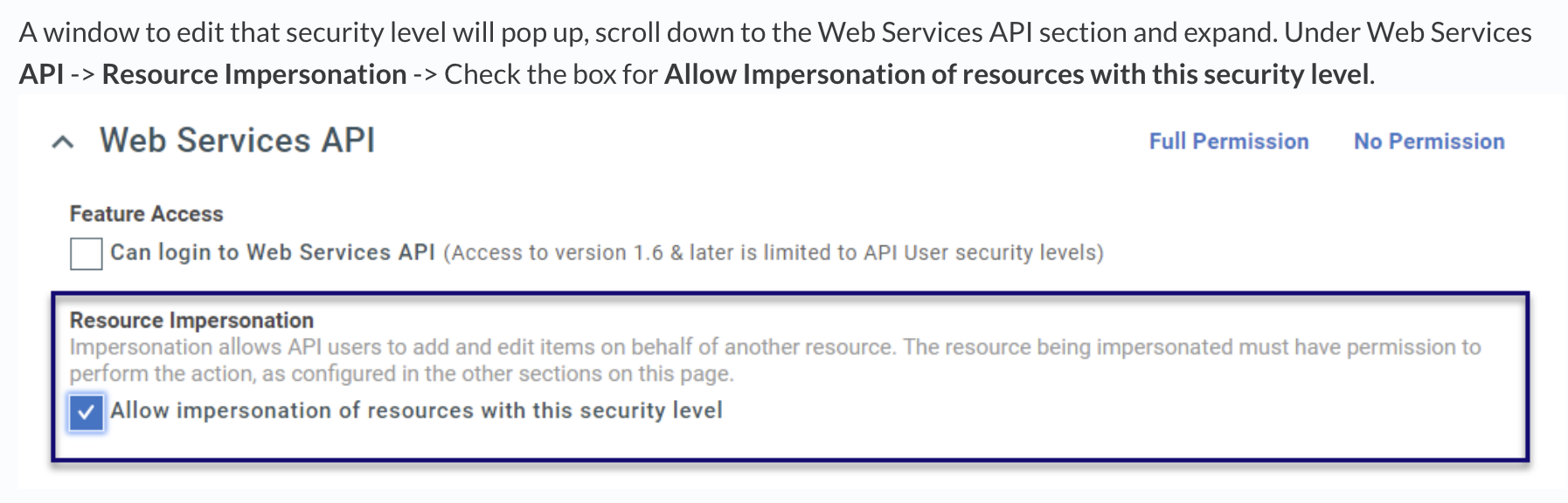
- Go to Web Services API → Resource Impersonation
- Enable “Allow impersonation of resources with this security level”
Configuring Contact Notifications
If Neo should email end users when it updates their tickets, configure Autotask’s contact notifications:Ticket Contact Notifications
Configure which ticket events email the contact, and which templates Autotask uses.
What’s Next?
Proceed to connect Autotask to Neo Agent.Before you proceed, verify you have:
- The API username and secret
- The API user’s tracking identifier set to Integration Vendor → Neo Agent
- (Optional) The regular user, with impersonation enabled on its security level