Unlike ConnectWise or Halo, ServiceNow uses an OAuth consent flow. After you enter your credentials, a popup opens on your own ServiceNow instance where the Neo service account approves access. The popup closes itself when consent completes.
Your ServiceNow instance URL, for example https://acme.service-now.com. Must use HTTPS, no trailing slash, no path. FedRAMP / Government Community Cloud customers can also use *.servicenowservices.com instances.
The Client Secret from your OAuth Application Registry entry. Treat this like a password. Neo stores it encrypted and uses it only to refresh access tokens.
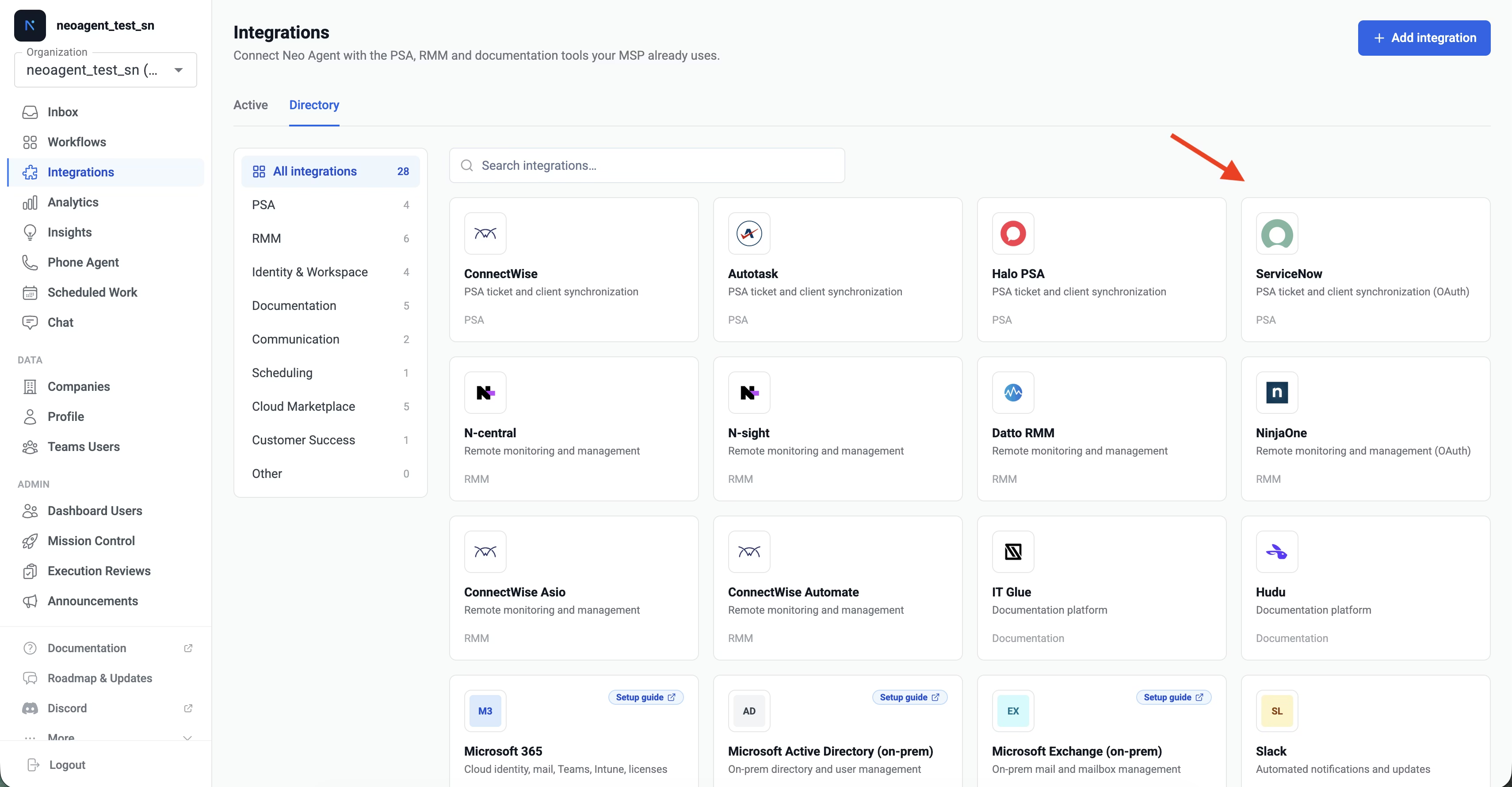
Navigate to the Neo Agent Dashboard, open the Directory tab, and click the ServiceNow tile.
The Integrations directory in the Neo Agent dashboard
2
Sign in to ServiceNow as the service account, then enter your credentials
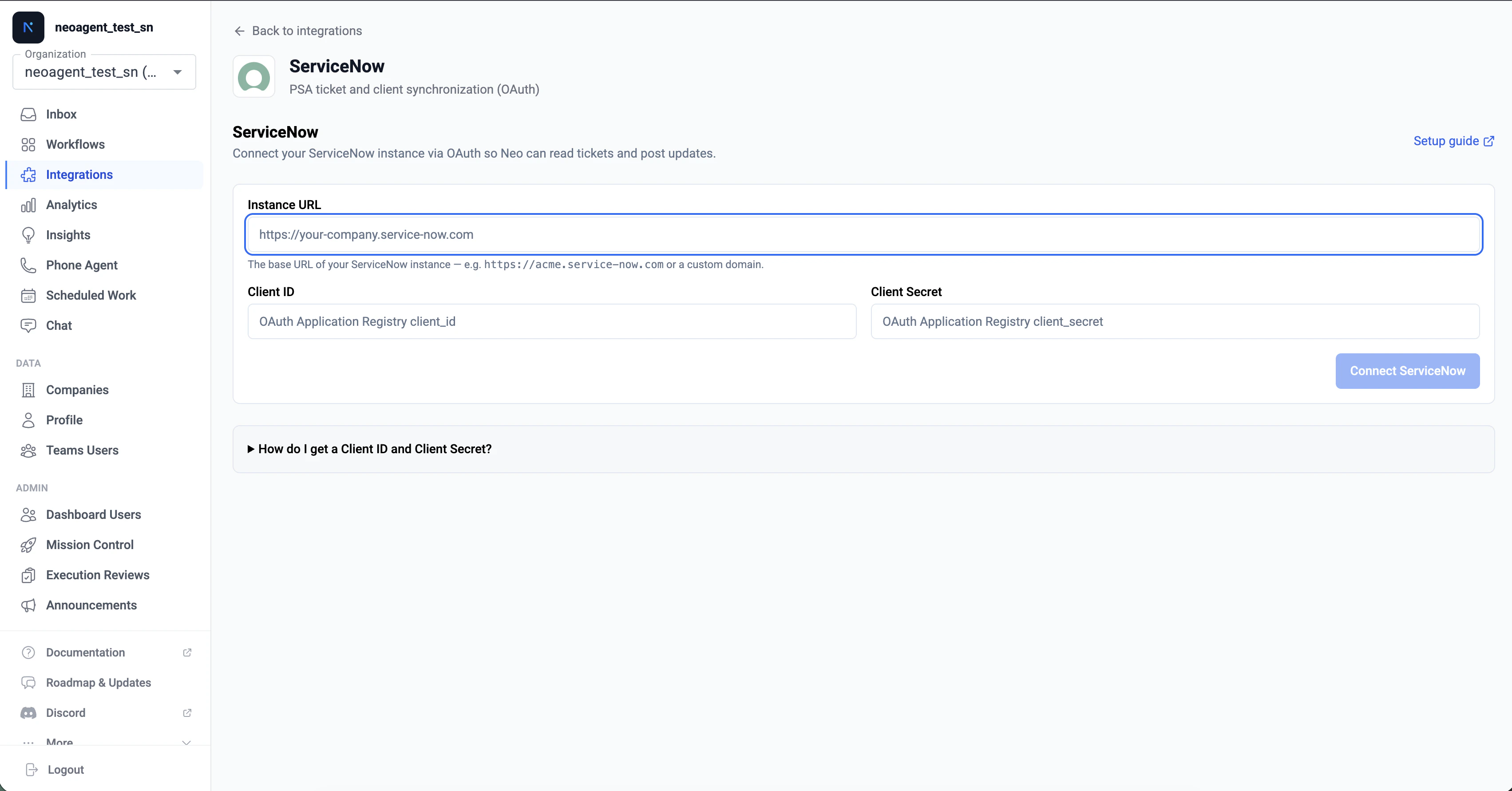
First, in another tab, sign in to ServiceNow as the dedicated Neo service account you created. The next step opens a consent popup, and the signed-in user at that moment becomes Neo’s identity.Then fill in the three fields:
Instance URL, e.g. https://acme.service-now.com
Client ID
Client Secret
The ServiceNow connect form in the Neo dashboard
Click Connect ServiceNow. The dashboard opens a popup pointed at your ServiceNow instance’s OAuth consent page.
If your browser blocks the popup, the dashboard falls back to a full-page redirect. Either flow works.
3
Approve in ServiceNow
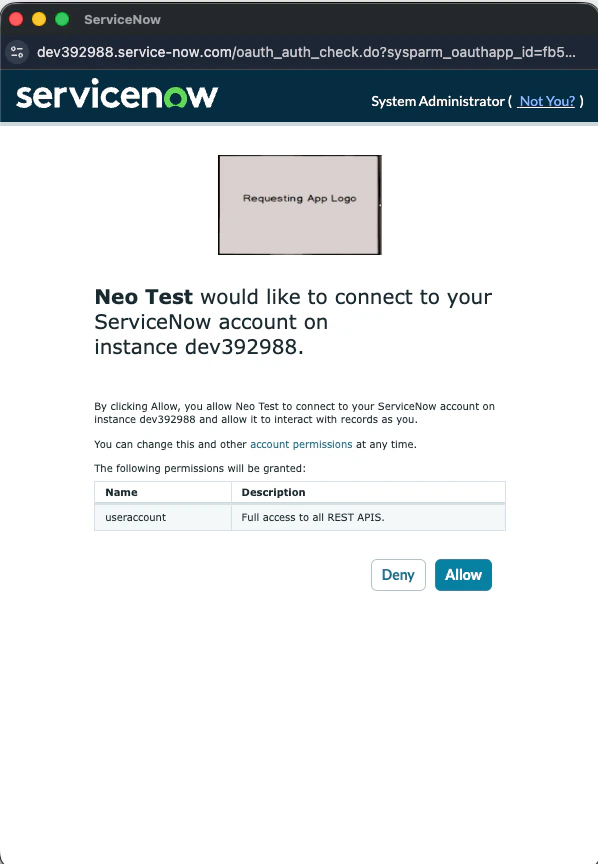
The popup shows the consent screen. Confirm the signed-in user is the Neo service account, then click Allow. The popup closes automatically and the dashboard runs its verification checks before the connected card appears.
The OAuth consent screen on your ServiceNow instance
The user who clicks Allow becomes Neo’s identity in ServiceNow. Every note, state change, and time entry Neo creates is attributed to that user, and tickets Neo claims are assigned to it. If you click Allow as your personal admin account, Neo looks like you in every audit log, your assignment queue fills with Neo-claimed tickets, and the integration breaks the day your account is disabled. If the wrong user is signed in, log out of ServiceNow, sign in as the service account, and click Reconnect in the Neo dashboard.
4
Verify the connection
Back in the Neo dashboard, Neo runs its verification checks: authorization, incident read access, write access, the webhook registration, and data sync. Each check reports as it completes.
All checks green means Neo has API access for reads and writes and webhook delivery for real-time events. No further ServiceNow-side configuration is required.
What Neo provisions behind the scenes
Validates the OAuth refresh token by fetching an access token
Provisions a Business Rule on the parent task table (named “Neo Agent — Task Webhook”), which fires on every task-family subclass via table inheritance
Creates a System Property (x_neoagent.callback_url) holding the per-tenant callback URL the Business Rule POSTs to
Sets the integration’s sync state to READY_TO_SYNC
If you encounter issues during the connect flow, check the following:
Instance URL Rejected
The error names the rule: instance_url must be a service-now.com or servicenowservices.com domain.
Make sure the URL starts with https:// (not http://)
The hostname must end with .service-now.com or .servicenowservices.com (FedRAMP/GovCloud customers)
Do not include a path. https://acme.service-now.com is correct, https://acme.service-now.com/now is not
Vanity URLs are not supported here. Use the canonical platform admin URL even if your end users access ServiceNow via a custom hostname
OAuth Callback Failed: invalid_client
Verify the Client ID matches the OAuth Application Registry entry exactly. Copy-paste, do not retype
Check the Client Secret was copied correctly without extra spaces or newline characters
Confirm the OAuth application is set to Active in ServiceNow
If you regenerated the Client Secret in ServiceNow, update it in Neo via the Reconnect button
Popup Closes With No Consent Screen
The Redirect URL on your OAuth Application Registry entry probably does not match. Verify it is exactly https://dashboard.neoagent.io/oauth/servicenow/callback
Extra trailing slashes, query parameters, or http:// (instead of https://) cause this. The match must be byte-for-byte
Insufficient Privileges After OAuth Completes
The user that approved consent does not have the itil role, so Neo can authenticate but cannot read tickets
In ServiceNow, open the user record and assign the itil role (or your equivalent role with Table API read/write on the task family)
Click Reconnect in the Neo dashboard to retry
403 When Neo Sends an Email via PSA
Neo’s “Email (sent via PSA)” notification mode calls /api/now/v1/email, which requires the email_api_send role on the integration user (separate from itil)
In ServiceNow, open the user record and assign the email_api_send role
No reconnect needed. The next workflow run picks it up, and Neo raises an inbox alert with this exact remediation when it sees the 403
Connected But Webhooks Are Not Arriving
Check System Definition → Business Rules in ServiceNow for a rule named “Neo Agent — Task Webhook” on the task table. It should exist and be Active
Verify System Definition → System Properties contains x_neoagent.callback_url pointing at a https://...neoagent.io/callback/servicenow?... URL
If either is missing, click Reconnect in the Neo dashboard. The webhook provisioning step is idempotent, so re-running it is safe and fixes most provisioning failures (including removing the legacy incident-only rule on instances connected before mid-May 2026)
The OAuth round-trip happens in the user’s browser, but the ongoing API calls and webhook deliveries flow between Neo’s backend and your ServiceNow instance directly
Once connected, every task-family record on your instance (incidents, requests, request items, tasks, change requests, and problems) flows through Neo’s event pipeline. From here you can:
Build workflows: create automated workflows that triage, route, comment, and resolve ServiceNow tickets. Use the Ticket Type filter in the rules-builder to scope a workflow to specific subclasses
Configure permissions: fine-tune which areas Neo can read versus write in the Neo dashboard’s permission groups
Start with simple workflows (e.g., auto-acknowledge a new incident with a courteous note) before enabling more autonomous behavior.
Assistant
Responses are generated using AI and may contain mistakes.