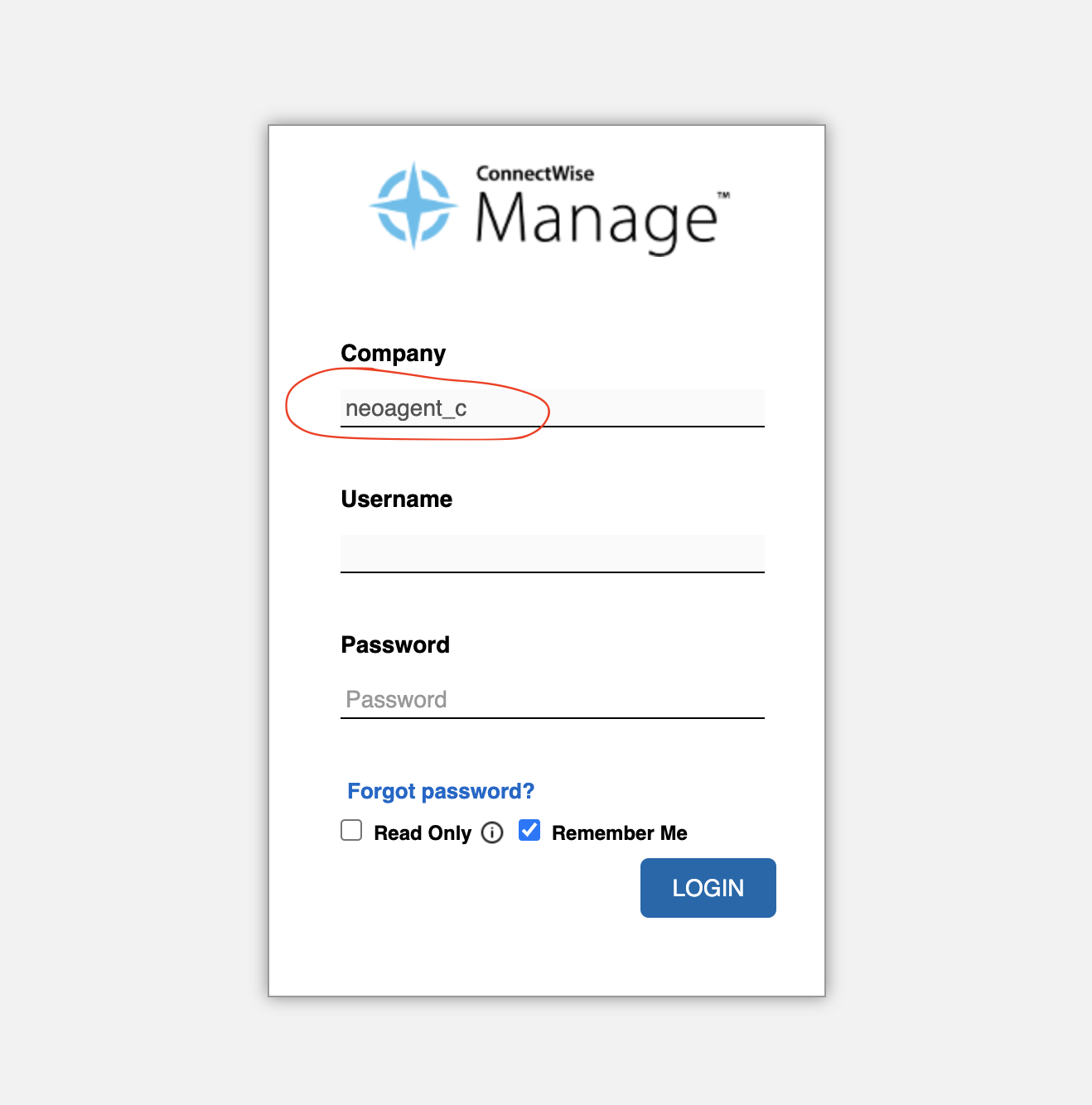
Your company name exactly as shown on the ConnectWise login screen. This must match precisely for authentication to work.
The company name as it appears on the ConnectWise login screen
You do not type Neo’s regular member ID here. After you connect, Neo offers to set its non-API ConnectWise member and lists your members to pick from. It is optional; see Choosing Neo’s ConnectWise member below.
In the Neo Agent Dashboard, open Integrations, switch to the Directory tab, and select ConnectWise. The connect page walks you through the same steps as this guide, one at a time.
2
Enter your credentials
On the “Enter connection details” step, fill in the credentials you gathered:
Username (public key)
Password (private key)
PSA URL
Company Name, exactly as on the login screen
Neo’s API-only Member ID
The connection details step on the ConnectWise connect page
Click Save & run checks. Neo runs the checks on the values you entered and stores the credentials only when the required checks pass. After a passing run, save registers the webhook and does not re-run the ticket-read probe.
3
Watch the verification checks
Neo runs its verification checks one by one against the values you entered: authentication, the identity Neo acts as, ticket read access, write access, webhook permission, and data sync (the first sync usually runs overnight after save; Trigger sync on the integration starts it now). Each check reports as it completes.
All required checks green means Neo can read and write tickets and can register the webhook. A failed check names the exact ConnectWise screen to fix. Fix the permission, then click Save & run checks again.
4
Pick Neo's ConnectWise member (optional)
After a successful connect, Neo asks which ConnectWise member it should be recorded as for assignments and time entries. You can skip this and set it later; the next section explains the trade-off.
Optional. ConnectWise does not let an API-only member own a time entry, so Neo needs a separate non-API member (an ordinary one) to be recorded as when it:
is assigned a ticket
logs its own time, including notifying a contact via a time entry
Neo lists the ConnectWise members it can use, so the API member it signs in with and any disabled members do not appear.If you skip it, Neo keeps working: it writes notes, updates tickets, and logs time against the technician who asked in chat. What it cannot do is take ownership of a ticket or log time under its own name. This member consumes a ConnectWise licence, which is why it is optional.Change it any time: Integrations → ConnectWise → Neo’s non-API ConnectWise member → Change. Your agents switch to the new member within 15 minutes, so an agent that runs in those minutes can still use the previous one.
ConnectWise records a note against whichever member wrote it. Neo uses two:
Note
Author
Replies the customer reads, and the emails ConnectWise sends for them
Neo’s non-API member
Internal and resolution notes
The API member
So customers see the identity you chose, while your technicians can still tell which notes Neo wrote.To change the name your customers see, rename that member in ConnectWise — “Acme Support”, for
example. There is no setting in Neo to configure.
If you have not chosen a non-API member, Neo writes every note under the API member.
Test the URL accessibility from outside your network
Time entries fail with 'API member does not have access to the Time module'
ConnectWise blocks API-only members from creating time entries. This is a ConnectWise restriction, not a permissions setting. Granting Time & Expense on the security role is necessary but not sufficient: the time entry must be owned by a regular (non-API) member.To fix it:
With your ConnectWise system connected, you can now:
Create Workflows: Build automated workflows that interact with your ConnectWise tickets and data
Set Up Pod Integration: Consider setting up the ConnectWise Pod for seamless in-PSA access
Start with simple workflows to test the integration before implementing more complex automation scenarios. This helps identify any configuration issues early in the process.
Assistant
Responses are generated using AI and may contain mistakes.