Overview

Ensure critical issues receive immediate attention by automatically alerting your team the moment a Priority 1 (Critical/Emergency) ticket is created. This workflow eliminates response delays for your most urgent service requests.
This recipe helps maintain SLA compliance for critical tickets by ensuring the right people are notified instantly when high-priority issues arise.

How it works

  • Triggers automatically when a new ticket is created
  • Filters for critical priority tickets only
  • Builds a customized alert message with relevant ticket details
  • Notifies specific users or Teams channels immediately

Setup

1

Create the workflow

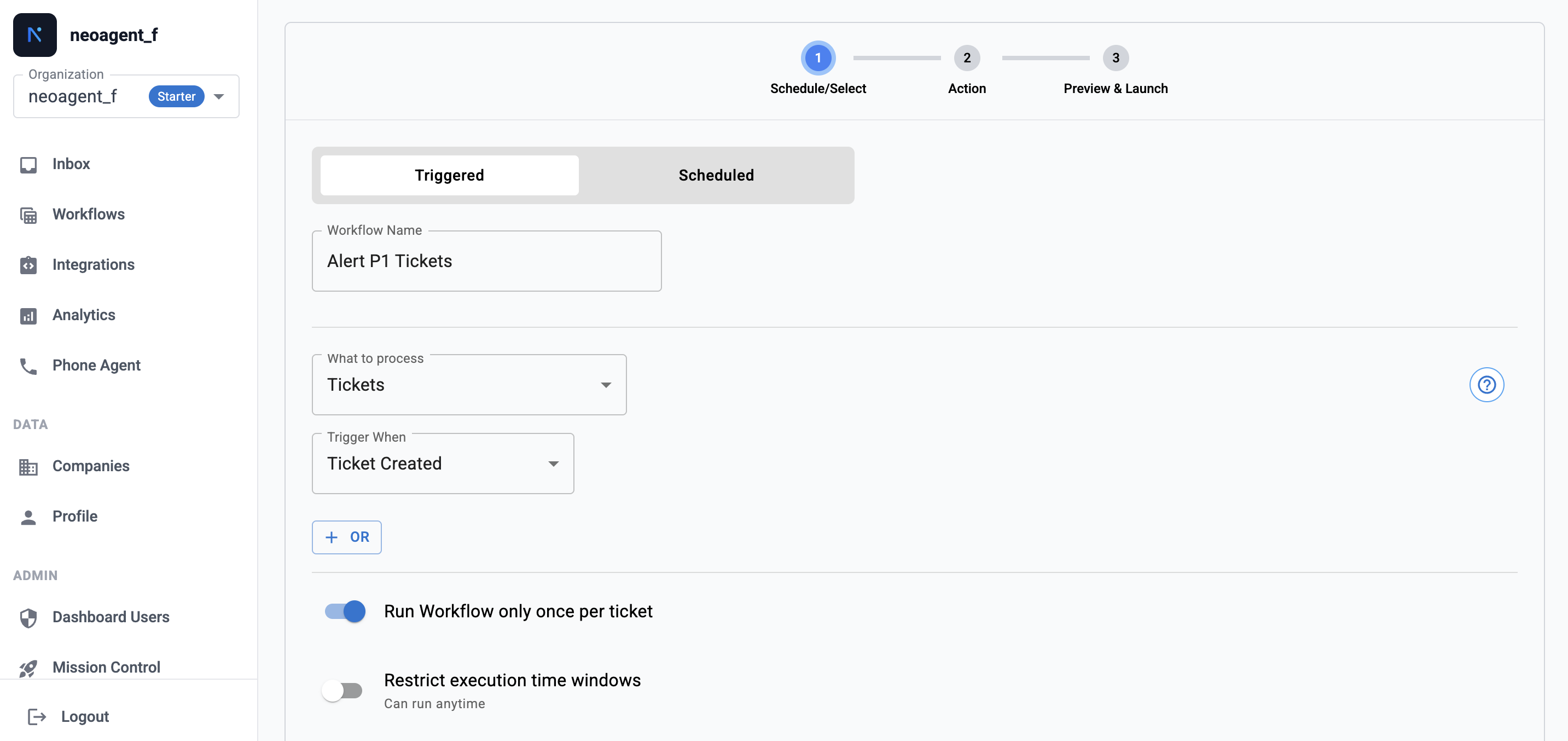
Navigate to Workflows and create a new workflow. Name it “Alert P1 Tickets” and select Triggered as the workflow type. Set the trigger to Ticket Created to run immediately when new tickets arrive.
Creating a triggered workflow named Alert P1 Tickets

Configure the triggered workflow with Ticket Created trigger

Enable “Run Workflow only once per ticket” to prevent duplicate alerts if the ticket is updated shortly after creation.
2

Configure priority filter

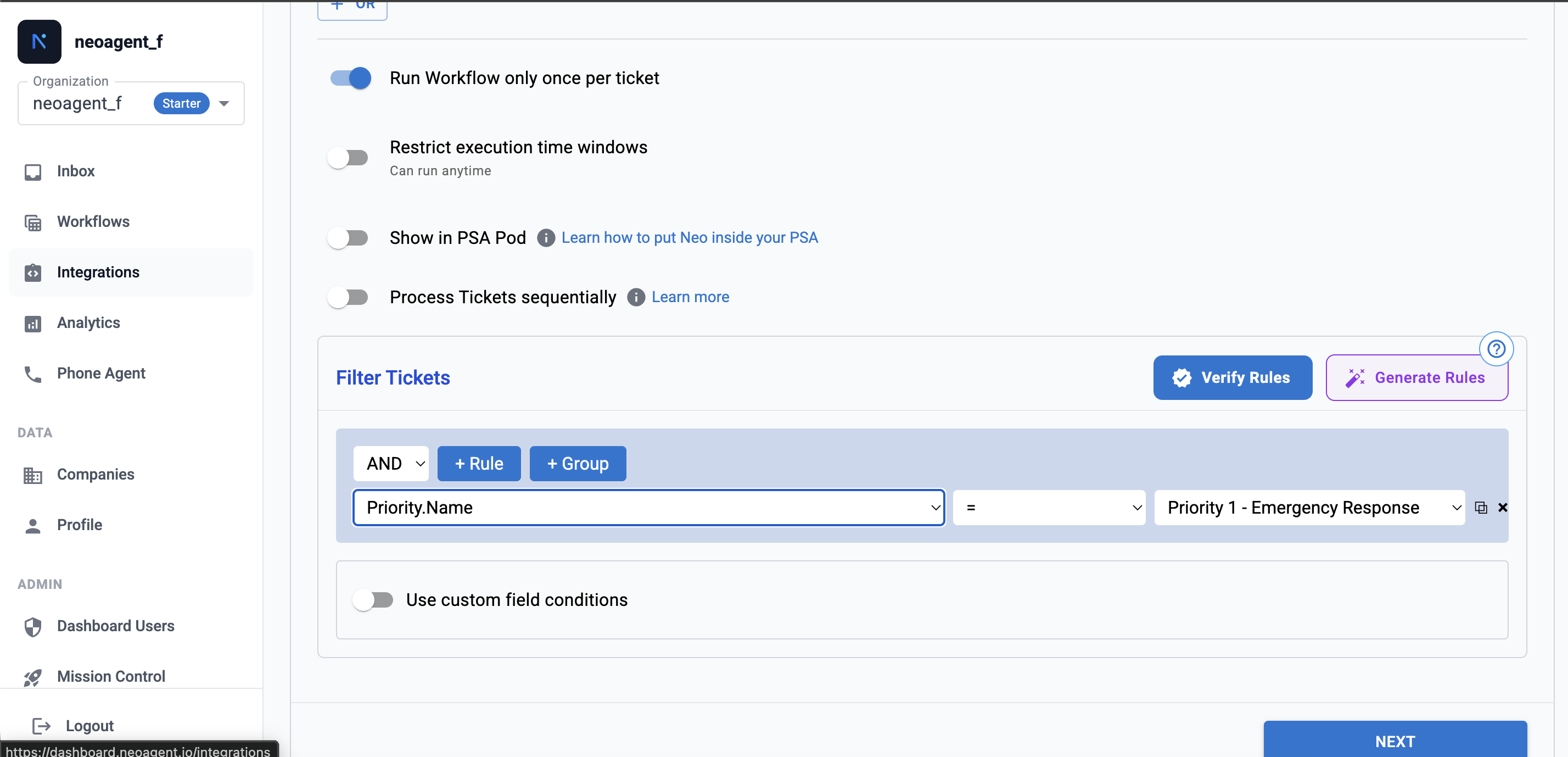
Scroll down to the Filter Tickets section and add a rule:
  • Field: Priority.Name
  • Condition: equals
  • Value: Your critical priority name (e.g., “Priority 1 - Emergency Response”, “Critical”, or “P1”)
Setting up priority filter for P1 tickets

Filter for critical priority tickets only

Priority names vary by PSA system. Check your PSA configuration to use the exact priority name for critical tickets.
3

Add Build Message action

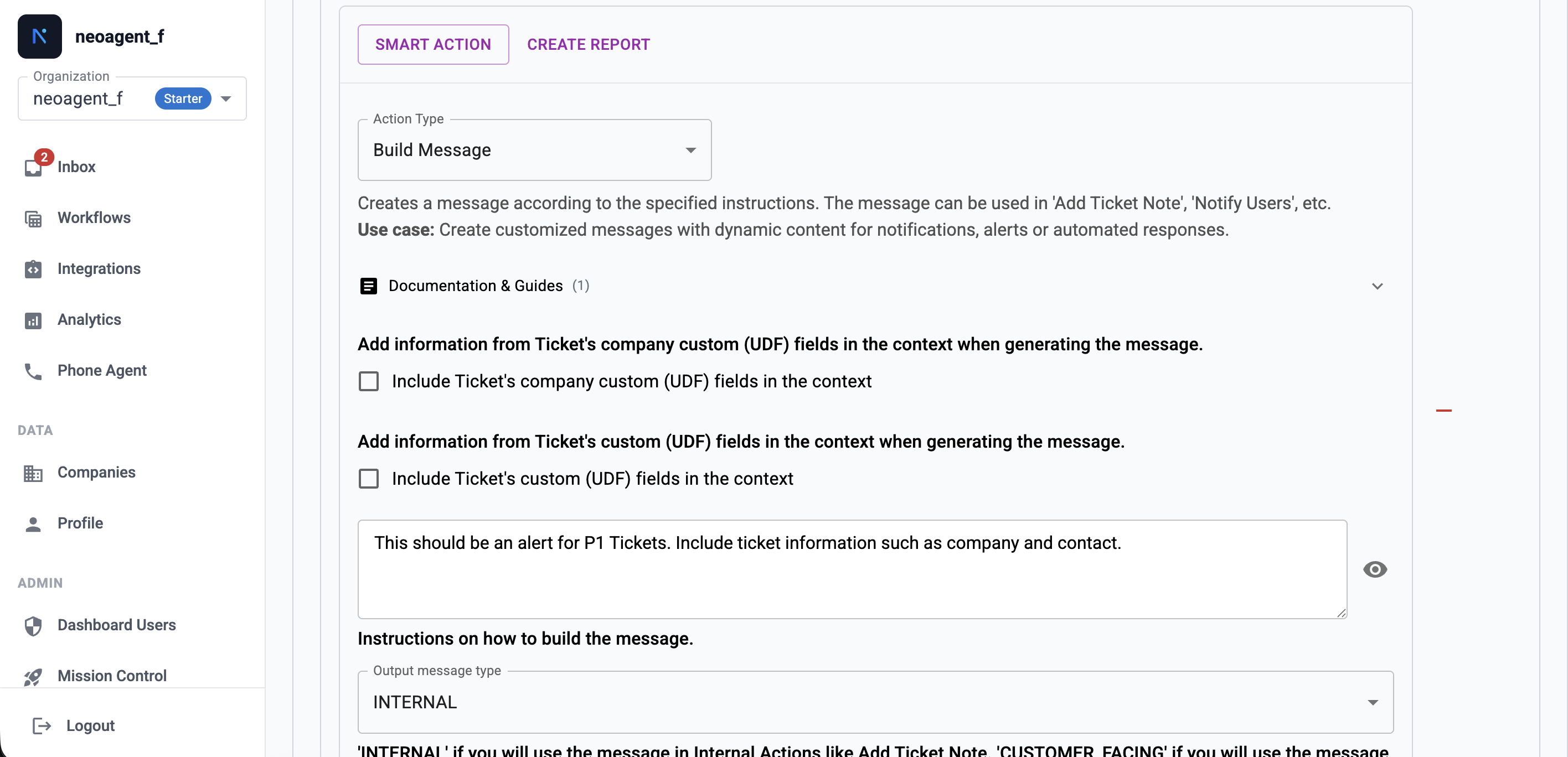
Click NEXT to proceed to the Action step. Select SMART ACTION and choose Build Message as the action type.Configure the message:
  • Provide instructions describing what the alert should contain (e.g., “This should be an alert for P1 Tickets. Include ticket information such as company and contact.”)
  • Set Output message type to INTERNAL
Build Message action configuration

Configure the Build Message action for P1 alerts

Example message instructions:
Create an urgent P1 alert message that includes:
- Clear "CRITICAL ALERT" header
- Ticket number and subject
- Customer/company name
- Contact information
- Brief issue summary
- Direct link to the ticket
4

Configure team notifications

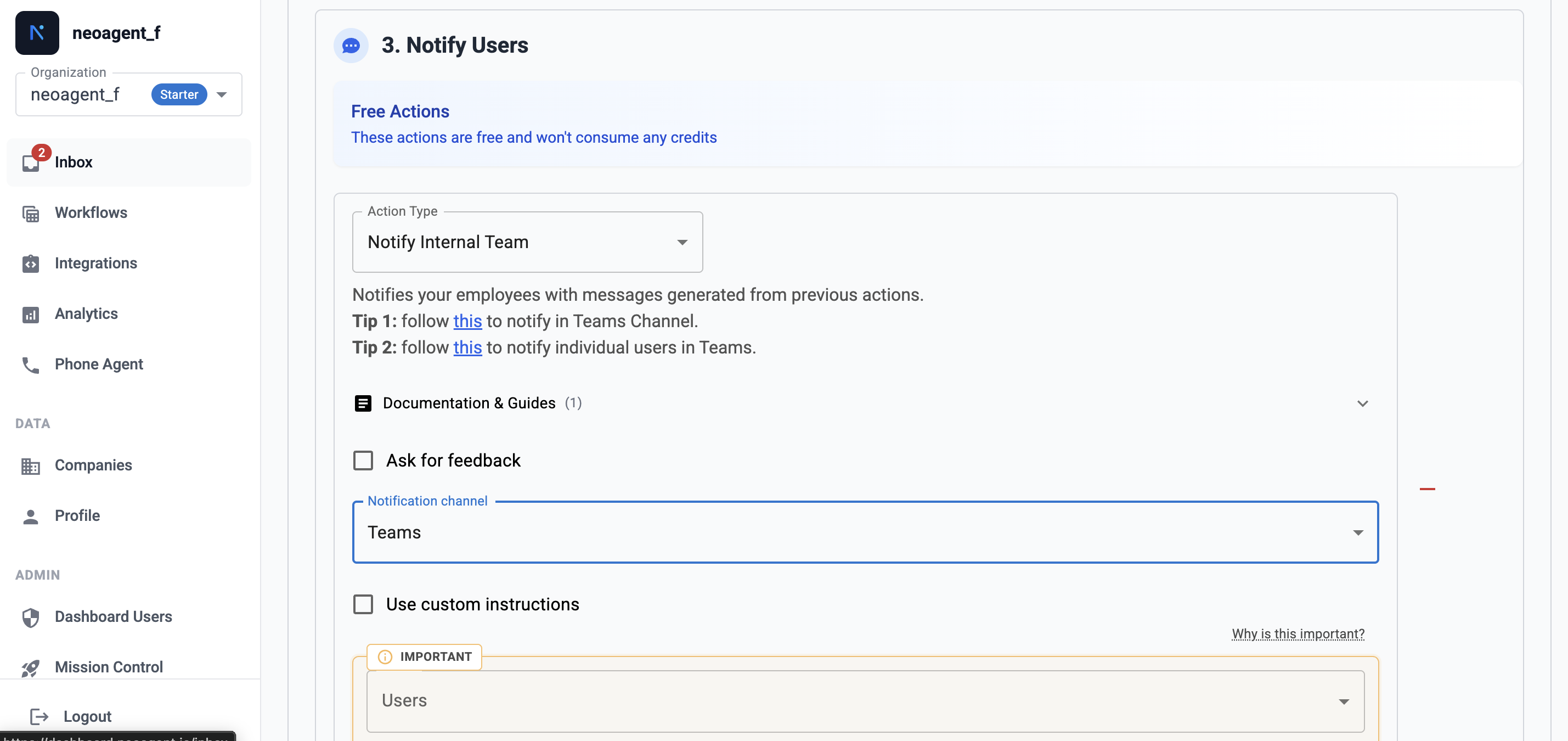
Add a Notify Internal Team action to send alerts to your team. Select Teams as the notification channel.
Notify Internal Team action with Teams channel

Set up Teams notifications for your internal team

You have two options for Teams notifications:Option 1: Notify specific users
  • Select individual team members from the Users dropdown
  • Each user must have the Neo Agent Teams app installed
Option 2: Notify a Teams channel
  • Use a Teams channel email address for group notifications
  • Ideal for alerting entire dispatch or escalation teams
For Teams setup instructions, see the Microsoft Teams integration guide.

Teams notification setup

To receive notifications in Microsoft Teams, you need to configure the integration:
Each user who needs to receive P1 alerts must:
  1. Install the Neo Agent Teams app from Microsoft AppSource
  2. Send a few messages to the Neo app to establish the conversation
  3. They will then appear in the Users dropdown in Notify actions
See the full setup guide: Microsoft Teams - Individual user notifications
To send alerts to an entire Teams channel:
  1. Get the channel email address (Channel → ... → Get email address)
  2. Enable “Anyone can send emails to this address” in Advanced settings
  3. Paste the channel email into the Notify Internal Team action
This is ideal for dedicated alert channels like “#critical-alerts” or “#dispatch-queue”.See the full setup guide: Microsoft Teams - Channel notifications

Best practices

Include these elements in your P1 alert messages:
  • Clear urgency indicator: Use “CRITICAL” or “P1 ALERT” headers
  • Essential ticket info: Number, subject, customer name
  • Contact details: Phone number, email for immediate callback
  • Direct ticket link: Enable one-click access to the ticket
  • Time context: When the ticket was created
  • Primary responders: Notify the on-call technician or dispatch team
  • Escalation path: Consider adding managers for visibility
  • Dedicated channel: Use a specific Teams channel for P1 alerts to avoid noise
  • After-hours: Configure separate workflows for business hours vs. after-hours routing
  • Use this workflow in combination with SLA tracking
  • Consider adding a follow-up workflow to alert if P1 tickets aren’t acknowledged within a threshold
  • Monitor workflow execution to ensure alerts are being delivered

Expected outcomes

After implementing this workflow, you should see:
  • Immediate awareness of critical issues across your team
  • Faster response times for P1 tickets
  • Improved SLA compliance for high-priority requests
  • Better coordination between dispatch and technical teams
  • Reduced risk of critical tickets being overlooked