> ## Documentation Index
> Fetch the complete documentation index at: https://docs.neoagent.io/llms.txt
> Use this file to discover all available pages before exploring further.
# Teams bot for your clients
> Put your own branded support bot in your clients' Microsoft Teams, built on your Neo agents. The single starting point for the end-user Teams bot.
Give your clients' employees IT support right where they already work — **Microsoft Teams** — from a bot that wears **your** brand, not Neo's. They ask a question, get an answer from your knowledge base, and raise a ticket without leaving the chat. Behind the scenes it runs on your Neo agents, under your permissions, and bills to you.
This page is the starting point. Share it with anyone on your team who's rolling the bot out — it links to everything below in the order you'll need it.
 ## How it works, in four steps
Create a conversational agent for end users — instructions in their language, read-only tools plus "file a ticket". Test it in the dashboard before anyone sees it.
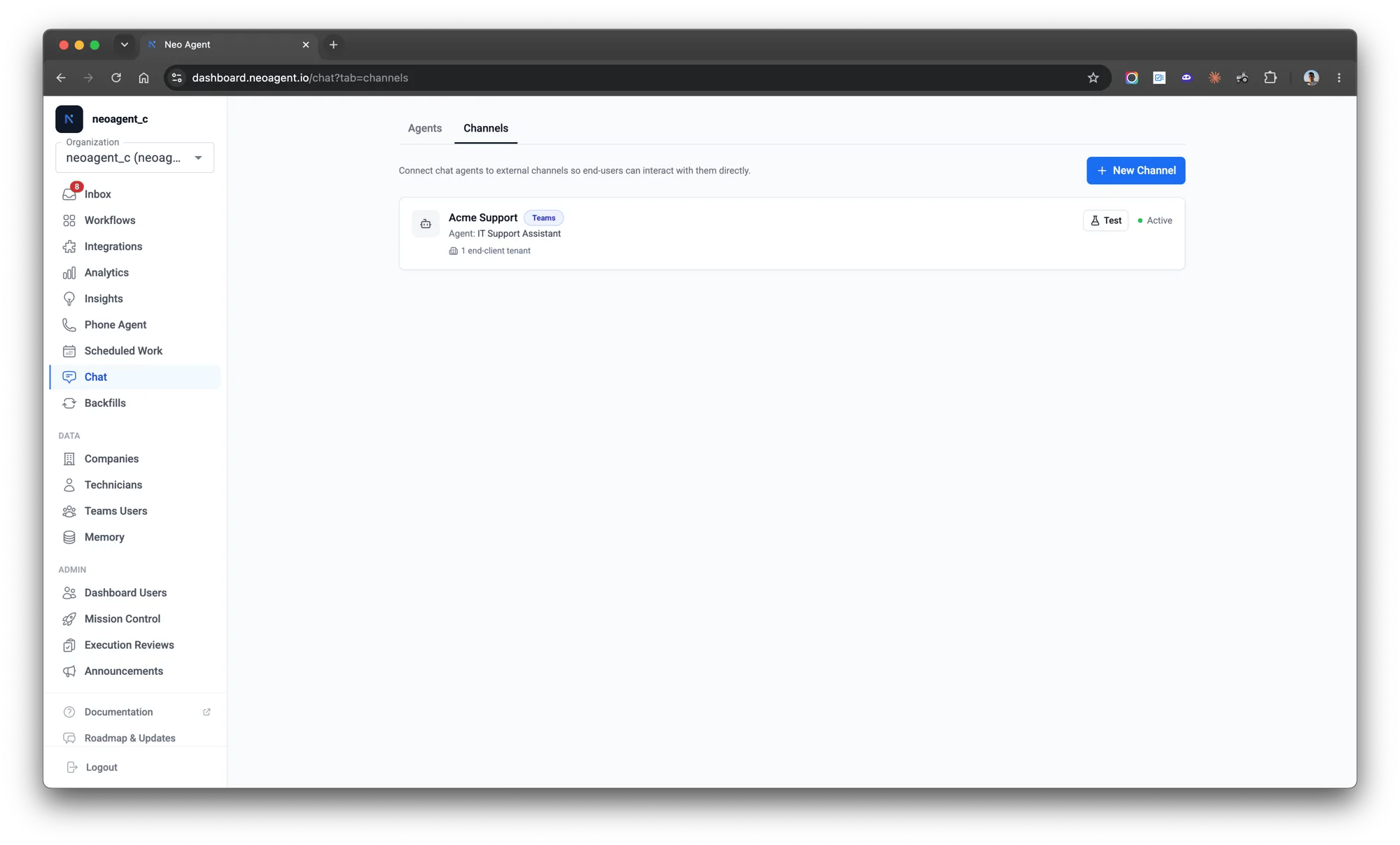
A channel ties the agent to Teams and carries the branding end users see — display name, icon, welcome message. Every field is optional; blanks use a Neo default.
Generate a magic install link and send it to the client's Microsoft 365 admin. One approval publishes your branded bot into their tenant — no zip to upload.
Their employees message the bot in Teams. It answers, files tickets, and relays live ticket updates back into the same chat — all scoped to that one company.
## What your clients' employees get
* **Instant answers** from your customer-facing knowledge base — no waiting on a queue for the routine stuff.
* **Their own tickets** — they can raise a ticket through the bot and check the status of any of their tickets at any time.
* **Live updates in the same chat** — when a technician posts a client-facing update on their ticket, it arrives in the Teams conversation, and their reply goes straight back onto the ticket. See [live ticket updates](/integrations/teams/end-user-bot#live-ticket-updates-in-the-chat).
* **Your brand, end to end** — your name, your icon, your welcome message. Neo is never visible to the end user.
## Why it's safe to put in front of end users
Every conversation through the bot is **locked to the one company** the employee belongs to, recognized automatically from the Microsoft 365 tenant their message comes from. The bot can only see that person's own tickets and your customer-facing documentation — never your other clients, internal notes, or anything across your client base. That boundary is enforced by the platform, not by how you configure the agent, so there's no toolbox setting that can accidentally over-share.
The branded app published into the client tenant is **messaging-only** — it has no Microsoft Graph access there. All the real work happens through *your* integrations, under *your* permissions and [technician approvals](/core/technician-in-the-loop). The full architecture is in [how end-user bots work](/chat-agents/how-end-user-bots-work), and the consent details a client admin might ask about are in [consent and security](/integrations/teams/end-user-bot#consent-and-security).
## Test before you roll out
Two ways to try a bot before a client ever sees it:
* **Its behavior** — chat with the agent [as a real end-client](/chat-agents/channels#testing-as-an-end-client) at a chosen company, right in the dashboard. No install, instant.
* **The Teams experience** — branding, the welcome message, cards, proactive messages — by [installing into your own tenant first](/integrations/teams/end-user-bot#test-in-your-own-tenant-first).
## Roll it out
The full procedure, top to bottom — install link, Teams admin center steps, verification, updates, and troubleshooting.
A worked end-to-end example, from a tested chat agent to a branded bot answering a client's employees.
**Looking for Neo for your own technicians?** That's a different surface. The **Neo AI Agent** app delivers workflow notifications, approval cards, and the [Neo Support Agent](/chat-agents/neo-support-agent); or put one of your *own* agents in your technicians' Teams as a [custom internal bot](/integrations/teams/internal-bot). The [Teams overview](/integrations/teams/intro) lays out which is which.
## How it works, in four steps
Create a conversational agent for end users — instructions in their language, read-only tools plus "file a ticket". Test it in the dashboard before anyone sees it.
A channel ties the agent to Teams and carries the branding end users see — display name, icon, welcome message. Every field is optional; blanks use a Neo default.
Generate a magic install link and send it to the client's Microsoft 365 admin. One approval publishes your branded bot into their tenant — no zip to upload.
Their employees message the bot in Teams. It answers, files tickets, and relays live ticket updates back into the same chat — all scoped to that one company.
## What your clients' employees get
* **Instant answers** from your customer-facing knowledge base — no waiting on a queue for the routine stuff.
* **Their own tickets** — they can raise a ticket through the bot and check the status of any of their tickets at any time.
* **Live updates in the same chat** — when a technician posts a client-facing update on their ticket, it arrives in the Teams conversation, and their reply goes straight back onto the ticket. See [live ticket updates](/integrations/teams/end-user-bot#live-ticket-updates-in-the-chat).
* **Your brand, end to end** — your name, your icon, your welcome message. Neo is never visible to the end user.
## Why it's safe to put in front of end users
Every conversation through the bot is **locked to the one company** the employee belongs to, recognized automatically from the Microsoft 365 tenant their message comes from. The bot can only see that person's own tickets and your customer-facing documentation — never your other clients, internal notes, or anything across your client base. That boundary is enforced by the platform, not by how you configure the agent, so there's no toolbox setting that can accidentally over-share.
The branded app published into the client tenant is **messaging-only** — it has no Microsoft Graph access there. All the real work happens through *your* integrations, under *your* permissions and [technician approvals](/core/technician-in-the-loop). The full architecture is in [how end-user bots work](/chat-agents/how-end-user-bots-work), and the consent details a client admin might ask about are in [consent and security](/integrations/teams/end-user-bot#consent-and-security).
## Test before you roll out
Two ways to try a bot before a client ever sees it:
* **Its behavior** — chat with the agent [as a real end-client](/chat-agents/channels#testing-as-an-end-client) at a chosen company, right in the dashboard. No install, instant.
* **The Teams experience** — branding, the welcome message, cards, proactive messages — by [installing into your own tenant first](/integrations/teams/end-user-bot#test-in-your-own-tenant-first).
## Roll it out
The full procedure, top to bottom — install link, Teams admin center steps, verification, updates, and troubleshooting.
A worked end-to-end example, from a tested chat agent to a branded bot answering a client's employees.
**Looking for Neo for your own technicians?** That's a different surface. The **Neo AI Agent** app delivers workflow notifications, approval cards, and the [Neo Support Agent](/chat-agents/neo-support-agent); or put one of your *own* agents in your technicians' Teams as a [custom internal bot](/integrations/teams/internal-bot). The [Teams overview](/integrations/teams/intro) lays out which is which.