> ## Documentation Index
> Fetch the complete documentation index at: https://docs.neoagent.io/llms.txt
> Use this file to discover all available pages before exploring further.
# Scheduled Work
> Schedule workflows and agents to run at specific future dates and times
## What is Scheduled Work?
Scheduled Work lets you plan workflow and agent executions for the future. Instead of running a workflow immediately, you can schedule it to run at a specific date and time — perfect for tasks that need to happen later, like employee offboarding after a last day or follow-up actions after a waiting period.
 ## How It Works
There are two ways to create scheduled work:
### 1. From the Dashboard
You can manually schedule any **Triggered** workflow to run at a future time:
1. Go to **Scheduled Work** in your dashboard
2. Click **Schedule New Work**
3. Select the workflow you want to run
4. Pick the date and time for execution
5. Optionally link it to a ticket and add custom instructions
### 2. From an Agent
Neo Agents can schedule work automatically using the **Trigger or Schedule Workflow** tool. This is powerful for multi-step processes where some actions need to happen later.
**Example:** An offboarding agent processes a termination request today, but schedules the account deletion workflow to run on the employee's last day — two weeks from now.
## Use Cases
### Employee Offboarding
When processing a termination ticket, the agent can:
* Immediately remove the user from sensitive groups
* Schedule email forwarding setup for the last day
* Schedule account deletion for 30 days after departure
### Follow-Up Actions
* Schedule a customer satisfaction survey to send 3 days after ticket resolution
* Schedule a check-in workflow to verify a fix is still working after a week
### Compliance & Auditing
* Schedule security review workflows to run at specific compliance deadlines
* Schedule recurring cleanup tasks at month-end
## Managing Scheduled Work
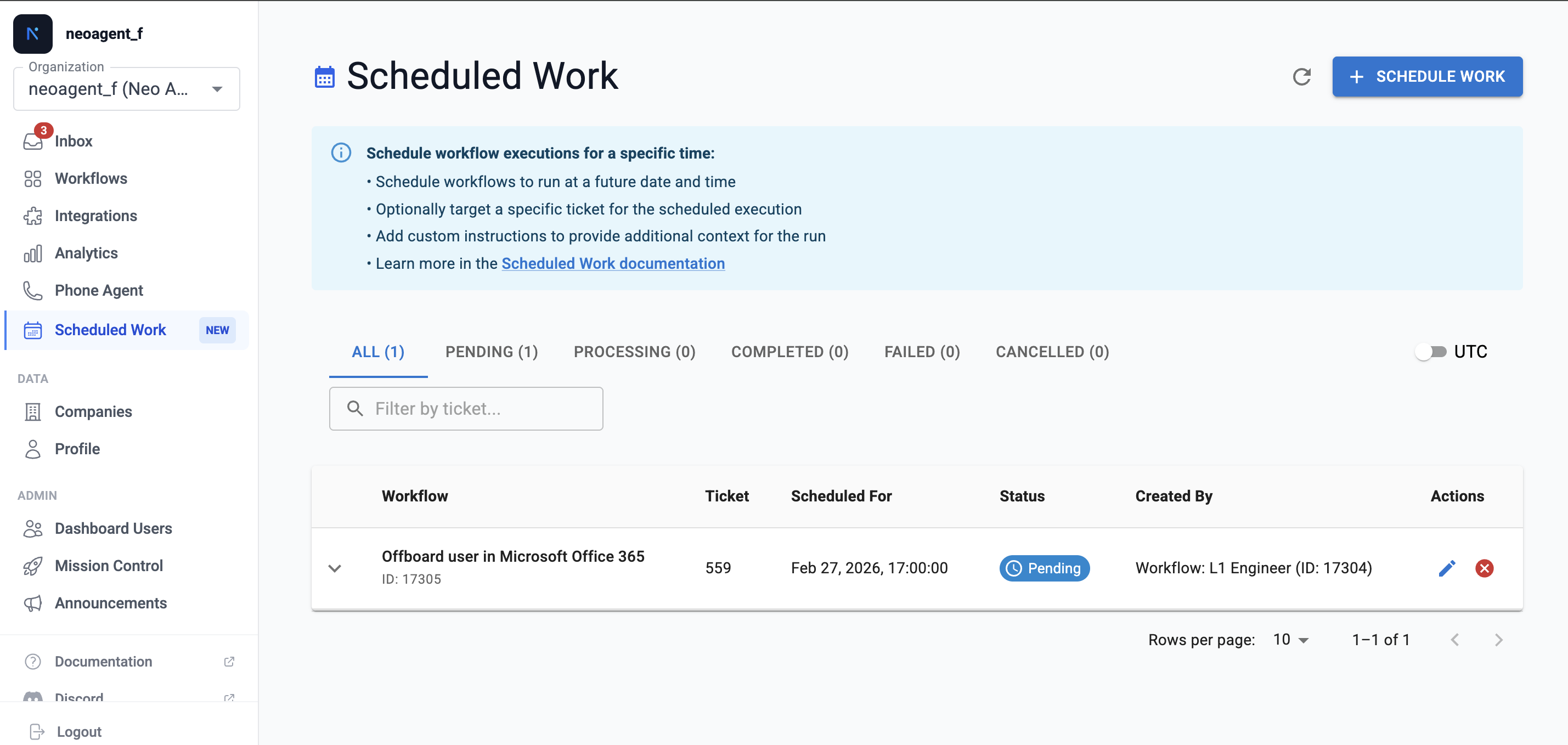
From the dashboard, you can view and manage all scheduled work entries:
| Status | Description |
| -------------- | ----------------------------------------------------------- |
| **Pending** | Scheduled but not yet executed — can be edited or cancelled |
| **Processing** | Currently being executed |
| **Completed** | Successfully executed |
| **Failed** | Execution encountered an error |
| **Cancelled** | Manually cancelled before execution |
### Editing Scheduled Work
While an entry is **Pending**, you can:
* **Reschedule** — Change the execution date and time
* **Update Instructions** — Modify the additional instructions
* **Cancel** — Stop the scheduled work from running
Once a scheduled work entry starts processing, it cannot be modified or cancelled.
## What Workflows Can Be Scheduled?
Only **Triggered** workflows can be scheduled. Scheduled workflows (those that run on a cron schedule) already have their own timing mechanism.
To schedule a workflow, it must be:
* **Enabled** — Disabled workflows cannot be scheduled
* **Triggered type** — Only event-triggered workflows support scheduling
## Viewing Scheduled Work Details
Each scheduled work entry shows:
* **Workflow** — The workflow or agent that will run
* **Scheduled For** — When it will execute
* **Ticket** — The associated ticket (if any)
* **Status** — Current state of the entry
* **Created By** — Who scheduled it (dashboard user or agent)
* **Additional Instructions** — Any custom instructions provided
## Best Practices
When scheduling work, add clear instructions so the executing agent knows the context — especially if weeks pass between scheduling and execution.
Always link scheduled work to the relevant ticket. This ensures the agent has full context when it runs.
Regularly check your pending scheduled work to ensure nothing is outdated or needs rescheduling.
Scheduled times are in UTC. Make sure you account for time zone differences when scheduling.
## Related
Learn how agents trigger or schedule workflows
Understand how triggered workflows work
## How It Works
There are two ways to create scheduled work:
### 1. From the Dashboard
You can manually schedule any **Triggered** workflow to run at a future time:
1. Go to **Scheduled Work** in your dashboard
2. Click **Schedule New Work**
3. Select the workflow you want to run
4. Pick the date and time for execution
5. Optionally link it to a ticket and add custom instructions
### 2. From an Agent
Neo Agents can schedule work automatically using the **Trigger or Schedule Workflow** tool. This is powerful for multi-step processes where some actions need to happen later.
**Example:** An offboarding agent processes a termination request today, but schedules the account deletion workflow to run on the employee's last day — two weeks from now.
## Use Cases
### Employee Offboarding
When processing a termination ticket, the agent can:
* Immediately remove the user from sensitive groups
* Schedule email forwarding setup for the last day
* Schedule account deletion for 30 days after departure
### Follow-Up Actions
* Schedule a customer satisfaction survey to send 3 days after ticket resolution
* Schedule a check-in workflow to verify a fix is still working after a week
### Compliance & Auditing
* Schedule security review workflows to run at specific compliance deadlines
* Schedule recurring cleanup tasks at month-end
## Managing Scheduled Work
From the dashboard, you can view and manage all scheduled work entries:
| Status | Description |
| -------------- | ----------------------------------------------------------- |
| **Pending** | Scheduled but not yet executed — can be edited or cancelled |
| **Processing** | Currently being executed |
| **Completed** | Successfully executed |
| **Failed** | Execution encountered an error |
| **Cancelled** | Manually cancelled before execution |
### Editing Scheduled Work
While an entry is **Pending**, you can:
* **Reschedule** — Change the execution date and time
* **Update Instructions** — Modify the additional instructions
* **Cancel** — Stop the scheduled work from running
Once a scheduled work entry starts processing, it cannot be modified or cancelled.
## What Workflows Can Be Scheduled?
Only **Triggered** workflows can be scheduled. Scheduled workflows (those that run on a cron schedule) already have their own timing mechanism.
To schedule a workflow, it must be:
* **Enabled** — Disabled workflows cannot be scheduled
* **Triggered type** — Only event-triggered workflows support scheduling
## Viewing Scheduled Work Details
Each scheduled work entry shows:
* **Workflow** — The workflow or agent that will run
* **Scheduled For** — When it will execute
* **Ticket** — The associated ticket (if any)
* **Status** — Current state of the entry
* **Created By** — Who scheduled it (dashboard user or agent)
* **Additional Instructions** — Any custom instructions provided
## Best Practices
When scheduling work, add clear instructions so the executing agent knows the context — especially if weeks pass between scheduling and execution.
Always link scheduled work to the relevant ticket. This ensures the agent has full context when it runs.
Regularly check your pending scheduled work to ensure nothing is outdated or needs rescheduling.
Scheduled times are in UTC. Make sure you account for time zone differences when scheduling.
## Related
Learn how agents trigger or schedule workflows
Understand how triggered workflows work