> ## Documentation Index
> Fetch the complete documentation index at: https://docs.neoagent.io/llms.txt
> Use this file to discover all available pages before exploring further.
# Role-Based Access Control (RBAC)
> Comprehensive user management and permission controls for your organization
Neo Agent's Role-Based Access Control (RBAC) system provides comprehensive user management and permission controls for your organization. This feature allows administrators to control who has access to different parts of the Neo Agent platform, manage user roles, share specific workflows, and track all user activity through detailed audit logs.
RBAC ensures that team members have appropriate access levels based on their responsibilities while maintaining security and operational oversight across your MSP organization.
## User Management
### Dashboard Overview
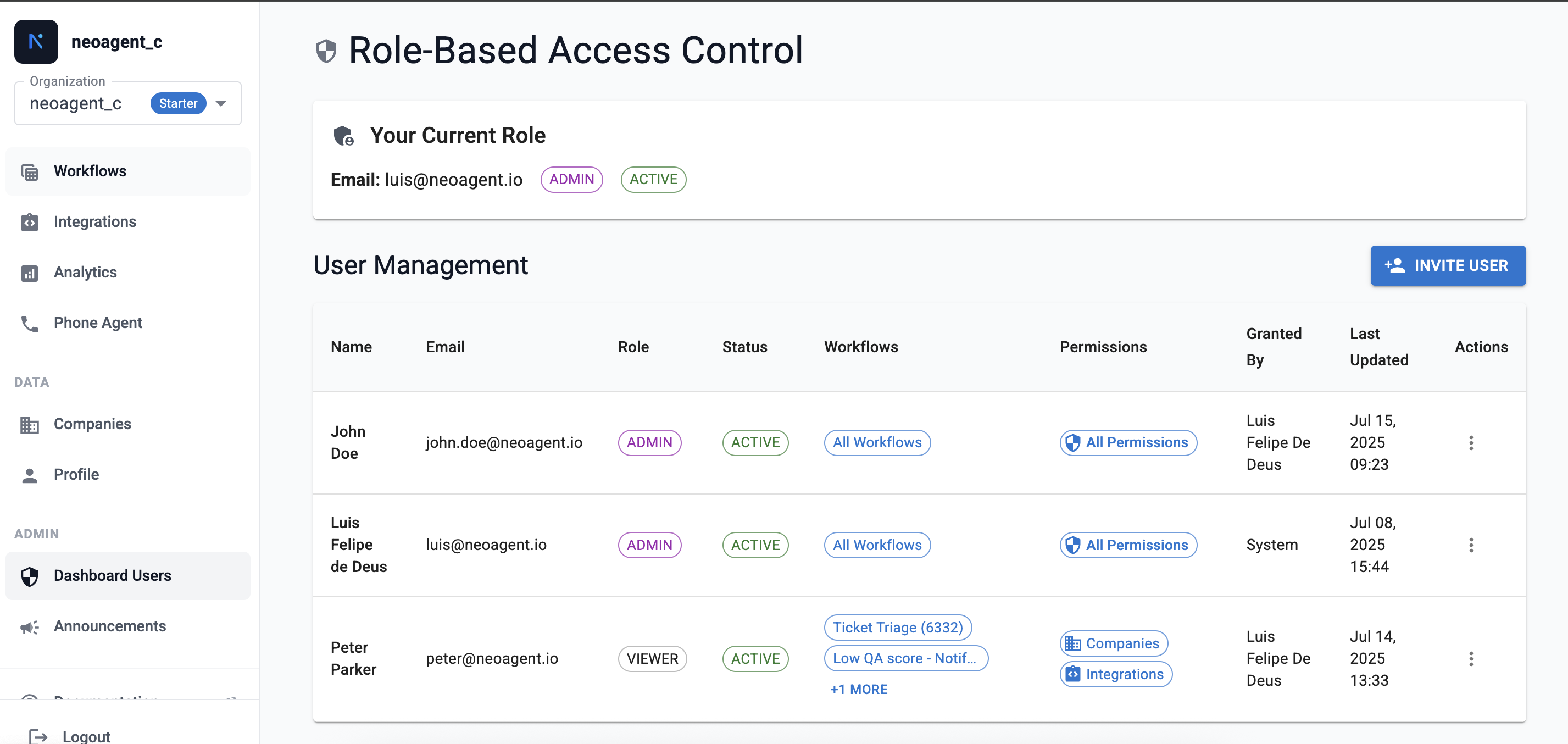
The RBAC feature can be found under the **Roles & Access** section and provides a centralized view of all users in your organization, showing their roles, status, and recent activity. You can quickly see who has access to what and make adjustments as needed. Only users with **ADMIN** role can view/manage other users.
 ### User Roles and Permissions
Neo Agent supports different user roles with varying levels of access:
* **Admin:** Full access to all features and user management capabilities
* **User:** Regular Users can create any workflow as well as can edit any workflow shared with them
* **Viewer:** Read-only access, can view execution history of any workflow shared with them, but cannot create or edit any workflow
Users with ADMIN role have access to all dashboard sections. Users with USER/VIEWER role need to be granted access to restricted dashboard sections.
### Workflow access applies everywhere — including Neo Support
A user's workflow access (their role, the workflows they created, and the workflows shared with them) is enforced consistently across every surface:
* **Dashboard:** the workflow list, editor, run-now, version history, and stats only cover workflows the user can access.
* **Neo Support chat:** when a user asks the Neo Support Agent to list, inspect, edit, or train workflows, the agent operates under **that user's** permissions. It only sees the workflows they can see, and edits (including training suggestions) require edit access — a Viewer, or a User the workflow isn't shared with, will be told to ask an administrator instead.
* **Training suggestions:** reviewing or applying a suggested change to a workflow requires access to that workflow.
There is no way to use the Neo Support Agent to reach a workflow the user couldn't reach on the dashboard.
### Access Denied Scenarios
When users don't have the necessary permissions to access the dashboard, they'll encounter an access denied screen that clearly explains the restriction and provides contact information for administrators:
### User Roles and Permissions
Neo Agent supports different user roles with varying levels of access:
* **Admin:** Full access to all features and user management capabilities
* **User:** Regular Users can create any workflow as well as can edit any workflow shared with them
* **Viewer:** Read-only access, can view execution history of any workflow shared with them, but cannot create or edit any workflow
Users with ADMIN role have access to all dashboard sections. Users with USER/VIEWER role need to be granted access to restricted dashboard sections.
### Workflow access applies everywhere — including Neo Support
A user's workflow access (their role, the workflows they created, and the workflows shared with them) is enforced consistently across every surface:
* **Dashboard:** the workflow list, editor, run-now, version history, and stats only cover workflows the user can access.
* **Neo Support chat:** when a user asks the Neo Support Agent to list, inspect, edit, or train workflows, the agent operates under **that user's** permissions. It only sees the workflows they can see, and edits (including training suggestions) require edit access — a Viewer, or a User the workflow isn't shared with, will be told to ask an administrator instead.
* **Training suggestions:** reviewing or applying a suggested change to a workflow requires access to that workflow.
There is no way to use the Neo Support Agent to reach a workflow the user couldn't reach on the dashboard.
### Access Denied Scenarios
When users don't have the necessary permissions to access the dashboard, they'll encounter an access denied screen that clearly explains the restriction and provides contact information for administrators:
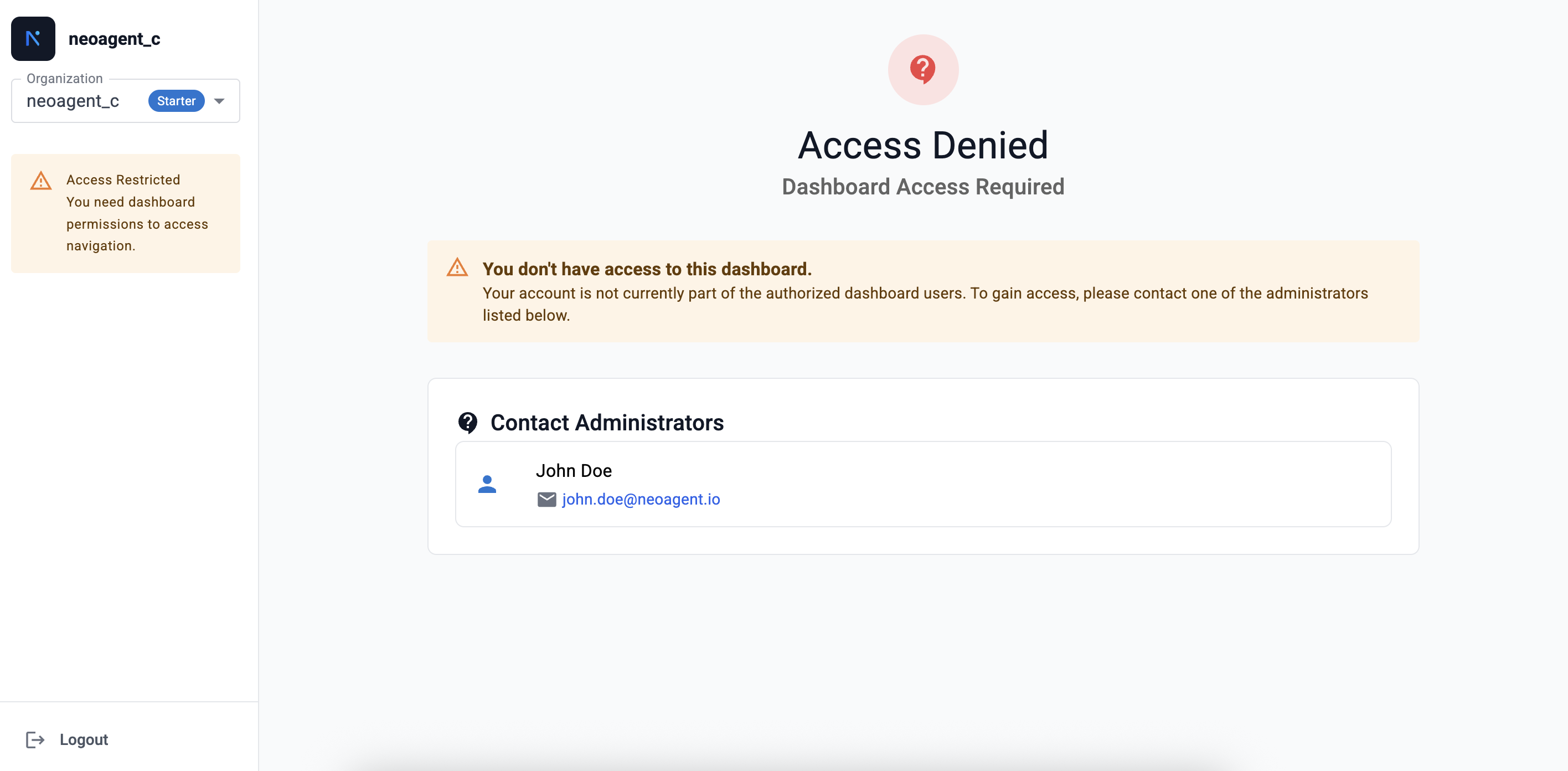 This screen ensures users understand why access is restricted and provides a clear path to request access through the listed administrators.
### Inviting New Users
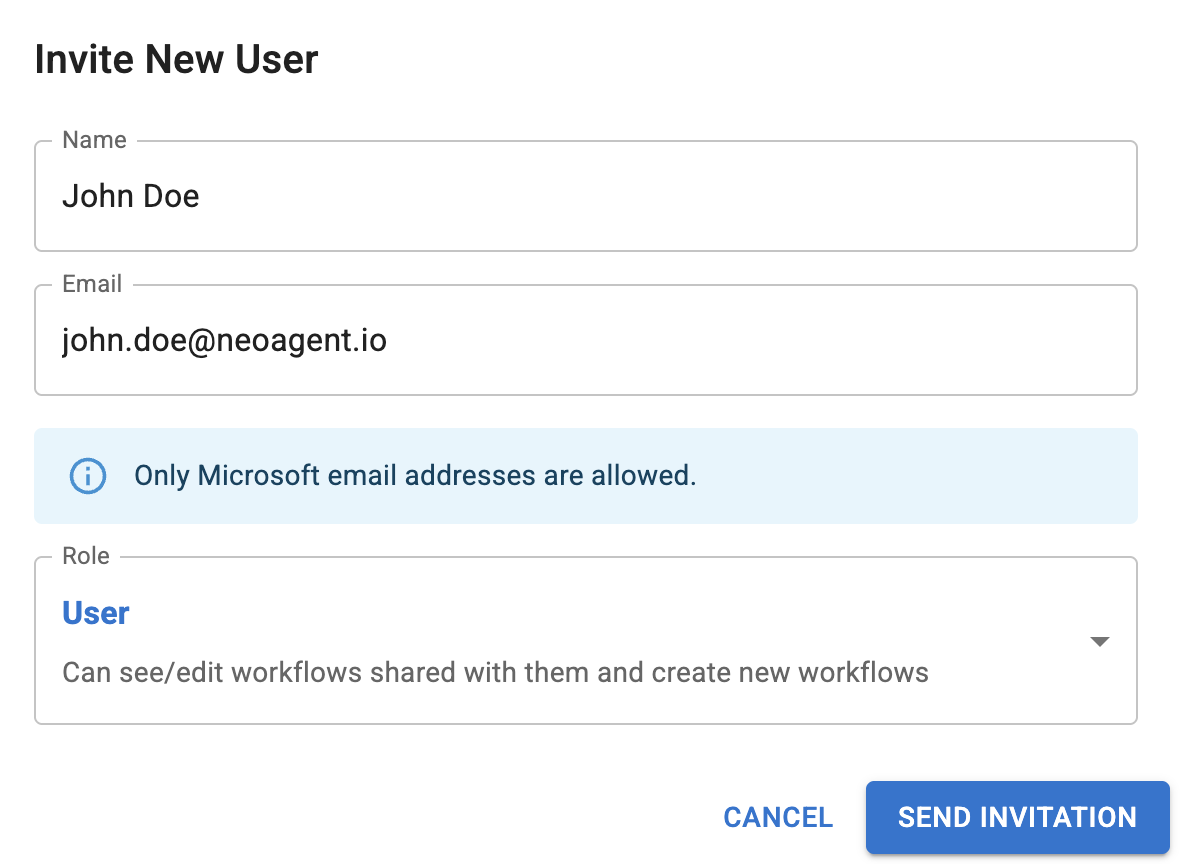
To add new team members to your Neo Agent organization:
1. **Access User Management:** Navigate to the Roles & Access section
2. **Click Invite User:** Select "Invite New User" to open the invitation form
3. **Enter User Details:** Provide the user's name, email address, and assign their role
4. **Send Invitation:** The system automatically sends an email invitation to the new user
This screen ensures users understand why access is restricted and provides a clear path to request access through the listed administrators.
### Inviting New Users
To add new team members to your Neo Agent organization:
1. **Access User Management:** Navigate to the Roles & Access section
2. **Click Invite User:** Select "Invite New User" to open the invitation form
3. **Enter User Details:** Provide the user's name, email address, and assign their role
4. **Send Invitation:** The system automatically sends an email invitation to the new user
 #### Example of Email:
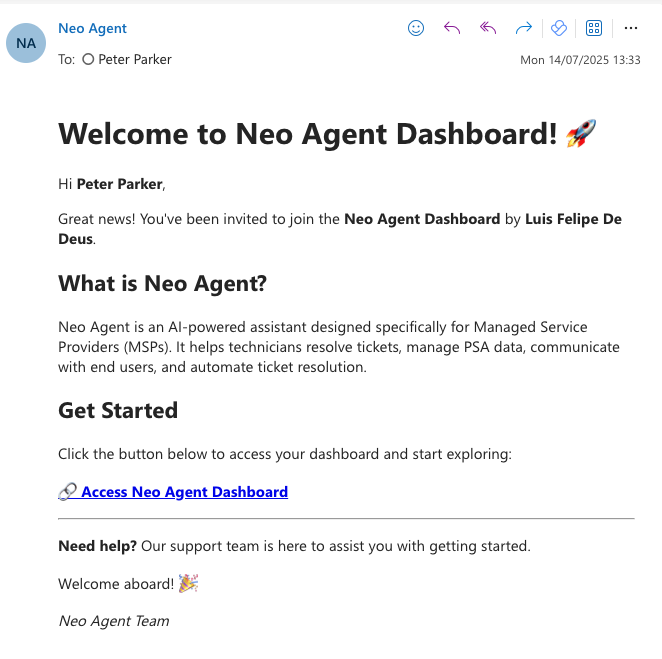 New users receive an email invitation with instructions to access the Neo Agent dashboard and will appear as "Pending" until they complete the activation process.
## Permission Management
### Dashboard Tab Access
Control which dashboard sections users can access through granular permission settings:
New users receive an email invitation with instructions to access the Neo Agent dashboard and will appear as "Pending" until they complete the activation process.
## Permission Management
### Dashboard Tab Access
Control which dashboard sections users can access through granular permission settings:
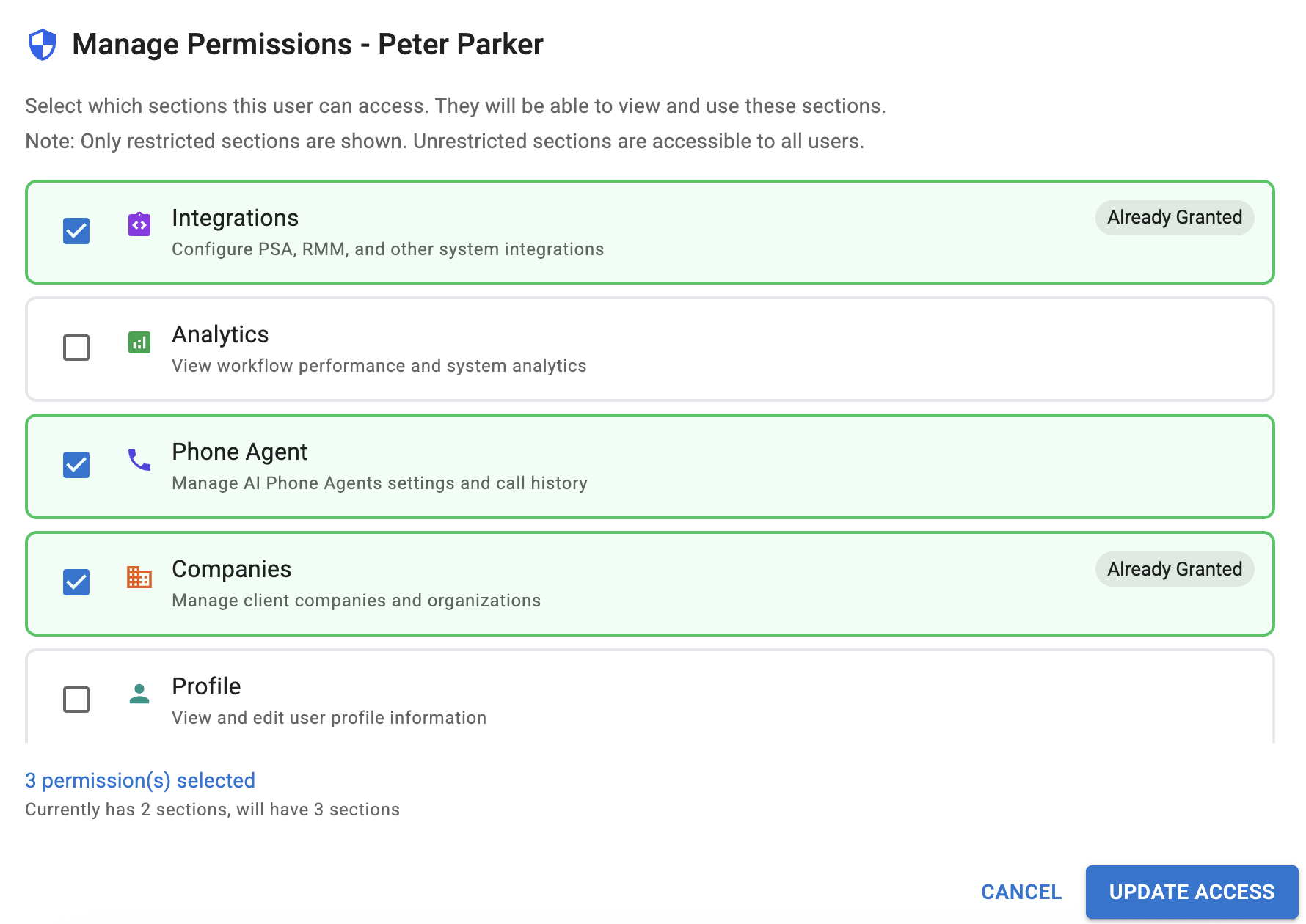 Available restricted access tabs include:
* **Integrations:** Configure PSA, RMM, and other system integrations
* **Analytics:** View workflow performance and system analytics
* **Phone Agent:** Manage AI Phone Agents settings and call history
* **Companies:** Manage client companies and organizations
* **Profile:** View and edit user profile information
* **Billing:** Manage billing and subscription information
* **Settings:** Configure system settings and preferences
* **Feedback:** Provide feedback about workflows
#### Restricted Access Experience
When users attempt to access a dashboard section they don't have permission for, they'll see a clear access restriction message:
Available restricted access tabs include:
* **Integrations:** Configure PSA, RMM, and other system integrations
* **Analytics:** View workflow performance and system analytics
* **Phone Agent:** Manage AI Phone Agents settings and call history
* **Companies:** Manage client companies and organizations
* **Profile:** View and edit user profile information
* **Billing:** Manage billing and subscription information
* **Settings:** Configure system settings and preferences
* **Feedback:** Provide feedback about workflows
#### Restricted Access Experience
When users attempt to access a dashboard section they don't have permission for, they'll see a clear access restriction message:
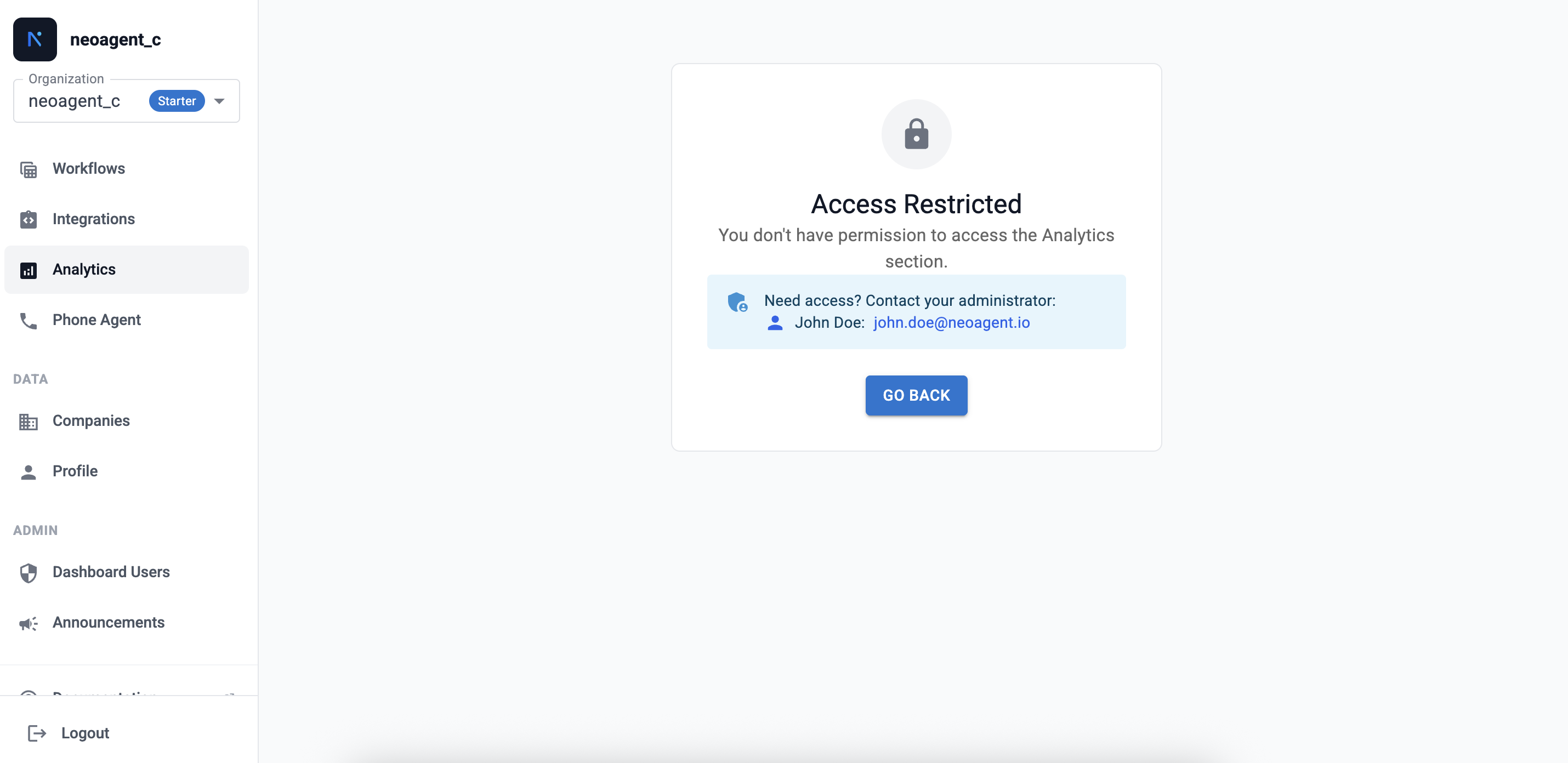 This screen provides users with information about the restriction and guidance on how to request access from their administrator.
### Workflow Sharing
Share specific workflows with individual users while maintaining control over access:
This screen provides users with information about the restriction and guidance on how to request access from their administrator.
### Workflow Sharing
Share specific workflows with individual users while maintaining control over access:
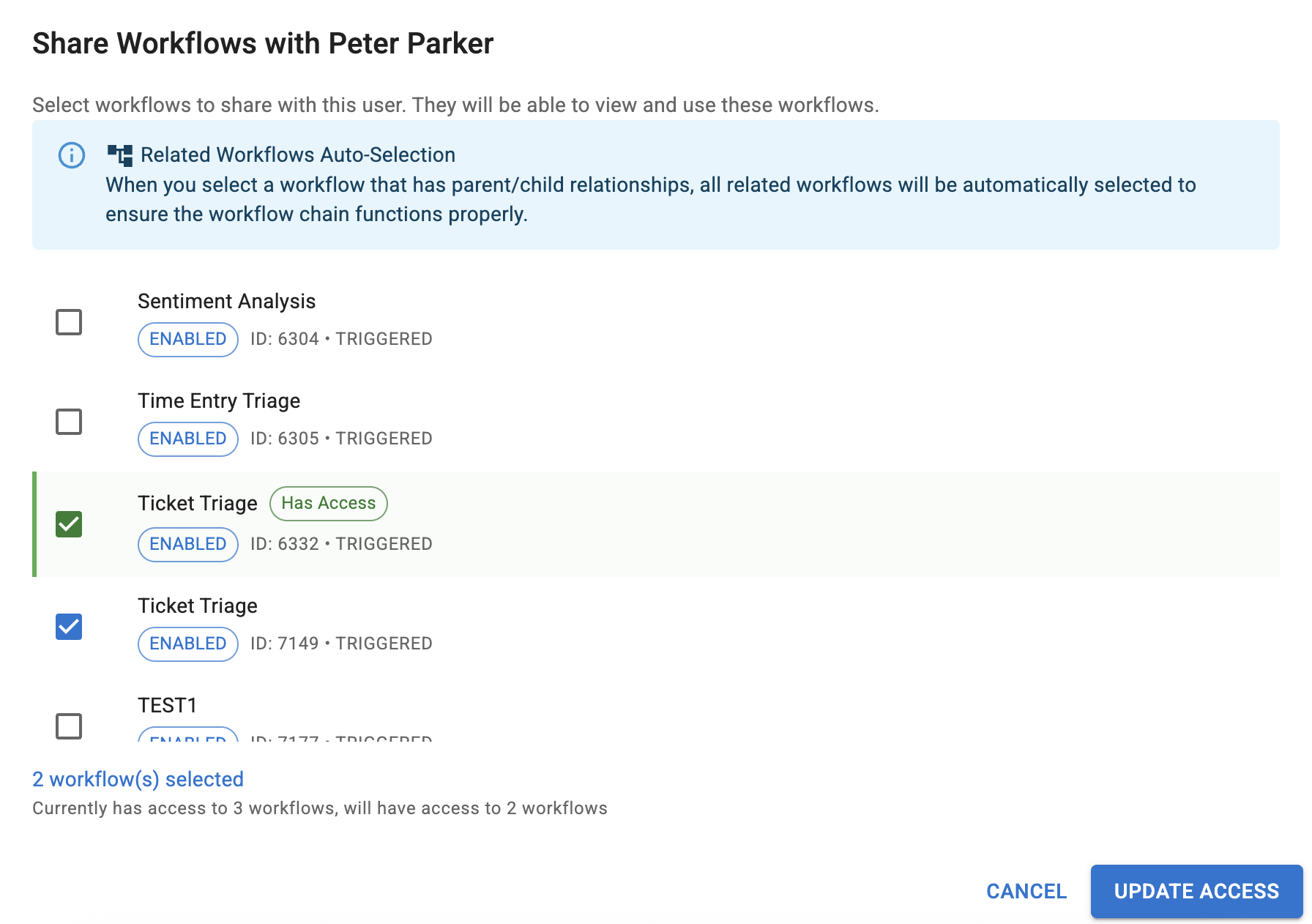 #### Sharing Workflows
1. **Select User:** Choose the team member who needs access
2. **Choose Workflows:** Select specific workflows to share from your available list
3. **Grant Access:** Confirm the sharing permissions
Shared workflows appear in the user's dashboard alongside any workflows they've created themselves.
### Chat Agent Access
The **Chat Agent Access** tab controls who on your team may *message* each internal chat agent. This is separate from workflow sharing and from dashboard tab access: it governs messaging only — not who can see or edit the agent's configuration.
#### Sharing Workflows
1. **Select User:** Choose the team member who needs access
2. **Choose Workflows:** Select specific workflows to share from your available list
3. **Grant Access:** Confirm the sharing permissions
Shared workflows appear in the user's dashboard alongside any workflows they've created themselves.
### Chat Agent Access
The **Chat Agent Access** tab controls who on your team may *message* each internal chat agent. This is separate from workflow sharing and from dashboard tab access: it governs messaging only — not who can see or edit the agent's configuration.
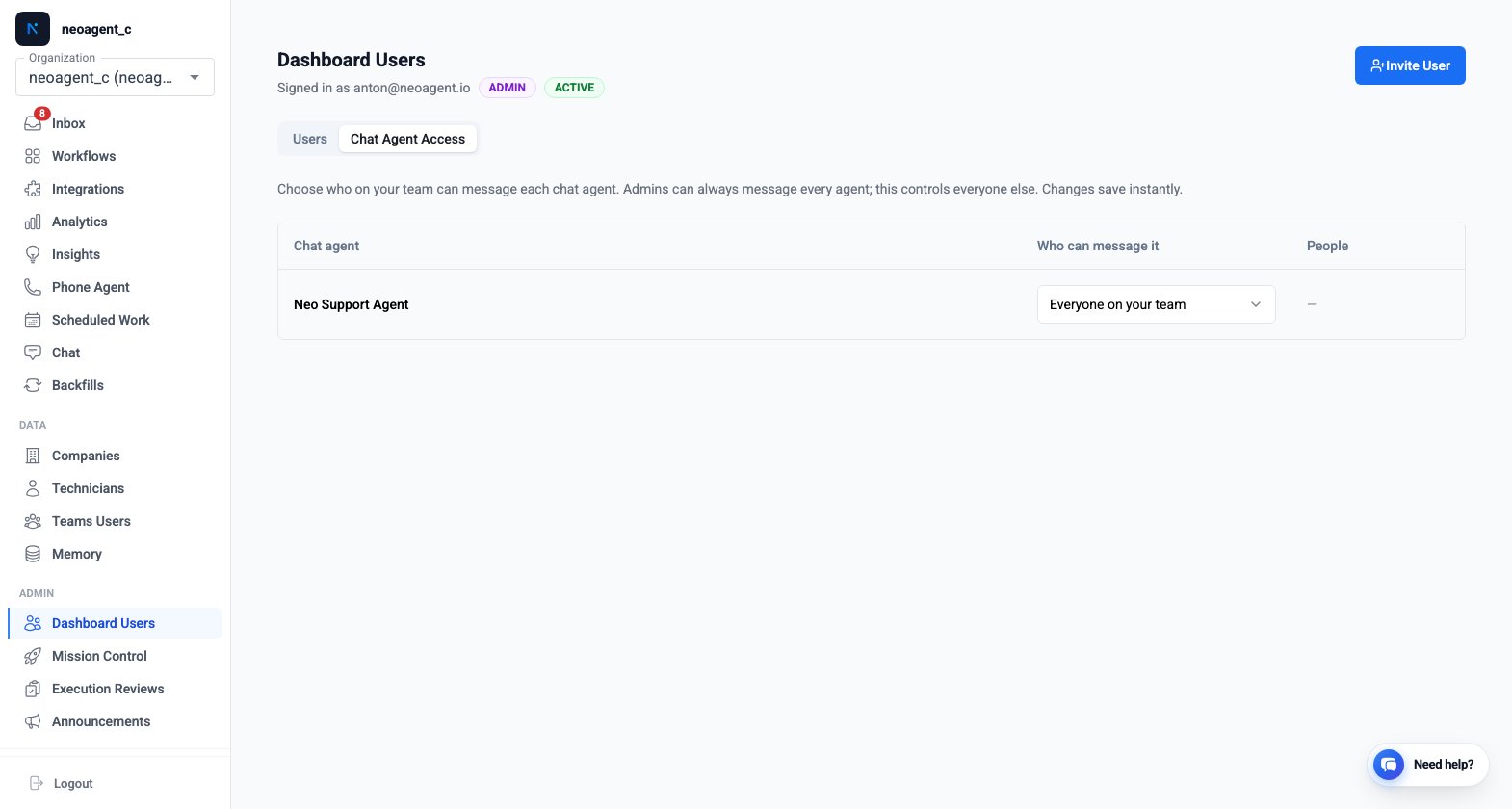 For each chat agent, an admin can choose one of three modes:
| Option | Who can message the agent |
| ------------------------- | --------------------------------------------------------------------------------------------- |
| **Everyone on your team** | Anyone on your team — the default |
| **Admins only** | Your admins only |
| **Specific people** | Admins, plus the individual people you choose (uses the same user picker as workflow sharing) |
Only admins can change these settings. The mode applies to every internal chat agent, including the **Neo Support Agent** — because that agent can act on your Neo setup, many teams set it to **Admins only** while leaving everyday helpers open to the whole team. Agents that serve end users through a [channel](/chat-agents/channels) are governed by that channel instead, not by this tab.
See [Who can chat with the agent](/chat-agents/building-a-chat-agent#who-can-chat-with-the-agent) for how this appears when building an agent.
### API Keys
The **API Keys** tab is where admins create and manage keys for the [Neo public API](/developers/introduction) — the credentials your own scripts and integrations use to call Neo programmatically.
From [**Roles & Access** → **API Keys**](https://dashboard.neoagent.io/rbac?tab=api-keys) an admin can:
* **Create** a key, with an optional expiry. The full key is shown **once**, right after creation — copy it then, as it can't be retrieved later.
* **Rotate** a key — issues a replacement immediately while the old key keeps working for 24 hours, so you can roll it over without downtime.
* **Revoke** a key — disables it immediately and permanently.
Only admins can manage API keys. See [Authentication](/developers/authentication) for how to use a key once you've created one.
## Activity Tracking
### Comprehensive Audit Trail
Neo Agent maintains detailed activity logs for all user actions and administrative changes:
For each chat agent, an admin can choose one of three modes:
| Option | Who can message the agent |
| ------------------------- | --------------------------------------------------------------------------------------------- |
| **Everyone on your team** | Anyone on your team — the default |
| **Admins only** | Your admins only |
| **Specific people** | Admins, plus the individual people you choose (uses the same user picker as workflow sharing) |
Only admins can change these settings. The mode applies to every internal chat agent, including the **Neo Support Agent** — because that agent can act on your Neo setup, many teams set it to **Admins only** while leaving everyday helpers open to the whole team. Agents that serve end users through a [channel](/chat-agents/channels) are governed by that channel instead, not by this tab.
See [Who can chat with the agent](/chat-agents/building-a-chat-agent#who-can-chat-with-the-agent) for how this appears when building an agent.
### API Keys
The **API Keys** tab is where admins create and manage keys for the [Neo public API](/developers/introduction) — the credentials your own scripts and integrations use to call Neo programmatically.
From [**Roles & Access** → **API Keys**](https://dashboard.neoagent.io/rbac?tab=api-keys) an admin can:
* **Create** a key, with an optional expiry. The full key is shown **once**, right after creation — copy it then, as it can't be retrieved later.
* **Rotate** a key — issues a replacement immediately while the old key keeps working for 24 hours, so you can roll it over without downtime.
* **Revoke** a key — disables it immediately and permanently.
Only admins can manage API keys. See [Authentication](/developers/authentication) for how to use a key once you've created one.
## Activity Tracking
### Comprehensive Audit Trail
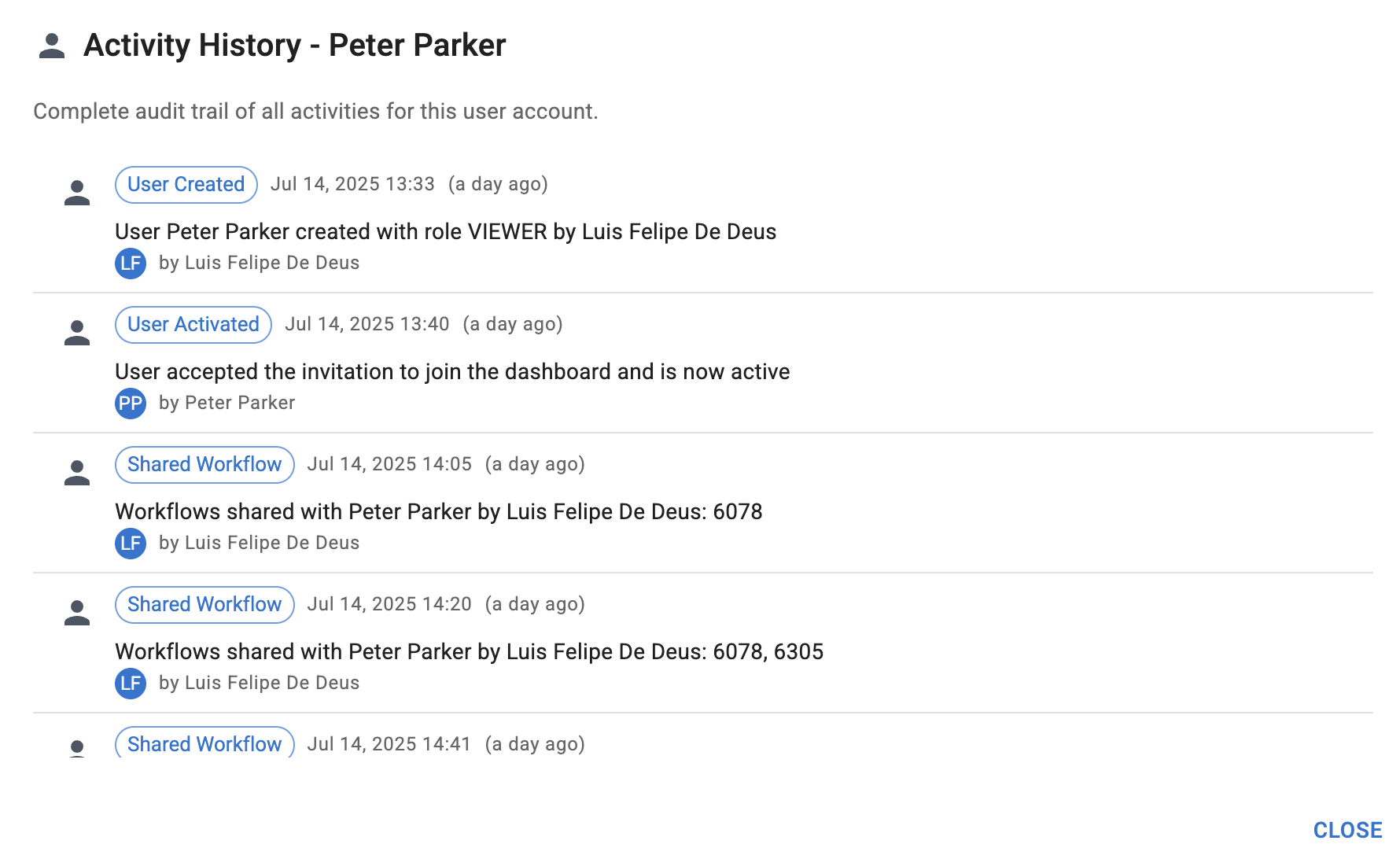
Neo Agent maintains detailed activity logs for all user actions and administrative changes:
 ### Tracked Activities
The system automatically logs:
* **Workflow Sharing:** When workflows are shared or access is revoked
* **Role Changes:** Updates to user roles and permissions
* **User Management:** User creation, activation, enabling, and disabling
* **Permission Updates:** Changes to dashboard tab access
* **Announcement Subscriptions:** Email notification preferences
### Activity Details
Each audit entry includes:
* **Timestamp:** When the activity occurred
* **User:** Who performed the action
* **Activity Type:** What type of change was made
* **Details:** Specific information about the change
## Managing User Status
### User Status Types
Users can have different statuses within your organization:
* **Active:** Full access according to their role and permissions
* **Inactive:** Temporarily disabled access while preserving user data
* **Pending:** Invited but not yet activated their account
## Announcement Notifications
### Email Subscription Management
Control who receives Neo Agent announcement emails through the RBAC system:
Users can be subscribed or unsubscribed from announcement emails while maintaining their access to dashboard notifications.
## Best Practices
Start with minimal permissions and gradually expand access as users become familiar with the platform. This approach maintains security while ensuring smooth onboarding.
### Access Patterns
* **Principle of least privilege** for production changes
* **Separate roles** for workflow authors vs operators
* **Read-only access** for auditors
* Use group-based permissions for larger teams to simplify onboarding
### Common Pitfalls
Missing permissions cause workflows to fail silently; review Event History and role scopes. Overlapping roles can create confusion; standardize a role catalog.
RBAC features require administrative privileges. Contact your system administrator if you need to modify user permissions or roles.
The RBAC system provides the foundation for secure, organized access management across your Neo Agent deployment, ensuring each team member has the right tools while maintaining operational security and oversight.
### Tracked Activities
The system automatically logs:
* **Workflow Sharing:** When workflows are shared or access is revoked
* **Role Changes:** Updates to user roles and permissions
* **User Management:** User creation, activation, enabling, and disabling
* **Permission Updates:** Changes to dashboard tab access
* **Announcement Subscriptions:** Email notification preferences
### Activity Details
Each audit entry includes:
* **Timestamp:** When the activity occurred
* **User:** Who performed the action
* **Activity Type:** What type of change was made
* **Details:** Specific information about the change
## Managing User Status
### User Status Types
Users can have different statuses within your organization:
* **Active:** Full access according to their role and permissions
* **Inactive:** Temporarily disabled access while preserving user data
* **Pending:** Invited but not yet activated their account
## Announcement Notifications
### Email Subscription Management
Control who receives Neo Agent announcement emails through the RBAC system:
Users can be subscribed or unsubscribed from announcement emails while maintaining their access to dashboard notifications.
## Best Practices
Start with minimal permissions and gradually expand access as users become familiar with the platform. This approach maintains security while ensuring smooth onboarding.
### Access Patterns
* **Principle of least privilege** for production changes
* **Separate roles** for workflow authors vs operators
* **Read-only access** for auditors
* Use group-based permissions for larger teams to simplify onboarding
### Common Pitfalls
Missing permissions cause workflows to fail silently; review Event History and role scopes. Overlapping roles can create confusion; standardize a role catalog.
RBAC features require administrative privileges. Contact your system administrator if you need to modify user permissions or roles.
The RBAC system provides the foundation for secure, organized access management across your Neo Agent deployment, ensuring each team member has the right tools while maintaining operational security and oversight.