> ## Documentation Index
> Fetch the complete documentation index at: https://docs.neoagent.io/llms.txt
> Use this file to discover all available pages before exploring further.
# Event History
> Track workflow executions, entity changes, and system behavior with detailed audit trails
Event History in Neo Agent provides a detailed audit trail of all activities performed by the system. It is a crucial tool for understanding Neo's behavior, tracking workflow executions, and diagnosing how Neo interacts with your PSA (Professional Services Automation) tool based on entity changes.
Always check Event History when troubleshooting or auditing your automations. The "Message/Error" and "Processed Updates" columns are particularly useful for understanding why a workflow behaved in a certain way in response to changes in your PSA.
With Event History, you can:
* **Track Neo's Actions:** See a comprehensive log of everything Neo has done, especially in relation to specific tickets or other PSA entities
* **Monitor Workflow Executions:** View all instances of a particular workflow running, see its status, duration, and output messages or errors
* **Understand Workflow Triggering:** Investigate why a workflow was (or was not) triggered in response to an entity being created or updated in your PSA. The "Message/Error" column for "Entity Created" or "Entity Updated" events provides insights into how Neo evaluated the changes against your workflow conditions
* **Debug and Verify:** Troubleshoot issues with automations by examining the sequence of events and the details of each execution or entity processing step
* **Audit Changes:** See when and how PSA entities were processed by Neo
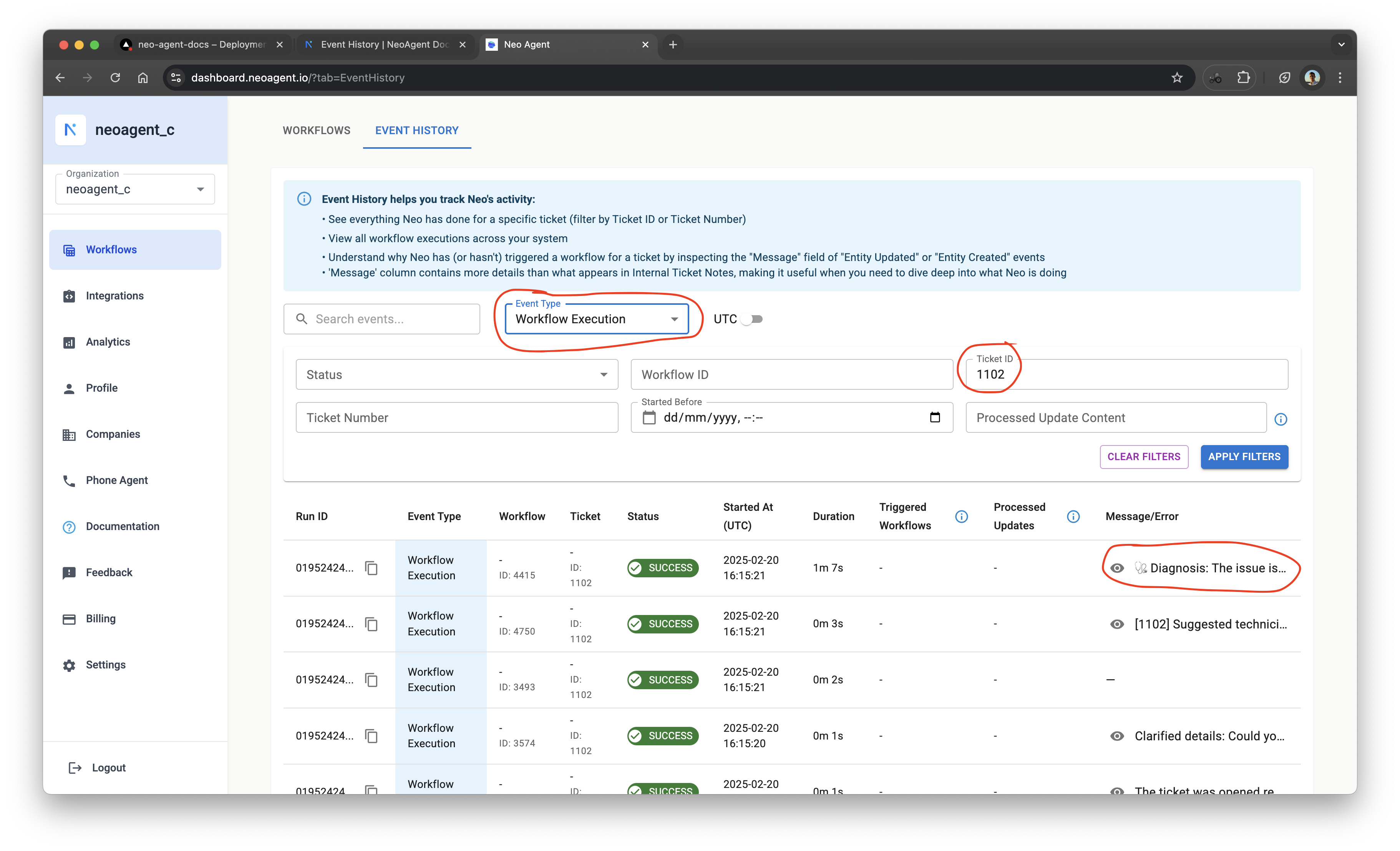
Event History displays two main types of events: **Workflow Executions** and **Entity Events** (Entity Created/Updated).
 ## Event Types
Event History categorizes activities into distinct types:
### Workflow Execution
This event type logs the execution of one of your configured workflows. It shows the outcome of the workflow (e.g., Success, Failure, Skipped) and provides access to its output message or any errors encountered.
Key information includes:
* The specific workflow that ran
* The ticket or entity it processed
* Status, start time, duration, and credits billed for the run
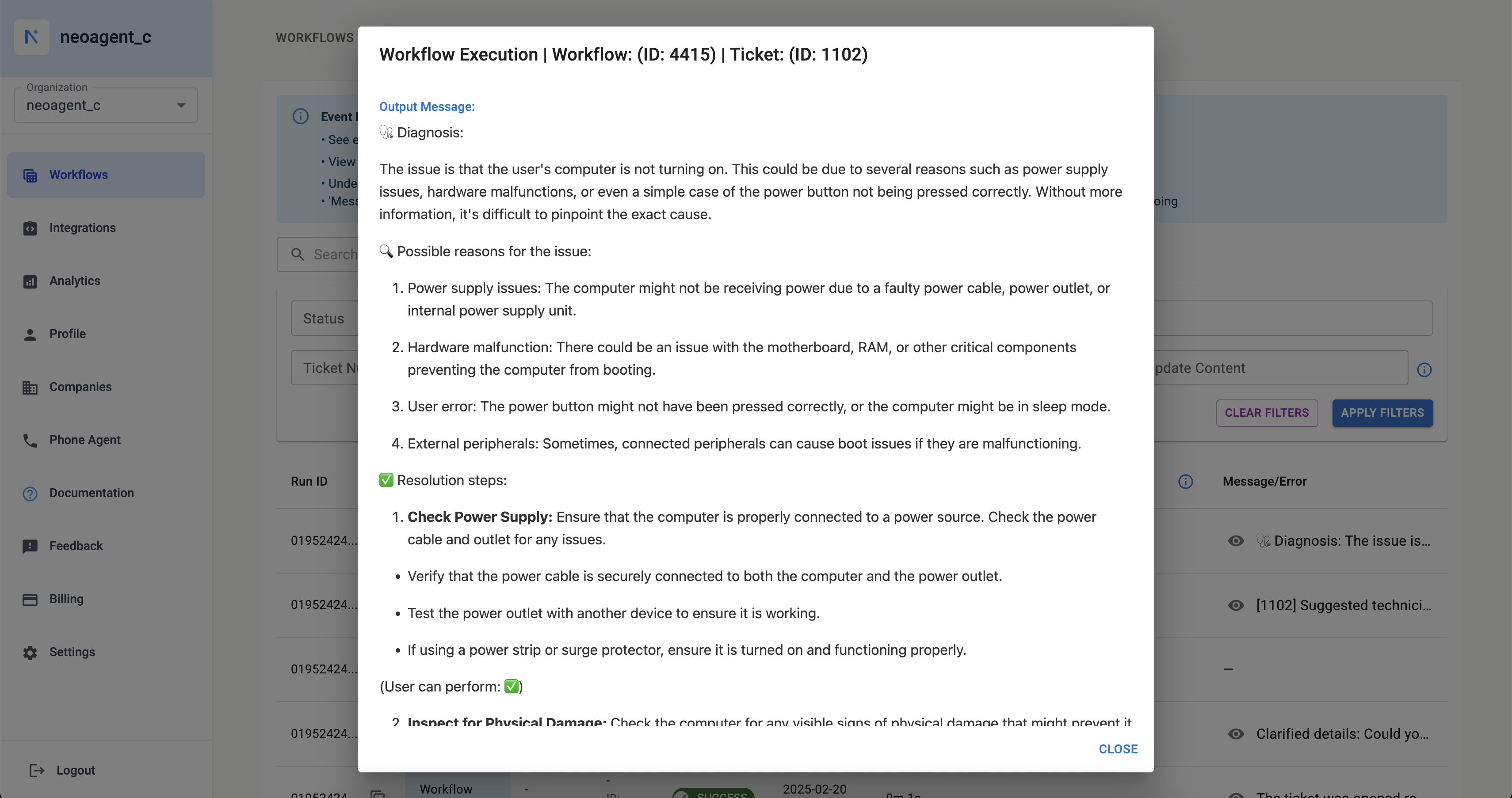
* A detailed message, often including diagnoses, summaries, or actions taken
## Event Types
Event History categorizes activities into distinct types:
### Workflow Execution
This event type logs the execution of one of your configured workflows. It shows the outcome of the workflow (e.g., Success, Failure, Skipped) and provides access to its output message or any errors encountered.
Key information includes:
* The specific workflow that ran
* The ticket or entity it processed
* Status, start time, duration, and credits billed for the run
* A detailed message, often including diagnoses, summaries, or actions taken
 ### Other Event Types
There are other types of events you should be aware of:
* Entity Created: When a new entity (i.e ticket, project etc.) is created in the PSA.
* Entity Updated: When an existing entity in your PSA is modified
* Workflow Trigger Requested: When a Neo workflow wants to trigger another workflow.
Everytime one of these events happen, you can see whether each event led to a workflow kicking off on Neo's side. This is especially useful if you are confused as to ***why a specific workflow didn't run in response to something happening in the PSA***.
### Other Event Types
There are other types of events you should be aware of:
* Entity Created: When a new entity (i.e ticket, project etc.) is created in the PSA.
* Entity Updated: When an existing entity in your PSA is modified
* Workflow Trigger Requested: When a Neo workflow wants to trigger another workflow.
Everytime one of these events happen, you can see whether each event led to a workflow kicking off on Neo's side. This is especially useful if you are confused as to ***why a specific workflow didn't run in response to something happening in the PSA***.
 To understand why a specific workflow was kicked off or not in response to an event, you can click on the eye icon next to the Triggered text (see screenshot above).
 You will then be able to clearly see the exact reason why a workflow kicked off or did not.
## **Filtering Events**
Use filters to quickly find the events you care about:
* **Search**: Type keywords to search through event messages.
* **Event Type**: Filter by what happened, such as a workflow running or a ticket being created or updated.
* **Status**: See events that succeeded, failed, were skipped, or are still running.
* **Workflow ID**: Show events related to a specific workflow.
* **Ticket ID**: Find events linked to a specific ticket or PSA ID.
* **Started Before**: View events that happened before a chosen date and time.
* **Timezone**: Switch between UTC and your local time.
Click **Apply Filters** to update the results, or **Clear Filters** to start over.
## Understanding the Columns
The Event History table displays the following columns:
### Run ID
A unique identifier for the event.
* For `Workflow Execution` events, this is the Temporal Run ID
* For `Entity Created` / `Entity Updated` events, this is the Callback ID
### Event Type
Indicates the type of event:
* `Workflow Execution`
* `Entity Created`
* `Entity Updated`
* `Workflow Trigger Requested`
### Workflow
For `Workflow Execution` events, this column shows the **Name** and **ID** of the workflow that was executed.
### Ticket
Displays the **Ticket Number** and/or internal **ID** of the PSA entity associated with the event. (Note: While labeled "Ticket", this can apply to other entities like Projects or Opportunities if they trigger workflows).
### Status
The outcome or current state of the event processing:
* **SUCCESS:** The workflow executed successfully, or the entity event was processed successfully (and may have triggered workflows)
* **FAILURE:** The workflow encountered an error during execution, or Neo failed to process the entity event
* **SKIPPED:** The workflow was intentionally skipped (e.g., conditions not met, "Run only once" constraint, or scheduling restrictions). For entity events, it might mean the callback was superseded by a more recent one or did not match any workflow triggers
* **RUNNING:** The workflow is currently in progress, or Neo is actively processing the entity event
### Started At (UTC)
The timestamp (in UTC by default, but can be adjusted with the timezone selector) when the event began.
* For `Workflow Execution` events, this is when the workflow execution started
* For `Entity Created` / `Entity Updated` events, this is typically the `created_in_psa_at` timestamp, meaning when the change actually occurred in your PSA
### Duration
For `Workflow Execution` events, this shows how long the workflow took to complete.
### Credits
For `Workflow Execution` events, this shows the number of credits billed for that individual run. This makes the cost of each execution transparent — it's especially useful for scheduled (ticketless) agents, where a run's cost isn't tied to a single ticket and would otherwise be hard to attribute.
Entity events (`Entity Created` / `Entity Updated` / `Workflow Trigger Requested`) don't consume credits, so this column is blank for them.
### Triggered Workflows
For `Entity Created` / `Entity Updated` events, this column lists the **IDs** of any workflows that were started as a result of this entity event.
### Processed Updates
For `Entity Created` / `Entity Updated` events, clicking the icon in this column opens a modal displaying the **Processed Audit Trail**. These are the specific changes from your PSA's audit trail that Neo analyzed to determine if any workflow trigger conditions were met.
### Message/Error
Provides a summary or detailed information about the event:
**Workflow Execution events only:** This column shows the primary output message from the workflow (such as a diagnosis, summary, or confirmation of actions taken), or an error message if the workflow failed.
> Note: Message/Error is currently populated only for Workflow Execution events. Entity Created and Entity Updated events do not display messages in this column.
Use Event History to validate that your workflows are triggering correctly and producing the expected results. The detailed logs help you fine-tune filters and troubleshoot issues.
You will then be able to clearly see the exact reason why a workflow kicked off or did not.
## **Filtering Events**
Use filters to quickly find the events you care about:
* **Search**: Type keywords to search through event messages.
* **Event Type**: Filter by what happened, such as a workflow running or a ticket being created or updated.
* **Status**: See events that succeeded, failed, were skipped, or are still running.
* **Workflow ID**: Show events related to a specific workflow.
* **Ticket ID**: Find events linked to a specific ticket or PSA ID.
* **Started Before**: View events that happened before a chosen date and time.
* **Timezone**: Switch between UTC and your local time.
Click **Apply Filters** to update the results, or **Clear Filters** to start over.
## Understanding the Columns
The Event History table displays the following columns:
### Run ID
A unique identifier for the event.
* For `Workflow Execution` events, this is the Temporal Run ID
* For `Entity Created` / `Entity Updated` events, this is the Callback ID
### Event Type
Indicates the type of event:
* `Workflow Execution`
* `Entity Created`
* `Entity Updated`
* `Workflow Trigger Requested`
### Workflow
For `Workflow Execution` events, this column shows the **Name** and **ID** of the workflow that was executed.
### Ticket
Displays the **Ticket Number** and/or internal **ID** of the PSA entity associated with the event. (Note: While labeled "Ticket", this can apply to other entities like Projects or Opportunities if they trigger workflows).
### Status
The outcome or current state of the event processing:
* **SUCCESS:** The workflow executed successfully, or the entity event was processed successfully (and may have triggered workflows)
* **FAILURE:** The workflow encountered an error during execution, or Neo failed to process the entity event
* **SKIPPED:** The workflow was intentionally skipped (e.g., conditions not met, "Run only once" constraint, or scheduling restrictions). For entity events, it might mean the callback was superseded by a more recent one or did not match any workflow triggers
* **RUNNING:** The workflow is currently in progress, or Neo is actively processing the entity event
### Started At (UTC)
The timestamp (in UTC by default, but can be adjusted with the timezone selector) when the event began.
* For `Workflow Execution` events, this is when the workflow execution started
* For `Entity Created` / `Entity Updated` events, this is typically the `created_in_psa_at` timestamp, meaning when the change actually occurred in your PSA
### Duration
For `Workflow Execution` events, this shows how long the workflow took to complete.
### Credits
For `Workflow Execution` events, this shows the number of credits billed for that individual run. This makes the cost of each execution transparent — it's especially useful for scheduled (ticketless) agents, where a run's cost isn't tied to a single ticket and would otherwise be hard to attribute.
Entity events (`Entity Created` / `Entity Updated` / `Workflow Trigger Requested`) don't consume credits, so this column is blank for them.
### Triggered Workflows
For `Entity Created` / `Entity Updated` events, this column lists the **IDs** of any workflows that were started as a result of this entity event.
### Processed Updates
For `Entity Created` / `Entity Updated` events, clicking the icon in this column opens a modal displaying the **Processed Audit Trail**. These are the specific changes from your PSA's audit trail that Neo analyzed to determine if any workflow trigger conditions were met.
### Message/Error
Provides a summary or detailed information about the event:
**Workflow Execution events only:** This column shows the primary output message from the workflow (such as a diagnosis, summary, or confirmation of actions taken), or an error message if the workflow failed.
> Note: Message/Error is currently populated only for Workflow Execution events. Entity Created and Entity Updated events do not display messages in this column.
Use Event History to validate that your workflows are triggering correctly and producing the expected results. The detailed logs help you fine-tune filters and troubleshoot issues.