> ## Documentation Index
> Fetch the complete documentation index at: https://docs.neoagent.io/llms.txt
> Use this file to discover all available pages before exploring further.
# TimeZest
> Connect TimeZest to Neo Agent for automated appointment scheduling and calendar management
TimeZest integration enables Neo Agent to create and manage scheduling requests, allowing end users to book appointments directly from ticket communications.
TimeZest uses API key authentication for a simple and secure setup process. You'll create an API key in TimeZest and add it to Neo Agent.
## Prerequisites
Before starting the integration setup, ensure you have:
* **Admin Access**: Administrator access to your TimeZest account
* **PSA Connected**: Your PSA (ConnectWise, Autotask, or HaloPSA) must already be connected to both TimeZest and Neo Agent
## Setup Guide
Log in to your TimeZest admin portal and navigate to **API Keys** in the left sidebar menu.
 Click the **+ New API Key** button in the top right corner.
Configure the new API key with the following settings:
| Field | Value |
| ----------- | ------------------------------------ |
| Name | `neoagent` (or any descriptive name) |
| Permissions | **Read and write** |
Click the **+ New API Key** button in the top right corner.
Configure the new API key with the following settings:
| Field | Value |
| ----------- | ------------------------------------ |
| Name | `neoagent` (or any descriptive name) |
| Permissions | **Read and write** |
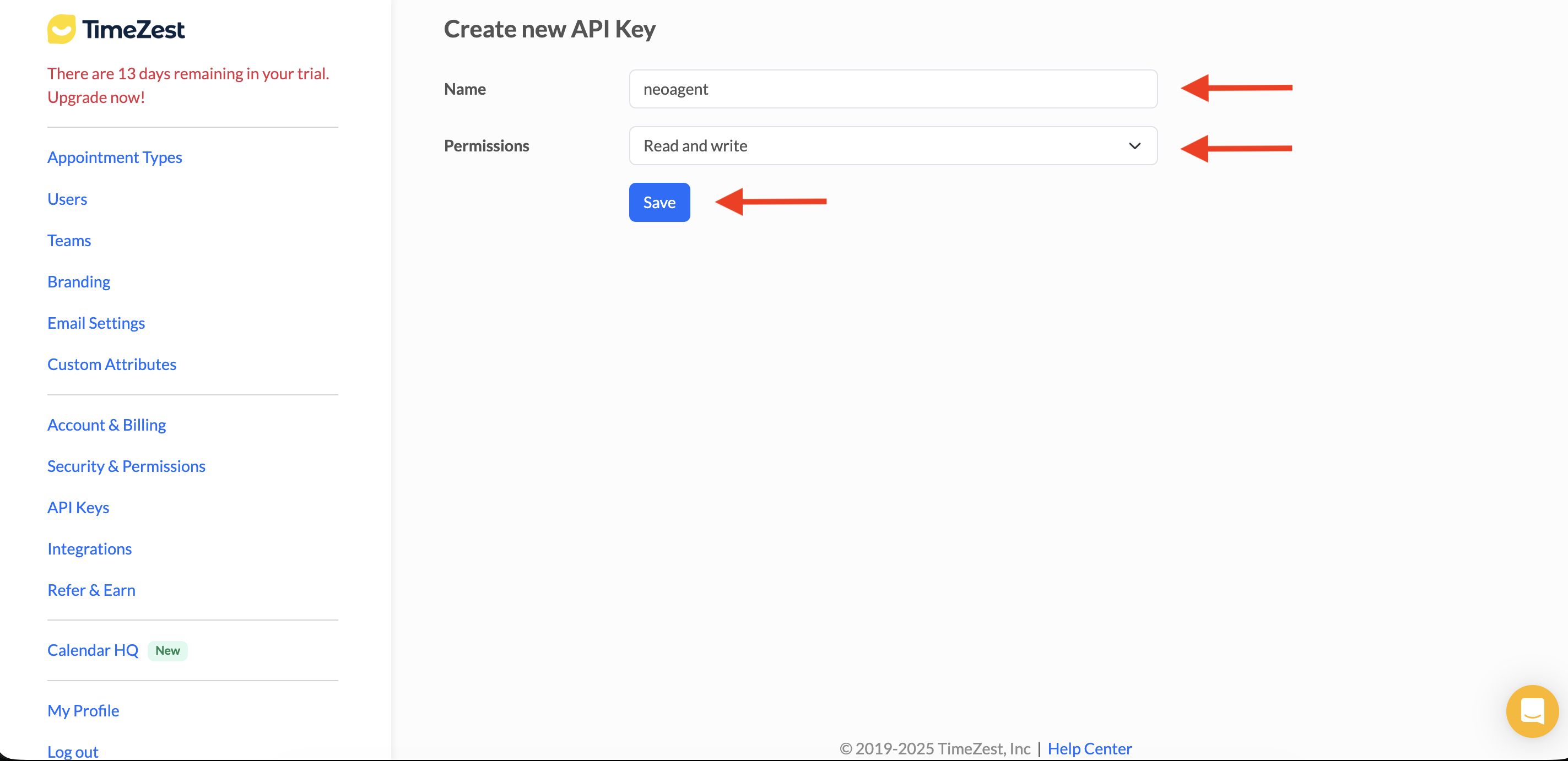 Click **Save** to create the API key.
Copy the API key immediately after creation. TimeZest will only display the full key once. If you lose it, you'll need to create a new one.
Navigate to the [Neo Agent Dashboard](https://dashboard.neoagent.io/integrations) and select the **TIMEZEST** tab.
Click **Save** to create the API key.
Copy the API key immediately after creation. TimeZest will only display the full key once. If you lose it, you'll need to create a new one.
Navigate to the [Neo Agent Dashboard](https://dashboard.neoagent.io/integrations) and select the **TIMEZEST** tab.
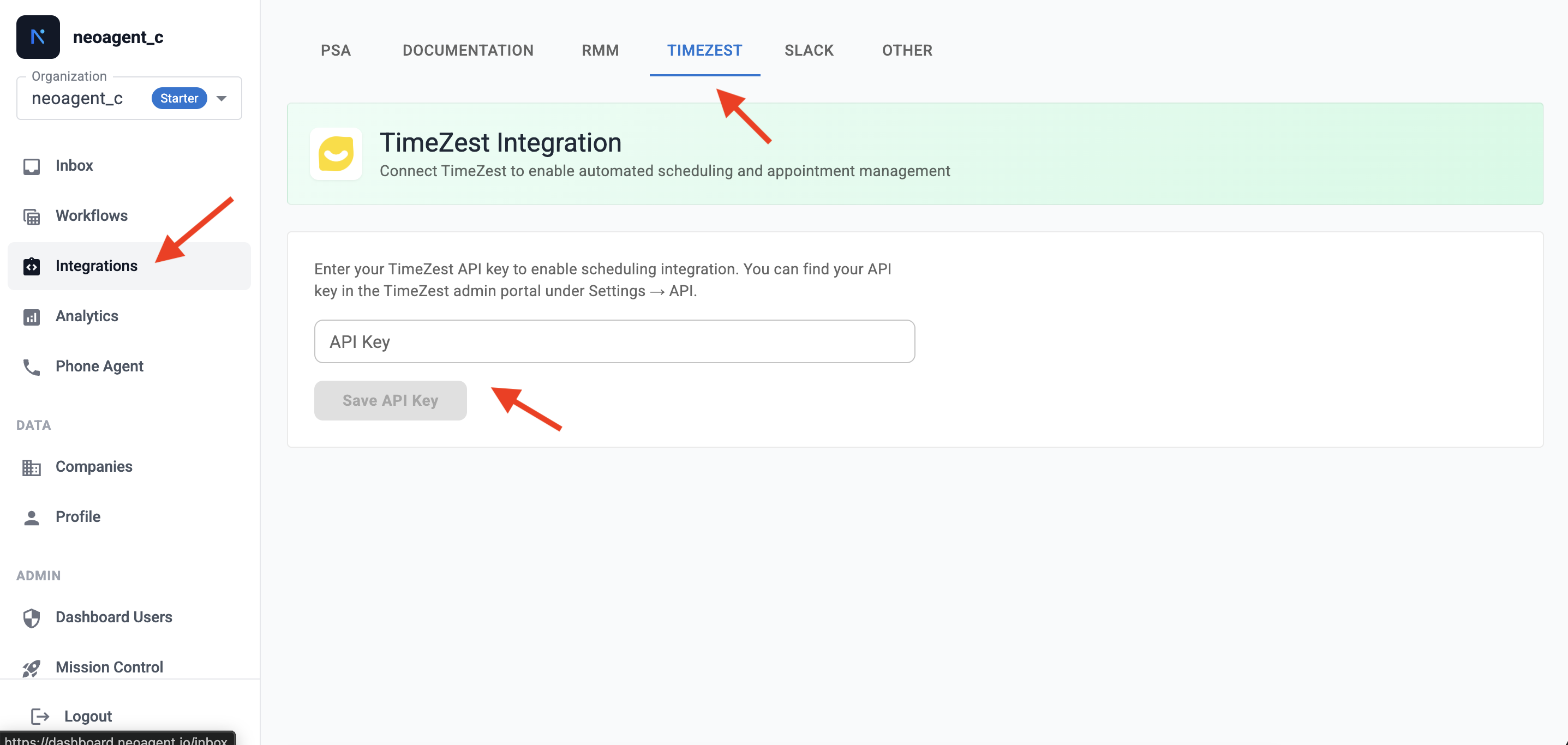 1. Paste your TimeZest API key into the **API Key** field
2. Click **Save API Key**
Neo Agent will verify the API key by connecting to TimeZest. If successful, the integration is complete and ready to use.
## What Neo Can Do
With TimeZest connected, Neo Agent can automate appointment scheduling within your workflows:
* Generate scheduling links for end users to book appointments
* Associate scheduling requests with PSA tickets, contacts, and companies
* Select specific technicians or teams for appointments
* Choose from your configured appointment types
* Access your list of available technicians/agents
* View team configurations
* Identify appropriate resources for scheduling
## Use Cases
TimeZest integration enables powerful scheduling automation scenarios:
Automatically send scheduling links when tickets require on-site or remote appointments.
Include scheduling links in ticket responses so end users can book at their convenience.
## External Resources
Official TimeZest API reference and documentation.
TimeZest support articles and guides.
1. Paste your TimeZest API key into the **API Key** field
2. Click **Save API Key**
Neo Agent will verify the API key by connecting to TimeZest. If successful, the integration is complete and ready to use.
## What Neo Can Do
With TimeZest connected, Neo Agent can automate appointment scheduling within your workflows:
* Generate scheduling links for end users to book appointments
* Associate scheduling requests with PSA tickets, contacts, and companies
* Select specific technicians or teams for appointments
* Choose from your configured appointment types
* Access your list of available technicians/agents
* View team configurations
* Identify appropriate resources for scheduling
## Use Cases
TimeZest integration enables powerful scheduling automation scenarios:
Automatically send scheduling links when tickets require on-site or remote appointments.
Include scheduling links in ticket responses so end users can book at their convenience.
## External Resources
Official TimeZest API reference and documentation.
TimeZest support articles and guides.