> ## Documentation Index
> Fetch the complete documentation index at: https://docs.neoagent.io/llms.txt
> Use this file to discover all available pages before exploring further.
# Deploy your end-user Teams bot
> The full procedure: from a tested chat agent to your branded bot answering a client's employees in their Microsoft Teams
Put your own support bot — your name, your icon — into a client's Microsoft Teams. Their employees message it; your [chat agent](/chat-agents/overview) answers; everything runs on your Neo configuration and bills to you.
This page is the canonical deployment procedure, written to be followed top to bottom for each client you roll out to. For what channels *are*, see [Channels](/chat-agents/channels).
## Before you start
* A [chat agent](/chat-agents/building-a-chat-agent) you've tested in the dashboard.
* The client's **Microsoft 365 tenant ID**, set on their company record under [**Companies**](https://dashboard.neoagent.io/end-companies).
* A Microsoft 365 admin in the client tenant to approve the one-time install — their admin, or you if you have delegated (GDAP) admin into their tenant. The tenant must allow custom Teams apps either way.
## Test in your own tenant first
Two ways to try a bot before a client ever sees it, covering different things:
* **Behavior** — does the agent answer the way you want for a given client? Use the dashboard [Test as end-client](/chat-agents/channels#testing-as-an-end-client) picker — no install, instant.
* **The Teams experience** — branding, the welcome message, adaptive and approval cards, proactive messages, the install greeting? Install your branded app into **your own** Microsoft 365 tenant and message it as an employee would.
For the Teams experience, run the [Deploy](#deploy) steps below pointed at yourself: register a company whose **Microsoft 365 tenant ID is your own** tenant under the channel's **White-label installs**, install the link (or package) into your tenant, and chat with the bot in Teams. It answers as an end-user bot — the same company scoping a real client gets, never a technician tool. You only ever need a tenant or two for this, not one per client: a single self-install exercises the whole Teams surface. (Self-installs need no ownership step — the install's tenant is your own.)
## Deploy
The fastest path is a **magic install link**: you generate it, the client's admin clicks it once and approves, and Neo publishes your branded app into their tenant automatically — no zip to upload. (No admin access? See [Install the package manually](#install-the-package-manually) below.)
Open [**Chat** → **Channels**](https://dashboard.neoagent.io/chat?tab=channels) → **New Channel**. Pick the **Teams** transport, assign your chat agent, and leave the status on **Active** (the default).
Everything under **Branding** is optional — any field you leave blank uses the Neo default. Set at least the **Display name** (the bot's name in Teams) and the **Welcome message** (the first thing users see) to make it yours.
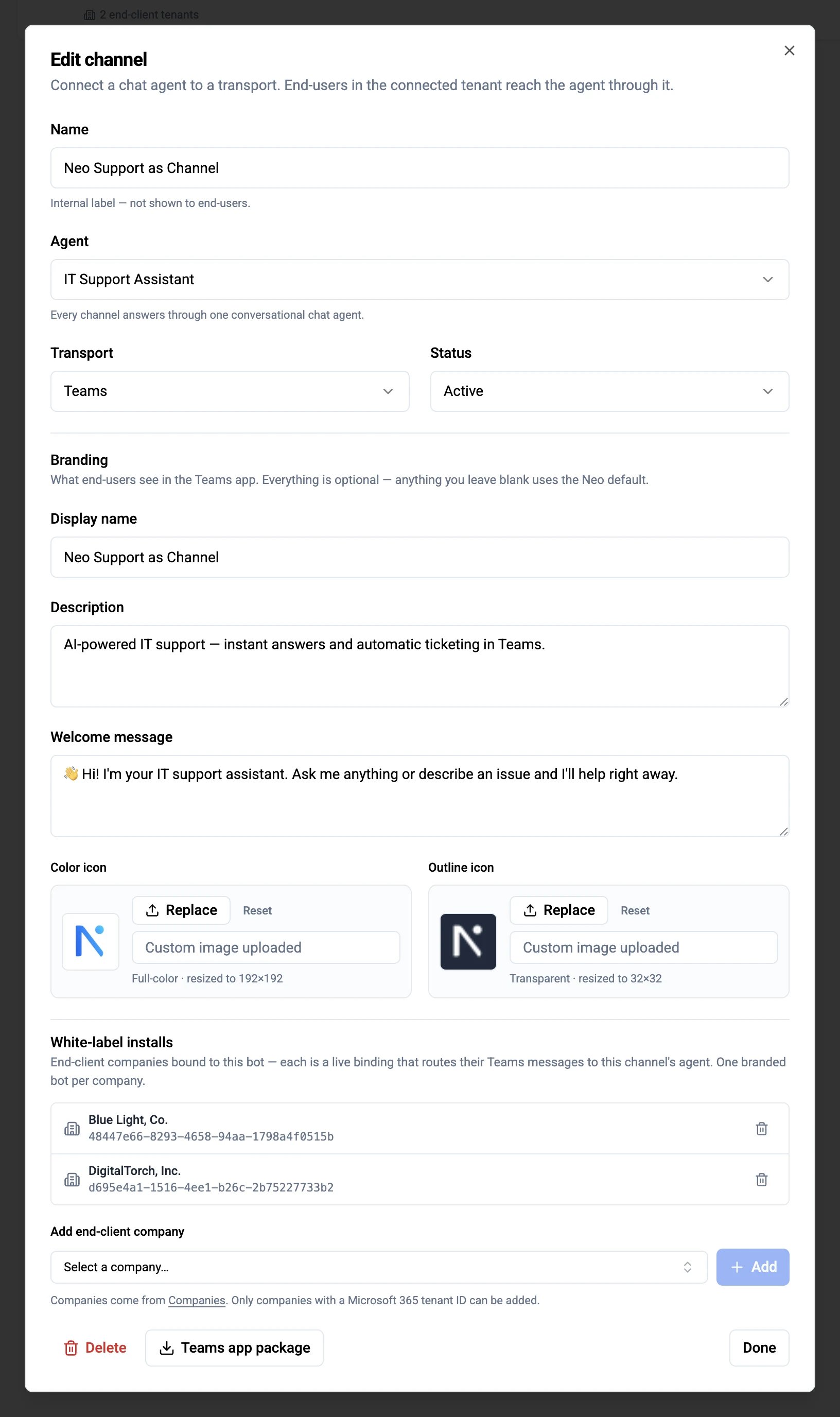 In the saved channel's edit dialog, under **White-label installs**, pick the client company and click **Generate install link**.
The picker lists your [**Companies**](https://dashboard.neoagent.io/end-companies) that have a Microsoft 365 tenant ID and aren't already bound to another channel — **one branded bot per client**. Copy the link; it's tied to this one channel and tenant and expires in **2 days** (generate a fresh one if it lapses).
The link must be opened by a **Teams Administrator or Global Administrator** of the client's Microsoft 365 tenant — publishing an app to a tenant's catalog is an admin-only action in Microsoft 365. They open the link, sign in, and approve the permission prompt; Neo then publishes your branded app into their catalog on their behalf and registers routing — all in one sign-in. They land on a "You're all set" confirmation.
The sign-in authorizes the dedicated **Neo Installer** app to publish apps to the catalog *as that admin* — nothing more. The bot itself is still messaging-only and has **no** standing Microsoft Graph access in the client tenant; its manifest permissions are just `identity` and `messageTeamMembers`. If you have GDAP admin into the tenant, you can open the link and sign in yourself.
That sign-in leaves a **Neo Installer** app in the tenant's **Enterprise applications** — leave it in place. If a sign-in errors, have the admin **re-open the link** rather than deleting it to retry: deleting the app soft-deletes its service principal and blocks the next sign-in with `AADSTS650051` (see [Troubleshooting](#troubleshooting)).
Once they've approved, routing is live: messages from that tenant to your bot route to this channel's agent. There's no separate confirmation step and no ordering to get right — the publish and the routing registration happen together.
Publishing puts the app in the org catalog, but users still have to get it. In the client's [Teams admin center](https://admin.teams.microsoft.com/policies/manage-apps) → **Teams apps** → **Manage apps**, open your app, go to the **Users and groups** tab → **Installs** → **Install app** (or **Edit installs**), set it to **Everyone**, and **Apply**. This installs the bot for everyone — **including people who join later** — so new hires get it automatically.
This last step is a **manual admin action and can't be automated** — Microsoft gates the "Install for everyone" assignment to the admin center (and the Teams admin PowerShell), with no API a third-party app can call. Neo reminds you of it after an install and lets you tick **Installed for everyone** per company under **White-label installs** once it's done. Changes can take up to 24 hours to reach all users.
In the saved channel's edit dialog, under **White-label installs**, pick the client company and click **Generate install link**.
The picker lists your [**Companies**](https://dashboard.neoagent.io/end-companies) that have a Microsoft 365 tenant ID and aren't already bound to another channel — **one branded bot per client**. Copy the link; it's tied to this one channel and tenant and expires in **2 days** (generate a fresh one if it lapses).
The link must be opened by a **Teams Administrator or Global Administrator** of the client's Microsoft 365 tenant — publishing an app to a tenant's catalog is an admin-only action in Microsoft 365. They open the link, sign in, and approve the permission prompt; Neo then publishes your branded app into their catalog on their behalf and registers routing — all in one sign-in. They land on a "You're all set" confirmation.
The sign-in authorizes the dedicated **Neo Installer** app to publish apps to the catalog *as that admin* — nothing more. The bot itself is still messaging-only and has **no** standing Microsoft Graph access in the client tenant; its manifest permissions are just `identity` and `messageTeamMembers`. If you have GDAP admin into the tenant, you can open the link and sign in yourself.
That sign-in leaves a **Neo Installer** app in the tenant's **Enterprise applications** — leave it in place. If a sign-in errors, have the admin **re-open the link** rather than deleting it to retry: deleting the app soft-deletes its service principal and blocks the next sign-in with `AADSTS650051` (see [Troubleshooting](#troubleshooting)).
Once they've approved, routing is live: messages from that tenant to your bot route to this channel's agent. There's no separate confirmation step and no ordering to get right — the publish and the routing registration happen together.
Publishing puts the app in the org catalog, but users still have to get it. In the client's [Teams admin center](https://admin.teams.microsoft.com/policies/manage-apps) → **Teams apps** → **Manage apps**, open your app, go to the **Users and groups** tab → **Installs** → **Install app** (or **Edit installs**), set it to **Everyone**, and **Apply**. This installs the bot for everyone — **including people who join later** — so new hires get it automatically.
This last step is a **manual admin action and can't be automated** — Microsoft gates the "Install for everyone" assignment to the admin center (and the Teams admin PowerShell), with no API a third-party app can call. Neo reminds you of it after an install and lets you tick **Installed for everyone** per company under **White-label installs** once it's done. Changes can take up to 24 hours to reach all users.
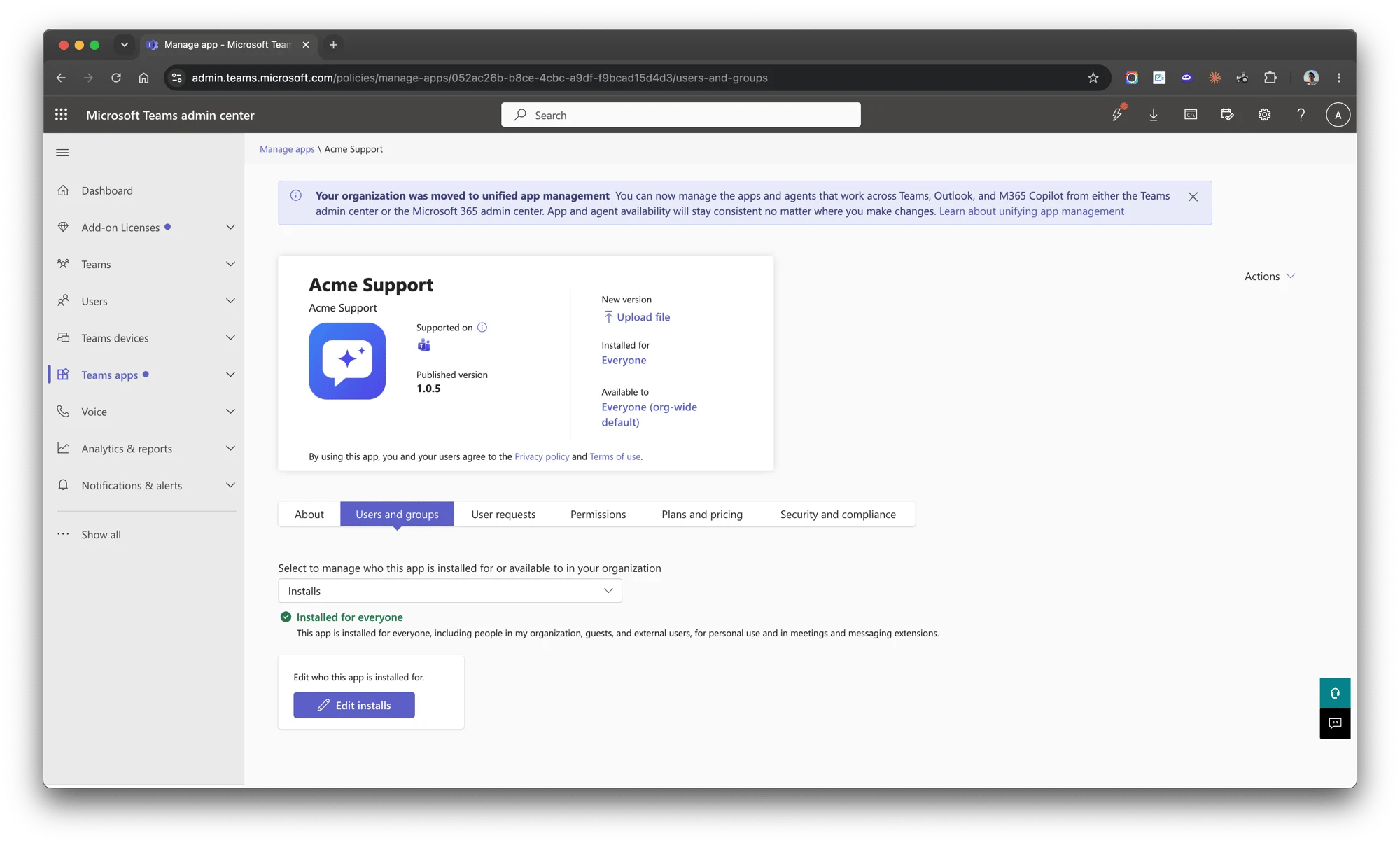 **Optional — pin it.** Installing puts the app in the user's Teams; *pinning* keeps it on the sidebar instead of under **More apps (…)**. Pinning is separate (it isn't read-only under app-centric management) and lives in **Teams apps** → **Setup policies** → **Global (Org-wide default)** → **Pinned apps** → **Add apps** → your app → **Save**. A pin only shows for users who already have the app, so do the **Install for everyone** step first.
This is **app-centric management** (the "moved to unified app management" experience most tenants are now on). On a tenant **not yet** migrated, use **Teams apps** → **Setup policies** → **Global (Org-wide default)** → **Add apps** instead — once a tenant moves to app-centric management, setup-policy installs become read-only and the **Install for everyone** step above is the way.
From a user account in the client tenant, open the bot in Teams:
* First contact shows your **welcome message** (or "Hi! I'm *your display name*" if you left it blank).
* A 1:1 question gets an answer from your agent.
* `/reset` (or `/new`) acknowledges and starts a fresh conversation. You can bundle your next question with the command — `/reset where's my ticket?` starts fresh and answers it right away. Teams sometimes intercepts `/`-commands with its own menu — if that happens, just type **"start a new chat"** (no slash) instead.
The user's company is recognized from the Microsoft 365 tenant the message arrives from, via the tenant ID on the [Company](https://dashboard.neoagent.io/end-companies) record — no per-user setup (see [Sessions & billing](/chat-agents/sessions-and-billing#identity-on-sessions)).
### Install the package manually
If the tenant blocks the consent flow, or the app is already installed and you only need to bind routing, use the zip instead of the link:
In the channel's edit dialog, click **Teams app package**. You get a `.zip` containing the manifest and your icons — upload it exactly as downloaded; re-download it whenever you change branding rather than reusing an old copy.
Open the [Teams admin center](https://admin.teams.microsoft.com/policies/manage-apps) → **Teams apps** → **Manage apps** → **Actions** → **Upload new app**, and upload the `.zip`.
Back under **White-label installs**, pick the company and use **App already installed in this tenant? Register directly** to bind routing. Do this **before** users start messaging — the bot greets on install, and an unregistered tenant gets a neutral "finishing setup" note instead of your welcome message (routing still self-heals on the next message once registered).
## What end users can access
Every conversation through this bot is **scoped to the end user's company**, resolved from the Microsoft 365 tenant the message arrives from. That scope is enforced by Neo, not by the agent's configuration (the architecture behind it: [how end-user bots work](/chat-agents/how-end-user-bots-work)):
* The bot runs a purpose-built [set of end-user tools](/agents/tools/end-user/overview): it answers from your knowledge base, looks up the user's **own** tickets, and (if you enable it) files new tickets and posts replies as the user — all scoped to that one person and their company.
* Tools that operate across your whole client base — MSP-wide ticket search, company listings, configuration/contact search, generic PSA or Microsoft Graph API access, sandbox scripting — **never run in end-user conversations**, even if they're enabled on the agent's toolbox.
* If the inbound tenant isn't linked to any of your [Companies](https://dashboard.neoagent.io/end-companies), the bot refuses the conversation and tells the user what their IT provider needs to link — it never answers unscoped.
* One Microsoft 365 tenant **can be linked to several companies** (branch offices sharing a tenant). Neo scopes each conversation to the company whose PSA contacts hold the speaker's verified email; if the email isn't found there (or appears in more than one), Neo picks deterministically — the parent company (Autotask), then the lowest company ID.
* If the speaker's email matches more than one contact record within the resolved company (some MSPs keep a duplicate contact per site), the bot treats tickets filed under **any** of those contacts as the user's own — they can view, reply to, and resolve every one of them. New tickets and replies are still authored under one consistent contact for stable attribution.
* This applies to **your own tenant too**: a self-install of an *end-user* channel is company-scoped like any client install. For cross-company technician work, use the [Neo AI Agent app](/integrations/teams/intro) and Neo Support — or build a [custom internal bot](/integrations/teams/internal-bot) from an Internal channel, which runs with your full MSP toolbox.
## Live ticket updates in the chat
Intake is only half of it. When work on a ticket the user raised here produces a **client-facing update**, that update is delivered into the *same* Teams conversation — and the user's reply goes straight back onto the ticket. The Teams thread and the ticket's client-facing notes become two views of one exchange, so a user follows their ticket without leaving Teams or digging through email.
Through the bot — a new ticket, or a reply on one they already have.
Someone posts a **client-facing** note on that ticket — the normal way you'd update a customer.
Neo relays that update into the same Teams conversation as the bot's next message, usually within seconds of the update. It's **labelled as coming from a technician** — so the employee can tell a person replied, not the AI — followed by the ticket number and its current status. The label is on by default; tailor it (or switch it off) per channel under **Label relayed technician messages** in the channel's settings, with ready-made wordings in several languages or your own.
Their reply is recorded on the ticket as a **customer reply**, so the technician sees it on the ticket they're already working — no inbox round-trip.
**Only client-facing communications relay** — exactly what the user already sees under [their own tickets](#what-end-users-can-access). Internal, technician-only notes never reach the chat; the user's own replies don't echo back to them; and Neo's own bookkeeping notes are filtered out.
### What counts as a client-facing update, per PSA
Each PSA models customer communication differently, so Neo keys off the signal that a technician *intended* the customer to see the update — by default, the ones your PSA would email the contact about. That deliberately skips the running internal commentary techs keep on a ticket, which would otherwise turn the chat into noise.
| PSA | Relayed by default |
| --------------- | ------------------------------------------------------------------------------------ |
| **ConnectWise** | Public (Discussion) notes that email the contact, plus customer-emailed time entries |
| **Autotask** | Notes published to **All / Customer**, plus published time-entry summaries |
| **HaloPSA** | Actions whose **outcome** emails the user (e.g. *Email User*) |
| **ServiceNow** | Customer-visible **Additional comments** |
These defaults work out of the box. To tune exactly what relays for your PSA — for example widen ConnectWise to every Discussion note, include customer-visible time entries, or pin the specific HaloPSA outcomes you use — open **Integrations → Microsoft Teams — End-user Chat Bot** and adjust the relay settings. The change applies to your whole client base.
The relay is **on by default**. The same panel has a master **Relay ticket updates into the chat** switch at the top — turn it off to stop relaying entirely (your PSA's own customer email still goes out as usual), and the integration card shows **Connected** whenever it's on.
**Which tickets relay.** By default, only tickets your bot **raised** relay updates — a ticket created directly in your PSA or by email stays out of the chat, even if a user later asks about it through the bot. If you'd rather follow updates on *every* ticket a user picks up through the bot, turn off **Only tickets the bot raised** in the same panel.
Two things worth knowing today:
* The relay is delivered **in addition to** your PSA's own customer email, so a user who is actively chatting with the bot may receive both a Teams message and an email for the same update.
* A user receives chat updates only once they've messaged the bot at least once (so there's a live conversation to deliver into). Before that, updates reach them through your PSA's email as usual.
(ServiceNow note: only **Additional comments** relay — a message sent from ServiceNow's separate Email tab doesn't appear in the chat.)
The user simply **replies** in the conversation — "yes, it's my laptop", "still happening" — and the bot files it on the right ticket as a customer reply. They can also ask the bot for the status of any of their tickets at any time (see [What end users can access](#what-end-users-can-access)).
## Consent and security
Two separate Microsoft identities are involved. It's worth being precise about what each can do — for your own assurance and to answer a client admin's questions.
**The bot** (the app published into the client tenant) is **messaging-only**. Its manifest requests just `identity` and `messageTeamMembers` — receive and send Teams messages, nothing else. It has **no** Microsoft Graph access in the client tenant: it can't read mail, files, directory, or anything else there. Everything the agent *does* runs on **your** integrations under **your** permissions, and every end-user conversation is company-scoped (see [What end users can access](#what-end-users-can-access)).
**The Neo Installer** is the app a client admin signs into when they open a magic install link. They grant it **delegated** `AppCatalog.ReadWrite.All` (plus `openid` and `offline_access`, so Neo can re-publish your branding later with **Push update** instead of asking for consent again) — the one permission needed to publish your app to their tenant's catalog *as that admin*. It is **not** the bot, and it grants no standing access to the client's data; its only job is the catalog publish. If you'd rather not have it in a tenant at all, use the [manual zip](#install-the-package-manually) path — no Neo Installer; you or the admin upload the package by hand.
**Routing is authorized server-side, not by the app package.** The Teams package carries your branding and the shared bot id — it carries **no authority**. When a message arrives, Neo trusts only Microsoft's signed account of it: the message is authenticated by Microsoft's Bot Framework, and the tenant it came from is the tenant ID Microsoft stamps on it — never anything in the manifest. Neo resolves which channel (and which of your agents) handles it from the **install record** for that `(bot, tenant)`, and the company scope from that tenant's [Company](https://dashboard.neoagent.io/end-companies). So a copied or edited package can't make the bot answer as a different MSP's channel, reach a tenant it wasn't installed in, or widen a conversation beyond the end user's company.
**A registration is a claim until it's proven.** When you register a tenant under **White-label installs**, the binding is *unverified* until a tenant admin completes a magic-link consent, or the bot first receives a Microsoft-verified message from that tenant — then it's **verified** and locked to your channel. An unverified claim can be replaced (register the wrong tenant ID, or two providers race on the same one, and a real install wins); a verified install can't be taken over — to move it, remove the holding channel's registration first. Installs into your own tenant are verified automatically.
## Updating the bot after rollout
What you can change without touching the client tenant, and what needs the app re-published:
| Change | Takes effect |
| ------------------------------------------------------------- | --------------------------------------------------------------------- |
| Welcome message, assigned agent, agent instructions and tools | Immediately — these live on Neo's side |
| Display name, description, icons | After the app is re-published — these live in the installed Teams app |
To roll out a branding change: edit the branding in the channel dialog (the package version increments automatically), then click **Push update** under **White-label installs**. Neo re-publishes the current branding to every tenant that installed via the link — no client re-consent, no admin-center step. Users keep their conversations.
**Push update** reports any tenants it couldn't reach — usually because the admin's sign-in has expired or been revoked, or the tenant now blocks custom apps. Re-send those a fresh install link for an admin to re-authorize. Tenants you installed via the manual zip aren't covered by **Push update**; re-upload there with **New version** → **Upload file** in the admin center.
## Automating with GDAP (CIPP-style)
If you run delegated admin (GDAP) across your clients, you don't need to wait on each client's admin — open the install link yourself for any tenant you administer (you'll sign in with your delegated admin rights). For full automation, the same publish is a Microsoft Graph call against the client tenant with a **delegated** admin token holding `AppCatalog.ReadWrite.All` — `POST /appCatalogs/teamsApps` with the package from **Teams app package** (then `POST .../appDefinitions` to update) — which slots into a CIPP-style runbook. (Graph's Teams-catalog publish is delegated-only; there is no app-only equivalent.)
## Offboarding a client
Remove the company's row under **White-label installs** — routing stops immediately and the bot no longer responds in that tenant. Then have the client's admin remove the app from their Teams admin center so users don't message a dead bot.
## Troubleshooting
The consent has to be approved **in the client's own tenant**. If the admin was signed into a different tenant (e.g. your MSP tenant) when they clicked, Microsoft consents there and Neo rejects the mismatch. Have them sign out, sign in to the client tenant, and open the link again. If the link is older than an hour it's expired — generate a fresh one.
The link removes the upload step, not the tenant's policy. The client tenant must allow custom (line-of-business) Teams apps. Have their admin enable custom app uploads in the Teams admin center, then re-open the link.
This almost always follows someone **deleting the Neo Installer app** from the tenant's **Enterprise applications** to retry a failed install. Deleting it only **soft-deletes** the service principal — Microsoft keeps it in a recoverable state for up to 30 days and **keeps its app ID reserved** — so the next sign-in can't re-create it and fails with `AADSTS650051`.
The catch: a soft-deleted service principal is **not** listed on the Entra portal's **Deleted applications** page — that page shows deleted *App registrations*, not deleted *Enterprise apps*. Find and purge it with Microsoft Graph (Graph Explorer works), then re-open the link:
1. `GET https://graph.microsoft.com/v1.0/directory/deletedItems/microsoft.graph.servicePrincipal?$filter=appId eq 'a77de2a9-75e6-4627-b50c-82c19e5d28b4'` — the Neo Installer's app ID is the same in every tenant.
2. `DELETE https://graph.microsoft.com/v1.0/directory/deletedItems/{id}`, using the `id` from step 1, to permanently remove it.
Then open the install link again. (Waiting up to 30 days for Microsoft to purge the object on its own also clears it — the Graph purge is just the immediate fix.) To avoid this entirely, never delete the Neo Installer app to retry — just re-open the link.
That tenant either removed the Neo Installer app (revoking publish rights) or now blocks custom apps. Send its admin a fresh install link to re-consent; the re-push then succeeds.
The app was installed before the channel was **Active** or before routing was registered — most common on the manual-zip path. The greeting is one-time, and routing self-heals: activate the channel and confirm the company is registered, and the next message a user sends reaches your agent normally.
Check in order: the channel is **Active** (a **Disconnected** channel stays installed but doesn't route); the client company shows under **White-label installs** with the correct tenant ID; and the user messaged 1:1 or @mentioned the bot in a group chat.
The branded app is **blocked in the client's tenant**. Microsoft rejects messages and notifications with *"(BotDisabledByAdmin) The tenant admin disabled this bot"*, and Teams greys out the compose box — it's per-user, so some of the client's users may work while others are blocked. The **client's** Teams admin allows it in the [Teams admin center](https://admin.teams.microsoft.com): **Manage apps →** the branded Neo app → **Allowed**, and the **app permission policy** assigned to those users must permit it; then have them re-open the app. (This is distinct from the tenant blocking custom app *uploads* — that's the publishing-failed accordion above.)
By default the agent is **mention-only** in group chats and channels — it answers when @mentioned. Switch the agent to **read-all** to answer every message (see [mention mode](/chat-agents/building-a-chat-agent#settings-that-work-differently-in-chat)). `/reset` works in groups even without a mention.
The user's Microsoft 365 tenant reached your bot but isn't linked to any company, so Neo refuses to answer rather than run unscoped: the tenant ID was removed from (or never set on) the company under [**Companies**](https://dashboard.neoagent.io/end-companies). Set it, and the fix takes effect on the user's next message; nothing needs reinstalling. (Several companies sharing one tenant ID is fine — Neo scopes each conversation by the speaker's email; see [What end users can access](#what-end-users-can-access).)
Two causes: the company has no Microsoft 365 tenant ID (set it on [**Companies**](https://dashboard.neoagent.io/end-companies) — it must be the tenant GUID), or that tenant is already bound to another of your channels — one branded bot per client.
This bot is for your **clients' end users**. For your own technicians, use the [Neo AI Agent app](/integrations/teams/intro) (notifications, approvals, Neo Support) or a [custom internal bot](/integrations/teams/internal-bot) you build.
**Optional — pin it.** Installing puts the app in the user's Teams; *pinning* keeps it on the sidebar instead of under **More apps (…)**. Pinning is separate (it isn't read-only under app-centric management) and lives in **Teams apps** → **Setup policies** → **Global (Org-wide default)** → **Pinned apps** → **Add apps** → your app → **Save**. A pin only shows for users who already have the app, so do the **Install for everyone** step first.
This is **app-centric management** (the "moved to unified app management" experience most tenants are now on). On a tenant **not yet** migrated, use **Teams apps** → **Setup policies** → **Global (Org-wide default)** → **Add apps** instead — once a tenant moves to app-centric management, setup-policy installs become read-only and the **Install for everyone** step above is the way.
From a user account in the client tenant, open the bot in Teams:
* First contact shows your **welcome message** (or "Hi! I'm *your display name*" if you left it blank).
* A 1:1 question gets an answer from your agent.
* `/reset` (or `/new`) acknowledges and starts a fresh conversation. You can bundle your next question with the command — `/reset where's my ticket?` starts fresh and answers it right away. Teams sometimes intercepts `/`-commands with its own menu — if that happens, just type **"start a new chat"** (no slash) instead.
The user's company is recognized from the Microsoft 365 tenant the message arrives from, via the tenant ID on the [Company](https://dashboard.neoagent.io/end-companies) record — no per-user setup (see [Sessions & billing](/chat-agents/sessions-and-billing#identity-on-sessions)).
### Install the package manually
If the tenant blocks the consent flow, or the app is already installed and you only need to bind routing, use the zip instead of the link:
In the channel's edit dialog, click **Teams app package**. You get a `.zip` containing the manifest and your icons — upload it exactly as downloaded; re-download it whenever you change branding rather than reusing an old copy.
Open the [Teams admin center](https://admin.teams.microsoft.com/policies/manage-apps) → **Teams apps** → **Manage apps** → **Actions** → **Upload new app**, and upload the `.zip`.
Back under **White-label installs**, pick the company and use **App already installed in this tenant? Register directly** to bind routing. Do this **before** users start messaging — the bot greets on install, and an unregistered tenant gets a neutral "finishing setup" note instead of your welcome message (routing still self-heals on the next message once registered).
## What end users can access
Every conversation through this bot is **scoped to the end user's company**, resolved from the Microsoft 365 tenant the message arrives from. That scope is enforced by Neo, not by the agent's configuration (the architecture behind it: [how end-user bots work](/chat-agents/how-end-user-bots-work)):
* The bot runs a purpose-built [set of end-user tools](/agents/tools/end-user/overview): it answers from your knowledge base, looks up the user's **own** tickets, and (if you enable it) files new tickets and posts replies as the user — all scoped to that one person and their company.
* Tools that operate across your whole client base — MSP-wide ticket search, company listings, configuration/contact search, generic PSA or Microsoft Graph API access, sandbox scripting — **never run in end-user conversations**, even if they're enabled on the agent's toolbox.
* If the inbound tenant isn't linked to any of your [Companies](https://dashboard.neoagent.io/end-companies), the bot refuses the conversation and tells the user what their IT provider needs to link — it never answers unscoped.
* One Microsoft 365 tenant **can be linked to several companies** (branch offices sharing a tenant). Neo scopes each conversation to the company whose PSA contacts hold the speaker's verified email; if the email isn't found there (or appears in more than one), Neo picks deterministically — the parent company (Autotask), then the lowest company ID.
* If the speaker's email matches more than one contact record within the resolved company (some MSPs keep a duplicate contact per site), the bot treats tickets filed under **any** of those contacts as the user's own — they can view, reply to, and resolve every one of them. New tickets and replies are still authored under one consistent contact for stable attribution.
* This applies to **your own tenant too**: a self-install of an *end-user* channel is company-scoped like any client install. For cross-company technician work, use the [Neo AI Agent app](/integrations/teams/intro) and Neo Support — or build a [custom internal bot](/integrations/teams/internal-bot) from an Internal channel, which runs with your full MSP toolbox.
## Live ticket updates in the chat
Intake is only half of it. When work on a ticket the user raised here produces a **client-facing update**, that update is delivered into the *same* Teams conversation — and the user's reply goes straight back onto the ticket. The Teams thread and the ticket's client-facing notes become two views of one exchange, so a user follows their ticket without leaving Teams or digging through email.
Through the bot — a new ticket, or a reply on one they already have.
Someone posts a **client-facing** note on that ticket — the normal way you'd update a customer.
Neo relays that update into the same Teams conversation as the bot's next message, usually within seconds of the update. It's **labelled as coming from a technician** — so the employee can tell a person replied, not the AI — followed by the ticket number and its current status. The label is on by default; tailor it (or switch it off) per channel under **Label relayed technician messages** in the channel's settings, with ready-made wordings in several languages or your own.
Their reply is recorded on the ticket as a **customer reply**, so the technician sees it on the ticket they're already working — no inbox round-trip.
**Only client-facing communications relay** — exactly what the user already sees under [their own tickets](#what-end-users-can-access). Internal, technician-only notes never reach the chat; the user's own replies don't echo back to them; and Neo's own bookkeeping notes are filtered out.
### What counts as a client-facing update, per PSA
Each PSA models customer communication differently, so Neo keys off the signal that a technician *intended* the customer to see the update — by default, the ones your PSA would email the contact about. That deliberately skips the running internal commentary techs keep on a ticket, which would otherwise turn the chat into noise.
| PSA | Relayed by default |
| --------------- | ------------------------------------------------------------------------------------ |
| **ConnectWise** | Public (Discussion) notes that email the contact, plus customer-emailed time entries |
| **Autotask** | Notes published to **All / Customer**, plus published time-entry summaries |
| **HaloPSA** | Actions whose **outcome** emails the user (e.g. *Email User*) |
| **ServiceNow** | Customer-visible **Additional comments** |
These defaults work out of the box. To tune exactly what relays for your PSA — for example widen ConnectWise to every Discussion note, include customer-visible time entries, or pin the specific HaloPSA outcomes you use — open **Integrations → Microsoft Teams — End-user Chat Bot** and adjust the relay settings. The change applies to your whole client base.
The relay is **on by default**. The same panel has a master **Relay ticket updates into the chat** switch at the top — turn it off to stop relaying entirely (your PSA's own customer email still goes out as usual), and the integration card shows **Connected** whenever it's on.
**Which tickets relay.** By default, only tickets your bot **raised** relay updates — a ticket created directly in your PSA or by email stays out of the chat, even if a user later asks about it through the bot. If you'd rather follow updates on *every* ticket a user picks up through the bot, turn off **Only tickets the bot raised** in the same panel.
Two things worth knowing today:
* The relay is delivered **in addition to** your PSA's own customer email, so a user who is actively chatting with the bot may receive both a Teams message and an email for the same update.
* A user receives chat updates only once they've messaged the bot at least once (so there's a live conversation to deliver into). Before that, updates reach them through your PSA's email as usual.
(ServiceNow note: only **Additional comments** relay — a message sent from ServiceNow's separate Email tab doesn't appear in the chat.)
The user simply **replies** in the conversation — "yes, it's my laptop", "still happening" — and the bot files it on the right ticket as a customer reply. They can also ask the bot for the status of any of their tickets at any time (see [What end users can access](#what-end-users-can-access)).
## Consent and security
Two separate Microsoft identities are involved. It's worth being precise about what each can do — for your own assurance and to answer a client admin's questions.
**The bot** (the app published into the client tenant) is **messaging-only**. Its manifest requests just `identity` and `messageTeamMembers` — receive and send Teams messages, nothing else. It has **no** Microsoft Graph access in the client tenant: it can't read mail, files, directory, or anything else there. Everything the agent *does* runs on **your** integrations under **your** permissions, and every end-user conversation is company-scoped (see [What end users can access](#what-end-users-can-access)).
**The Neo Installer** is the app a client admin signs into when they open a magic install link. They grant it **delegated** `AppCatalog.ReadWrite.All` (plus `openid` and `offline_access`, so Neo can re-publish your branding later with **Push update** instead of asking for consent again) — the one permission needed to publish your app to their tenant's catalog *as that admin*. It is **not** the bot, and it grants no standing access to the client's data; its only job is the catalog publish. If you'd rather not have it in a tenant at all, use the [manual zip](#install-the-package-manually) path — no Neo Installer; you or the admin upload the package by hand.
**Routing is authorized server-side, not by the app package.** The Teams package carries your branding and the shared bot id — it carries **no authority**. When a message arrives, Neo trusts only Microsoft's signed account of it: the message is authenticated by Microsoft's Bot Framework, and the tenant it came from is the tenant ID Microsoft stamps on it — never anything in the manifest. Neo resolves which channel (and which of your agents) handles it from the **install record** for that `(bot, tenant)`, and the company scope from that tenant's [Company](https://dashboard.neoagent.io/end-companies). So a copied or edited package can't make the bot answer as a different MSP's channel, reach a tenant it wasn't installed in, or widen a conversation beyond the end user's company.
**A registration is a claim until it's proven.** When you register a tenant under **White-label installs**, the binding is *unverified* until a tenant admin completes a magic-link consent, or the bot first receives a Microsoft-verified message from that tenant — then it's **verified** and locked to your channel. An unverified claim can be replaced (register the wrong tenant ID, or two providers race on the same one, and a real install wins); a verified install can't be taken over — to move it, remove the holding channel's registration first. Installs into your own tenant are verified automatically.
## Updating the bot after rollout
What you can change without touching the client tenant, and what needs the app re-published:
| Change | Takes effect |
| ------------------------------------------------------------- | --------------------------------------------------------------------- |
| Welcome message, assigned agent, agent instructions and tools | Immediately — these live on Neo's side |
| Display name, description, icons | After the app is re-published — these live in the installed Teams app |
To roll out a branding change: edit the branding in the channel dialog (the package version increments automatically), then click **Push update** under **White-label installs**. Neo re-publishes the current branding to every tenant that installed via the link — no client re-consent, no admin-center step. Users keep their conversations.
**Push update** reports any tenants it couldn't reach — usually because the admin's sign-in has expired or been revoked, or the tenant now blocks custom apps. Re-send those a fresh install link for an admin to re-authorize. Tenants you installed via the manual zip aren't covered by **Push update**; re-upload there with **New version** → **Upload file** in the admin center.
## Automating with GDAP (CIPP-style)
If you run delegated admin (GDAP) across your clients, you don't need to wait on each client's admin — open the install link yourself for any tenant you administer (you'll sign in with your delegated admin rights). For full automation, the same publish is a Microsoft Graph call against the client tenant with a **delegated** admin token holding `AppCatalog.ReadWrite.All` — `POST /appCatalogs/teamsApps` with the package from **Teams app package** (then `POST .../appDefinitions` to update) — which slots into a CIPP-style runbook. (Graph's Teams-catalog publish is delegated-only; there is no app-only equivalent.)
## Offboarding a client
Remove the company's row under **White-label installs** — routing stops immediately and the bot no longer responds in that tenant. Then have the client's admin remove the app from their Teams admin center so users don't message a dead bot.
## Troubleshooting
The consent has to be approved **in the client's own tenant**. If the admin was signed into a different tenant (e.g. your MSP tenant) when they clicked, Microsoft consents there and Neo rejects the mismatch. Have them sign out, sign in to the client tenant, and open the link again. If the link is older than an hour it's expired — generate a fresh one.
The link removes the upload step, not the tenant's policy. The client tenant must allow custom (line-of-business) Teams apps. Have their admin enable custom app uploads in the Teams admin center, then re-open the link.
This almost always follows someone **deleting the Neo Installer app** from the tenant's **Enterprise applications** to retry a failed install. Deleting it only **soft-deletes** the service principal — Microsoft keeps it in a recoverable state for up to 30 days and **keeps its app ID reserved** — so the next sign-in can't re-create it and fails with `AADSTS650051`.
The catch: a soft-deleted service principal is **not** listed on the Entra portal's **Deleted applications** page — that page shows deleted *App registrations*, not deleted *Enterprise apps*. Find and purge it with Microsoft Graph (Graph Explorer works), then re-open the link:
1. `GET https://graph.microsoft.com/v1.0/directory/deletedItems/microsoft.graph.servicePrincipal?$filter=appId eq 'a77de2a9-75e6-4627-b50c-82c19e5d28b4'` — the Neo Installer's app ID is the same in every tenant.
2. `DELETE https://graph.microsoft.com/v1.0/directory/deletedItems/{id}`, using the `id` from step 1, to permanently remove it.
Then open the install link again. (Waiting up to 30 days for Microsoft to purge the object on its own also clears it — the Graph purge is just the immediate fix.) To avoid this entirely, never delete the Neo Installer app to retry — just re-open the link.
That tenant either removed the Neo Installer app (revoking publish rights) or now blocks custom apps. Send its admin a fresh install link to re-consent; the re-push then succeeds.
The app was installed before the channel was **Active** or before routing was registered — most common on the manual-zip path. The greeting is one-time, and routing self-heals: activate the channel and confirm the company is registered, and the next message a user sends reaches your agent normally.
Check in order: the channel is **Active** (a **Disconnected** channel stays installed but doesn't route); the client company shows under **White-label installs** with the correct tenant ID; and the user messaged 1:1 or @mentioned the bot in a group chat.
The branded app is **blocked in the client's tenant**. Microsoft rejects messages and notifications with *"(BotDisabledByAdmin) The tenant admin disabled this bot"*, and Teams greys out the compose box — it's per-user, so some of the client's users may work while others are blocked. The **client's** Teams admin allows it in the [Teams admin center](https://admin.teams.microsoft.com): **Manage apps →** the branded Neo app → **Allowed**, and the **app permission policy** assigned to those users must permit it; then have them re-open the app. (This is distinct from the tenant blocking custom app *uploads* — that's the publishing-failed accordion above.)
By default the agent is **mention-only** in group chats and channels — it answers when @mentioned. Switch the agent to **read-all** to answer every message (see [mention mode](/chat-agents/building-a-chat-agent#settings-that-work-differently-in-chat)). `/reset` works in groups even without a mention.
The user's Microsoft 365 tenant reached your bot but isn't linked to any company, so Neo refuses to answer rather than run unscoped: the tenant ID was removed from (or never set on) the company under [**Companies**](https://dashboard.neoagent.io/end-companies). Set it, and the fix takes effect on the user's next message; nothing needs reinstalling. (Several companies sharing one tenant ID is fine — Neo scopes each conversation by the speaker's email; see [What end users can access](#what-end-users-can-access).)
Two causes: the company has no Microsoft 365 tenant ID (set it on [**Companies**](https://dashboard.neoagent.io/end-companies) — it must be the tenant GUID), or that tenant is already bound to another of your channels — one branded bot per client.
This bot is for your **clients' end users**. For your own technicians, use the [Neo AI Agent app](/integrations/teams/intro) (notifications, approvals, Neo Support) or a [custom internal bot](/integrations/teams/internal-bot) you build.