> ## Documentation Index
> Fetch the complete documentation index at: https://docs.neoagent.io/llms.txt
> Use this file to discover all available pages before exploring further.
# Deploy your end-user Slack bot
> The full procedure: from a tested chat agent to your branded Slack app answering a client's employees in their own Slack workspace
Every Slack channel in Neo gets its own Slack app, with your display name, description and icon on it. Neo builds the app for you. Each client's Slack admin installs it with one link, and from then on anyone in that workspace can message it: your [chat agent](/chat-agents/overview) answers, scoped to that one client company, and usage bills to you.
This page is the deployment procedure, top to bottom, for each client you roll out to. For what channels are, see [Channels](/chat-agents/channels). For clients on Microsoft Teams, see [Deploy your end-user Teams bot](/integrations/teams/end-user-bot).
## Before you start
* A [chat agent](/chat-agents/building-a-chat-agent) with the **End-user** audience, tested in the dashboard with [Test as end-client](/chat-agents/channels#testing-as-an-end-client).
* The client company in [**Companies**](https://dashboard.neoagent.io/end-companies). Slack needs no tenant ID or domain on the record: the install link carries the company.
* An icon: a square PNG or JPEG, at least 512 × 512 px and at most 2 MB. Slack refuses smaller icons.
* Someone at the client who can install apps in their Slack workspace, usually a Workspace Owner or Admin.
## Deploy
Open [**Chat** → **Channels**](https://dashboard.neoagent.io/chat?tab=channels) → **New Channel**. Pick the **End-user** audience, the **Slack** transport and your chat agent, and leave the status on **Active**. Slack is offered only for End-user channels, and only when you create a channel: a saved channel can't switch between Teams and Slack.
Fill in **Branding**:
| Field | Limit | Where end users see it |
| ------------------- | -------------------------------------------------------------------------------- | --------------------------------------------------------------------------- |
| **Display name** | Required, at most 35 characters | The app's name in Slack |
| **Description** | At most 140 characters. A new channel starts with a default text you can replace | The app's details in Slack, the side panel, the welcome message and `/help` |
| **Welcome message** | Optional | The first message a person gets from the app |
Save the channel, then **Upload** the **Icon**. The icon field works only on a saved channel.
On the saved channel's page, click **Request Slack app** in the **Slack app** section. The section shows where the app is:
| Status | Meaning |
| ------------------ | -------------------------------------------------------------------------------------------------------------------------------------------------------------------------------------------------------------------------------------------------------------------------------------------------------- |
| **Creating** | Neo is creating the app in Slack. |
| **Awaiting setup** | The app exists. Slack allows its last setup steps only in its web interface, so Neo does them for you. This usually takes up to one business day, and you have nothing to do. |
| **Ready** | The app is finished, and the install link controls appear under it. |
| **Failed** | Slack did not create the app, and the reason is shown. Fix what it names and click **Request Slack app** again. If the request was cut off, the app may exist in Slack already: the page says "Neo support must check this request before it can run again" and offers no retry, so contact Neo support. |
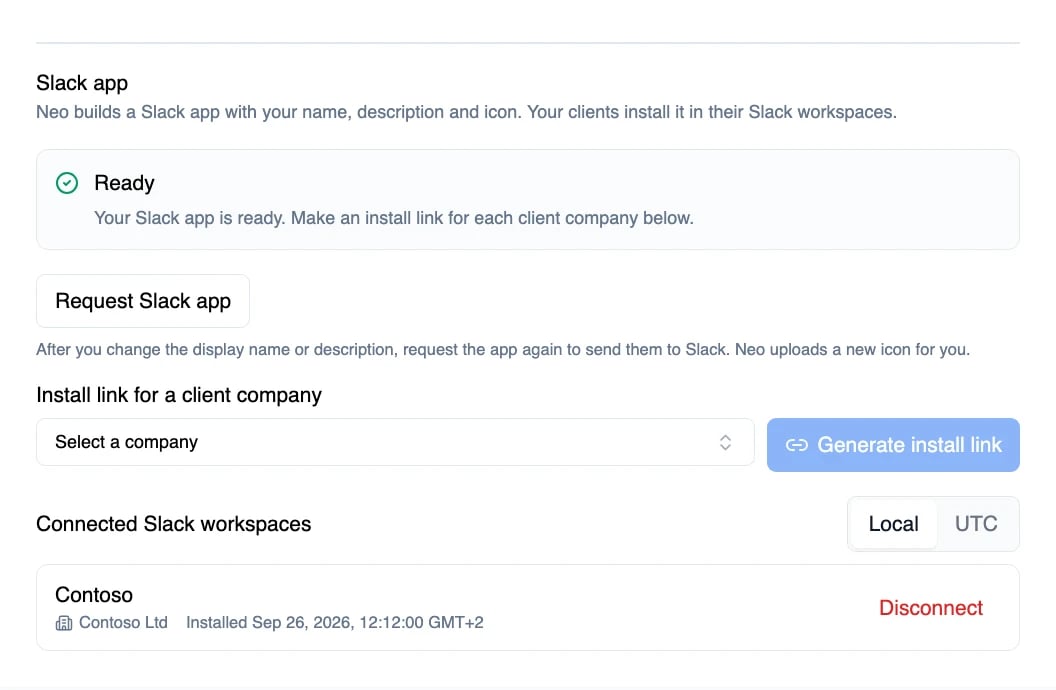 Under **Install link for a client company**, pick the company and click **Generate install link**, then **Copy**. The link works for **2 days** and only for that company. Make a link for each client company.
The admin opens the link, signs in to their Slack workspace and clicks **Allow**. Slack then returns them to a Neo page that says **The app is installed**, with an **Open in Slack** button.
At that moment the workspace is linked to the company you generated the link for. Every conversation from that workspace is scoped to that company, with no name or domain matching involved.
If the workspace makes members ask before they install an app, a non-admin who opens the link sends Slack's approval request to the workspace admins instead, so send the link to an admin directly.
The workspace appears under **Connected Slack workspaces** on the channel's page, with its company and install time. Then, as a person in that workspace:
* Find the app under **Apps** in the Slack sidebar and open its **Messages** tab. Your welcome message appears.
* Ask a question. Your agent answers.
* Type `/new`. The bot starts a fresh conversation.
### Test in your own workspace first
[Test as end-client](/chat-agents/channels#testing-as-an-end-client) checks the agent's answers without any install. To check the Slack side too (your branding, the welcome message, buttons and forms, relayed technician replies), install the app into your own Slack workspace: generate an install link for a company in **Companies** that stands for your own business, and install it yourself. The bot treats you like any client's employee, scoped to that company.
A workspace stays linked to the first company it was installed for. Pick the company for your own workspace with care; see [Offboarding a client](#offboarding-a-client).
## What end users see
**Where they talk to it.** Three places, each its own conversation:
* **Direct messages**: the app's **Messages** tab, found under **Apps** in the sidebar. Every message gets an answer, and the conversation carries on across days.
* **The Agents & AI apps panel**: Slack can open the app in a side panel next to whatever the person is reading. Each new thread there is a new conversation. While the agent works, the panel shows that it is thinking.
* **Channels**: add the app to a channel, and people **@mention** it. It answers in a thread under the message, and later mentions in that thread continue the same conversation. It never reads or answers a channel message that doesn't mention it.
**The welcome message** arrives the first time someone opens the app's Messages tab, and at the start of every new thread in the side panel. Without a welcome message set, it reads "Hi! I'm" and your display name. Your **Description** follows it, and the message always ends with a pointer to `/help` and a line saying that replies are generated by AI and can be wrong. The app posts nothing when it is installed.
**Replies.** In a thread (the side panel, or a channel thread) the reply appears as the agent writes it. At the top level of direct messages it arrives in one message when it is complete. With **Show progress updates** on in the channel's settings, a small card lists what the agent is doing with plain labels such as "Checking your tickets", and a **Show steps** button opens the list. End users never see tool names or what a tool returned.
**Buttons and forms.** When the agent asks a question with a few likely answers, the options come as buttons (up to six), or as tick boxes with a **Something else** box when several answers can apply. Several questions at once come as one form with **Submit**. In the side panel, one short question with up to four answers shows its answers as suggested prompts instead. [Intent forms](/chat-agents/intent-forms) show in the conversation with a **Submit** button; a form with a long-text field opens in a Slack form window from an **Open form** button. After a long pause, a **Start fresh** / **Continue previous chat** card lets the person choose; see [starting fresh after a pause](/chat-agents/channels#starting-fresh-after-a-pause).
**Commands.** `/new` starts a fresh conversation, and typing "start a new chat" does the same. `/help` shows your **Description** and the commands, visible only to the person who ran it. In a channel, each thread is already its own conversation, so a fresh start there is a new message that mentions the app.
**Files.** People can attach up to six files per message: screenshots, which the agent reads, and documents, which it can attach to their ticket. The accepted types are on [end-user tools](/agents/tools/end-user/overview#sharing-screenshots-and-files). Files over 20 MB, and other types, are skipped. The app never sends files back.
**Technician replies.** A client-facing reply on the person's ticket arrives in the same conversation, the way [live ticket updates](/integrations/teams/end-user-bot#live-ticket-updates-in-the-chat) work in Teams. It shows who replied (the technician's name and picture, or your own name) and one footer line with the ticket number, title and status. The channel's **Relayed technician messages**, **Show the ticket title** and **Show the ticket status** settings apply as they do for Teams, and **Don't label them** sends the note as plain text with no footer. Which PSA entries relay, and the Autotask client portal address for ticket links, are set once for Teams and Slack together, on the **Microsoft Teams — End-user Chat Bot** card under [**Integrations**](https://dashboard.neoagent.io/integrations). The person's replies land on the ticket as [the ticket records](/integrations/teams/end-user-bot#what-the-ticket-records) describes.
## Who the bot serves
* **The company** is the one the workspace's install link was generated for. One workspace is linked to exactly one company.
* **The person** is matched by the email on their Slack profile against that company's active contacts in your PSA. With a match, they can see and reply to their own tickets. Without one, the bot can still file a ticket, noting the email it came from, but it can't show them tickets until you add them as a contact.
* **What the agent can reach** is the same end-user tool set as in Teams, locked to that one person and company: see [what end users can access](/integrations/teams/end-user-bot#what-end-users-can-access) and [how end-user bots work](/chat-agents/how-end-user-bots-work).
The bot serves the people of the workspace that installed it, guests of that workspace included. A person from another organization, such as someone in a Slack Connect channel, gets a short refusal that sends them to their own IT support team, and nothing they write reaches your agent. When Slack can't confirm who is writing, the bot asks the person to try again in a moment and sends nothing on.
## What the app can access in the workspace
A client's Slack admin sees these permissions on the **Allow** screen. The app can:
* Read direct messages sent to it, and channel messages that mention it. It has no access to other channel messages.
* Send messages, and show its status and suggested prompts in the side panel.
* Read people's names and email addresses, to match each person to a PSA contact.
* Read files people send to it.
* Run its `/new` and `/help` commands.
* Read the workspace's name.
The app never reads Slack's message history. It keeps the context of each conversation on Neo's side.
## How it differs from Teams
| | Teams | Slack |
| ------------------------------ | ---------------------------------------------------------------------------------------------------------------------------------------------------------------- | --------------------------------------------------------------------------------------------------------------------------------------------------- |
| The app | One Teams app package with your branding | Its own Slack app per channel, built by Neo |
| Ready to install | At once | After **Awaiting setup**, usually up to one business day |
| Who installs | A Teams or Global administrator of the client's Microsoft 365 tenant, through the Neo Installer consent, then **Install for everyone** in the Teams admin center | The client's Slack admin clicks **Allow** on the install link. Everyone in the workspace can then find the app under **Apps**, with no rollout step |
| How the company is known | The Microsoft 365 tenant ID on the company record; one tenant can cover several companies | The company the install link was made for; each workspace belongs to one company, and a company can have several workspaces |
| Group conversations | Mention-only in group chats and channels | Mention-only in channels, answered in a thread |
| Replies written live | In 1:1 chats | In threads: the side panel and channel threads |
| Branding changes reach clients | With **Push update** | The app's name and details with **Request Slack app**; the welcome message within 10 minutes. See [Updating the app](#updating-the-app) |
**Enterprise Grid.** Install the app into one workspace at a time. An install for a whole Enterprise Grid organization is refused.
## Updating the app
| Change | Takes effect |
| ----------------------------------------------------------------------- | ---------------------------------------------------------------------------------- |
| Assigned agent, agent instructions and tools | Immediately. A conversation already open moves to a newly assigned agent by itself |
| Welcome message, and the description in the welcome message and `/help` | Within 10 minutes |
| Display name, and the description in the app's details | After you click **Request Slack app** again, which sends them to Slack |
| Icon | After Neo applies the new upload in Slack, which Neo does for you |
Installed workspaces keep the app through every update, and nobody needs to install it again.
## Offboarding a client
Click **Disconnect** on the workspace under **Connected Slack workspaces**, then **Disconnect it**. Neo stops answering there and asks Slack to remove the app. If the app still shows in the workspace, a Slack admin there can remove it. If the client removes the app in Slack first, Neo drops the workspace from the list by itself.
The workspace stays linked to its company. Installing the app again for the same company works as before; to link the workspace to a different company, contact Neo support.
## Billing
The Slack bot is billed like the Teams bot: a flat monthly price per client company where someone used it, with the same free trial, which starts with your first install on either transport. See [end-user bot pricing](/chat-agents/sessions-and-billing#end-user-teams-bot-pricing).
## Over the API
The same steps are in the [public API](/developers/introduction):
* `POST /public-api/channels/{id}/slack-app` requests the app, retries a failed request, or sends changed branding.
* `GET /public-api/channels/{id}/slack-app` returns its status.
* `POST /public-api/channels/{id}/slack-app/icon` uploads the icon.
* `POST /public-api/channels/{id}/slack-install-link` with a `psa_company_id` makes an install link.
* `GET /public-api/channels/{id}/slack-installs` lists the connected workspaces, and `DELETE /public-api/channels/{id}/slack-installs/{install_id}` disconnects one.
## Troubleshooting
The **Slack app** section shows the reason. The usual causes are a missing display name, a display name over 35 characters or a description over 140. Fix the field, and click **Request Slack app** again. When the section says Neo support must check the request, the call to Slack was cut off and the app may already exist there; contact Neo support, who clear it for a new request.
Slack needs a square image of at least 512 × 512 px, and Neo accepts up to 2 MB. Export a larger or smaller file, and upload it again.
An install link works for 2 days. Generate a new one for the same company and send it again.
The admin left Slack's screen without clicking **Allow**. They open the same link again, while it is still valid.
The workspace was installed before with a link for a different company, and a workspace stays linked to its first company. Slack's install is undone, and nothing changes. Check which company the workspace belongs to; to move it, contact Neo support.
The admin chose to install the app for the whole organization. Have them open the link again and install it into one workspace.
The message tells the person to contact their IT support team, and the fix is yours. Either the workspace has no live install of this channel's app, or the channel is **Disconnected**. Set the channel to **Active**, and check that the workspace shows under **Connected Slack workspaces**. If it doesn't, generate an install link and have the workspace's Slack admin install the app.
The message tells the person to contact their IT support team. The app is installed, but the workspace isn't linked to a company; its row under **Connected Slack workspaces** shows **Company not linked**. Generate the install link for the right company and have the Slack admin install the app again with it.
The bot tells them their account isn't linked to a contact record. The email on their Slack profile matches no active contact at the company in your PSA. Add them as a contact, or correct the email on the contact; the next message picks it up.
In a channel it answers only when someone **@mentions** it, and only in channels it was added to. Add it to the channel, and mention it.
Have the user type `/new` and ask again. If the same message comes back in the fresh conversation, contact Neo support.
They see "Sorry, I can only help people in this organization's own workspace. For help, please contact your own IT support team." That is expected: they belong to a different Slack organization, usually through a Slack Connect channel, and the bot serves only the workspace that installed it. Guests of the installing workspace are served.
The end-user bot is paused for your end users: its free trial ended with no payment method on file, or you cancelled the add-on on the Billing page. On the [Billing page](https://dashboard.neoagent.io/billing), click **Subscribe** (it asks for a payment method when none is on file, then click **Subscribe** again), or **Turn back on** if you cancelled; see [Free trial](/chat-agents/sessions-and-billing#free-trial).
Your Neo account is switched off, so every branded bot you installed stops answering. The apps stay installed. When your account is active again, the next message gets an answer.
This app is for your **clients' employees**. Your own technicians chat with Neo in the dashboard or in Microsoft Teams; see [chat surfaces](/chat-agents/overview#the-chat-surfaces).
Under **Install link for a client company**, pick the company and click **Generate install link**, then **Copy**. The link works for **2 days** and only for that company. Make a link for each client company.
The admin opens the link, signs in to their Slack workspace and clicks **Allow**. Slack then returns them to a Neo page that says **The app is installed**, with an **Open in Slack** button.
At that moment the workspace is linked to the company you generated the link for. Every conversation from that workspace is scoped to that company, with no name or domain matching involved.
If the workspace makes members ask before they install an app, a non-admin who opens the link sends Slack's approval request to the workspace admins instead, so send the link to an admin directly.
The workspace appears under **Connected Slack workspaces** on the channel's page, with its company and install time. Then, as a person in that workspace:
* Find the app under **Apps** in the Slack sidebar and open its **Messages** tab. Your welcome message appears.
* Ask a question. Your agent answers.
* Type `/new`. The bot starts a fresh conversation.
### Test in your own workspace first
[Test as end-client](/chat-agents/channels#testing-as-an-end-client) checks the agent's answers without any install. To check the Slack side too (your branding, the welcome message, buttons and forms, relayed technician replies), install the app into your own Slack workspace: generate an install link for a company in **Companies** that stands for your own business, and install it yourself. The bot treats you like any client's employee, scoped to that company.
A workspace stays linked to the first company it was installed for. Pick the company for your own workspace with care; see [Offboarding a client](#offboarding-a-client).
## What end users see
**Where they talk to it.** Three places, each its own conversation:
* **Direct messages**: the app's **Messages** tab, found under **Apps** in the sidebar. Every message gets an answer, and the conversation carries on across days.
* **The Agents & AI apps panel**: Slack can open the app in a side panel next to whatever the person is reading. Each new thread there is a new conversation. While the agent works, the panel shows that it is thinking.
* **Channels**: add the app to a channel, and people **@mention** it. It answers in a thread under the message, and later mentions in that thread continue the same conversation. It never reads or answers a channel message that doesn't mention it.
**The welcome message** arrives the first time someone opens the app's Messages tab, and at the start of every new thread in the side panel. Without a welcome message set, it reads "Hi! I'm" and your display name. Your **Description** follows it, and the message always ends with a pointer to `/help` and a line saying that replies are generated by AI and can be wrong. The app posts nothing when it is installed.
**Replies.** In a thread (the side panel, or a channel thread) the reply appears as the agent writes it. At the top level of direct messages it arrives in one message when it is complete. With **Show progress updates** on in the channel's settings, a small card lists what the agent is doing with plain labels such as "Checking your tickets", and a **Show steps** button opens the list. End users never see tool names or what a tool returned.
**Buttons and forms.** When the agent asks a question with a few likely answers, the options come as buttons (up to six), or as tick boxes with a **Something else** box when several answers can apply. Several questions at once come as one form with **Submit**. In the side panel, one short question with up to four answers shows its answers as suggested prompts instead. [Intent forms](/chat-agents/intent-forms) show in the conversation with a **Submit** button; a form with a long-text field opens in a Slack form window from an **Open form** button. After a long pause, a **Start fresh** / **Continue previous chat** card lets the person choose; see [starting fresh after a pause](/chat-agents/channels#starting-fresh-after-a-pause).
**Commands.** `/new` starts a fresh conversation, and typing "start a new chat" does the same. `/help` shows your **Description** and the commands, visible only to the person who ran it. In a channel, each thread is already its own conversation, so a fresh start there is a new message that mentions the app.
**Files.** People can attach up to six files per message: screenshots, which the agent reads, and documents, which it can attach to their ticket. The accepted types are on [end-user tools](/agents/tools/end-user/overview#sharing-screenshots-and-files). Files over 20 MB, and other types, are skipped. The app never sends files back.
**Technician replies.** A client-facing reply on the person's ticket arrives in the same conversation, the way [live ticket updates](/integrations/teams/end-user-bot#live-ticket-updates-in-the-chat) work in Teams. It shows who replied (the technician's name and picture, or your own name) and one footer line with the ticket number, title and status. The channel's **Relayed technician messages**, **Show the ticket title** and **Show the ticket status** settings apply as they do for Teams, and **Don't label them** sends the note as plain text with no footer. Which PSA entries relay, and the Autotask client portal address for ticket links, are set once for Teams and Slack together, on the **Microsoft Teams — End-user Chat Bot** card under [**Integrations**](https://dashboard.neoagent.io/integrations). The person's replies land on the ticket as [the ticket records](/integrations/teams/end-user-bot#what-the-ticket-records) describes.
## Who the bot serves
* **The company** is the one the workspace's install link was generated for. One workspace is linked to exactly one company.
* **The person** is matched by the email on their Slack profile against that company's active contacts in your PSA. With a match, they can see and reply to their own tickets. Without one, the bot can still file a ticket, noting the email it came from, but it can't show them tickets until you add them as a contact.
* **What the agent can reach** is the same end-user tool set as in Teams, locked to that one person and company: see [what end users can access](/integrations/teams/end-user-bot#what-end-users-can-access) and [how end-user bots work](/chat-agents/how-end-user-bots-work).
The bot serves the people of the workspace that installed it, guests of that workspace included. A person from another organization, such as someone in a Slack Connect channel, gets a short refusal that sends them to their own IT support team, and nothing they write reaches your agent. When Slack can't confirm who is writing, the bot asks the person to try again in a moment and sends nothing on.
## What the app can access in the workspace
A client's Slack admin sees these permissions on the **Allow** screen. The app can:
* Read direct messages sent to it, and channel messages that mention it. It has no access to other channel messages.
* Send messages, and show its status and suggested prompts in the side panel.
* Read people's names and email addresses, to match each person to a PSA contact.
* Read files people send to it.
* Run its `/new` and `/help` commands.
* Read the workspace's name.
The app never reads Slack's message history. It keeps the context of each conversation on Neo's side.
## How it differs from Teams
| | Teams | Slack |
| ------------------------------ | ---------------------------------------------------------------------------------------------------------------------------------------------------------------- | --------------------------------------------------------------------------------------------------------------------------------------------------- |
| The app | One Teams app package with your branding | Its own Slack app per channel, built by Neo |
| Ready to install | At once | After **Awaiting setup**, usually up to one business day |
| Who installs | A Teams or Global administrator of the client's Microsoft 365 tenant, through the Neo Installer consent, then **Install for everyone** in the Teams admin center | The client's Slack admin clicks **Allow** on the install link. Everyone in the workspace can then find the app under **Apps**, with no rollout step |
| How the company is known | The Microsoft 365 tenant ID on the company record; one tenant can cover several companies | The company the install link was made for; each workspace belongs to one company, and a company can have several workspaces |
| Group conversations | Mention-only in group chats and channels | Mention-only in channels, answered in a thread |
| Replies written live | In 1:1 chats | In threads: the side panel and channel threads |
| Branding changes reach clients | With **Push update** | The app's name and details with **Request Slack app**; the welcome message within 10 minutes. See [Updating the app](#updating-the-app) |
**Enterprise Grid.** Install the app into one workspace at a time. An install for a whole Enterprise Grid organization is refused.
## Updating the app
| Change | Takes effect |
| ----------------------------------------------------------------------- | ---------------------------------------------------------------------------------- |
| Assigned agent, agent instructions and tools | Immediately. A conversation already open moves to a newly assigned agent by itself |
| Welcome message, and the description in the welcome message and `/help` | Within 10 minutes |
| Display name, and the description in the app's details | After you click **Request Slack app** again, which sends them to Slack |
| Icon | After Neo applies the new upload in Slack, which Neo does for you |
Installed workspaces keep the app through every update, and nobody needs to install it again.
## Offboarding a client
Click **Disconnect** on the workspace under **Connected Slack workspaces**, then **Disconnect it**. Neo stops answering there and asks Slack to remove the app. If the app still shows in the workspace, a Slack admin there can remove it. If the client removes the app in Slack first, Neo drops the workspace from the list by itself.
The workspace stays linked to its company. Installing the app again for the same company works as before; to link the workspace to a different company, contact Neo support.
## Billing
The Slack bot is billed like the Teams bot: a flat monthly price per client company where someone used it, with the same free trial, which starts with your first install on either transport. See [end-user bot pricing](/chat-agents/sessions-and-billing#end-user-teams-bot-pricing).
## Over the API
The same steps are in the [public API](/developers/introduction):
* `POST /public-api/channels/{id}/slack-app` requests the app, retries a failed request, or sends changed branding.
* `GET /public-api/channels/{id}/slack-app` returns its status.
* `POST /public-api/channels/{id}/slack-app/icon` uploads the icon.
* `POST /public-api/channels/{id}/slack-install-link` with a `psa_company_id` makes an install link.
* `GET /public-api/channels/{id}/slack-installs` lists the connected workspaces, and `DELETE /public-api/channels/{id}/slack-installs/{install_id}` disconnects one.
## Troubleshooting
The **Slack app** section shows the reason. The usual causes are a missing display name, a display name over 35 characters or a description over 140. Fix the field, and click **Request Slack app** again. When the section says Neo support must check the request, the call to Slack was cut off and the app may already exist there; contact Neo support, who clear it for a new request.
Slack needs a square image of at least 512 × 512 px, and Neo accepts up to 2 MB. Export a larger or smaller file, and upload it again.
An install link works for 2 days. Generate a new one for the same company and send it again.
The admin left Slack's screen without clicking **Allow**. They open the same link again, while it is still valid.
The workspace was installed before with a link for a different company, and a workspace stays linked to its first company. Slack's install is undone, and nothing changes. Check which company the workspace belongs to; to move it, contact Neo support.
The admin chose to install the app for the whole organization. Have them open the link again and install it into one workspace.
The message tells the person to contact their IT support team, and the fix is yours. Either the workspace has no live install of this channel's app, or the channel is **Disconnected**. Set the channel to **Active**, and check that the workspace shows under **Connected Slack workspaces**. If it doesn't, generate an install link and have the workspace's Slack admin install the app.
The message tells the person to contact their IT support team. The app is installed, but the workspace isn't linked to a company; its row under **Connected Slack workspaces** shows **Company not linked**. Generate the install link for the right company and have the Slack admin install the app again with it.
The bot tells them their account isn't linked to a contact record. The email on their Slack profile matches no active contact at the company in your PSA. Add them as a contact, or correct the email on the contact; the next message picks it up.
In a channel it answers only when someone **@mentions** it, and only in channels it was added to. Add it to the channel, and mention it.
Have the user type `/new` and ask again. If the same message comes back in the fresh conversation, contact Neo support.
They see "Sorry, I can only help people in this organization's own workspace. For help, please contact your own IT support team." That is expected: they belong to a different Slack organization, usually through a Slack Connect channel, and the bot serves only the workspace that installed it. Guests of the installing workspace are served.
The end-user bot is paused for your end users: its free trial ended with no payment method on file, or you cancelled the add-on on the Billing page. On the [Billing page](https://dashboard.neoagent.io/billing), click **Subscribe** (it asks for a payment method when none is on file, then click **Subscribe** again), or **Turn back on** if you cancelled; see [Free trial](/chat-agents/sessions-and-billing#free-trial).
Your Neo account is switched off, so every branded bot you installed stops answering. The apps stay installed. When your account is active again, the next message gets an answer.
This app is for your **clients' employees**. Your own technicians chat with Neo in the dashboard or in Microsoft Teams; see [chat surfaces](/chat-agents/overview#the-chat-surfaces).