> ## Documentation Index
> Fetch the complete documentation index at: https://docs.neoagent.io/llms.txt
> Use this file to discover all available pages before exploring further.
# Connecting to Neo Agent
> Configure the connection between your Kaseya VSA X tenant and Neo Agent
Once you've [created a Third-Party Token](/integrations/rmm/vsax/creating-api-key) in VSA X, connect it to Neo Agent through the integrations dashboard.
You'll need your tenant URL, Token ID, and Token Secret from VSA X to complete this setup.
## Required Information
Your VSA X tenant URL, e.g. `https://yourtenant.vsax.net`. The `/api/v3` path is appended automatically — enter just the host.
Your VSA X **Token ID**.
Your VSA X **Token Secret**.
VSA X calls these the **Token ID** and **Token Secret**; the Neo form labels them **Client Id** and **Client Secret** (the shared credential fields used across RMMs). They're the same values.
## Configuring the Integration
Navigate to the [Neo Agent Dashboard](https://dashboard.neoagent.io/integrations) and log in.
From the dashboard:
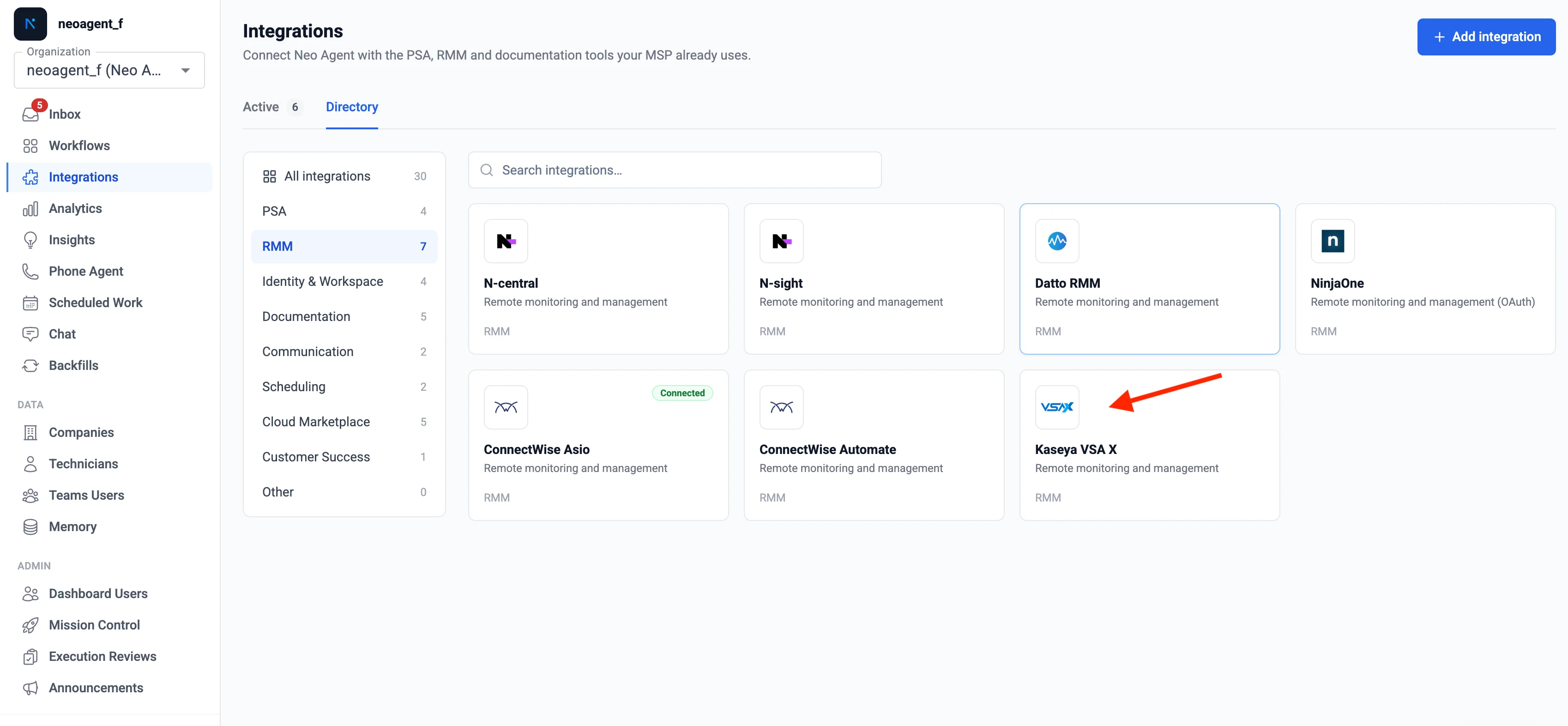
1. Click **Integrations** in the left sidebar
2. Select the **RMM** tab
3. Find and select **Kaseya VSA X** from the list of available RMM integrations
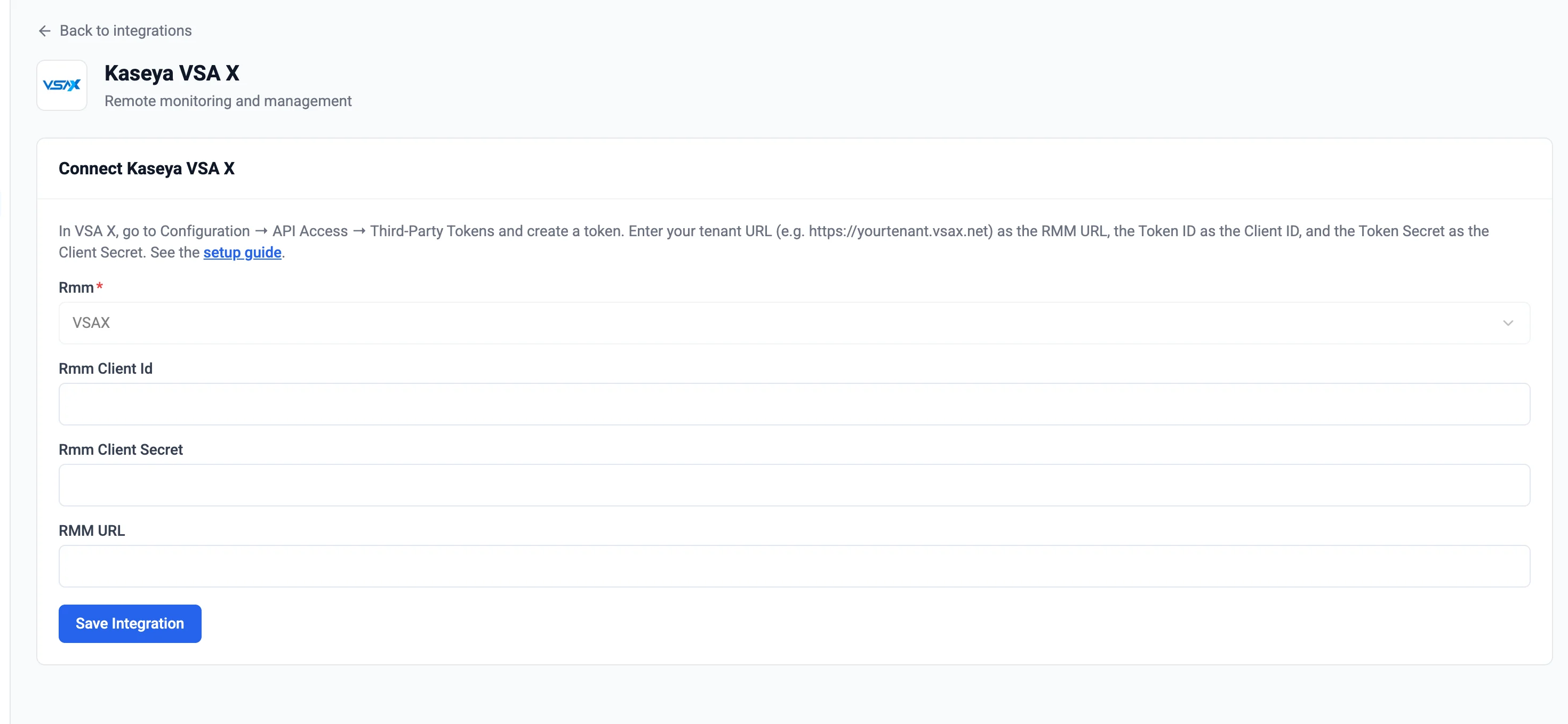
 Complete the Kaseya VSA X integration setup form:
1. **RMM URL**: Enter your tenant URL (e.g. `https://yourtenant.vsax.net`)
2. **RMM Client Id**: Enter your VSA X **Token ID**
3. **RMM Client Secret**: Enter your VSA X **Token Secret**
Complete the Kaseya VSA X integration setup form:
1. **RMM URL**: Enter your tenant URL (e.g. `https://yourtenant.vsax.net`)
2. **RMM Client Id**: Enter your VSA X **Token ID**
3. **RMM Client Secret**: Enter your VSA X **Token Secret**
 Double-check all values for accuracy. Incorrect credentials will prevent Neo Agent from connecting to your VSA X tenant.
Click **Submit**. Neo Agent validates the token against your tenant and establishes the connection.
A successful connection confirms Neo Agent can reach your VSA X tenant with the provided token.
## Finding Your Tenant URL
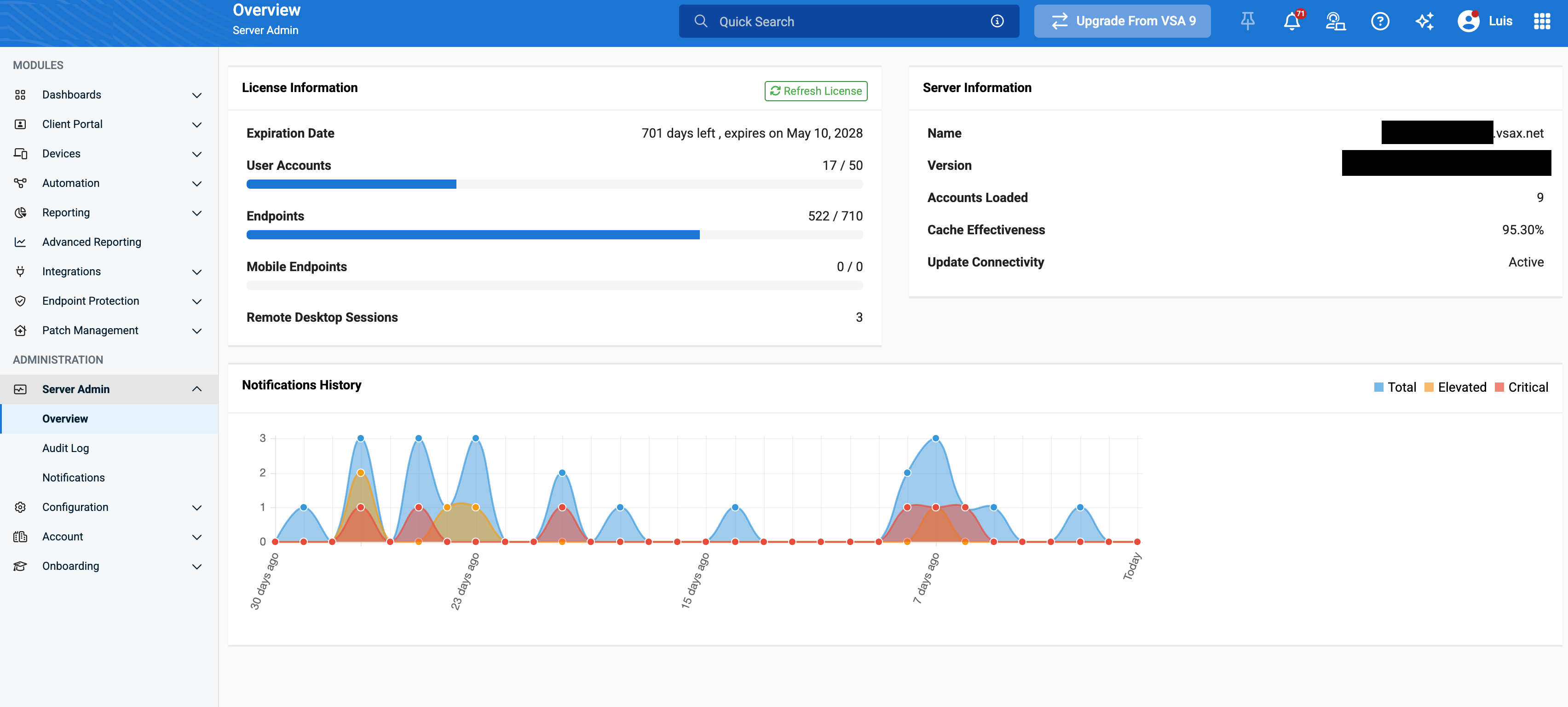
Your tenant URL is the address you use to log in to VSA X — `https://.vsax.net`. You can confirm it under **Configuration → Account / Server details**.
Double-check all values for accuracy. Incorrect credentials will prevent Neo Agent from connecting to your VSA X tenant.
Click **Submit**. Neo Agent validates the token against your tenant and establishes the connection.
A successful connection confirms Neo Agent can reach your VSA X tenant with the provided token.
## Finding Your Tenant URL
Your tenant URL is the address you use to log in to VSA X — `https://.vsax.net`. You can confirm it under **Configuration → Account / Server details**.
 ## Troubleshooting Connection Issues
* Verify the Token ID and Token Secret are correct and copied without extra spaces
* Check that the token hasn't been revoked or expired in VSA X
* Confirm the tenant URL is correct (just the host, e.g. `https://yourtenant.vsax.net`)
* Review the permissions granted to the token in VSA X (Configuration → API Access → Third-Party Tokens → Authorization)
* Ensure read access is granted to Devices, Device Assets, and Organizations at minimum
* Confirm the token is scoped to the organizations you expect Neo to manage
* Wait a few minutes for the initial sync to complete after connecting
* Verify the token has Devices read access and is scoped to the right organizations
## Configuring Permission Groups
Once connected, open **Agent Settings → Permission Groups** to choose what the agent may do in VSA X. Each group can be **Disabled**, **Read-only**, or **Read & Write**:
| Group | Read | Write |
| ----------------------- | ------------------------------------------------------------------ | ------------------------------------------ |
| **Devices** | Devices, custom fields, applied policies, antivirus, notifications | Move device to group, update custom fields |
| **Assets** | Hardware + installed-software inventory (60 req/hr) | — |
| **Organizations** | Organizations, sites, groups, custom fields | Create/update/delete orgs, sites, groups |
| **Automation** | Scripts, tasks, workflows + execution history | — |
| **Patch Management** | Patch policies and global rules | — |
| **Endpoint Protection** | Antivirus policies | — |
| **Notifications** | Notifications and webhooks | Create notifications, manage webhooks |
| **System** | Audit logs, environment, scopes, custom field definitions | — |
## What's Next?
With VSA X connected, Neo can:
* **Device lookup** — pull device status, OS, organization/site, and hardware/software inventory while triaging tickets
* **Hierarchy mapping** — associate devices with the right PSA company
* **Script suggestions** — surface relevant scripts from your automation catalog
Direct script execution from Neo Agent is not yet enabled for VSA X — technicians run suggested scripts in the VSA X portal.
## Troubleshooting Connection Issues
* Verify the Token ID and Token Secret are correct and copied without extra spaces
* Check that the token hasn't been revoked or expired in VSA X
* Confirm the tenant URL is correct (just the host, e.g. `https://yourtenant.vsax.net`)
* Review the permissions granted to the token in VSA X (Configuration → API Access → Third-Party Tokens → Authorization)
* Ensure read access is granted to Devices, Device Assets, and Organizations at minimum
* Confirm the token is scoped to the organizations you expect Neo to manage
* Wait a few minutes for the initial sync to complete after connecting
* Verify the token has Devices read access and is scoped to the right organizations
## Configuring Permission Groups
Once connected, open **Agent Settings → Permission Groups** to choose what the agent may do in VSA X. Each group can be **Disabled**, **Read-only**, or **Read & Write**:
| Group | Read | Write |
| ----------------------- | ------------------------------------------------------------------ | ------------------------------------------ |
| **Devices** | Devices, custom fields, applied policies, antivirus, notifications | Move device to group, update custom fields |
| **Assets** | Hardware + installed-software inventory (60 req/hr) | — |
| **Organizations** | Organizations, sites, groups, custom fields | Create/update/delete orgs, sites, groups |
| **Automation** | Scripts, tasks, workflows + execution history | — |
| **Patch Management** | Patch policies and global rules | — |
| **Endpoint Protection** | Antivirus policies | — |
| **Notifications** | Notifications and webhooks | Create notifications, manage webhooks |
| **System** | Audit logs, environment, scopes, custom field definitions | — |
## What's Next?
With VSA X connected, Neo can:
* **Device lookup** — pull device status, OS, organization/site, and hardware/software inventory while triaging tickets
* **Hierarchy mapping** — associate devices with the right PSA company
* **Script suggestions** — surface relevant scripts from your automation catalog
Direct script execution from Neo Agent is not yet enabled for VSA X — technicians run suggested scripts in the VSA X portal.