> ## Documentation Index
> Fetch the complete documentation index at: https://docs.neoagent.io/llms.txt
> Use this file to discover all available pages before exploring further.
# Creating an API Secret
> Install the RESTful API Manager extension in ScreenConnect and set its authentication secret
Neo Agent connects to ScreenConnect through the **RESTful API Manager** extension. Install it once, set an authentication secret, and copy that secret into Neo Agent.
You need an administrator account on your ScreenConnect instance to install extensions and edit their settings.
## Installing the RESTful API Manager
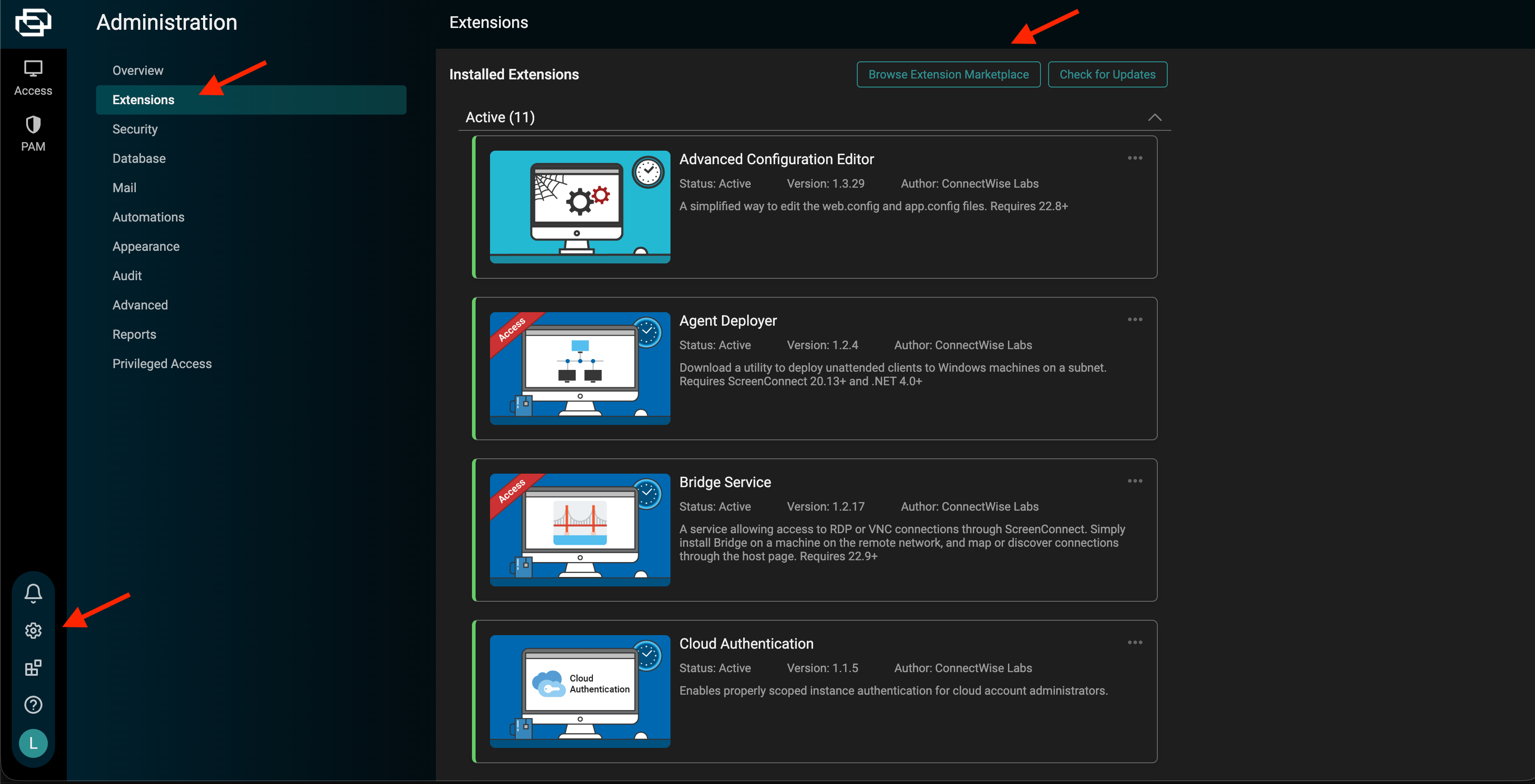
In your ScreenConnect instance, open **Administration** (the gear icon in the lower-left), then select **Extensions**. Click **Browse Extension Marketplace**.
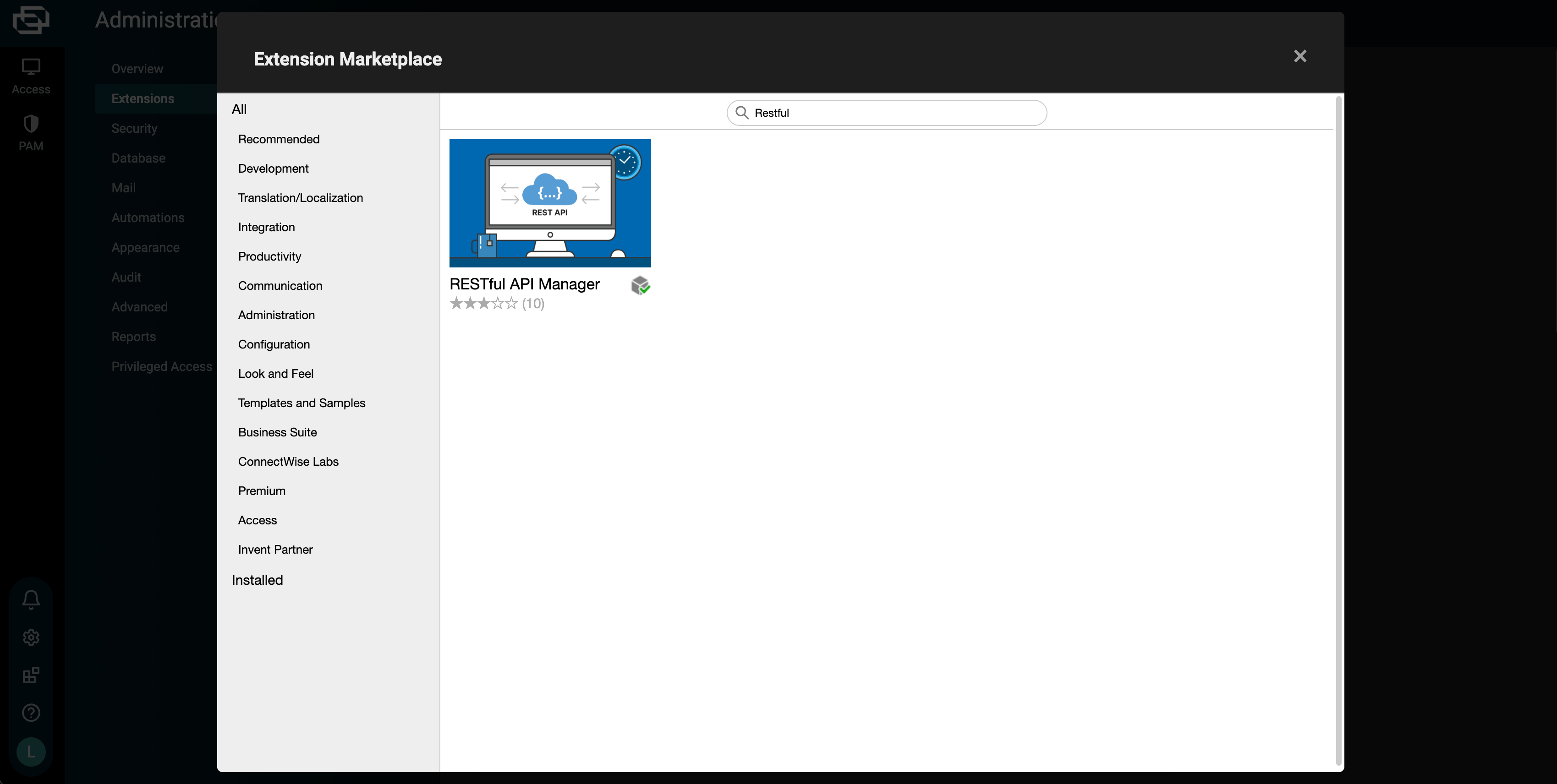
 In the marketplace, search for **RESTful API Manager** and install it.
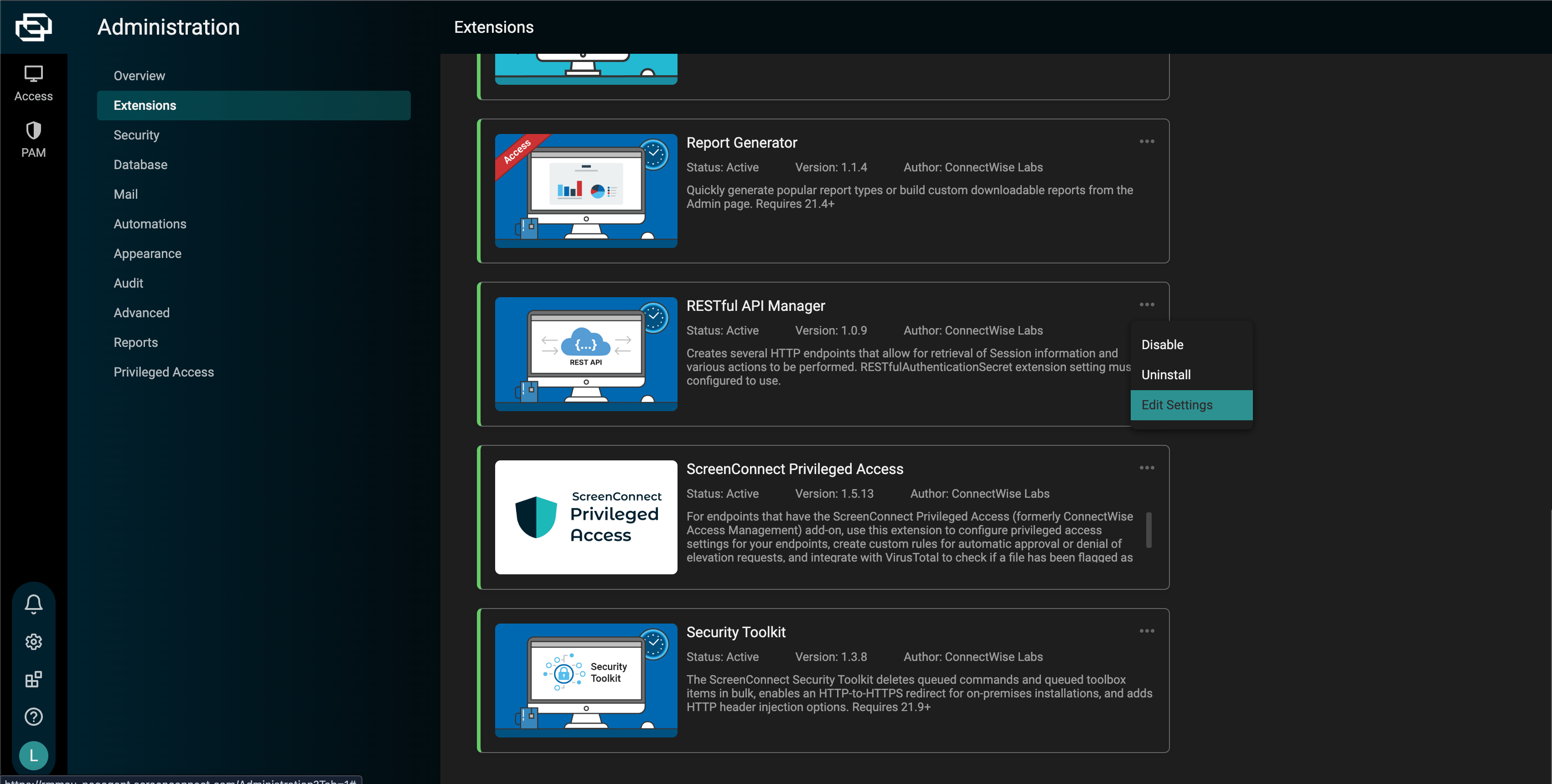
 Back on the **Extensions** page, find the installed **RESTful API Manager**, open its **...** menu, and choose **Edit Settings**.
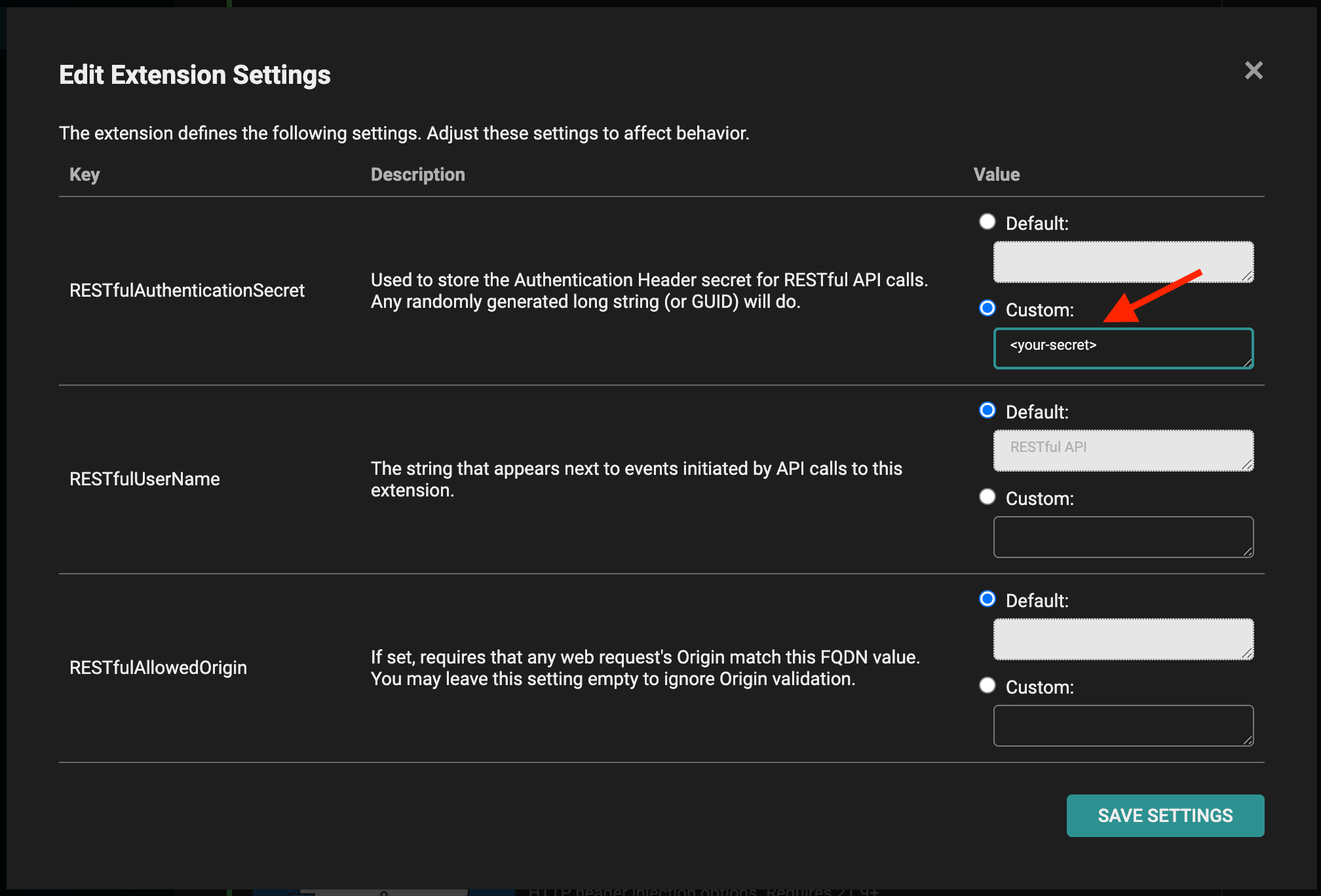
 Set **RESTfulAuthenticationSecret** to **Custom** and enter a randomly generated long string (a GUID works well). This is the value you enter in Neo Agent as the **Client Secret**. Click **Save Settings**.
 Treat the authentication secret like a password — anyone with it and your instance URL can call your ScreenConnect API. Generate a fresh one here if it is ever exposed.
## About the Other Settings
The Edit Settings dialog also exposes two optional fields:
* **RESTfulUserName** — the name shown next to events that API calls create. Leave it at the default (`RESTful API`) or set your own.
* **RESTfulAllowedOrigin** — if set, every request's `Origin` must match this value. Neo sends your instance URL as the `Origin`, so you can either **leave this empty** (Origin validation off) or set it to your instance host (e.g. `yourcompany.screenconnect.com`). Both work with Neo.
## What You'll Need for Neo Agent
| Value | Where to find it |
| ------------------------- | ---------------------------------------------------------------------------- |
| **Instance URL** | The address you use to sign in, e.g. `https://yourcompany.screenconnect.com` |
| **Authentication secret** | RESTful API Manager → Edit Settings → RESTfulAuthenticationSecret |
With your instance URL and the authentication secret in hand, continue to [Connecting to Neo Agent](/integrations/rmm/screenconnect/connecting-to-neo).
Treat the authentication secret like a password — anyone with it and your instance URL can call your ScreenConnect API. Generate a fresh one here if it is ever exposed.
## About the Other Settings
The Edit Settings dialog also exposes two optional fields:
* **RESTfulUserName** — the name shown next to events that API calls create. Leave it at the default (`RESTful API`) or set your own.
* **RESTfulAllowedOrigin** — if set, every request's `Origin` must match this value. Neo sends your instance URL as the `Origin`, so you can either **leave this empty** (Origin validation off) or set it to your instance host (e.g. `yourcompany.screenconnect.com`). Both work with Neo.
## What You'll Need for Neo Agent
| Value | Where to find it |
| ------------------------- | ---------------------------------------------------------------------------- |
| **Instance URL** | The address you use to sign in, e.g. `https://yourcompany.screenconnect.com` |
| **Authentication secret** | RESTful API Manager → Edit Settings → RESTfulAuthenticationSecret |
With your instance URL and the authentication secret in hand, continue to [Connecting to Neo Agent](/integrations/rmm/screenconnect/connecting-to-neo).