> ## Documentation Index
> Fetch the complete documentation index at: https://docs.neoagent.io/llms.txt
> Use this file to discover all available pages before exploring further.
# Overview
> Connect your Datto RMM to Neo Agent for automated script execution and device management
Datto RMM integration enables Neo Agent to access your scripts, devices, and alerts for powerful automation capabilities.
## Prerequisites
Before starting the integration setup, ensure you have:
* **Admin Access**: Administrator access to your Datto RMM portal
* **API Access Enabled**: Ability to enable API access in Global Settings
* **User Management**: Permissions to create or modify users and generate API keys
## Setup Guide
Navigate to **Setup → Global Settings → Access Control** and enable API access for your account.
API access must be enabled at the account level before individual users can generate API keys.
Go to **Setup → Users**, select a user (or create a dedicated API user), and generate API keys for authentication.
When applying Security levels, configure the following:
| Setting | Value |
| ---------------------- | ------------- |
| Component Level | Super (5) |
| Security Levels | administrator |
| Default security level | administrator |
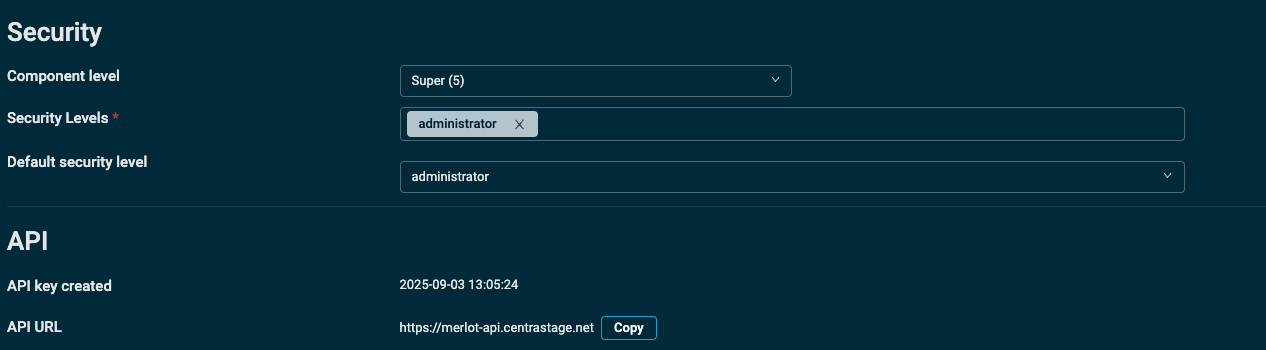 Make note of both the **API Key** and **Secret Key** as you'll need these to configure the integration in Neo Agent.
Navigate to the [Neo Agent Dashboard](https://dashboard.neoagent.io/integrations) and select **Datto RMM** from the RMM integrations.
Enter your credentials:
* **API Key**: The API key generated from your Datto RMM user
* **Secret Key**: The secret key associated with your API key
* **API URL**: Your Datto RMM API endpoint (based on your region)
Neo Agent will validate your credentials and establish the connection. Once successful, save the configuration.
A successful connection allows Neo to access your scripts, devices, and alerts.
## API Regions
Datto RMM uses different API endpoints based on your region. Select the appropriate URL when configuring:
| Region | API URL |
| -------------- | --------------------------------------- |
| US (Concord) | `https://concord-api.centrastage.net` |
| US (Pinotage) | `https://pinotage-api.centrastage.net` |
| US (Merlot) | `https://merlot-api.centrastage.net` |
| US (Syrah) | `https://syrah-api.centrastage.net` |
| EU (Zinfandel) | `https://zinfandel-api.centrastage.net` |
| EU (Vidal) | `https://vidal-api.centrastage.net` |
You can find your region by looking at the URL when logged into Datto RMM. The region name appears in the domain.
## Known Limitations
Neo Agent cannot automatically resolve variables where the type is "Selection" in Datto RMM due to a limitation in the Datto RMM API.
It's recommended to avoid using "Selection" type variables when you want Neo to automatically run scripts and choose the right variables.
If you must use Selection variables, provide Neo with custom instructions to handle the mapping:
```text theme={null}
For the variable named "InstallType", we have the following mapping and
you must only choose the value for each mapping which makes sense:
- Silent Install: 1
- Interactive Install: 2
- Repair: 3
```
## What Neo Can Do
With Datto RMM connected, Neo Agent can:
* Browse and search your script library
* Execute scripts on specific devices
* Monitor job status and results
* Take automated actions based on script outcomes
* Look up devices by name, serial number, or other identifiers
* Access device details and specifications
* View installed software and services
* Check device status and alerts
* Receive and process RMM alerts
* Clear alerts after successful remediation
* Correlate alerts with PSA tickets
## External Resources
Official Datto documentation for detailed API setup and reference.
Make note of both the **API Key** and **Secret Key** as you'll need these to configure the integration in Neo Agent.
Navigate to the [Neo Agent Dashboard](https://dashboard.neoagent.io/integrations) and select **Datto RMM** from the RMM integrations.
Enter your credentials:
* **API Key**: The API key generated from your Datto RMM user
* **Secret Key**: The secret key associated with your API key
* **API URL**: Your Datto RMM API endpoint (based on your region)
Neo Agent will validate your credentials and establish the connection. Once successful, save the configuration.
A successful connection allows Neo to access your scripts, devices, and alerts.
## API Regions
Datto RMM uses different API endpoints based on your region. Select the appropriate URL when configuring:
| Region | API URL |
| -------------- | --------------------------------------- |
| US (Concord) | `https://concord-api.centrastage.net` |
| US (Pinotage) | `https://pinotage-api.centrastage.net` |
| US (Merlot) | `https://merlot-api.centrastage.net` |
| US (Syrah) | `https://syrah-api.centrastage.net` |
| EU (Zinfandel) | `https://zinfandel-api.centrastage.net` |
| EU (Vidal) | `https://vidal-api.centrastage.net` |
You can find your region by looking at the URL when logged into Datto RMM. The region name appears in the domain.
## Known Limitations
Neo Agent cannot automatically resolve variables where the type is "Selection" in Datto RMM due to a limitation in the Datto RMM API.
It's recommended to avoid using "Selection" type variables when you want Neo to automatically run scripts and choose the right variables.
If you must use Selection variables, provide Neo with custom instructions to handle the mapping:
```text theme={null}
For the variable named "InstallType", we have the following mapping and
you must only choose the value for each mapping which makes sense:
- Silent Install: 1
- Interactive Install: 2
- Repair: 3
```
## What Neo Can Do
With Datto RMM connected, Neo Agent can:
* Browse and search your script library
* Execute scripts on specific devices
* Monitor job status and results
* Take automated actions based on script outcomes
* Look up devices by name, serial number, or other identifiers
* Access device details and specifications
* View installed software and services
* Check device status and alerts
* Receive and process RMM alerts
* Clear alerts after successful remediation
* Correlate alerts with PSA tickets
## External Resources
Official Datto documentation for detailed API setup and reference.