> ## Documentation Index
> Fetch the complete documentation index at: https://docs.neoagent.io/llms.txt
> Use this file to discover all available pages before exploring further.
# Creating the OAuth Application
> Set up a ServiceNow OAuth Application Registry entry so Neo Agent can connect to your instance
Neo Agent connects to ServiceNow using the OAuth 2.0 **Authorization Code grant**. Each customer registers a dedicated OAuth Application Registry entry in their own ServiceNow instance — Neo never has access to your credentials directly.
This page walks through creating that OAuth application in ServiceNow.
## How Neo Agent Permissions Work
Neo Agent uses **two layers of access control** to keep your ServiceNow data safe:
1. **ServiceNow OAuth Application** (what you configure here) — sets the *maximum* API access available, controlled by the role of the user the agent authenticates as.
2. **Neo Agent Dashboard** — where you choose exactly what Neo can do. You configure **permission groups** that control which areas Neo can read, write, or ignore — and whether actions require technician approval first.
Think of it like onboarding a new team member: you give them an account so they *can* access the areas they need, then their manager decides which tasks they actually work on. The ServiceNow OAuth app is the ceiling — Neo Agent's dashboard settings are the actual controls.
Granting API permissions here does not mean Neo Agent will use them all. It simply ensures Neo *can* operate when you enable a capability in the dashboard. You stay in control of what Neo actually does.
## Creating the OAuth Application
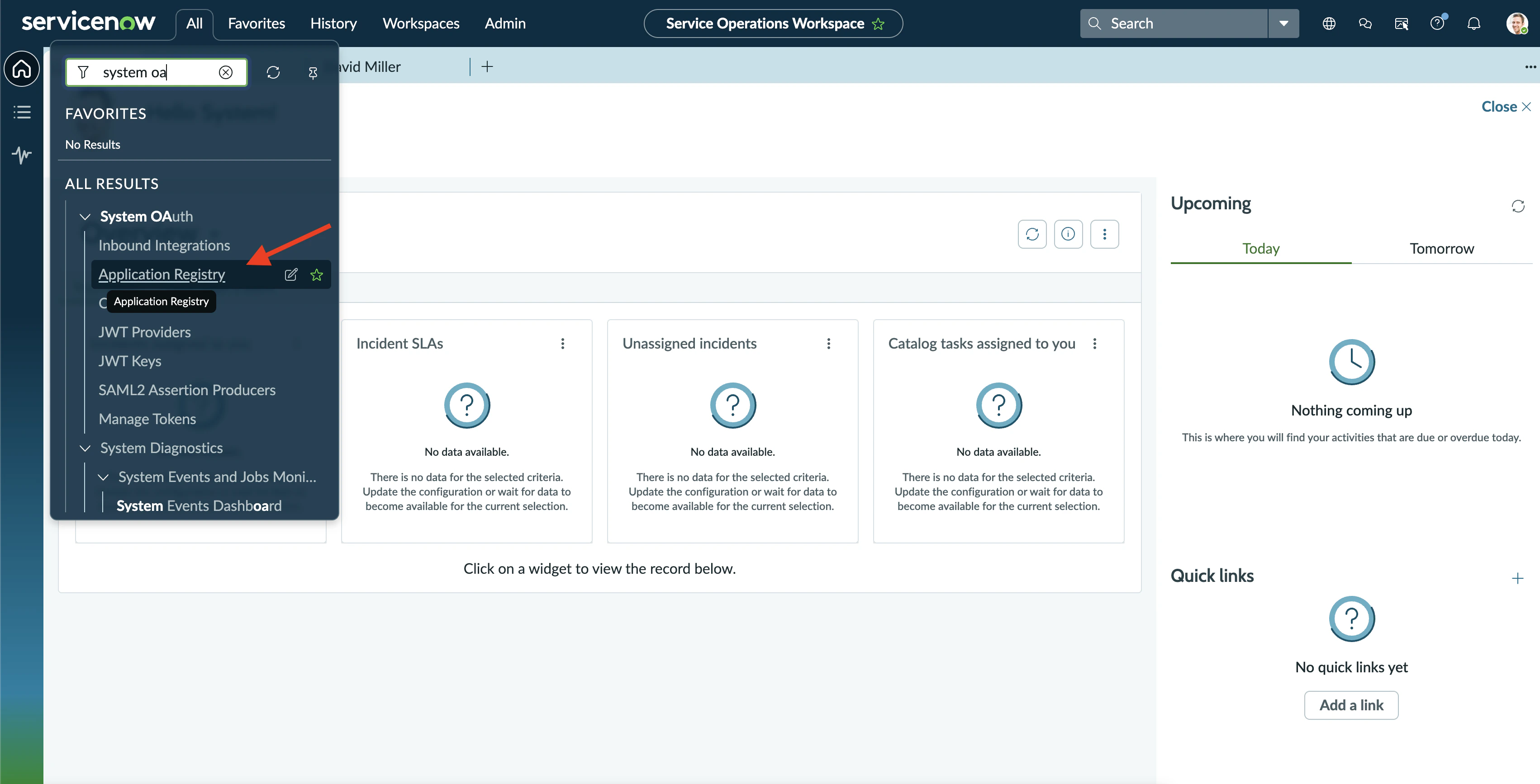
In ServiceNow, use the navigation search (top-left) to find **System OAuth → Application Registry** and open it.
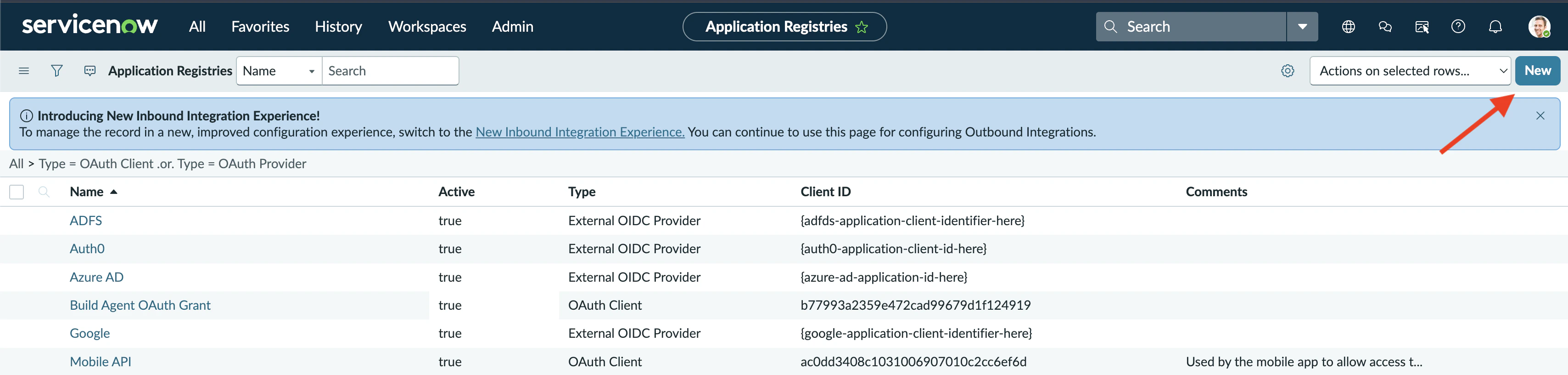
 You'll land on the Application Registries list. Click **New** (top-right) to create a new OAuth app.
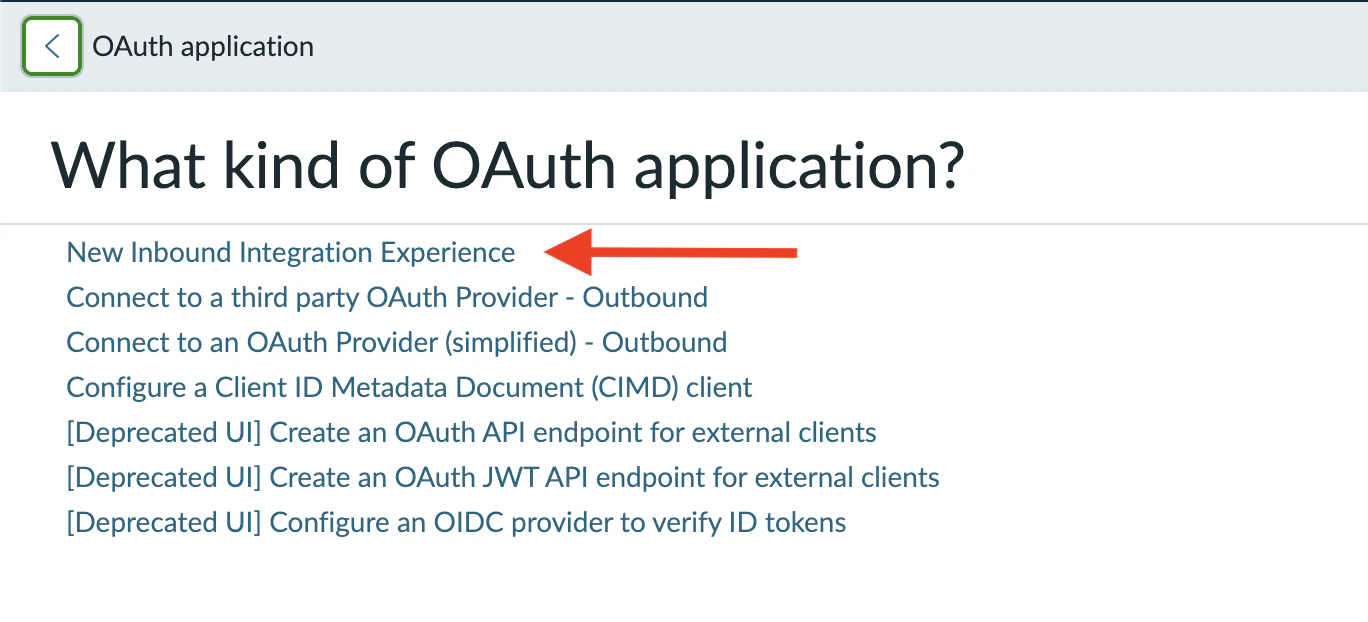
 ServiceNow asks **What kind of OAuth application?** Choose **New Inbound Integration Experience** (the first option).
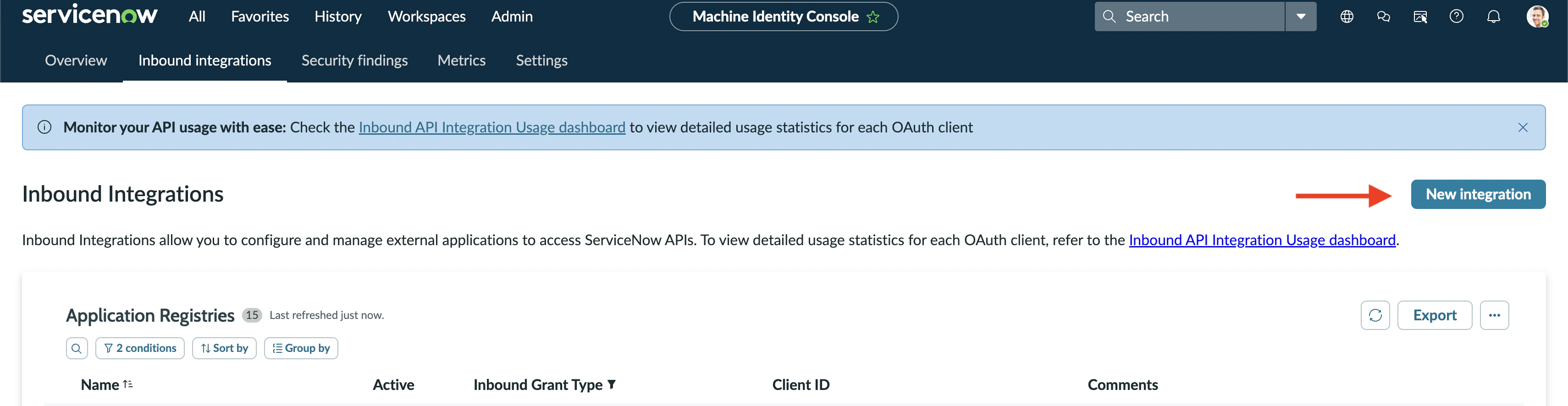
 The new Inbound Integrations page opens. Click **New integration** to continue.
 ServiceNow asks you to **Select your application connection type**. Choose **OAuth - Authorization code grant** (the first option).
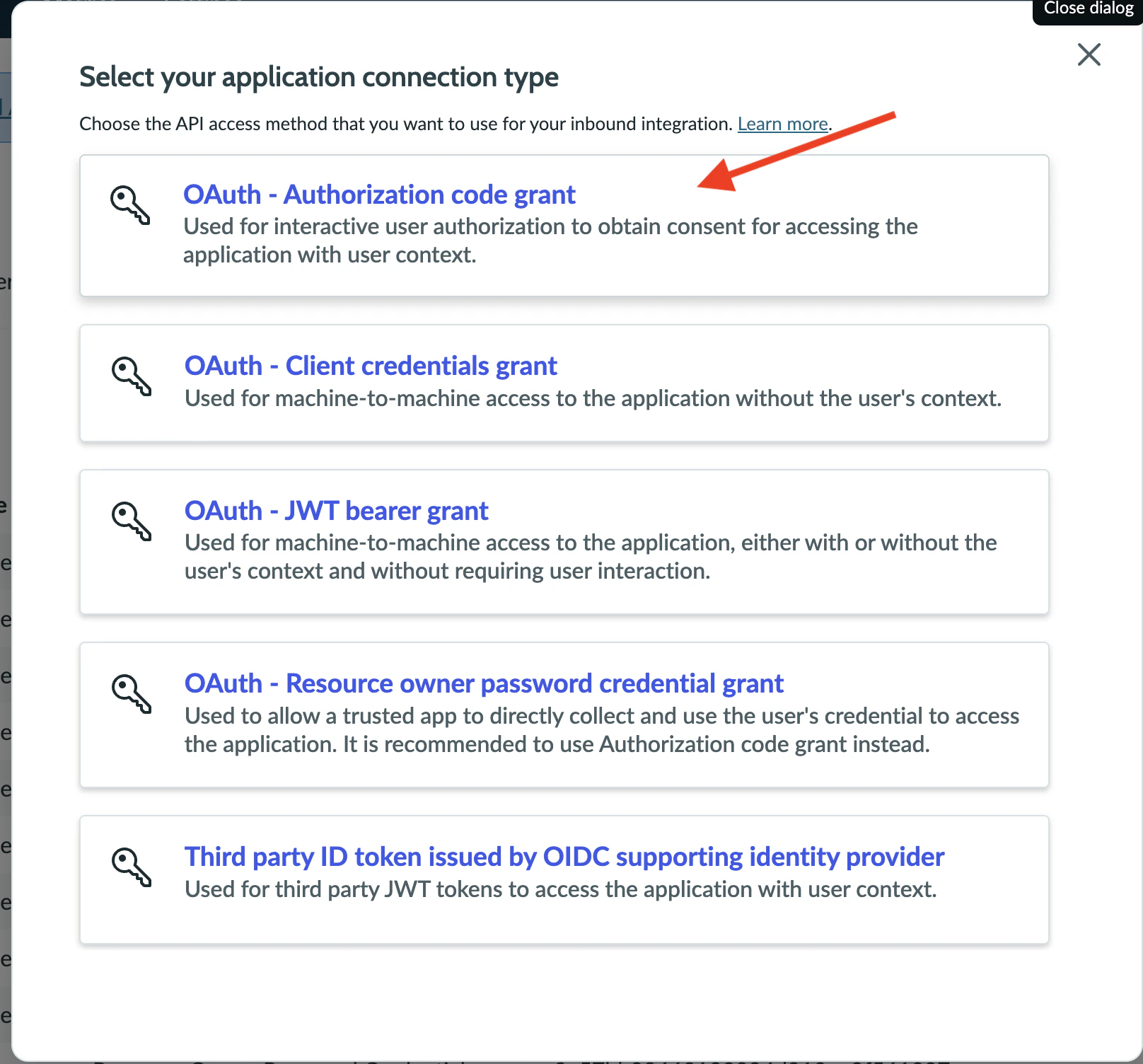 Neo uses the **Authorization Code grant** deliberately so every action Neo takes (notes, state changes, time entries) is attributed to the OAuth user in your ServiceNow audit logs. Other grant types either lose user attribution (Client credentials, JWT) or require Neo to know the user's password directly (Resource owner password) — none are appropriate.
Fill in the basic information for the new OAuth application:
Neo uses the **Authorization Code grant** deliberately so every action Neo takes (notes, state changes, time entries) is attributed to the OAuth user in your ServiceNow audit logs. Other grant types either lose user attribution (Client credentials, JWT) or require Neo to know the user's password directly (Resource owner password) — none are appropriate.
Fill in the basic information for the new OAuth application:
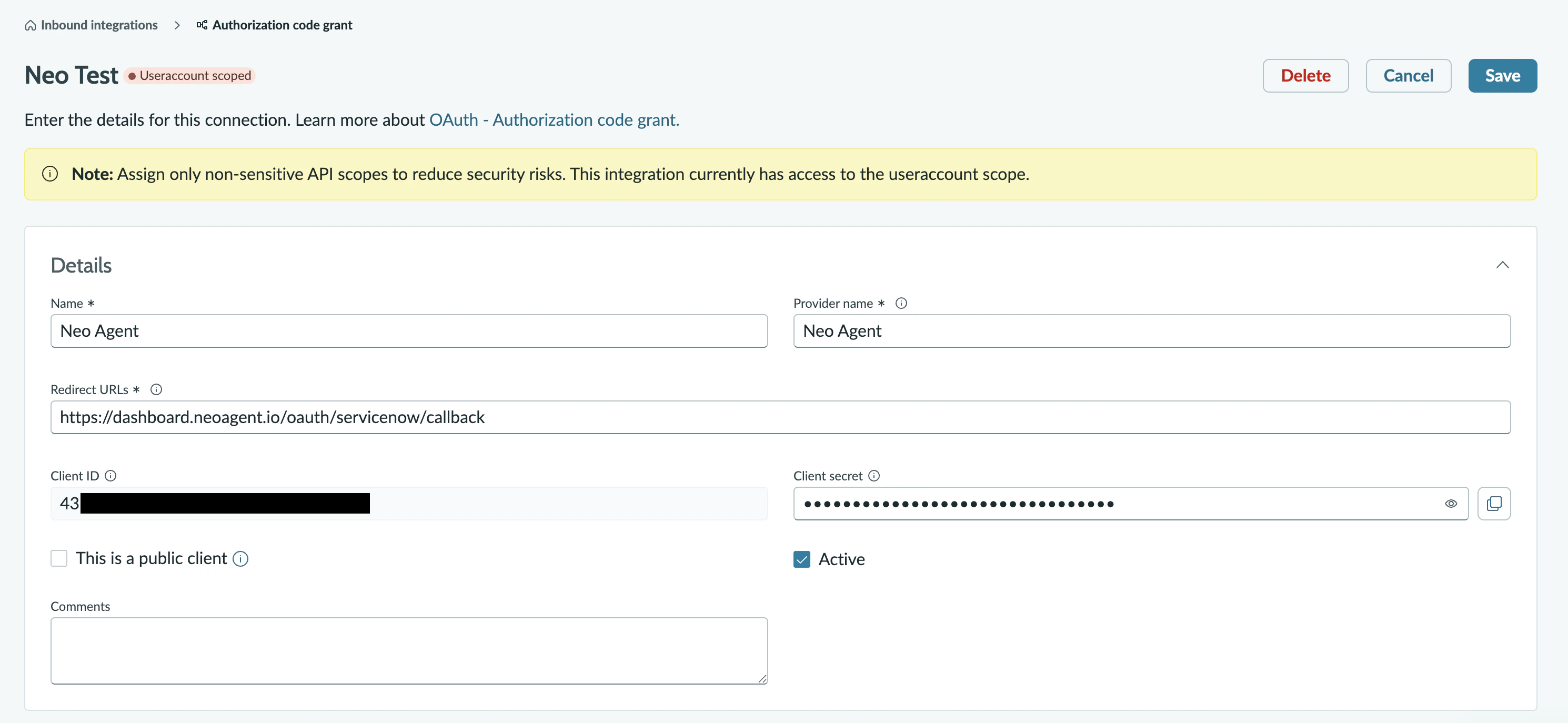 Configure the following fields:
A descriptive name like `Neo Agent` or `Neo Agent Integration`. This appears in your ServiceNow audit logs whenever Neo authenticates.
Set this to exactly:
```
https://dashboard.neoagent.io/oauth/servicenow/callback
```
This is where ServiceNow sends the authorization code back to Neo after consent. The URL must match exactly — extra trailing slashes or query parameters will fail.
The default of `8,640,000` seconds (100 days) is recommended. Shorter lifespans force more frequent reconnects.
The default of `1800` seconds (30 minutes) is fine. Neo refreshes access tokens automatically using the refresh token.
Leave **Active** checked. Save the record — ServiceNow will auto-generate a **Client ID** and **Client Secret**.
Copy the **Client Secret** as soon as it's generated. ServiceNow displays it in plain text on the form, but if you navigate away and the field gets re-encrypted in some configurations, you may need to regenerate it.
ServiceNow's Authorization Code grant runs **as a specific user** — and that user choice is permanent for the lifetime of the integration. Every note, comment, state change, time entry, and ticket assignment Neo creates is attributed to that user in your audit trail. The `assigned_to` field on tickets Neo claims also points at that user.
**Strongly recommended: create a dedicated `Neo Agent` service-account user before connecting.** Don't reuse a personal admin account or a shared "integration" user that already handles other systems — Neo's actions will be indistinguishable from theirs.
Create the user with:
* A clear `user_name` like `neo.agent` and display name like `Neo Agent (Service Account)` so audit-log readers immediately recognize automated activity
* The `itil` role (so it can read and update task-family records, be assigned tickets, and post customer-visible comments)
* Table API read/write on the parent `task` table and every subclass your agents will work with — `incident`, `sc_request`, `sc_req_item`, `sc_task`, `change_request`, `problem`
* Table API read/write on `sys_journal_field` (notes), `task_time_worked` (time entries), `sys_user` and `sys_user_group` (assignment lookups), and any custom `u_*` columns your agents need to set
* **The `email_api_send` role** if you plan to use Neo's "Email (sent via PSA)" notification mode. This is what lets Neo POST to `/api/now/v1/email` — the same path the SN UI Email tab uses. Skip this role if you only need note-based notifications; Neo will surface a clear inbox alert if it's missing and you try to send.
* Active = true. Don't enable email notifications on this user — Neo doesn't need them and they create noise
* A password you can sign in with (you'll log into ServiceNow as this user during the connect step)
**The user you sign in as during OAuth consent — not the user who set up this OAuth app — is who Neo operates as.** OAuth Application Registry doesn't bind to a specific user; the binding happens at consent time. If a different person is signed in when they click "Allow", *their* account becomes Neo's identity. See the [connect step](/integrations/psa/servicenow/connecting-to-neo) for how to make sure the right user is signed in.
**Why this matters:**
* **Audit trail clarity**: a single `Neo Agent` author makes it trivial to filter automated actions from human technician work
* **Separation of duties**: the service account can be locked down to exactly what Neo needs, separate from human admin permissions
* **Resilience to staff changes**: an admin leaving the org doesn't break the integration if Neo wasn't acting as them
* **Compliance**: shows up cleanly in security reviews — "automated agent, scoped permissions" instead of "an unspecified admin account doing 10× normal work"
After saving, the form shows the application's authentication credentials (visible in the screenshot above) — **Client ID** and **Client Secret**. Make note of:
* **Client ID** — a unique identifier (string of letters and numbers)
* **Client Secret** — the password-equivalent (treat it like a password, don't share)
* **Your instance URL** — for example `https://acme.service-now.com` (no trailing slash, no path)
You'll enter all three into the Neo Agent dashboard in the next step.
Before continuing, confirm:
* The OAuth application is **Active**
* The Redirect URL is exactly `https://dashboard.neoagent.io/oauth/servicenow/callback`
* You've saved the Client ID and Client Secret somewhere secure
* You've created a dedicated **Neo Agent service account** user (not a personal admin account) with the `itil` role and Table API read/write on the task family
* You know the password for the service account user — you'll need to sign into ServiceNow as that user on the next page
## What's Next?
Once you've created the OAuth application, you're ready to [connect ServiceNow to Neo Agent](/integrations/psa/servicenow/connecting-to-neo) using:
* The Client ID from your OAuth application
* The Client Secret from your OAuth application
* Your ServiceNow instance URL
* A login **for the Neo service account user you just created** — *not* a personal admin account
Configure the following fields:
A descriptive name like `Neo Agent` or `Neo Agent Integration`. This appears in your ServiceNow audit logs whenever Neo authenticates.
Set this to exactly:
```
https://dashboard.neoagent.io/oauth/servicenow/callback
```
This is where ServiceNow sends the authorization code back to Neo after consent. The URL must match exactly — extra trailing slashes or query parameters will fail.
The default of `8,640,000` seconds (100 days) is recommended. Shorter lifespans force more frequent reconnects.
The default of `1800` seconds (30 minutes) is fine. Neo refreshes access tokens automatically using the refresh token.
Leave **Active** checked. Save the record — ServiceNow will auto-generate a **Client ID** and **Client Secret**.
Copy the **Client Secret** as soon as it's generated. ServiceNow displays it in plain text on the form, but if you navigate away and the field gets re-encrypted in some configurations, you may need to regenerate it.
ServiceNow's Authorization Code grant runs **as a specific user** — and that user choice is permanent for the lifetime of the integration. Every note, comment, state change, time entry, and ticket assignment Neo creates is attributed to that user in your audit trail. The `assigned_to` field on tickets Neo claims also points at that user.
**Strongly recommended: create a dedicated `Neo Agent` service-account user before connecting.** Don't reuse a personal admin account or a shared "integration" user that already handles other systems — Neo's actions will be indistinguishable from theirs.
Create the user with:
* A clear `user_name` like `neo.agent` and display name like `Neo Agent (Service Account)` so audit-log readers immediately recognize automated activity
* The `itil` role (so it can read and update task-family records, be assigned tickets, and post customer-visible comments)
* Table API read/write on the parent `task` table and every subclass your agents will work with — `incident`, `sc_request`, `sc_req_item`, `sc_task`, `change_request`, `problem`
* Table API read/write on `sys_journal_field` (notes), `task_time_worked` (time entries), `sys_user` and `sys_user_group` (assignment lookups), and any custom `u_*` columns your agents need to set
* **The `email_api_send` role** if you plan to use Neo's "Email (sent via PSA)" notification mode. This is what lets Neo POST to `/api/now/v1/email` — the same path the SN UI Email tab uses. Skip this role if you only need note-based notifications; Neo will surface a clear inbox alert if it's missing and you try to send.
* Active = true. Don't enable email notifications on this user — Neo doesn't need them and they create noise
* A password you can sign in with (you'll log into ServiceNow as this user during the connect step)
**The user you sign in as during OAuth consent — not the user who set up this OAuth app — is who Neo operates as.** OAuth Application Registry doesn't bind to a specific user; the binding happens at consent time. If a different person is signed in when they click "Allow", *their* account becomes Neo's identity. See the [connect step](/integrations/psa/servicenow/connecting-to-neo) for how to make sure the right user is signed in.
**Why this matters:**
* **Audit trail clarity**: a single `Neo Agent` author makes it trivial to filter automated actions from human technician work
* **Separation of duties**: the service account can be locked down to exactly what Neo needs, separate from human admin permissions
* **Resilience to staff changes**: an admin leaving the org doesn't break the integration if Neo wasn't acting as them
* **Compliance**: shows up cleanly in security reviews — "automated agent, scoped permissions" instead of "an unspecified admin account doing 10× normal work"
After saving, the form shows the application's authentication credentials (visible in the screenshot above) — **Client ID** and **Client Secret**. Make note of:
* **Client ID** — a unique identifier (string of letters and numbers)
* **Client Secret** — the password-equivalent (treat it like a password, don't share)
* **Your instance URL** — for example `https://acme.service-now.com` (no trailing slash, no path)
You'll enter all three into the Neo Agent dashboard in the next step.
Before continuing, confirm:
* The OAuth application is **Active**
* The Redirect URL is exactly `https://dashboard.neoagent.io/oauth/servicenow/callback`
* You've saved the Client ID and Client Secret somewhere secure
* You've created a dedicated **Neo Agent service account** user (not a personal admin account) with the `itil` role and Table API read/write on the task family
* You know the password for the service account user — you'll need to sign into ServiceNow as that user on the next page
## What's Next?
Once you've created the OAuth application, you're ready to [connect ServiceNow to Neo Agent](/integrations/psa/servicenow/connecting-to-neo) using:
* The Client ID from your OAuth application
* The Client Secret from your OAuth application
* Your ServiceNow instance URL
* A login **for the Neo service account user you just created** — *not* a personal admin account