> ## Documentation Index
> Fetch the complete documentation index at: https://docs.neoagent.io/llms.txt
> Use this file to discover all available pages before exploring further.
# Configuring Webhook Events
> Configure which ticket events trigger the Neo Agent webhook in HaloPSA
When you connect HaloPSA to Neo Agent, a webhook named **Neo Tickets callback \[ALL]** is automatically created in your HaloPSA system. You need to configure which ticket events this webhook subscribes to so Neo Agent receives the appropriate notifications.
Configuring webhook events ensures that Neo Agent receives notifications about the ticket activity that matters to your automation workflows.
## Prerequisites
Before configuring webhook events, ensure you have:
* [Created an agent resource](/integrations/psa/halopsa/creating-agent) for Neo Agent
* [Set up your API application](/integrations/psa/halopsa/creating-api-application) with proper permissions
* [Connected HaloPSA to Neo Agent](/integrations/psa/halopsa/connecting-to-neo)
## Configuring Webhook Events
From your HaloPSA dashboard, go to **Configuration → Integrations → Webhooks** to access the webhooks management page.
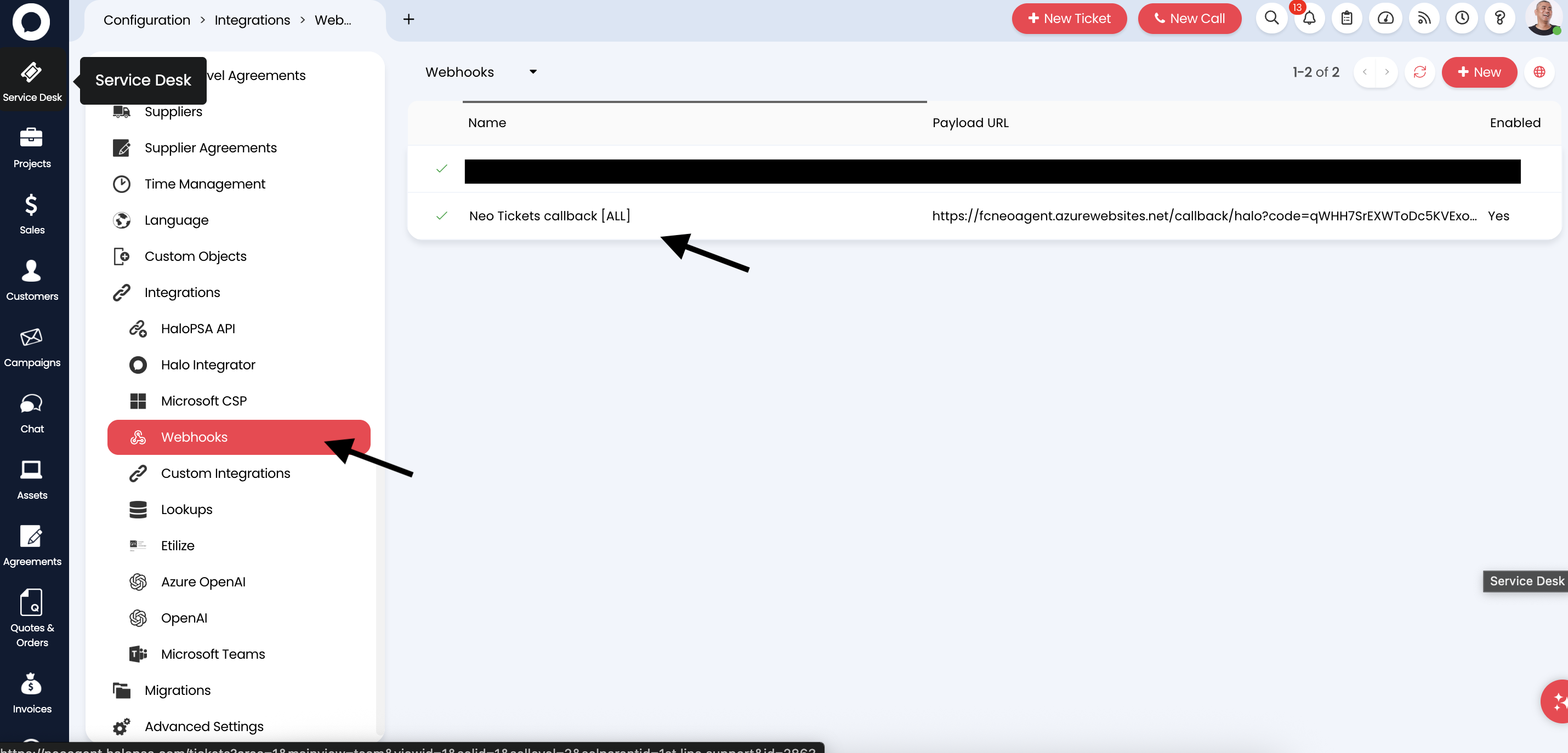 You should see the **Neo Tickets callback \[ALL]** webhook that was automatically created when you connected to Neo Agent.
Click on the **Neo Tickets callback \[ALL]** webhook to open its configuration.
You should see the **Neo Tickets callback \[ALL]** webhook that was automatically created when you connected to Neo Agent.
Click on the **Neo Tickets callback \[ALL]** webhook to open its configuration.
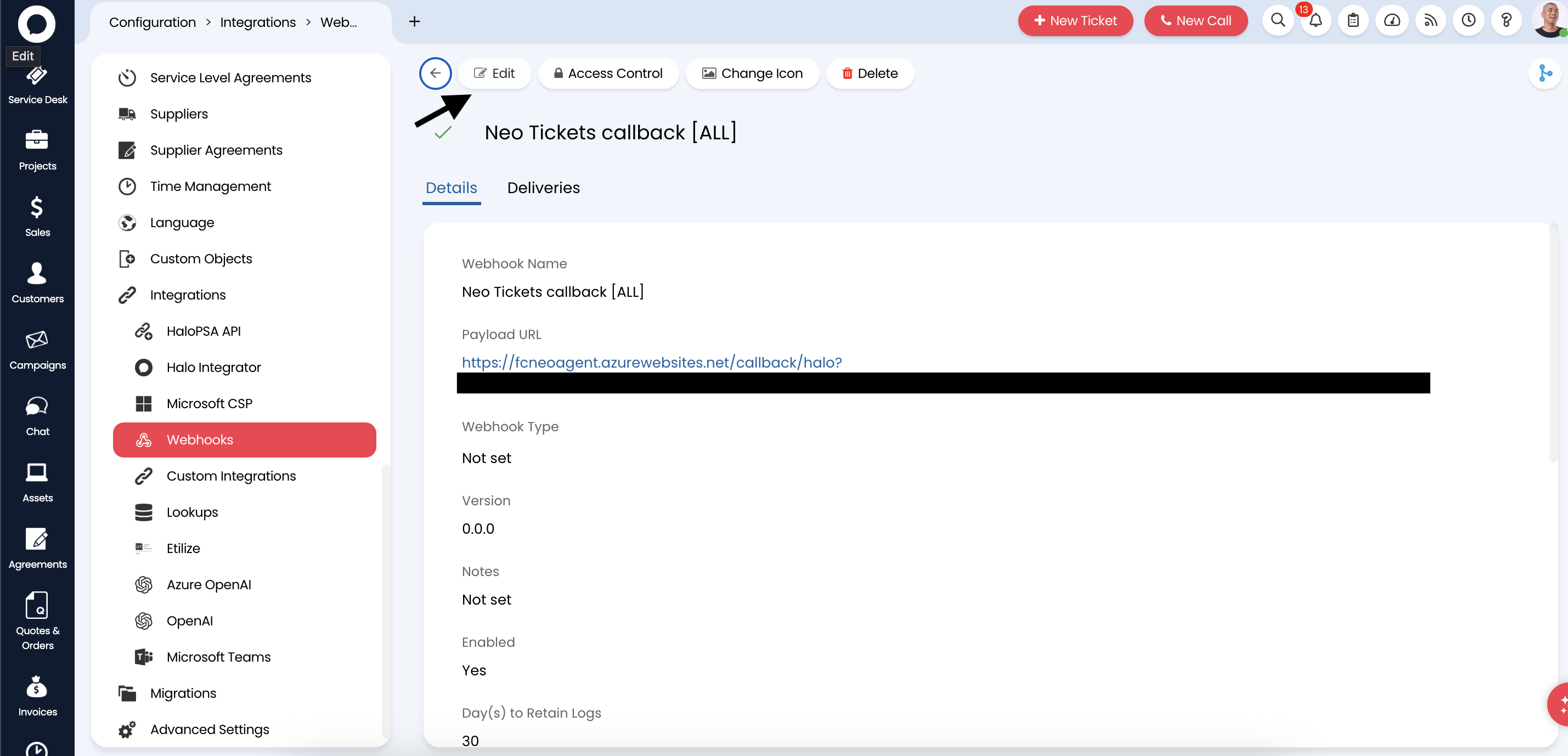 You'll see the webhook details including:
* **Webhook Name**: Neo Tickets callback \[ALL]
* **Payload URL**: The Neo Agent callback URL (automatically configured)
* **Enabled**: Should be set to **Yes**
Click **Edit** to modify the webhook configuration.
In the **Events** section, you need to configure which ticket events will trigger the webhook. Click the **+ Add** button to add an event.
You'll see the webhook details including:
* **Webhook Name**: Neo Tickets callback \[ALL]
* **Payload URL**: The Neo Agent callback URL (automatically configured)
* **Enabled**: Should be set to **Yes**
Click **Edit** to modify the webhook configuration.
In the **Events** section, you need to configure which ticket events will trigger the webhook. Click the **+ Add** button to add an event.
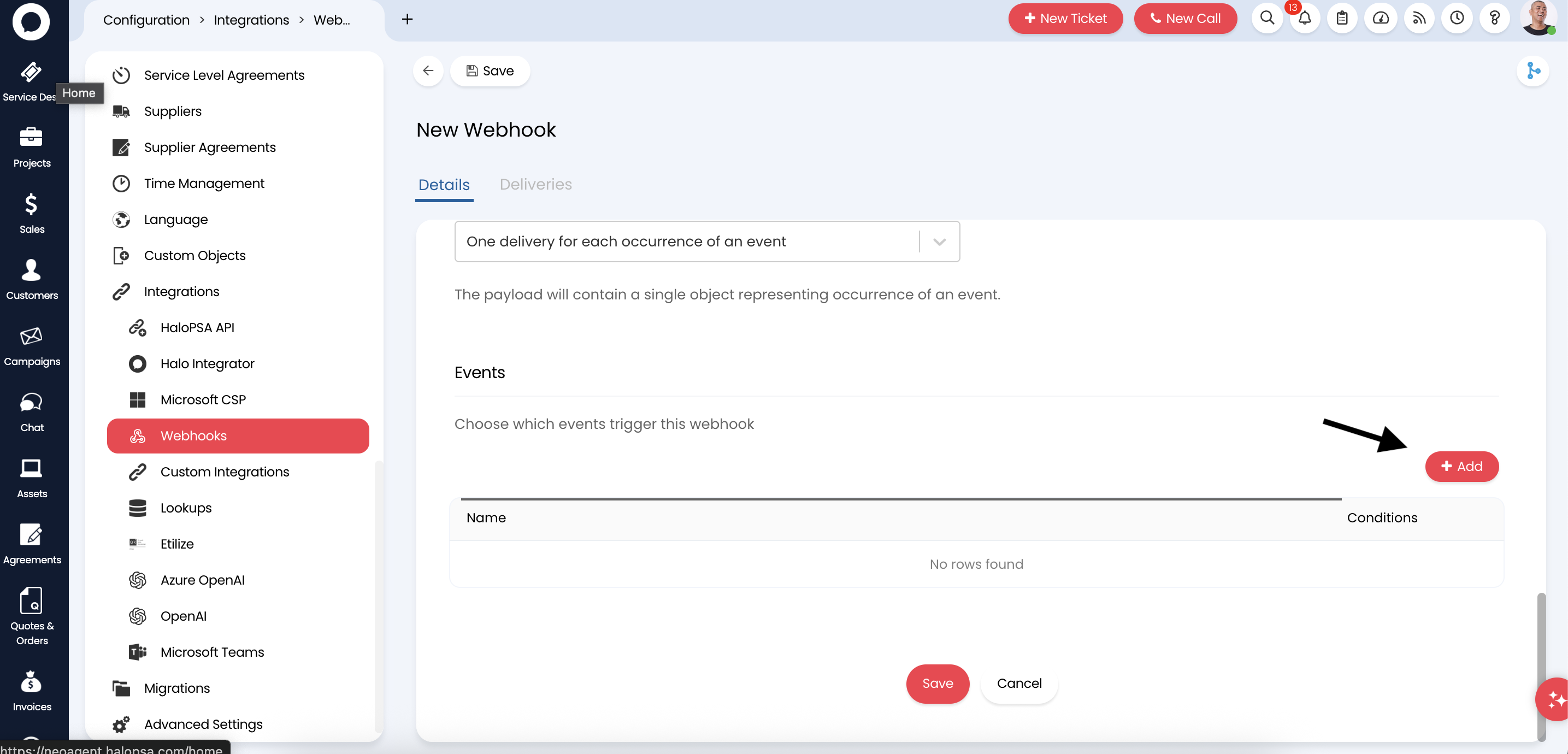 You'll add multiple events to ensure Neo Agent is notified about all relevant ticket activity.
Add an event for when new tickets are created:
You'll add multiple events to ensure Neo Agent is notified about all relevant ticket activity.
Add an event for when new tickets are created:
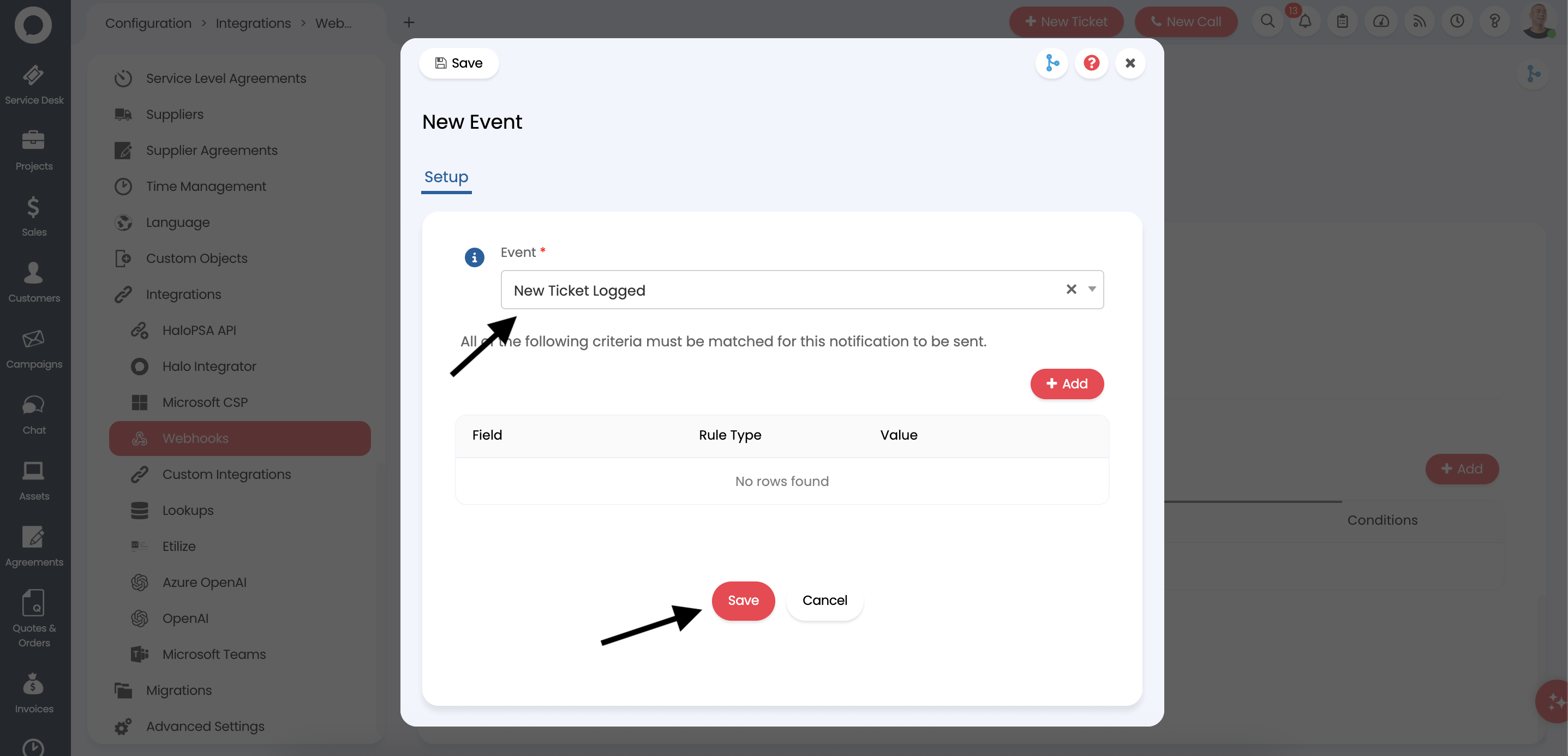 1. Select **New Ticket Logged** from the Event dropdown
2. No additional criteria are needed for this event
3. Click **Save** to add the event
This event triggers whenever a new ticket is created in HaloPSA, allowing Neo Agent to begin processing the ticket immediately.
Add an event for when tickets are updated. The "Ticket Changed" event requires you to add criteria to filter which changes trigger the webhook.
1. Select **New Ticket Logged** from the Event dropdown
2. No additional criteria are needed for this event
3. Click **Save** to add the event
This event triggers whenever a new ticket is created in HaloPSA, allowing Neo Agent to begin processing the ticket immediately.
Add an event for when tickets are updated. The "Ticket Changed" event requires you to add criteria to filter which changes trigger the webhook.
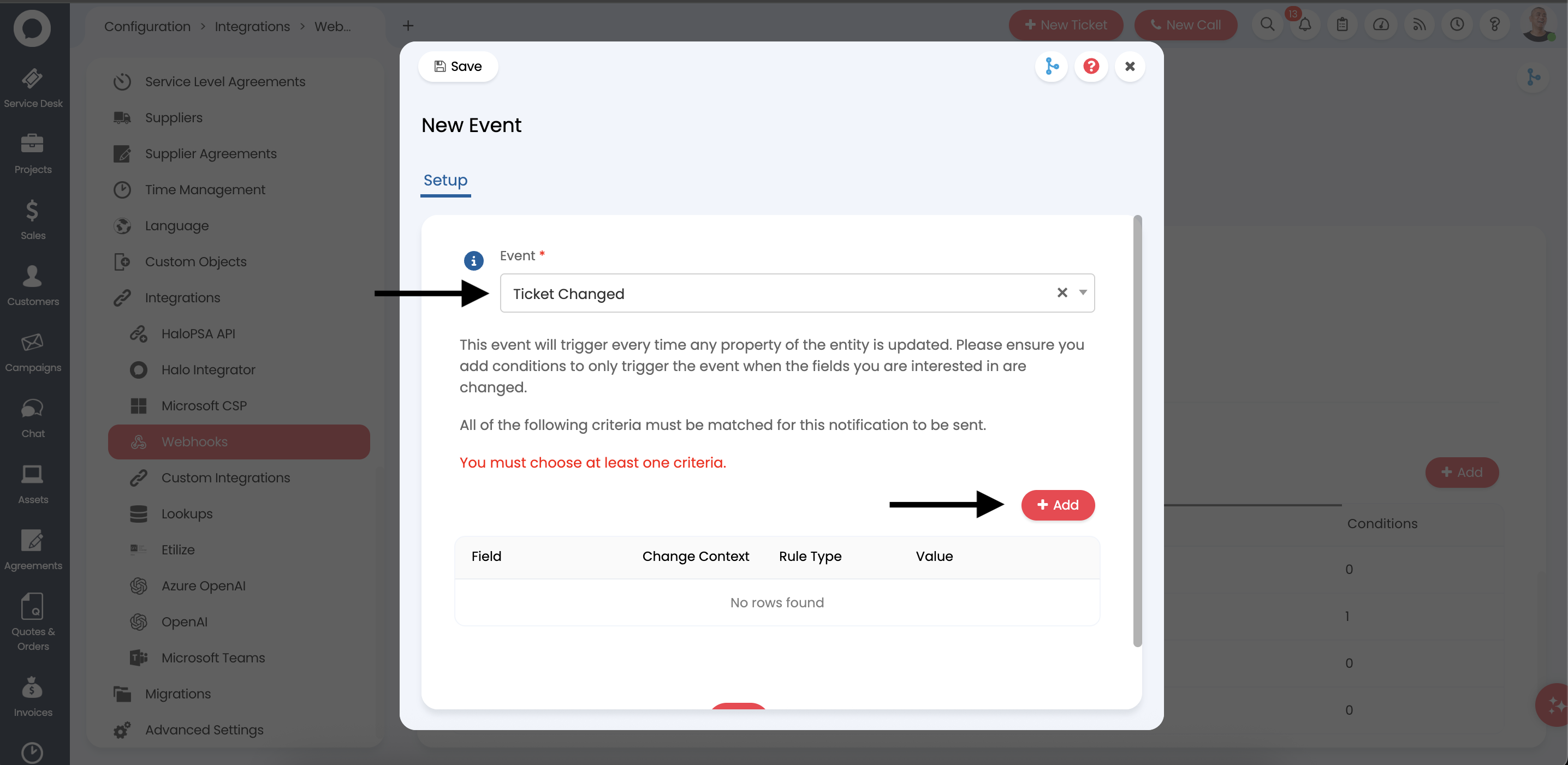 1. Select **Ticket Changed** from the Event dropdown
2. Note the warning: "You must choose at least one criteria"
3. Click the **+ Add** button to add criteria
The "Ticket Changed" event triggers on every property update. You must add criteria to filter the events to only those you're interested in, or you may receive excessive webhook notifications.
Add a criteria to trigger the webhook when the ticket status changes:
1. Select **Ticket Changed** from the Event dropdown
2. Note the warning: "You must choose at least one criteria"
3. Click the **+ Add** button to add criteria
The "Ticket Changed" event triggers on every property update. You must add criteria to filter the events to only those you're interested in, or you may receive excessive webhook notifications.
Add a criteria to trigger the webhook when the ticket status changes:
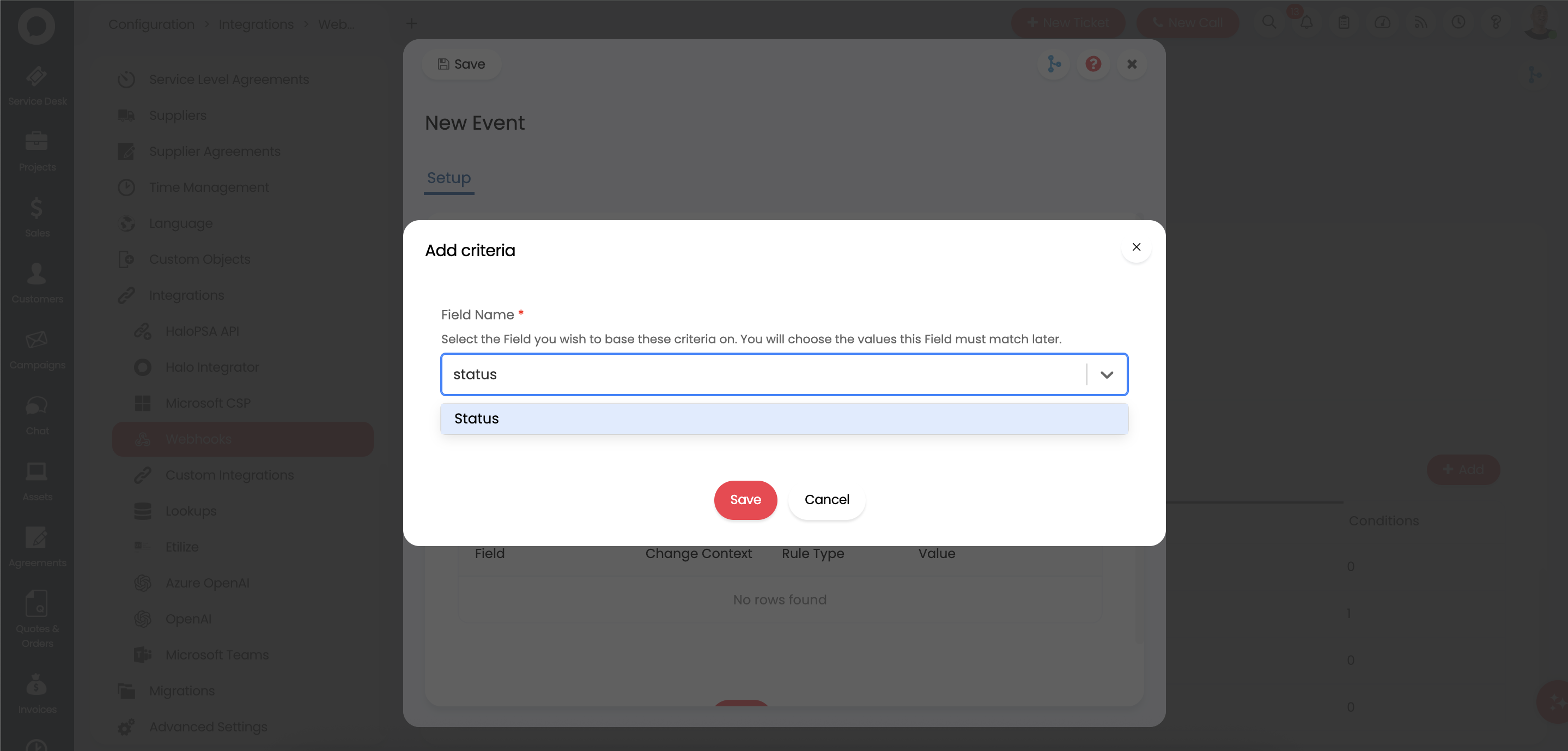 1. In the **Field Name** dropdown, search for and select **Status**
2. Click **Save** to continue configuring the criteria
Configure how the status change should be evaluated:
1. In the **Field Name** dropdown, search for and select **Status**
2. Click **Save** to continue configuring the criteria
Configure how the status change should be evaluated:
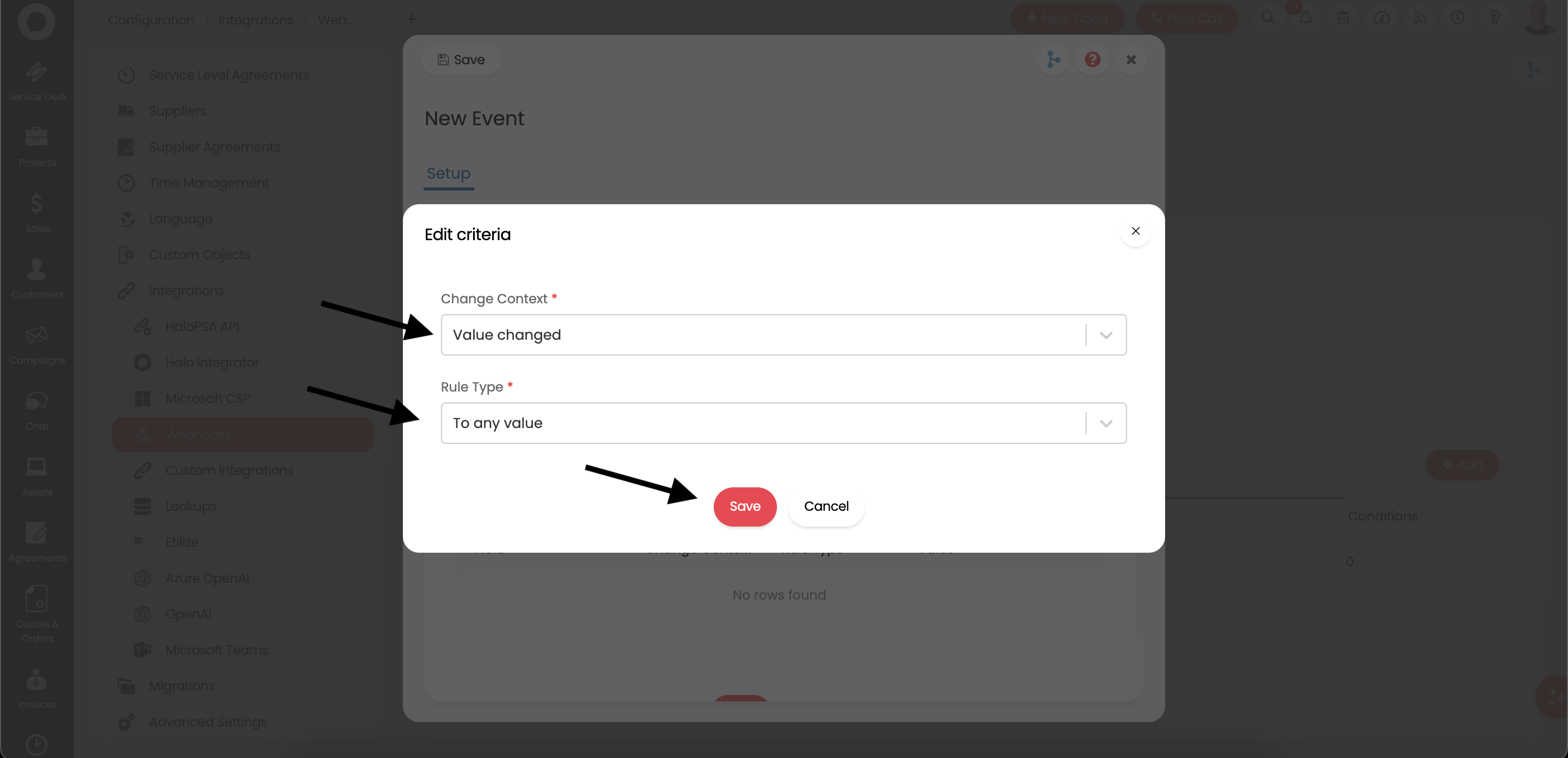 Set the following values:
* **Change Context**: Select **Value changed**
* **Rule Type**: Select **To any value**
Click **Save** to apply the criteria.
Using "Value changed" with "To any value" ensures the webhook fires whenever the status field changes to any new value, giving Neo Agent visibility into all status transitions.
After saving, verify that the Ticket Changed event shows the correct criteria:
Set the following values:
* **Change Context**: Select **Value changed**
* **Rule Type**: Select **To any value**
Click **Save** to apply the criteria.
Using "Value changed" with "To any value" ensures the webhook fires whenever the status field changes to any new value, giving Neo Agent visibility into all status transitions.
After saving, verify that the Ticket Changed event shows the correct criteria:
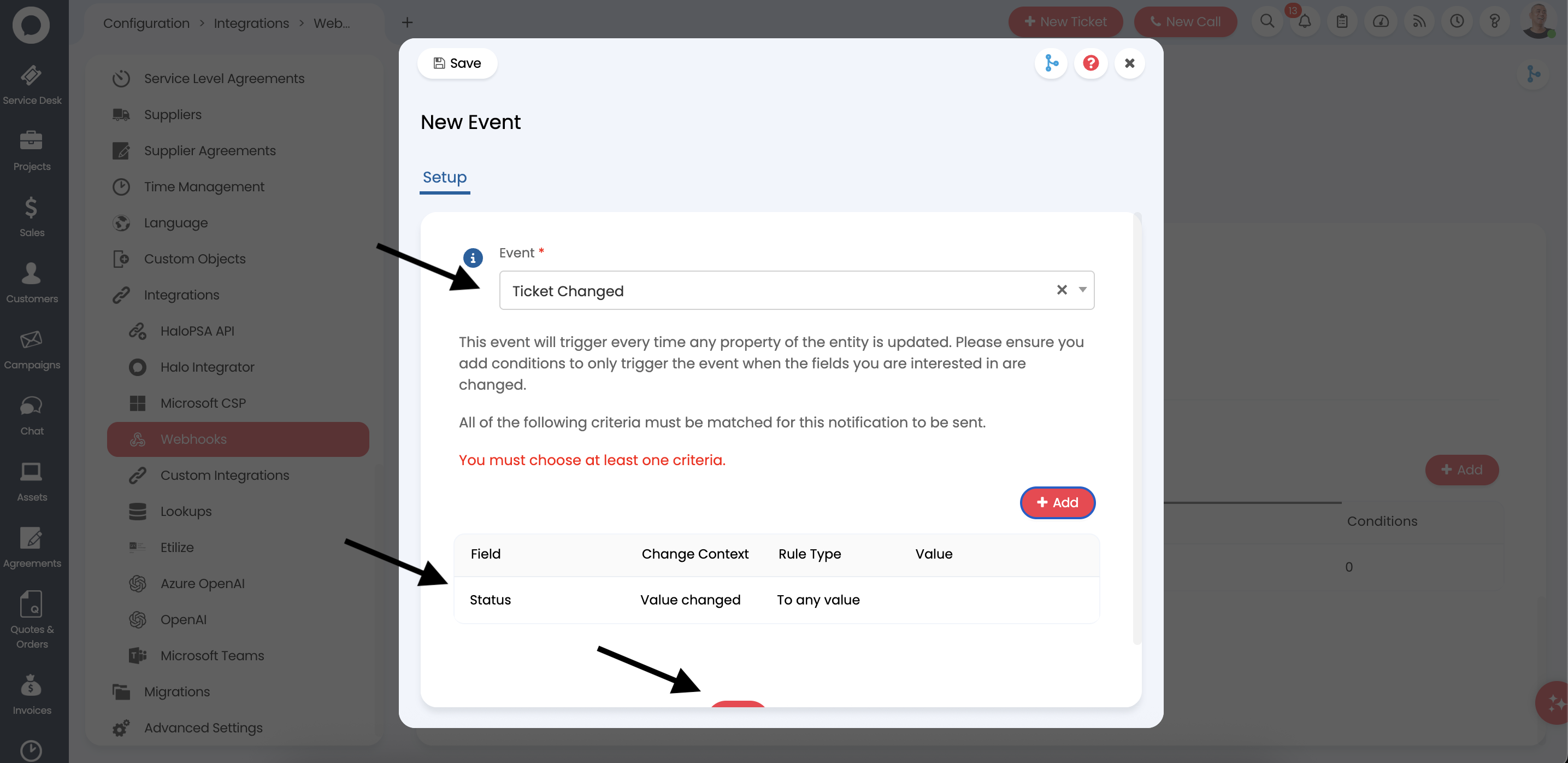 The event should display:
* **Field**: Status
* **Change Context**: Value changed
* **Rule Type**: To any value
Click **Save** at the bottom to save this event.
For comprehensive ticket tracking, add the following additional events by repeating the "Add" process:
The event should display:
* **Field**: Status
* **Change Context**: Value changed
* **Rule Type**: To any value
Click **Save** at the bottom to save this event.
For comprehensive ticket tracking, add the following additional events by repeating the "Add" process:
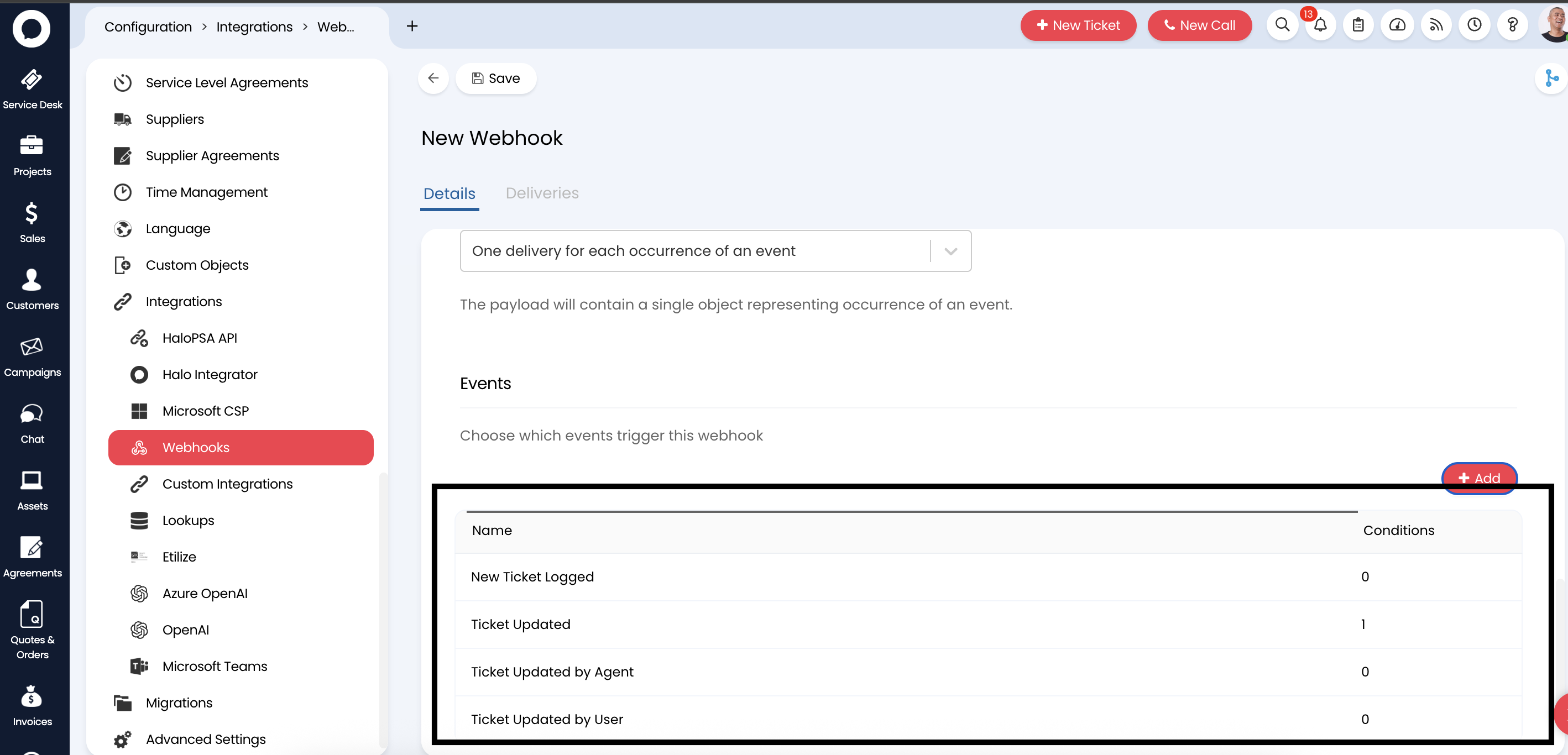 Recommended events to add:
| Event Name | Conditions | Purpose |
| ----------------------- | --------------------------- | ------------------------------------------ |
| New Ticket Logged | None | Triggers when a new ticket is created |
| Ticket Updated | Status changed to any value | Triggers on status changes |
| Ticket Updated by Agent | None | Triggers when an agent updates a ticket |
| Ticket Updated by User | None | Triggers when an end user updates a ticket |
Adding multiple event types ensures Neo Agent receives notifications for all relevant ticket activity, enabling comprehensive automation and monitoring.
After adding all desired events, click **Save** to update the webhook configuration.
Your webhook events are now configured! HaloPSA will send notifications to Neo Agent whenever the configured events occur.
## Verifying Webhook Delivery
After saving your webhook configuration, you can verify that webhooks are being delivered correctly:
1. Navigate back to your webhook in **Configuration → Integrations → Webhooks**
2. Click on the **Neo Tickets callback \[ALL]** webhook
3. Select the **Deliveries** tab to view webhook delivery history
4. Create or update a test ticket to trigger a webhook
5. Verify that the delivery shows a successful response
The Deliveries tab shows the history of webhook calls including response codes. A `200` response indicates successful delivery to Neo Agent.
## Troubleshooting
* Ensure you have successfully [connected HaloPSA to Neo Agent](/integrations/psa/halopsa/connecting-to-neo)
* The webhook is created automatically when the connection is established
* If the webhook is missing, confirm your API application has the **admin:webhooks** scope set to **Yes** (see [Creating an API Application](/integrations/psa/halopsa/creating-api-application)) — without it, the automatic webhook creation fails with a **401 Unauthorized**
* After enabling the scope, try disconnecting and reconnecting your HaloPSA integration in the Neo Agent dashboard
* Verify the webhook is set to **Enabled: Yes**
* Check that you've added the correct events
* Ensure the criteria conditions match your expected ticket changes
* Create a test ticket to verify the webhook fires
* Check that your Neo Agent subscription is active
* Ensure there are no firewall rules blocking outbound connections from HaloPSA
* Review the delivery logs in the Deliveries tab for error details
* Review your event criteria to ensure they're not too broad
* Add specific criteria to the "Ticket Changed" event to filter notifications
* Consider which events are truly necessary for your automation workflows
## What's Next?
With webhook events configured, Neo Agent will receive real-time notifications about ticket activity. You can now:
* **Create Workflows**: Build automation workflows that trigger immediately when tickets are created or updated
* **Configure Responses**: Set up how Neo Agent should respond to different ticket events
* **Monitor Activity**: Track Neo Agent's interactions with your HaloPSA tickets in real-time
Your HaloPSA integration is complete! Neo Agent will now receive instant notifications whenever the configured ticket events occur in your HaloPSA system.
Recommended events to add:
| Event Name | Conditions | Purpose |
| ----------------------- | --------------------------- | ------------------------------------------ |
| New Ticket Logged | None | Triggers when a new ticket is created |
| Ticket Updated | Status changed to any value | Triggers on status changes |
| Ticket Updated by Agent | None | Triggers when an agent updates a ticket |
| Ticket Updated by User | None | Triggers when an end user updates a ticket |
Adding multiple event types ensures Neo Agent receives notifications for all relevant ticket activity, enabling comprehensive automation and monitoring.
After adding all desired events, click **Save** to update the webhook configuration.
Your webhook events are now configured! HaloPSA will send notifications to Neo Agent whenever the configured events occur.
## Verifying Webhook Delivery
After saving your webhook configuration, you can verify that webhooks are being delivered correctly:
1. Navigate back to your webhook in **Configuration → Integrations → Webhooks**
2. Click on the **Neo Tickets callback \[ALL]** webhook
3. Select the **Deliveries** tab to view webhook delivery history
4. Create or update a test ticket to trigger a webhook
5. Verify that the delivery shows a successful response
The Deliveries tab shows the history of webhook calls including response codes. A `200` response indicates successful delivery to Neo Agent.
## Troubleshooting
* Ensure you have successfully [connected HaloPSA to Neo Agent](/integrations/psa/halopsa/connecting-to-neo)
* The webhook is created automatically when the connection is established
* If the webhook is missing, confirm your API application has the **admin:webhooks** scope set to **Yes** (see [Creating an API Application](/integrations/psa/halopsa/creating-api-application)) — without it, the automatic webhook creation fails with a **401 Unauthorized**
* After enabling the scope, try disconnecting and reconnecting your HaloPSA integration in the Neo Agent dashboard
* Verify the webhook is set to **Enabled: Yes**
* Check that you've added the correct events
* Ensure the criteria conditions match your expected ticket changes
* Create a test ticket to verify the webhook fires
* Check that your Neo Agent subscription is active
* Ensure there are no firewall rules blocking outbound connections from HaloPSA
* Review the delivery logs in the Deliveries tab for error details
* Review your event criteria to ensure they're not too broad
* Add specific criteria to the "Ticket Changed" event to filter notifications
* Consider which events are truly necessary for your automation workflows
## What's Next?
With webhook events configured, Neo Agent will receive real-time notifications about ticket activity. You can now:
* **Create Workflows**: Build automation workflows that trigger immediately when tickets are created or updated
* **Configure Responses**: Set up how Neo Agent should respond to different ticket events
* **Monitor Activity**: Track Neo Agent's interactions with your HaloPSA tickets in real-time
Your HaloPSA integration is complete! Neo Agent will now receive instant notifications whenever the configured ticket events occur in your HaloPSA system.