> ## Documentation Index
> Fetch the complete documentation index at: https://docs.neoagent.io/llms.txt
> Use this file to discover all available pages before exploring further.
# Configuring End-User Email Notifications
> Set up Neo Agent to send email notifications to ticket contacts when communicating with end users
Neo Agent can notify ticket contacts via email when it adds notes or updates tickets. The configuration depends on how your team currently handles customer notifications in Autotask.
For the cross-PSA overview of how Neo communicates with end users, see [End-User Communication](/integrations/psa/end-user-communication). This page is the Autotask-specific deep dive.
**Terminology:** This guide refers to two types of workflows:
* **Autotask Workflow** = Automation rules configured in Autotask (Admin → Automation → Workflow Rules)
* **Neo Workflow** = Automation configured in Neo Agent Dashboard
## Find Your Scenario
How do your technicians currently notify ticket contacts?
"We have an Autotask Workflow that sends emails when notes are added"
**No Autotask changes needed**
"We have an Autotask Workflow that sends emails when time entries are added"
**No Autotask changes needed**
"We use Quick Notification checkboxes manually"
**Requires Autotask setup**
"We don't currently send notifications" or "Not sure"
**See recommendations**
***
## Scenario A: Autotask Workflow on Notes
**Your situation:** You already have an Autotask Workflow rule that sends emails when public ticket notes are added.
### Autotask Configuration
None needed. Your existing Autotask Workflow will handle notifications automatically.
### Neo Configuration
Use the **"Notify Ticket Contact"** action with `Notification Mode = Ticket Note`.
No UDF configuration needed—your existing Autotask Workflow handles notifications.
Grant the **Client-Facing Notes** permission group on the Autotask PSA integration — on the workflow's **Integrations** tab. This lets Neo add a client-facing ticket note that notifies the primary ticket contact. The group's settings also cover notifying additional contacts on the ticket.
No UDF configuration needed—your existing Autotask Workflow handles notifications.
Since your Autotask Workflow fires on ALL public notes, Neo's notes will automatically trigger customer emails. This is usually desired, but be aware that any note Neo adds will be sent to the customer.
### Testing
Add a test note via Neo and verify the customer receives an email through your existing Autotask Workflow.
***
## Scenario B: Autotask Workflow on Time Entries
**Your situation:** You already have an Autotask Workflow rule that sends emails when time entries are added.
**License Requirement:** Neo needs a Non-API Member license (regular Autotask user) to create time entries. This is an additional Autotask license cost. See [Creating an API Member](/integrations/psa/autotask/creating-api-member) for setup details.
### Autotask Configuration
None needed. Your existing Autotask Workflow will handle notifications automatically.
### Neo Configuration
Use the **"Notify Ticket Contact"** action with `Notification Mode = Time Entry`.
No UDF configuration needed—your existing Autotask Workflow handles notifications.
Grant the **Time Entries** permission group on the Autotask PSA integration — on the workflow's **Integrations** tab. This lets Neo log a time entry, which your existing Autotask Workflow delivers to the ticket contact.
No UDF configuration needed—your existing Autotask Workflow handles notifications.
Since your Autotask Workflow fires on ALL time entries, Neo's entries will automatically trigger customer emails. This is usually desired, but be aware that any time entry Neo adds will be sent to the customer.
### Testing
Add a test time entry via Neo and verify the customer receives an email through your existing Autotask Workflow.
***
## Scenario C: Quick Notification (Manual)
**Your situation:** Your technicians use the **Quick Notification (Notify via "TO")** checkboxes manually when adding notes or time entries. You don't have Autotask Workflow rules for automatic notifications.
 ### Why a Workaround Is Needed
* Autotask doesn't let third-party tools (like Neo) toggle the Quick Notification checkboxes via API
* If you simply create an Autotask Workflow "notify on all notes," ALL public notes would trigger emails—including tech notes that weren't meant to notify customers
* Autotask Workflows can't filter by "created by this resource" to only send Neo's entries
* **Solution:** A UDF (User Defined Field) acts as a flag that ONLY Neo sets, allowing selective notifications
**Key Benefit:** Your technicians continue using Quick Notification manually as they always have. Only Neo's communications trigger the Autotask Workflow.
### Choose Your Method
**Best for:** MSPs who don't need to track Neo's work time
**How it works:**
1. Neo sets UDF "Notify Contact by Email" = `true`
2. Neo adds a customer-facing ticket note
3. Autotask Workflow detects UDF = `true` AND note added → sends email
4. Autotask Workflow resets UDF to `false`
**Autotask Workflow Event:** "Note Added by Autotask Resource"
This is the simpler option—no additional Autotask license required.
**Best for:** MSPs who want to track Neo's work time for ROI analysis or customer billing
**License Requirement:** Neo needs a Non-API Member license (regular Autotask user) to create time entries.
**How it works:**
1. Neo sets UDF "Notify Contact by Email" = `true`
2. Neo adds a time entry with public summary
3. Autotask Workflow detects UDF = `true` AND time entry added → sends email
4. Autotask Workflow resets UDF to `false`
**Autotask Workflow Event:** "Time Entry Added by Autotask Resource"
**Benefits of Time Entry mode:**
* Track how much "time" Neo spends on tickets
* Include Neo's work in billing reports
* Better ROI visibility
### Setting Up the User-Defined Field (UDF)
1. Open Autotask as an Administrator
2. Navigate to **Admin** → **Features & Settings** → **Application-Wide (Shared) Features**
3. Click on **User-Defined Fields**
4. Navigate to the **Tickets** tab
Click **New** and enter the following information:
* **UDF Type:** Ticket
* **Name:** `Notify Contact by Email`
* **Description:** When changed to "true", Autotask will send email notification to the ticket contact
* **Field Type:** List (Single Select)
Under **List Options**, click **New** and create these two options:
* Display Value/Stored Value: `true`
* Display Value/Stored Value: `false`
Please double-check that:
* The UDF is named exactly `Notify Contact by Email` (Neo Agent looks for this specific name)
* The UDF values are `true` and `false` (lowercase) as these are the exact values Neo Agent will use
Click **Save & Close** to create the User-Defined Field.
Your UDF is now ready to be used by Neo Agent to trigger email notifications.
### Creating the Autotask Workflow Rule
1. Open Autotask as an Administrator
2. Navigate to **Admin** → **Automation** → **Workflow Rules**
3. Open the **Workflow Rules** page
4. Create a **New** workflow rule
Enter the following information:
* **Workflow Rule Name:** `Neo Email Notification`
* **Events** → Entity → **Ticket**
* **Events** → Activity/Accessories:
* **For Option C1 (Ticket Notes):** Select **Note Added by** → **Autotask Resource**
* **For Option C2 (Time Entries):** Select **Time Entry Added by** → **Autotask Resource**
### Why a Workaround Is Needed
* Autotask doesn't let third-party tools (like Neo) toggle the Quick Notification checkboxes via API
* If you simply create an Autotask Workflow "notify on all notes," ALL public notes would trigger emails—including tech notes that weren't meant to notify customers
* Autotask Workflows can't filter by "created by this resource" to only send Neo's entries
* **Solution:** A UDF (User Defined Field) acts as a flag that ONLY Neo sets, allowing selective notifications
**Key Benefit:** Your technicians continue using Quick Notification manually as they always have. Only Neo's communications trigger the Autotask Workflow.
### Choose Your Method
**Best for:** MSPs who don't need to track Neo's work time
**How it works:**
1. Neo sets UDF "Notify Contact by Email" = `true`
2. Neo adds a customer-facing ticket note
3. Autotask Workflow detects UDF = `true` AND note added → sends email
4. Autotask Workflow resets UDF to `false`
**Autotask Workflow Event:** "Note Added by Autotask Resource"
This is the simpler option—no additional Autotask license required.
**Best for:** MSPs who want to track Neo's work time for ROI analysis or customer billing
**License Requirement:** Neo needs a Non-API Member license (regular Autotask user) to create time entries.
**How it works:**
1. Neo sets UDF "Notify Contact by Email" = `true`
2. Neo adds a time entry with public summary
3. Autotask Workflow detects UDF = `true` AND time entry added → sends email
4. Autotask Workflow resets UDF to `false`
**Autotask Workflow Event:** "Time Entry Added by Autotask Resource"
**Benefits of Time Entry mode:**
* Track how much "time" Neo spends on tickets
* Include Neo's work in billing reports
* Better ROI visibility
### Setting Up the User-Defined Field (UDF)
1. Open Autotask as an Administrator
2. Navigate to **Admin** → **Features & Settings** → **Application-Wide (Shared) Features**
3. Click on **User-Defined Fields**
4. Navigate to the **Tickets** tab
Click **New** and enter the following information:
* **UDF Type:** Ticket
* **Name:** `Notify Contact by Email`
* **Description:** When changed to "true", Autotask will send email notification to the ticket contact
* **Field Type:** List (Single Select)
Under **List Options**, click **New** and create these two options:
* Display Value/Stored Value: `true`
* Display Value/Stored Value: `false`
Please double-check that:
* The UDF is named exactly `Notify Contact by Email` (Neo Agent looks for this specific name)
* The UDF values are `true` and `false` (lowercase) as these are the exact values Neo Agent will use
Click **Save & Close** to create the User-Defined Field.
Your UDF is now ready to be used by Neo Agent to trigger email notifications.
### Creating the Autotask Workflow Rule
1. Open Autotask as an Administrator
2. Navigate to **Admin** → **Automation** → **Workflow Rules**
3. Open the **Workflow Rules** page
4. Create a **New** workflow rule
Enter the following information:
* **Workflow Rule Name:** `Neo Email Notification`
* **Events** → Entity → **Ticket**
* **Events** → Activity/Accessories:
* **For Option C1 (Ticket Notes):** Select **Note Added by** → **Autotask Resource**
* **For Option C2 (Time Entries):** Select **Time Entry Added by** → **Autotask Resource**
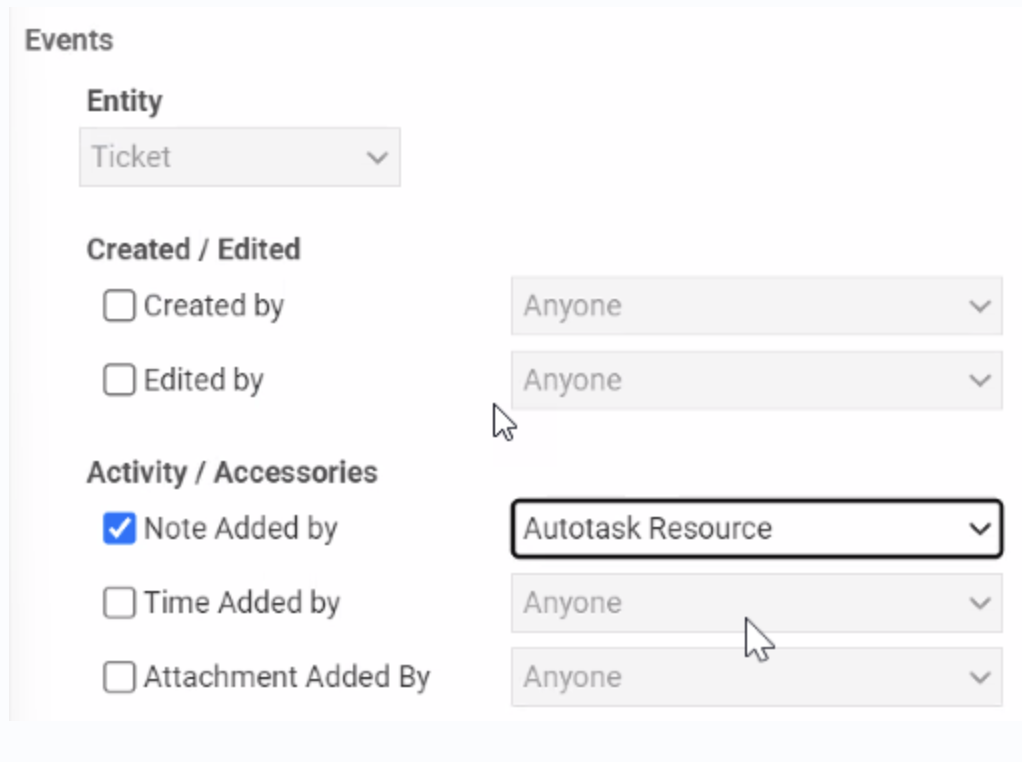 Make sure you select the correct event based on your chosen option:
* **C1:** "Note Added by Autotask Resource"
* **C2:** "Time Entry Added by Autotask Resource"
Configure the following:
* **Conditions** → UDF: Notify Contact by Email → **Equal to** → `true`
* **Updates** → UDF: Notify Contact by Email **=** `false`
The "Update" part ensures that the UDF is always reset to "false" after the email is sent, preventing duplicate notifications.
1. Navigate to the **Notification** tab at the top of the window
2. Select the user types you'd like to receive email notifications (we recommend selecting **Ticket Contact** and **Additional Contacts**)
Make sure you select the correct event based on your chosen option:
* **C1:** "Note Added by Autotask Resource"
* **C2:** "Time Entry Added by Autotask Resource"
Configure the following:
* **Conditions** → UDF: Notify Contact by Email → **Equal to** → `true`
* **Updates** → UDF: Notify Contact by Email **=** `false`
The "Update" part ensures that the UDF is always reset to "false" after the email is sent, preventing duplicate notifications.
1. Navigate to the **Notification** tab at the top of the window
2. Select the user types you'd like to receive email notifications (we recommend selecting **Ticket Contact** and **Additional Contacts**)
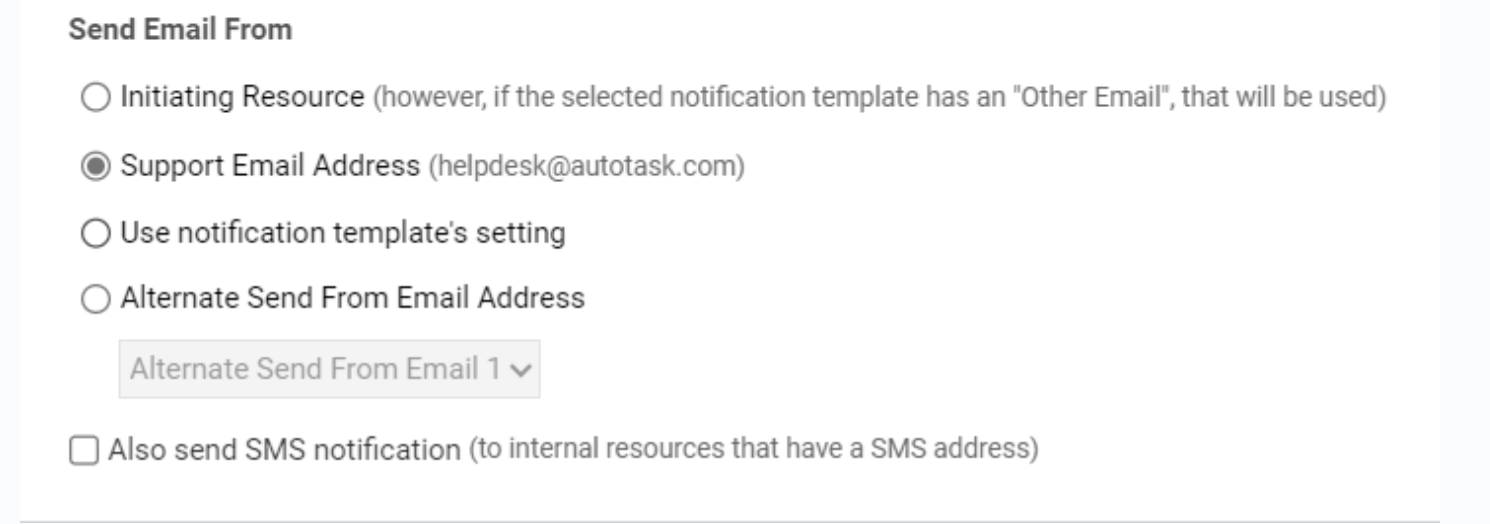
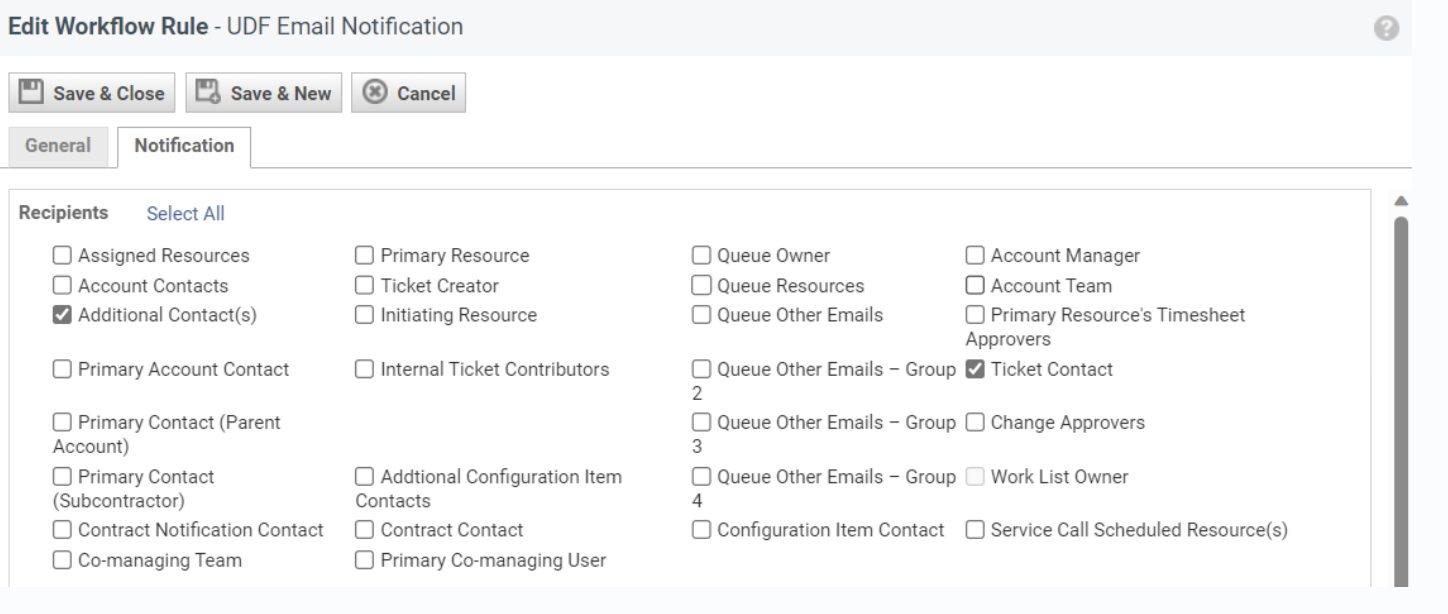 Select the email address you'd like the email to come from.
 Select the email notification template you'd like to use for the emails.
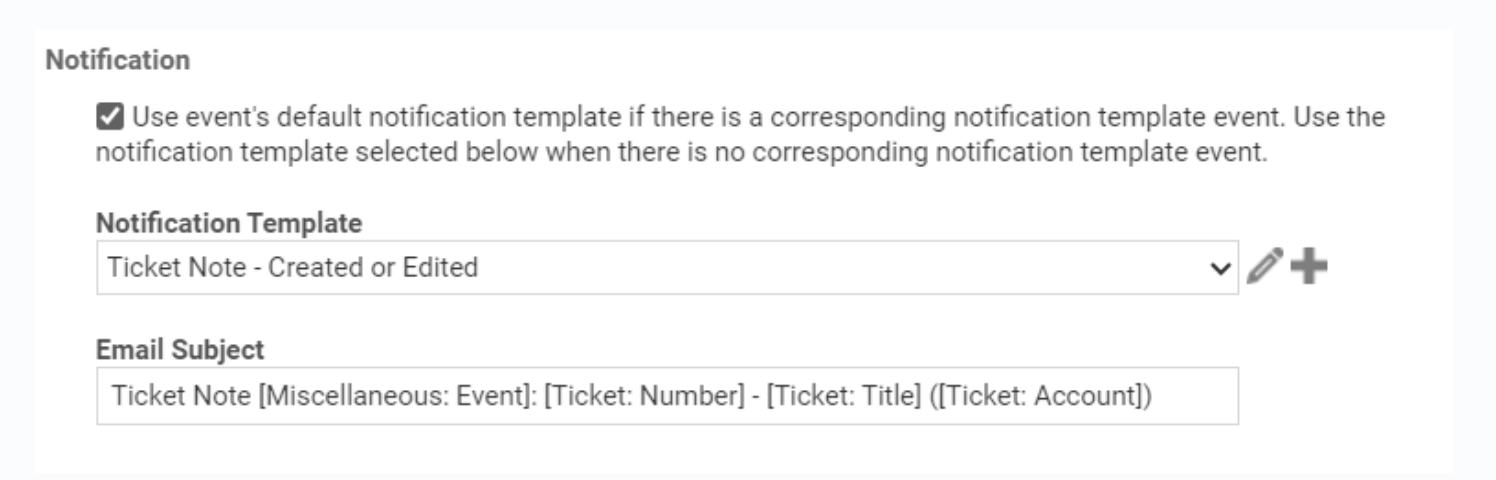 Make sure the template uses the appropriate variable:
* **For C1 (Ticket Notes):** Use `[Ticket: Note Description]` to include Neo's note content
* **For C2 (Time Entries):** Use `[Ticket Time Entry: Summary Notes]` to include Neo's message
Click **Save & Close** to activate your Autotask Workflow rule.
Your Autotask Workflow is now active and will automatically send emails when Neo triggers the UDF.
### Neo Configuration for Scenario C
After setting up Autotask, configure Neo based on whether you're using Neo Workflows or Neo Agent:
Configure the **"Notify Ticket Contact"** action in your Neo Workflow:
1. Set **Notification Mode**:
* **For C1:** `Ticket Note`
* **For C2:** `Time Entry`
2. Enable **"Use UDF field to trigger Autotask workflow"**
3. Set the UDF field name to `Notify Contact by Email`
Configure the permission group on the Autotask PSA integration — on the workflow's **Integrations** tab:
**For C1 (Ticket Notes):** On the **Client-Facing Notes** permission group:
1. Enable **"Use UDF Field"**
2. Set **"UDF Field Name"** to `Notify Contact by Email`
**For C2 (Time Entries):** On the **Time Entries** permission group:
1. Enable **"Use UDF Field for Email"**
2. Set **"UDF Field Name"** to `Notify Contact by Email`
The **Client-Facing Notes** permission group's settings also cover notifying additional contacts on the ticket.
***
## Choosing Your Notification Method
If you don't have any notification setup yet, here's how to choose:
| Want to track Neo's work time? | License cost acceptable? | Recommendation |
| ------------------------------ | ------------------------ | ---------------------------------------- |
| No | N/A | **Ticket Notes** - Simplest setup |
| Yes | Yes | **Time Entries** - Full time tracking |
| Yes | No | **Ticket Notes** - Track time separately |
### Ticket Notes (Recommended for most MSPs)
* Simplest setup—no additional Autotask license required
* Works well for customer communication
* Configure an Autotask Workflow rule to notify on public notes
### Time Entries
* Requires a Non-API Member license for Neo (additional Autotask cost)
* **Benefits:**
* Track Neo's "time spent" for ROI analysis and internal auditing
* Bill customers for work Neo has done
* Time entries show up in standard billing/invoicing reports
### Do You Need the UDF Workaround?
The UDF workaround (Scenario C) is only needed if you want **selective notifications**—where only Neo's messages trigger emails, not all tech notes/time entries.
If you're starting fresh and don't need selective control, you can create a simple Autotask Workflow that notifies on all public notes or time entries, and skip the UDF setup entirely.
***
## Troubleshooting
* Verify the Autotask Workflow rule is active
* Check that the UDF is being set to `true` (if using Scenario C)
* Confirm the ticket has a valid contact email address
* Review the Autotask Workflow notification settings
* Ensure the Autotask Workflow updates the UDF back to `false`
* Check for multiple Autotask Workflow rules that might be triggering
* Verify the correct template is selected in your Autotask Workflow
* Make sure the template includes the appropriate variables (`[Ticket: Note Description]` or `[Ticket Time Entry: Summary Notes]`)
* Confirm the Autotask Workflow has an "Update" action to set UDF = `false`
* Check that the Autotask Workflow conditions are correctly configured
Make sure the template uses the appropriate variable:
* **For C1 (Ticket Notes):** Use `[Ticket: Note Description]` to include Neo's note content
* **For C2 (Time Entries):** Use `[Ticket Time Entry: Summary Notes]` to include Neo's message
Click **Save & Close** to activate your Autotask Workflow rule.
Your Autotask Workflow is now active and will automatically send emails when Neo triggers the UDF.
### Neo Configuration for Scenario C
After setting up Autotask, configure Neo based on whether you're using Neo Workflows or Neo Agent:
Configure the **"Notify Ticket Contact"** action in your Neo Workflow:
1. Set **Notification Mode**:
* **For C1:** `Ticket Note`
* **For C2:** `Time Entry`
2. Enable **"Use UDF field to trigger Autotask workflow"**
3. Set the UDF field name to `Notify Contact by Email`
Configure the permission group on the Autotask PSA integration — on the workflow's **Integrations** tab:
**For C1 (Ticket Notes):** On the **Client-Facing Notes** permission group:
1. Enable **"Use UDF Field"**
2. Set **"UDF Field Name"** to `Notify Contact by Email`
**For C2 (Time Entries):** On the **Time Entries** permission group:
1. Enable **"Use UDF Field for Email"**
2. Set **"UDF Field Name"** to `Notify Contact by Email`
The **Client-Facing Notes** permission group's settings also cover notifying additional contacts on the ticket.
***
## Choosing Your Notification Method
If you don't have any notification setup yet, here's how to choose:
| Want to track Neo's work time? | License cost acceptable? | Recommendation |
| ------------------------------ | ------------------------ | ---------------------------------------- |
| No | N/A | **Ticket Notes** - Simplest setup |
| Yes | Yes | **Time Entries** - Full time tracking |
| Yes | No | **Ticket Notes** - Track time separately |
### Ticket Notes (Recommended for most MSPs)
* Simplest setup—no additional Autotask license required
* Works well for customer communication
* Configure an Autotask Workflow rule to notify on public notes
### Time Entries
* Requires a Non-API Member license for Neo (additional Autotask cost)
* **Benefits:**
* Track Neo's "time spent" for ROI analysis and internal auditing
* Bill customers for work Neo has done
* Time entries show up in standard billing/invoicing reports
### Do You Need the UDF Workaround?
The UDF workaround (Scenario C) is only needed if you want **selective notifications**—where only Neo's messages trigger emails, not all tech notes/time entries.
If you're starting fresh and don't need selective control, you can create a simple Autotask Workflow that notifies on all public notes or time entries, and skip the UDF setup entirely.
***
## Troubleshooting
* Verify the Autotask Workflow rule is active
* Check that the UDF is being set to `true` (if using Scenario C)
* Confirm the ticket has a valid contact email address
* Review the Autotask Workflow notification settings
* Ensure the Autotask Workflow updates the UDF back to `false`
* Check for multiple Autotask Workflow rules that might be triggering
* Verify the correct template is selected in your Autotask Workflow
* Make sure the template includes the appropriate variables (`[Ticket: Note Description]` or `[Ticket Time Entry: Summary Notes]`)
* Confirm the Autotask Workflow has an "Update" action to set UDF = `false`
* Check that the Autotask Workflow conditions are correctly configured