> ## Documentation Index
> Fetch the complete documentation index at: https://docs.neoagent.io/llms.txt
> Use this file to discover all available pages before exploring further.
# On-prem Active Directory & Exchange
> Enable Neo to manage on-premises Active Directory and Exchange Server via RMM
## How it works
Neo manages on-premises Active Directory and Exchange Server by executing PowerShell scripts through your RMM platform. This enables the same operations available in cloud environments — password resets, user provisioning, group management, mailbox delegation, and more.
Neo uses two execution patterns depending on your environment:
* **Direct execution** — The RMM agent is installed on the target server (e.g., the Domain Controller or Exchange server). Neo runs scripts directly on it.
* **Remote execution** — The target server doesn't have an RMM agent. Neo runs scripts on a "runner" VM that *does* have RMM, and uses PowerShell Remoting to reach the target server.
Identity Provider (AD) and Mailbox Provider (Exchange) are configured independently per company — you can mix and match. For example, on-prem AD with Exchange Online, or Entra ID with on-prem Exchange Server.
Setting up a user onboarding agent for on-prem AD with Azure AD Connect? Use the [Hybrid AD User Onboarding recipe](/recipes/hybrid-ad-user-onboarding).
**What routes where:**
| Operation | Where it runs |
| --------------------------------------------------------------------------------------------- | ----------------------------------------------------------------------------------------- |
| AD changes (create user, reset password, groups, etc.) | On the AD Runner via RSAT — either the DC or a runner VM |
| AD Connect sync | On the AD Connect server (remotely from the runner if the AD Connect server isn't in RMM) |
| Exchange Online / Exchange Hybrid standard ops (forwarding, delegation, shared mailbox, etc.) | Cloud — via Microsoft Graph |
| Exchange on-prem cmdlets (e.g., `Enable-RemoteMailbox`) | On the Exchange server (remotely from the runner if the Exchange server isn't in RMM) |
***
## Setup
### 1. Configure Company Settings
For each client with on-prem infrastructure, configure their identity provider and mailbox provider settings in the [**Companies** tab](https://dashboard.neoagent.io/end-companies).
#### Identity Provider Settings
| Field | Description |
| ------------------------------- | ---------------------------------------------------------------------------------------------------------------------------------------------------------------------------------------------------------------------------------------------------------------------------------------- |
| **Identity Provider Type** | Select "On-prem AD", "Hybrid", "Hybrid (no AD Connect sync)", or "Entra ID (Cloud)" |
| **AD Runner Hostname** | *(On-prem AD and both Hybrid types)* Hostname of the machine where AD scripts run — either the DC itself or a [runner VM](#3-set-up-a-runner-machine) with RSAT AD tools. Must match the device name in RMM. |
| **AD Service Account Username** | *(On-prem AD and both Hybrid types, optional)* `DOMAIN\username` of the service account used for AD operations. |
| **AD Connect Server Hostname** | *(Hybrid only)* Hostname of the server running Azure AD Connect. Neo triggers a directory sync on this server after making AD changes, so updates propagate to Entra ID. If this server differs from the AD Runner, Neo uses [remote execution](#4-enable-remote-execution) to reach it. |
**Which hybrid type?** Choose **"Hybrid"** when Azure AD Connect syncs your on-prem AD to Entra ID — Neo makes identity changes in AD and triggers a sync so they propagate to the cloud. Choose **"Hybrid (no AD Connect sync)"** when both directories exist but nothing syncs between them (e.g., AD Connect was decommissioned) — Neo then performs every identity operation in **both** on-prem AD and Entra ID directly: user creation, password resets, sign-in blocking, deletion, and profile updates are applied to each side with the same values. Picking "Hybrid" without a working AD Connect leaves new users stranded in AD, never reaching the cloud.
#### Mailbox Provider Settings
| Field | Description |
| ------------------------------------- | ---------------------------------------------------------------------------------------------------------------------------------------------------------------------------------------------------------------------------------------------------------------------------------------------------- |
| **Mailbox Provider Type** | Select "Exchange Server" (on-prem), "[Exchange Hybrid](#exchange-hybrid)", or "Exchange Online" (cloud) |
| **Exchange Server Hostname** | *(Exchange Server and Exchange Hybrid only)* Hostname of the Exchange server |
| **Exchange Runner Hostname** | *(Exchange Server and Exchange Hybrid, optional)* Set this if the Exchange server doesn't have an RMM agent. Neo runs scripts on this [runner VM](#3-set-up-a-runner-machine) and uses [remote execution](#4-enable-remote-execution) to reach the Exchange server. Must match a device name in RMM. |
| **Exchange Service Account Username** | *(Exchange Server and Exchange Hybrid, optional)* `DOMAIN\username` of the service account. Required when using an Exchange Runner — enables CredSSP authentication to solve the [Kerberos double-hop problem](#5-configure-credssp-for-exchange-runners). |
#### Service Account Password
| Field | Description |
| ---------------------------- | -------------------------------------------------------------------------------------------------------------------------------------------------------------------------------------------------------------------------------------- |
| **Service Account Password** | Password for the on-prem service account. Stored securely in Azure Key Vault — never stored in the database. Required when a service account username is configured. Leave blank when editing to keep the existing password unchanged. |
All hostnames must match exactly how the devices appear in your RMM platform.
**Sharing one runner across companies.** When several companies share a single domain controller or runner (e.g. a multi-academy trust), set that same hostname as each company's AD/Exchange Runner Hostname. The device only needs to exist in RMM under **one** of those companies — Neo will use it for the others too, as long as that hostname is unique across your RMM. If two different machines share the name, Neo can't tell them apart: it asks you to assign the correct device to the company under **Integrations → RMM → Device Mapping**, or to give one of them a unique hostname.
**Bulk configuration:** Use the CSV import feature in the Companies tab to configure multiple clients at once.
### 2. Upload the Neo Script to Your RMM
Neo needs a wrapper script installed in your RMM to execute PowerShell commands.
**No upload required.** ConnectWise Asio ships a built-in `PowerShell script` automation template that Neo uses to execute PowerShell on managed endpoints. Neo dispatches the wrapper code inline as the `body` parameter of that template on every run, so you don't need to create or maintain any Neo-specific script in your Asio library.
Asio's user-created PowerShell scripts (Add → PowerShell script in the Tasks page) don't expose a "Parameters" tab, so Neo can't use one as the wrapper. Don't create a `[Neo Script] Run Powershell` task in Asio — it won't be used.
1. Confirm an Asio agent is installed on the target server (DC, Exchange server, runner VM, etc.) and reporting `osType=windows`.
2. Trigger an RMM sync in Neo at [Integrations → RMM](https://dashboard.neoagent.io/integrations) so Neo discovers the endpoint and the built-in `PowerShell script` template.
1. Download the Neo PowerShell component:
Datto RMM component for executing Neo PowerShell scripts
2. Import the component into Datto RMM by following [Datto's import instructions](https://rmm.datto.com/help/en/Content/3NEWUI/Automation/Components/COMPONENTLIBRARY.htm#Importing_a_component).
3. Trigger an RMM sync in Neo by going to [Integrations → RMM](https://dashboard.neoagent.io/integrations) and clicking the sync button. This allows Neo to discover the newly imported script.
Build the wrapper in the Automate web **Script Editor** (Automation → Scripts).
1. Open **Scripts → All Scripts** and click **+ Add**.
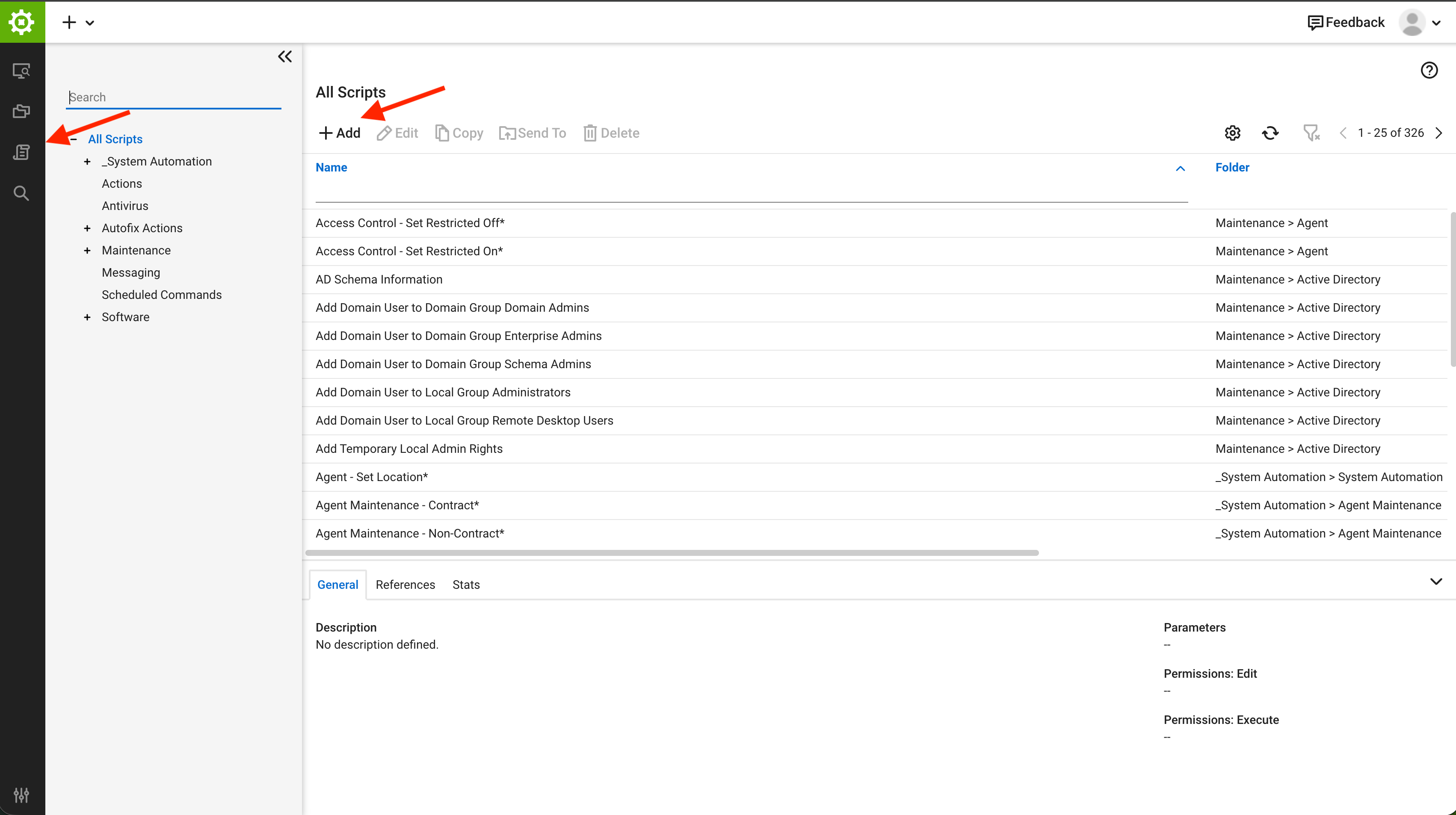 2. On the **Summary** tab, set **Name** to `[Neo Script] Run Powershell`, **Target** to `Computer`, and leave **Function Script** toggled **off**.
The name must match exactly, including the square brackets. Neo finds the wrapper by this name. Leave **Function Script** off, or the script can't run against a computer.
2. On the **Summary** tab, set **Name** to `[Neo Script] Run Powershell`, **Target** to `Computer`, and leave **Function Script** toggled **off**.
The name must match exactly, including the square brackets. Neo finds the wrapper by this name. Leave **Function Script** off, or the script can't run against a computer.
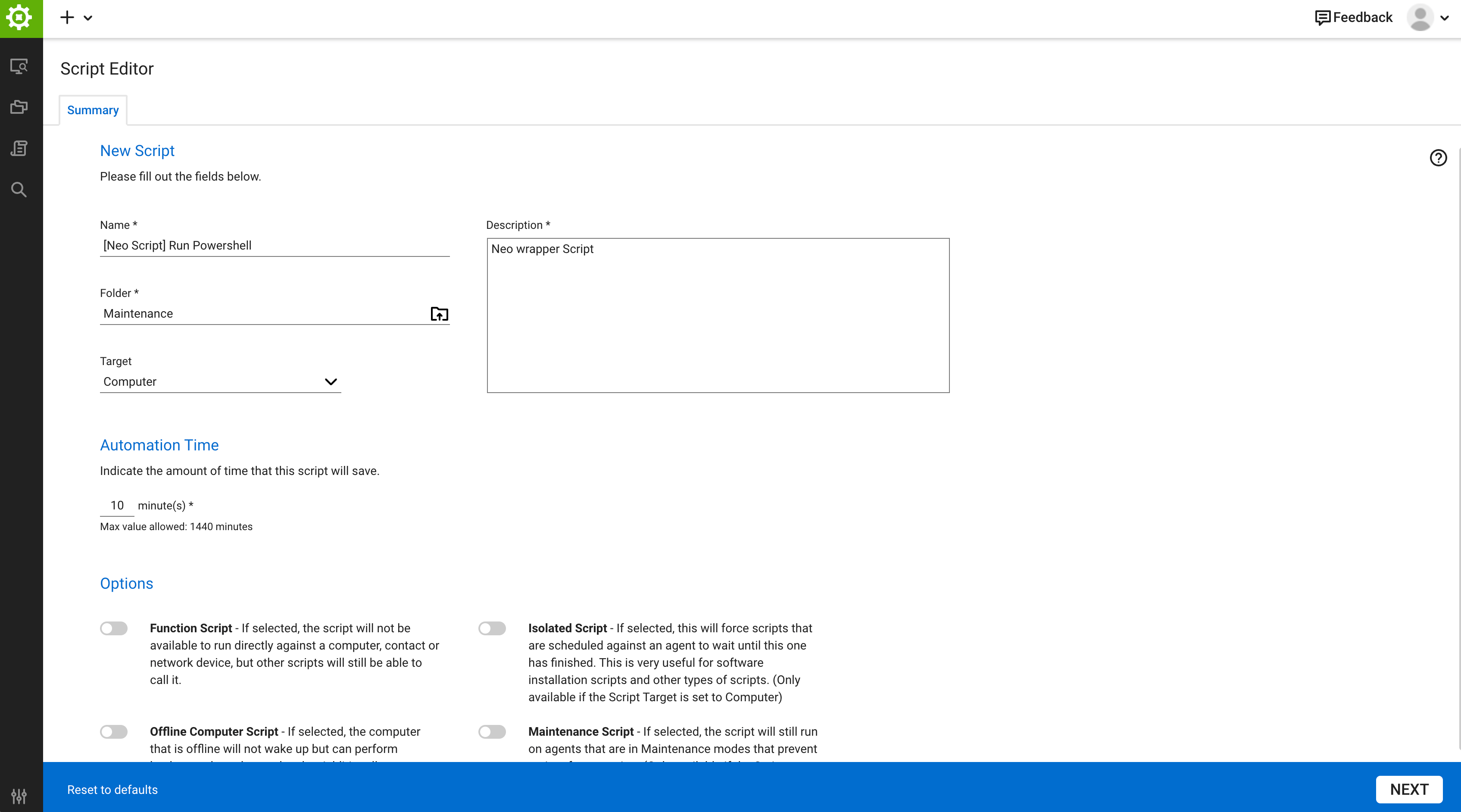 3. On the **Editor** tab, click **Parameters → Add** and add a parameter named `script_content_path`.
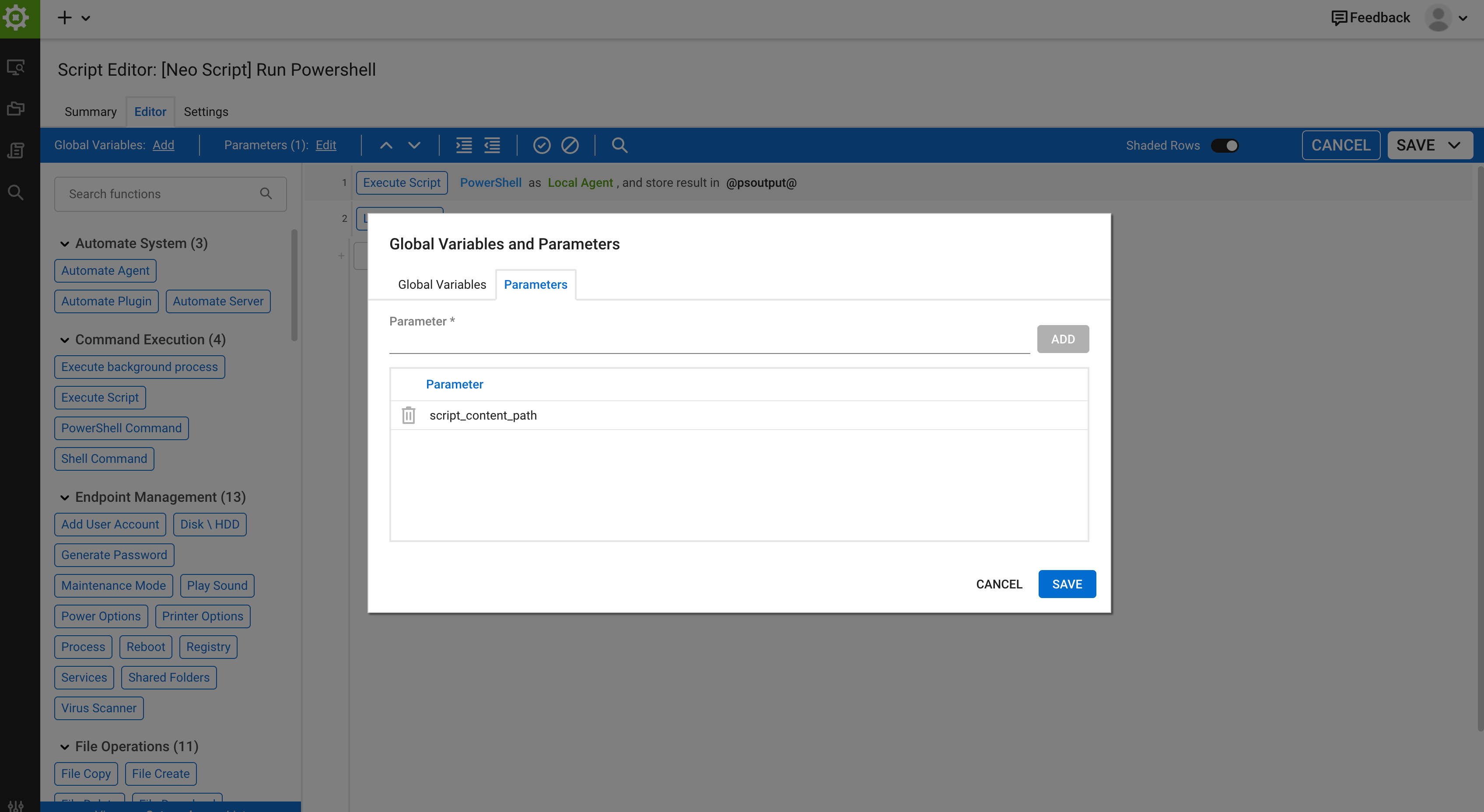 4. Add an **Execute Script** step. Set **Script Type** to `PowerShell`, **Script Credentials** to `Local Agent`, **Variable** to `@psoutput@`, and paste this into the **Script Editor**:
```powershell theme={null}
$env:script_content_path = "@script_content_path@"
$neo_base_url = "https://engine.neoagent.io"
$script_content_path = $env:script_content_path
$script_content_url = "$neo_base_url/$script_content_path"
[Net.ServicePointManager]::SecurityProtocol = [Net.SecurityProtocolType]::Tls12
$wc = New-Object System.Net.WebClient
$wc.Encoding = [System.Text.Encoding]::UTF8
$commands = ($wc.DownloadString($script_content_url))
$neo_output = ""
$neo_failed = $false
try {
$neo_output = (iex $commands *>&1 | Out-String)
} catch {
$neo_output = "ERROR: $($_.Exception.Message)"
$neo_failed = $true
}
Write-Output $neo_output
try {
$result_path = $script_content_path -replace '\?', '/result?'
$result_url = "$neo_base_url/$result_path"
$rc = New-Object System.Net.WebClient
$rc.Encoding = [System.Text.Encoding]::UTF8
$rc.Headers.Add("Content-Type", "text/plain; charset=utf-8")
$null = $rc.UploadString($result_url, "POST", $neo_output)
} catch {
Write-Output "NEO_RESULT_CALLBACK_FAILED: $($_.Exception.Message)"
}
if ($neo_failed) { exit 1 }
```
4. Add an **Execute Script** step. Set **Script Type** to `PowerShell`, **Script Credentials** to `Local Agent`, **Variable** to `@psoutput@`, and paste this into the **Script Editor**:
```powershell theme={null}
$env:script_content_path = "@script_content_path@"
$neo_base_url = "https://engine.neoagent.io"
$script_content_path = $env:script_content_path
$script_content_url = "$neo_base_url/$script_content_path"
[Net.ServicePointManager]::SecurityProtocol = [Net.SecurityProtocolType]::Tls12
$wc = New-Object System.Net.WebClient
$wc.Encoding = [System.Text.Encoding]::UTF8
$commands = ($wc.DownloadString($script_content_url))
$neo_output = ""
$neo_failed = $false
try {
$neo_output = (iex $commands *>&1 | Out-String)
} catch {
$neo_output = "ERROR: $($_.Exception.Message)"
$neo_failed = $true
}
Write-Output $neo_output
try {
$result_path = $script_content_path -replace '\?', '/result?'
$result_url = "$neo_base_url/$result_path"
$rc = New-Object System.Net.WebClient
$rc.Encoding = [System.Text.Encoding]::UTF8
$rc.Headers.Add("Content-Type", "text/plain; charset=utf-8")
$null = $rc.UploadString($result_url, "POST", $neo_output)
} catch {
Write-Output "NEO_RESULT_CALLBACK_FAILED: $($_.Exception.Message)"
}
if ($neo_failed) { exit 1 }
```
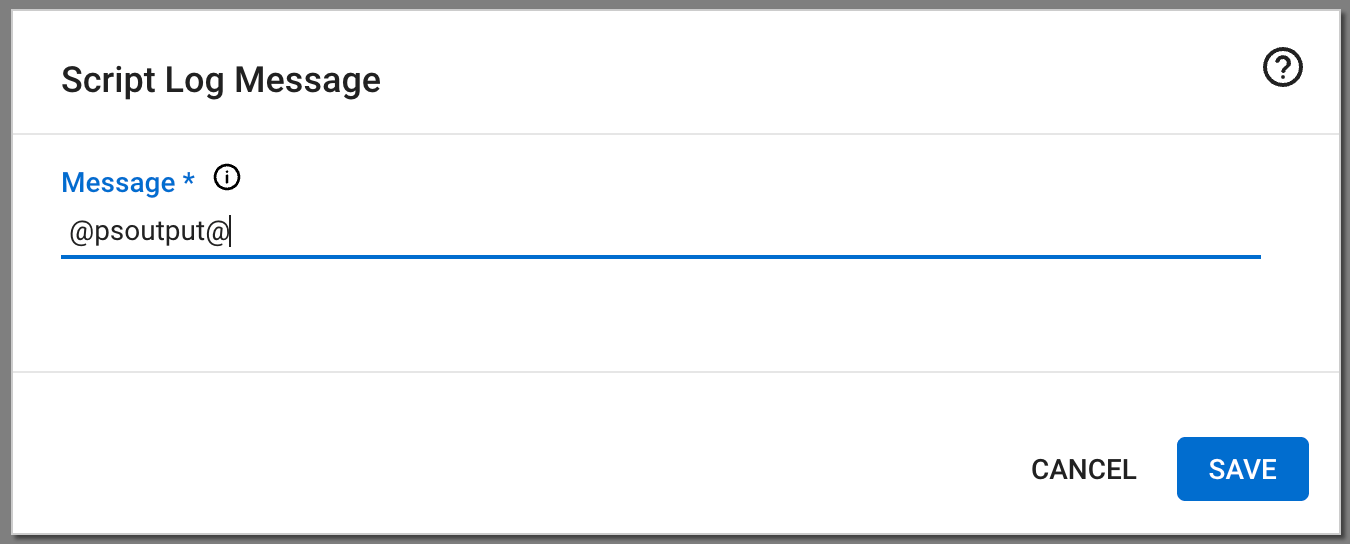
 5. Add a **Script Log Message** step after it, with **Message** set to `@psoutput@`. This records the script's output to the run history.
 6. On the **Settings** tab, turn **Enable Enhanced Script Logging** on (required for the Log Message step to record output).
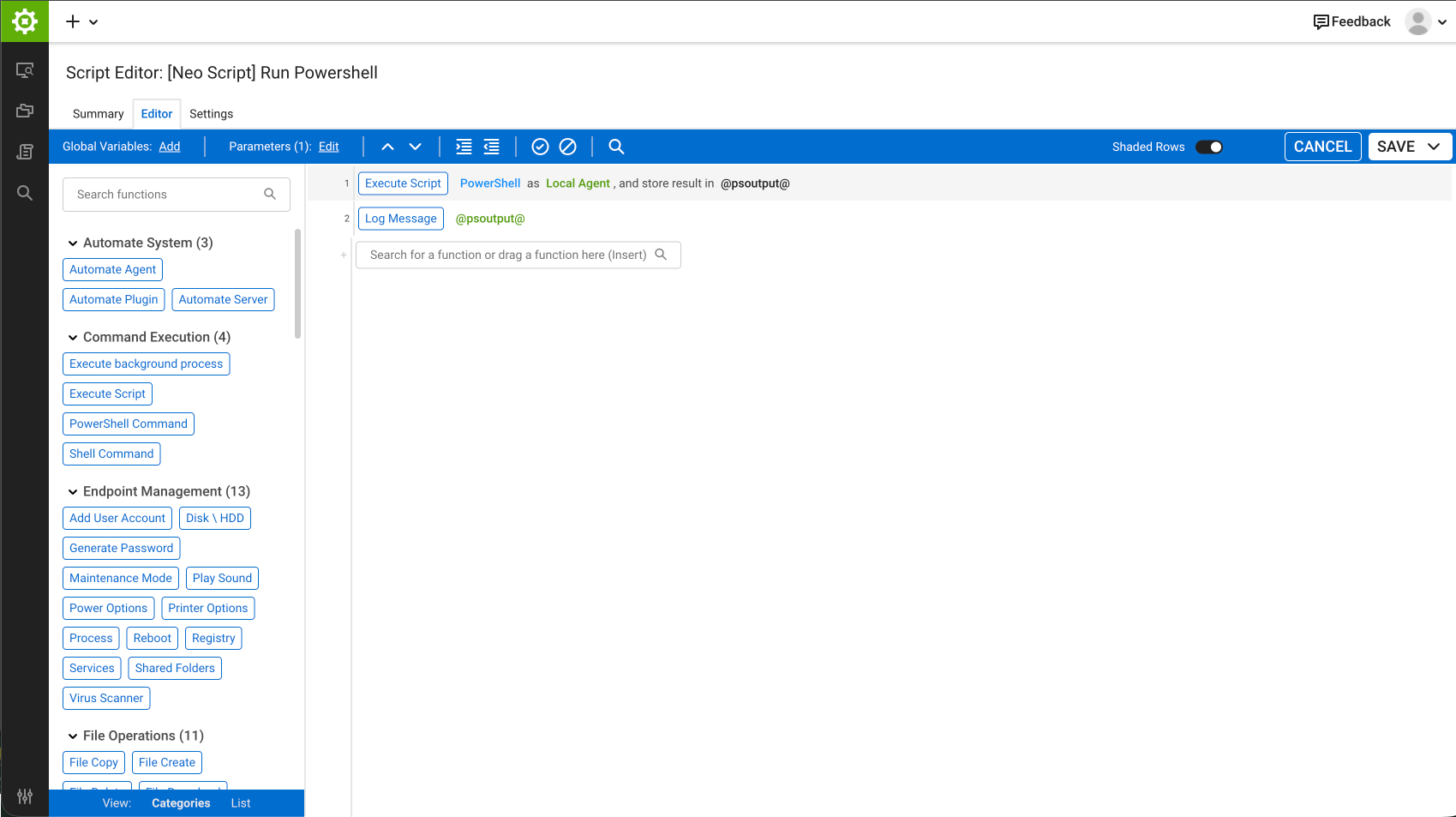
7. Save. The Editor should now show two steps — Execute Script, then Log Message:
6. On the **Settings** tab, turn **Enable Enhanced Script Logging** on (required for the Log Message step to record output).
7. Save. The Editor should now show two steps — Execute Script, then Log Message:
 8. Trigger an RMM sync in Neo at [Integrations → RMM](https://dashboard.neoagent.io/integrations) so Neo discovers the new script.
NinjaOne passes script parameters to the script as a single raw string instead of binding them to named variables (the way Datto and ConnectWise Automate do). The wrapper below reads the path Neo sends and runs it, so you do not need to configure any **Script Variables** or **Parameters** in NinjaOne. Neo supplies everything at runtime.
1. In NinjaOne, open the **Automation Library** and create a new script.
2. Name it exactly **`[Neo Script] Run Powershell`**.
The name must match exactly, including the square brackets. Neo finds the wrapper by this name.
3. Set **Language** to **PowerShell**, **Operating System** to **Windows**, and leave **Run as** set to **System**. Leave **Script Variables** and **Parameters** empty.
4. Paste this into the script body:
```powershell theme={null}
$ErrorActionPreference = "Stop"
$neo_base_url = "https://engine.neoagent.io"
# NinjaOne passes the script path to this wrapper as a raw "name=value" string,
# not bound to a named variable the way Datto and ConnectWise do. Pull the
# rmm/script path (with its ?code= token) out of whichever source carries it.
$path = $null
foreach ($candidate in @($env:script_content_path, ($args -join ' '))) {
if ($candidate -and ($candidate -match '(rmm/script/\S+)')) { $path = $Matches[1]; break }
}
if (-not $path) {
throw "Neo wrapper: no rmm/script path found. env='$($env:script_content_path)' args='$($args -join ' ')'"
}
[Net.ServicePointManager]::SecurityProtocol = [Net.SecurityProtocolType]::Tls12
$wc = New-Object System.Net.WebClient
$wc.Encoding = [System.Text.Encoding]::UTF8
$commands = $wc.DownloadString("$neo_base_url/$path")
iex $commands
```
5. Click **Save**.
6. In Neo, go to [Integrations → RMM](https://dashboard.neoagent.io/integrations) and click the sync button so Neo can discover the new script.
When an agent runs an on-prem AD or Exchange action, Neo calls this wrapper, which downloads the generated PowerShell from Neo and runs it on the target machine.
1. In your VSA X portal, go to **Automation → Scripts** and create a new script.
2. Name it exactly **`[Neo Script] Run Powershell`**.
The name must match exactly, including the square brackets. Neo finds the wrapper by this name when it syncs your script catalog.
3. Set the script **Type/Platform** to **PowerShell** / **Windows**.
4. Add a single **input variable** named exactly `script_content_path` (type: text/string). Neo passes the script path into this variable at runtime.
VSA X keys script variables by an internal Id, but Neo resolves your `script_content_path` variable to its Id automatically at execution time — you only need to create the input variable with that name. (If the script defines exactly one input variable, Neo binds to it even if you named it differently, but matching `script_content_path` is the reliable choice.)
5. Paste this into the script body:
```powershell theme={null}
$ErrorActionPreference = "Stop"
$neo_base_url = "https://engine.neoagent.io"
# VSA X surfaces the script's input variable to PowerShell; the exact binding can
# vary by agent/runtime, so pull the rmm/script path (with its ?code= token) out of
# whichever source carries it — the bound variable, an environment variable, or args.
$path = $null
foreach ($candidate in @($script_content_path, $env:script_content_path, ($args -join ' '))) {
if ($candidate -and ($candidate -match '(rmm/script/\S+)')) { $path = $Matches[1]; break }
}
if (-not $path) {
throw "Neo wrapper: no rmm/script path found in the script_content_path variable."
}
# Download the generated script from Neo
[Net.ServicePointManager]::SecurityProtocol = [Net.SecurityProtocolType]::Tls12
$wc = New-Object System.Net.WebClient
$wc.Encoding = [System.Text.Encoding]::UTF8
$commands = $wc.DownloadString("$neo_base_url/$path")
# Execute it
try {
iex $commands
} catch {
Write-Output "ERROR: $($_.Exception.Message)"
exit 1
}
```
6. Save the script.
7. Trigger an RMM sync in Neo at [Integrations → RMM](https://dashboard.neoagent.io/integrations) so Neo discovers the new wrapper script.
Running scripts also requires the **Automation** permission group to be set to **Read & Write** in your VSA X agent's settings — read-only Automation can browse the catalog but not execute. The Third-Party Token must likewise grant write access to Automation.
When an agent runs an on-prem AD or Exchange action, Neo calls this wrapper on the target device, which downloads the generated PowerShell from Neo and runs it.
### 3. Set Up a Runner Machine
**Required if:** any server Neo manages (DC, Exchange server, AD Connect server) does **not** have an RMM agent installed. Common scenarios:
* You don't want to install RMM on the Domain Controller
* The Exchange server doesn't have an RMM agent
* The AD Connect server doesn't have an RMM agent
A runner machine is any domain-joined server with an RMM agent that Neo uses to execute scripts on behalf of servers that don't have RMM. The runner can be any domain-joined Windows server — a dedicated management VM, an existing utility server, etc. A single machine can serve as both the AD Runner and Exchange Runner.
#### 3a. Install RSAT AD Tools
**Required if:** the DC doesn't have an RMM agent (i.e., the runner performs AD operations on its behalf).
The runner needs the AD PowerShell module to execute Active Directory commands:
Open PowerShell as Administrator and run:
```powershell theme={null}
Install-WindowsFeature -Name RSAT-AD-PowerShell
```
Or via Server Manager: **Add Roles and Features → Features → Remote Server Administration Tools → AD DS Tools → AD DS Snap-Ins and Command-Line Tools**
Open PowerShell as Administrator and run:
```powershell theme={null}
Add-WindowsCapability -Online -Name Rsat.ActiveDirectory.DS-LDS.Tools~~~~0.0.1.0
```
Or via **Settings → Apps → Optional Features → Add a feature** and install **RSAT: Active Directory Domain Services and Lightweight Directory Tools**.
Verify installation by running `Import-Module ActiveDirectory` in PowerShell — it should complete without errors.
#### 3b. Create a Dedicated Service Account
Create a service account in Active Directory (e.g., `DOMAIN\neo_automation`) and grant it the permissions needed for the operations you want Neo to perform.
**You control what Neo can do.** Grant only the permissions your team is comfortable with.
**Best practice:** Delegate permissions on specific OUs rather than domain-wide.
| Permission | Neo capabilities |
| ------------------------------- | -------------------------------------------------------------------------------------- |
| Create/delete user objects | User onboarding and offboarding |
| Reset password | Password resets, unlock accounts, force password change at logon |
| Read/write all user properties | Update name, job title, department, manager, phone, office, company, employee ID, etc. |
| Enable/disable accounts | Enable/disable user accounts during onboarding/offboarding |
| Read/write group membership | Add/remove users from security and distribution groups |
| Read computer objects | View computer accounts and their properties |
| Enable/disable computer objects | Enable/disable computer accounts |
Assign the **Recipient Management** role to the service account, or delegate equivalent permissions:
| Permission | Neo capabilities |
| ----------------------------- | -------------------------------------------------------- |
| Mailbox management | Convert user mailboxes to shared, delete mailboxes |
| Mail forwarding | Set up and remove email forwarding |
| Mailbox permissions | Grant/revoke Full Access to mailboxes |
| Recipient permissions | Grant/revoke Send As and Send on Behalf permissions |
| Address list visibility | Hide/unhide mailboxes from the Global Address List |
| Distribution group management | Create, delete, and manage distribution group membership |
| Mail contact management | Create and manage external mail contacts |
| Auto-reply configuration | Configure out-of-office messages |
| Mobile device management | View and wipe mobile devices (for offboarding) |
| Message tracking | Trace email delivery for troubleshooting |
| Transport rules | Create and manage mail flow rules |
| Public folder management | Create and manage public folders |
| Quarantine management | Release or delete quarantined messages |
| Inbox rules | View and manage user inbox rules |
| Calendar/resource management | Configure room and equipment booking policies |
| Retention policies | Configure message retention settings |
| Address list management | Manage GAL, OAB, and address book policies |
If the Exchange server is not in RMM (i.e., Neo uses [remote execution](#4-enable-remote-execution) from a runner), the service account also needs WinRM remoting access to the Exchange server.
To trigger AD Connect syncs, the service account must be a member of the **ADSyncOperators** group on the AD Connect server.
If the AD Connect server is not the same machine as the AD Runner (i.e., the AD Connect server is not in RMM), the service account also needs WinRM remoting access to the AD Connect server. Neo will use `Invoke-Command` from the runner to trigger the sync remotely.
Neo can also perform these Active Directory operations if you grant the necessary permissions:
| Permission | Neo capabilities |
| ------------------------------ | --------------------------------------------- |
| Create/delete computer objects | Computer account lifecycle management |
| Create/delete/modify OUs | Organizational unit management |
| Manage service accounts | Managed Service Account (MSA/gMSA) operations |
| Fine-grained password policies | View and modify password policies |
| Move/rename AD objects | Reorganize objects between OUs |
#### 3c. Configure RMM Component Credentials
By default, Datto RMM scripts run under LocalSystem, which has no AD or Exchange permissions on non-DC machines. To run scripts under your service account, configure **Component Credentials** for each site that uses a runner machine.
Component Credentials are configured per site (end-client). For sites without credentials configured, scripts run under LocalSystem — which only works if the RMM agent is installed directly on the DC or Exchange server.
**Step 1: Enable Component Credentials on the Neo script**
First, configure the Neo script to use Component Credentials when available:
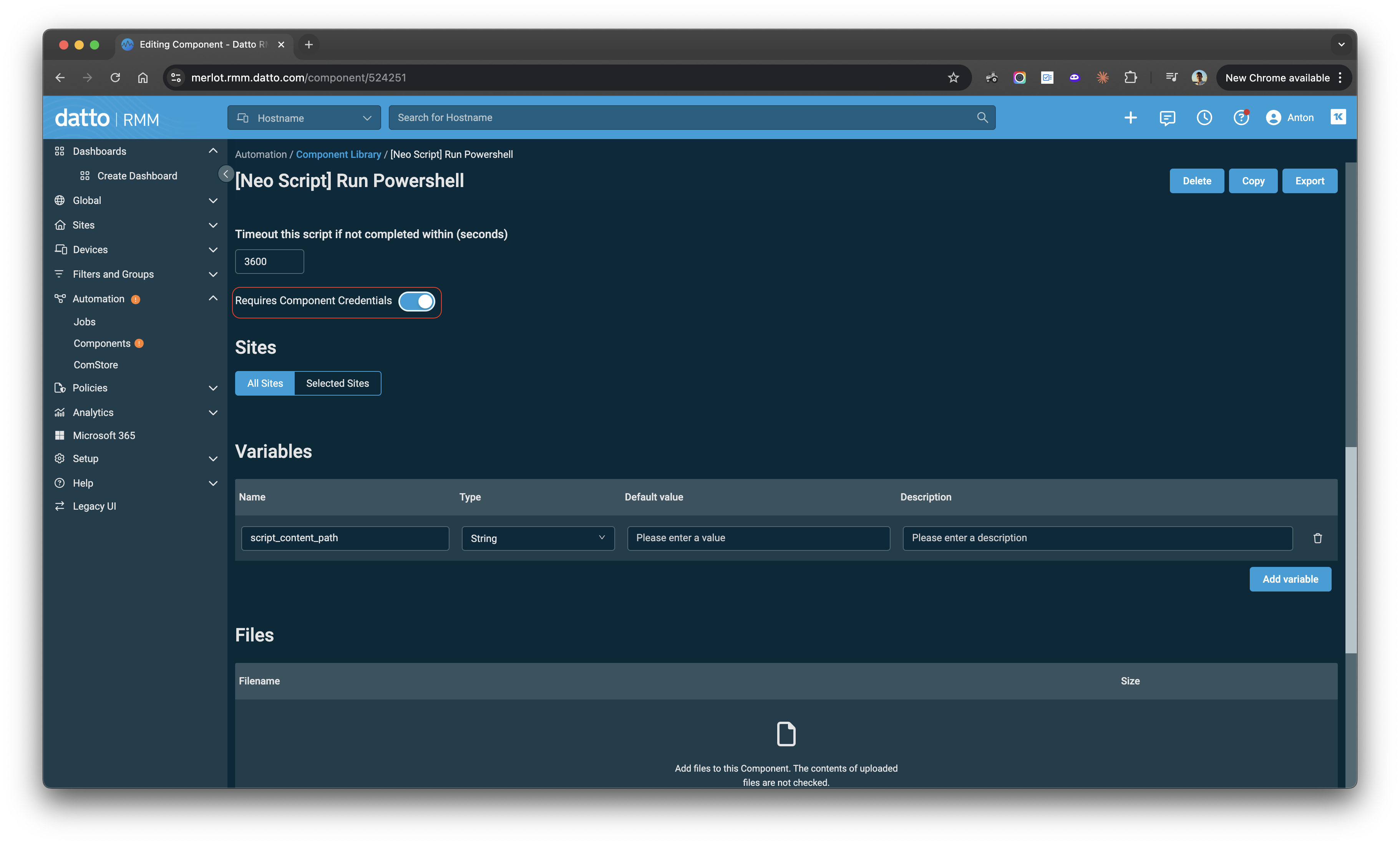
1. Go to **Automation → Components** and open the **\[Neo Script] Run Powershell** component
2. Toggle **Requires Component Credentials** to ON
3. Click **Save** to apply the change
Don't forget to save the component after toggling the credential setting. The toggle won't take effect until the component is saved.
8. Trigger an RMM sync in Neo at [Integrations → RMM](https://dashboard.neoagent.io/integrations) so Neo discovers the new script.
NinjaOne passes script parameters to the script as a single raw string instead of binding them to named variables (the way Datto and ConnectWise Automate do). The wrapper below reads the path Neo sends and runs it, so you do not need to configure any **Script Variables** or **Parameters** in NinjaOne. Neo supplies everything at runtime.
1. In NinjaOne, open the **Automation Library** and create a new script.
2. Name it exactly **`[Neo Script] Run Powershell`**.
The name must match exactly, including the square brackets. Neo finds the wrapper by this name.
3. Set **Language** to **PowerShell**, **Operating System** to **Windows**, and leave **Run as** set to **System**. Leave **Script Variables** and **Parameters** empty.
4. Paste this into the script body:
```powershell theme={null}
$ErrorActionPreference = "Stop"
$neo_base_url = "https://engine.neoagent.io"
# NinjaOne passes the script path to this wrapper as a raw "name=value" string,
# not bound to a named variable the way Datto and ConnectWise do. Pull the
# rmm/script path (with its ?code= token) out of whichever source carries it.
$path = $null
foreach ($candidate in @($env:script_content_path, ($args -join ' '))) {
if ($candidate -and ($candidate -match '(rmm/script/\S+)')) { $path = $Matches[1]; break }
}
if (-not $path) {
throw "Neo wrapper: no rmm/script path found. env='$($env:script_content_path)' args='$($args -join ' ')'"
}
[Net.ServicePointManager]::SecurityProtocol = [Net.SecurityProtocolType]::Tls12
$wc = New-Object System.Net.WebClient
$wc.Encoding = [System.Text.Encoding]::UTF8
$commands = $wc.DownloadString("$neo_base_url/$path")
iex $commands
```
5. Click **Save**.
6. In Neo, go to [Integrations → RMM](https://dashboard.neoagent.io/integrations) and click the sync button so Neo can discover the new script.
When an agent runs an on-prem AD or Exchange action, Neo calls this wrapper, which downloads the generated PowerShell from Neo and runs it on the target machine.
1. In your VSA X portal, go to **Automation → Scripts** and create a new script.
2. Name it exactly **`[Neo Script] Run Powershell`**.
The name must match exactly, including the square brackets. Neo finds the wrapper by this name when it syncs your script catalog.
3. Set the script **Type/Platform** to **PowerShell** / **Windows**.
4. Add a single **input variable** named exactly `script_content_path` (type: text/string). Neo passes the script path into this variable at runtime.
VSA X keys script variables by an internal Id, but Neo resolves your `script_content_path` variable to its Id automatically at execution time — you only need to create the input variable with that name. (If the script defines exactly one input variable, Neo binds to it even if you named it differently, but matching `script_content_path` is the reliable choice.)
5. Paste this into the script body:
```powershell theme={null}
$ErrorActionPreference = "Stop"
$neo_base_url = "https://engine.neoagent.io"
# VSA X surfaces the script's input variable to PowerShell; the exact binding can
# vary by agent/runtime, so pull the rmm/script path (with its ?code= token) out of
# whichever source carries it — the bound variable, an environment variable, or args.
$path = $null
foreach ($candidate in @($script_content_path, $env:script_content_path, ($args -join ' '))) {
if ($candidate -and ($candidate -match '(rmm/script/\S+)')) { $path = $Matches[1]; break }
}
if (-not $path) {
throw "Neo wrapper: no rmm/script path found in the script_content_path variable."
}
# Download the generated script from Neo
[Net.ServicePointManager]::SecurityProtocol = [Net.SecurityProtocolType]::Tls12
$wc = New-Object System.Net.WebClient
$wc.Encoding = [System.Text.Encoding]::UTF8
$commands = $wc.DownloadString("$neo_base_url/$path")
# Execute it
try {
iex $commands
} catch {
Write-Output "ERROR: $($_.Exception.Message)"
exit 1
}
```
6. Save the script.
7. Trigger an RMM sync in Neo at [Integrations → RMM](https://dashboard.neoagent.io/integrations) so Neo discovers the new wrapper script.
Running scripts also requires the **Automation** permission group to be set to **Read & Write** in your VSA X agent's settings — read-only Automation can browse the catalog but not execute. The Third-Party Token must likewise grant write access to Automation.
When an agent runs an on-prem AD or Exchange action, Neo calls this wrapper on the target device, which downloads the generated PowerShell from Neo and runs it.
### 3. Set Up a Runner Machine
**Required if:** any server Neo manages (DC, Exchange server, AD Connect server) does **not** have an RMM agent installed. Common scenarios:
* You don't want to install RMM on the Domain Controller
* The Exchange server doesn't have an RMM agent
* The AD Connect server doesn't have an RMM agent
A runner machine is any domain-joined server with an RMM agent that Neo uses to execute scripts on behalf of servers that don't have RMM. The runner can be any domain-joined Windows server — a dedicated management VM, an existing utility server, etc. A single machine can serve as both the AD Runner and Exchange Runner.
#### 3a. Install RSAT AD Tools
**Required if:** the DC doesn't have an RMM agent (i.e., the runner performs AD operations on its behalf).
The runner needs the AD PowerShell module to execute Active Directory commands:
Open PowerShell as Administrator and run:
```powershell theme={null}
Install-WindowsFeature -Name RSAT-AD-PowerShell
```
Or via Server Manager: **Add Roles and Features → Features → Remote Server Administration Tools → AD DS Tools → AD DS Snap-Ins and Command-Line Tools**
Open PowerShell as Administrator and run:
```powershell theme={null}
Add-WindowsCapability -Online -Name Rsat.ActiveDirectory.DS-LDS.Tools~~~~0.0.1.0
```
Or via **Settings → Apps → Optional Features → Add a feature** and install **RSAT: Active Directory Domain Services and Lightweight Directory Tools**.
Verify installation by running `Import-Module ActiveDirectory` in PowerShell — it should complete without errors.
#### 3b. Create a Dedicated Service Account
Create a service account in Active Directory (e.g., `DOMAIN\neo_automation`) and grant it the permissions needed for the operations you want Neo to perform.
**You control what Neo can do.** Grant only the permissions your team is comfortable with.
**Best practice:** Delegate permissions on specific OUs rather than domain-wide.
| Permission | Neo capabilities |
| ------------------------------- | -------------------------------------------------------------------------------------- |
| Create/delete user objects | User onboarding and offboarding |
| Reset password | Password resets, unlock accounts, force password change at logon |
| Read/write all user properties | Update name, job title, department, manager, phone, office, company, employee ID, etc. |
| Enable/disable accounts | Enable/disable user accounts during onboarding/offboarding |
| Read/write group membership | Add/remove users from security and distribution groups |
| Read computer objects | View computer accounts and their properties |
| Enable/disable computer objects | Enable/disable computer accounts |
Assign the **Recipient Management** role to the service account, or delegate equivalent permissions:
| Permission | Neo capabilities |
| ----------------------------- | -------------------------------------------------------- |
| Mailbox management | Convert user mailboxes to shared, delete mailboxes |
| Mail forwarding | Set up and remove email forwarding |
| Mailbox permissions | Grant/revoke Full Access to mailboxes |
| Recipient permissions | Grant/revoke Send As and Send on Behalf permissions |
| Address list visibility | Hide/unhide mailboxes from the Global Address List |
| Distribution group management | Create, delete, and manage distribution group membership |
| Mail contact management | Create and manage external mail contacts |
| Auto-reply configuration | Configure out-of-office messages |
| Mobile device management | View and wipe mobile devices (for offboarding) |
| Message tracking | Trace email delivery for troubleshooting |
| Transport rules | Create and manage mail flow rules |
| Public folder management | Create and manage public folders |
| Quarantine management | Release or delete quarantined messages |
| Inbox rules | View and manage user inbox rules |
| Calendar/resource management | Configure room and equipment booking policies |
| Retention policies | Configure message retention settings |
| Address list management | Manage GAL, OAB, and address book policies |
If the Exchange server is not in RMM (i.e., Neo uses [remote execution](#4-enable-remote-execution) from a runner), the service account also needs WinRM remoting access to the Exchange server.
To trigger AD Connect syncs, the service account must be a member of the **ADSyncOperators** group on the AD Connect server.
If the AD Connect server is not the same machine as the AD Runner (i.e., the AD Connect server is not in RMM), the service account also needs WinRM remoting access to the AD Connect server. Neo will use `Invoke-Command` from the runner to trigger the sync remotely.
Neo can also perform these Active Directory operations if you grant the necessary permissions:
| Permission | Neo capabilities |
| ------------------------------ | --------------------------------------------- |
| Create/delete computer objects | Computer account lifecycle management |
| Create/delete/modify OUs | Organizational unit management |
| Manage service accounts | Managed Service Account (MSA/gMSA) operations |
| Fine-grained password policies | View and modify password policies |
| Move/rename AD objects | Reorganize objects between OUs |
#### 3c. Configure RMM Component Credentials
By default, Datto RMM scripts run under LocalSystem, which has no AD or Exchange permissions on non-DC machines. To run scripts under your service account, configure **Component Credentials** for each site that uses a runner machine.
Component Credentials are configured per site (end-client). For sites without credentials configured, scripts run under LocalSystem — which only works if the RMM agent is installed directly on the DC or Exchange server.
**Step 1: Enable Component Credentials on the Neo script**
First, configure the Neo script to use Component Credentials when available:
1. Go to **Automation → Components** and open the **\[Neo Script] Run Powershell** component
2. Toggle **Requires Component Credentials** to ON
3. Click **Save** to apply the change
Don't forget to save the component after toggling the credential setting. The toggle won't take effect until the component is saved.
 **Step 2: Create credentials for each site**
For each client that uses a runner machine:
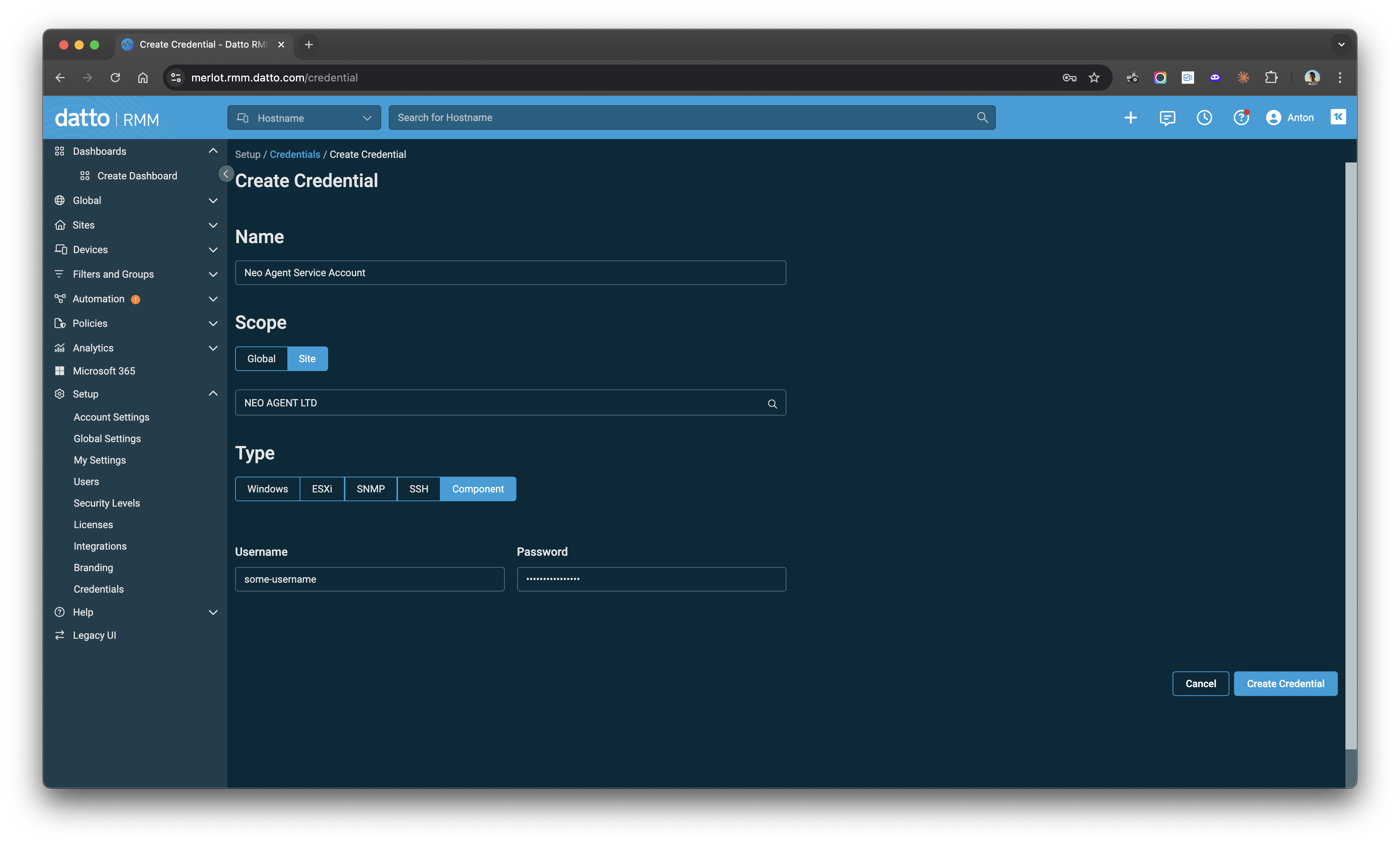
1. In Datto RMM, go to **Setup → Credentials → Create Credential**
2. Enter a **Name** (e.g., "Neo Agent Service Account")
3. Set **Scope** to **Site** and select the client's site
4. Set **Type** to **Component**
5. Enter the service account credentials:
* **Username:** `DOMAIN\neo_ad_automation`
* **Password:** *(the service account password)*
6. Click **Create Credential**
**Step 2: Create credentials for each site**
For each client that uses a runner machine:
1. In Datto RMM, go to **Setup → Credentials → Create Credential**
2. Enter a **Name** (e.g., "Neo Agent Service Account")
3. Set **Scope** to **Site** and select the client's site
4. Set **Type** to **Component**
5. Enter the service account credentials:
* **Username:** `DOMAIN\neo_ad_automation`
* **Password:** *(the service account password)*
6. Click **Create Credential**
 Repeat for each site where Neo uses a runner machine.
### 4. Enable Remote Execution
**Required if:** a target server doesn't have an RMM agent and Neo reaches it remotely from the runner. This applies when:
* The AD Connect server doesn't have an RMM agent (AD Connect Server Hostname differs from AD Runner Hostname)
* The Exchange server doesn't have an RMM agent (an Exchange Runner Hostname is configured)
**On each target server (the one without RMM), complete these steps:**
1. **Enable PowerShell Remoting:**
```powershell theme={null}
Enable-PSRemoting -Force
```
This configures WinRM and opens the necessary firewall rules. See [Microsoft's documentation](https://learn.microsoft.com/en-us/powershell/module/microsoft.powershell.core/enable-psremoting) for details and troubleshooting.
2. **Grant the service account remoting access.** The service account configured in [Component Credentials](#3c-configure-rmm-component-credentials) must be able to establish remote PowerShell sessions to the target server. If the service account is not a Domain Admin, add it to the **Remote Management Users** group on the target server, or grant it WinRM access via Group Policy.
3. **Verify network connectivity** from the runner to the target server on port **5985** (HTTP) or **5986** (HTTPS).
### 5. Configure CredSSP for Exchange Runners
**Required if:** the Exchange server doesn't have an RMM agent and Neo reaches it remotely from the runner. This means:
* You configured an **Exchange Runner Hostname** in [Mailbox Provider Settings](#mailbox-provider-settings)
* The runner and Exchange server are different machines
When the runner remotes into the Exchange server, Exchange cmdlets need to reach Active Directory to perform operations like provisioning mailboxes or modifying user attributes. By default, Windows blocks the service account's credentials from being forwarded beyond that first remote connection — a known limitation called the [Kerberos "double-hop" problem](https://learn.microsoft.com/en-us/powershell/scripting/security/remoting/ps-remoting-second-hop?view=powershell-7.5).
Neo solves this with [CredSSP authentication](https://learn.microsoft.com/en-us/windows/win32/secauthn/credential-security-support-provider). When CredSSP is enabled, Neo forwards the service account's credentials to the Exchange server, allowing Exchange to authenticate directly to AD. No Kerberos delegation configuration is needed.
CredSSP sends the service account's credentials to the remote machine. This is safe when the Exchange server is a trusted, domain-joined server on an internal network — which it always is in this scenario. The service account should have only the minimum permissions required.
**Step 1: Enter the service account credentials in Neo.**
In the [Companies tab](https://dashboard.neoagent.io/end-companies), edit the company and fill in:
* **Exchange Service Account Username** — e.g., `CONTOSO\SVC_NEO_AUTOMATION`
* **Service Account Password**
Neo stores the password securely in Azure Key Vault and injects it into the script only at execution time.
**Step 2: Enable CredSSP on the runner (client role).**
On the runner machine, open PowerShell as Administrator:
```powershell theme={null}
Enable-WSManCredSSP -Role Client -DelegateComputer "EXCHANGE-SHORT","EXCHANGE-FQDN","*.yourdomain.com" -Force
```
Replace `EXCHANGE-SHORT` with the Exchange server's short hostname, `EXCHANGE-FQDN` with its FQDN, and `*.yourdomain.com` with your domain's wildcard. Including all three forms prevents hostname resolution mismatches.
**Step 3: Enable CredSSP on the Exchange server (server role).**
On the Exchange server, open PowerShell as Administrator:
```powershell theme={null}
Enable-WSManCredSSP -Role Server -Force
```
**Step 4: Verify CredSSP is working.**
On the runner, open a PowerShell prompt as the service account:
```powershell theme={null}
runas /user:DOMAIN\your_service_account powershell
```
Then test the full chain:
```powershell theme={null}
$password = ConvertTo-SecureString 'YOUR_PASSWORD' -AsPlainText -Force
$cred = New-Object System.Management.Automation.PSCredential('DOMAIN\your_service_account', $password)
Invoke-Command -ComputerName "EXCHANGE-SERVER" -Authentication CredSSP -Credential $cred -ScriptBlock {
Add-PSSnapin Microsoft.Exchange.Management.PowerShell.SnapIn
Get-ExchangeServer | Select-Object Name
}
```
This tests the full chain: Runner → Exchange (via CredSSP) → Active Directory. `Get-ExchangeServer` requires Exchange to query AD, so if it returns the server name, CredSSP is working end-to-end.
* If it **succeeds** — CredSSP is configured correctly.
* If it fails with **"A computer policy does not allow the delegation of the user credentials"** — re-run Step 2 with the correct hostname forms, including the wildcard.
* If it fails with a **permissions error** — CredSSP is working, but the service account may lack [Exchange permissions](#3b-create-a-dedicated-service-account).
### 6. Verify Connectivity
After completing setup, run these checks from the runner machine (or the DC if using direct execution) to confirm everything is working.
#### Neo API connectivity
The machine running scripts must be able to reach the Neo API. Run:
```powershell theme={null}
[Net.ServicePointManager]::SecurityProtocol = [Net.SecurityProtocolType]::Tls12
Invoke-WebRequest -Uri "https://engine.neoagent.io" -UseBasicParsing
```
**Expected result:** `401 Unauthorized` — this confirms the server can reach Neo over HTTPS. If you see an SSL error or timeout, see [Troubleshooting](#troubleshooting).
#### AD tools (if using on-prem AD)
Verify the runner has the AD PowerShell module and can query the domain:
```powershell theme={null}
Import-Module ActiveDirectory
Get-ADUser -Filter * -ResultSetSize 1
```
Both commands should complete without errors.
#### Remote execution (if applicable)
If the AD Connect server or Exchange server is reached via [remote execution](#4-enable-remote-execution), verify connectivity from the runner under the service account:
```powershell theme={null}
# Test AD Connect server
Invoke-Command -ComputerName "AD-CONNECT-SERVER" -ScriptBlock { hostname }
# Test Exchange server
Invoke-Command -ComputerName "EXCHANGE-SERVER" -ScriptBlock { hostname }
```
Each command should return the target server's hostname. If it fails, check:
* PowerShell Remoting is enabled on the target (`Enable-PSRemoting -Force`)
* The service account is in the **Remote Management Users** group on the target
* Port **5985** or **5986** is open between the runner and the target
***
## Exchange Hybrid
Use **Exchange Hybrid** when a client has both on-prem Exchange and Exchange Online — typically during a migration or in long-term coexistence.
**How Neo routes operations:**
* **Standard mailbox operations** (forwarding, delegation, shared mailbox conversion, permissions, etc.) route to **Exchange Online** via Microsoft Graph — the same as pure Exchange Online clients.
* **On-prem Exchange cmdlets** (e.g., `Enable-RemoteMailbox` for hybrid mailbox provisioning) are executed on the on-prem Exchange server when Neo's agent determines they're needed.
**Setup:**
1. Set **Mailbox Provider Type** to "Exchange Hybrid" in [Company Settings](#1-configure-company-settings)
2. Set the **Exchange Server Hostname** to the on-prem Exchange server
3. *(Optional)* Set the **Exchange Runner Hostname** if the Exchange server doesn't have an RMM agent — then complete [Step 3](#3-set-up-a-runner-machine), [Step 4](#4-enable-remote-execution), and [Step 5](#5-configure-credssp-for-exchange-runners)
If you already have a runner VM for AD operations, you can reuse it as the Exchange Runner — just set the **Exchange Runner Hostname** to the same machine and ensure the service account has the necessary [Exchange permissions](#3b-create-a-dedicated-service-account).
***
## Troubleshooting
### "The supplied credential is invalid" on Exchange Runner
**Symptom:** Exchange operations (e.g., `Enable-RemoteMailbox`) fail with:
```
Active Directory operation failed on . The supplied credential for 'DOMAIN\service_account' is invalid.
```
**Cause:** This is the [Kerberos "double-hop" problem](https://learn.microsoft.com/en-us/powershell/scripting/security/remoting/ps-remoting-second-hop?view=powershell-7.5). When Neo remotes from the runner to the Exchange server, Windows blocks the service account's credential from being forwarded to Active Directory. The credential itself is valid — Windows is blocking the delegation.
**How to tell:** If the same service account works for AD operations (password resets, user creation, group changes) but fails only for Exchange commands via a runner, this is the double-hop issue.
**Fix:** Configure CredSSP authentication. See [Step 5](#5-configure-credssp-for-exchange-runners) for instructions. Ensure the service account username and password are entered in the [Company Settings](#1-configure-company-settings).
**Still failing after configuring CredSSP?** Check these common issues:
* **CredSSP client not configured:** Run `Get-WSManCredSSP` on the runner — it should show CredSSP is enabled as a client with the Exchange server in the delegate list.
* **CredSSP server not configured:** Run `Get-WSManCredSSP` on the Exchange server — it should show CredSSP is enabled as a server.
* **GPO blocking delegation:** If you see "A computer policy does not allow the delegation of the user credentials", re-run `Enable-WSManCredSSP -Role Client` on the runner with the FQDN, short hostname, AND domain wildcard forms.
* **Wrong password in Neo:** Verify the service account password in the Companies tab is correct.
### SSL/TLS Certificate Trust Error
**Symptom:** RMM scripts fail with an error like:
```
The underlying connection was closed: Could not establish trust relationship for the SSL/TLS secure channel.
```
**Cause:** The server running Neo scripts cannot establish SSL trust with `engine.neoagent.io`. This typically happens on older Windows servers with outdated root certificates.
**Diagnose:** Run this on the affected server:
```powershell theme={null}
[Net.ServicePointManager]::SecurityProtocol = [Net.SecurityProtocolType]::Tls12
Invoke-WebRequest -Uri "https://engine.neoagent.io" -UseBasicParsing
```
* **Expected result:** 401 Unauthorized (confirms SSL/TLS is working)
* **If you see an SSL error:** The server's certificate store needs updating
**Fix:**
1. **Update Windows root certificates** — Install the latest Windows updates, or manually update certificates:
```powershell theme={null}
certutil -generateSSTFromWU roots.sst
certutil -addstore -f Root roots.sst
```
2. **Check TLS 1.2 is enabled** — Verify in registry:
```
HKLM:\SYSTEM\CurrentControlSet\Control\SecurityProviders\SCHANNEL\Protocols\TLS 1.2
```
3. **Check server clock** — Certificate validation fails if the system time is significantly off
4. **Check for proxy/firewall interference** — Some security appliances intercept HTTPS traffic and can break certificate chains
### No Internet Access / Firewall Blocking
**Symptom:** RMM scripts fail with connection errors, timeouts, or "Unable to connect to the remote server."
**Cause:** The server running Neo scripts cannot reach the Neo API endpoint due to no internet access or firewall restrictions.
**Fix:** Ensure the server can reach `https://engine.neoagent.io`. Add a firewall rule to allow outbound HTTPS (port 443) to this endpoint.
**Diagnose:** Run this on the affected server:
```powershell theme={null}
[Net.ServicePointManager]::SecurityProtocol = [Net.SecurityProtocolType]::Tls12
Invoke-WebRequest -Uri "https://engine.neoagent.io" -UseBasicParsing
```
* **Expected result:** 401 Unauthorized (confirms connectivity is working)
* **If you see a connection/timeout error:** The server cannot reach the endpoint — check firewall rules and proxy settings
***
## Other RMM Platforms
Neo supports on-prem execution through any RMM platform that can run PowerShell scripts, including:
* N-Able N-Sight RMM
* N-Able N-Central
* ConnectWise RMM (Asio)
Using an RMM other than Datto, NinjaOne, ConnectWise Automate, or Kaseya VSA X? Reach out to us in Teams and we'll help you get set up.
Repeat for each site where Neo uses a runner machine.
### 4. Enable Remote Execution
**Required if:** a target server doesn't have an RMM agent and Neo reaches it remotely from the runner. This applies when:
* The AD Connect server doesn't have an RMM agent (AD Connect Server Hostname differs from AD Runner Hostname)
* The Exchange server doesn't have an RMM agent (an Exchange Runner Hostname is configured)
**On each target server (the one without RMM), complete these steps:**
1. **Enable PowerShell Remoting:**
```powershell theme={null}
Enable-PSRemoting -Force
```
This configures WinRM and opens the necessary firewall rules. See [Microsoft's documentation](https://learn.microsoft.com/en-us/powershell/module/microsoft.powershell.core/enable-psremoting) for details and troubleshooting.
2. **Grant the service account remoting access.** The service account configured in [Component Credentials](#3c-configure-rmm-component-credentials) must be able to establish remote PowerShell sessions to the target server. If the service account is not a Domain Admin, add it to the **Remote Management Users** group on the target server, or grant it WinRM access via Group Policy.
3. **Verify network connectivity** from the runner to the target server on port **5985** (HTTP) or **5986** (HTTPS).
### 5. Configure CredSSP for Exchange Runners
**Required if:** the Exchange server doesn't have an RMM agent and Neo reaches it remotely from the runner. This means:
* You configured an **Exchange Runner Hostname** in [Mailbox Provider Settings](#mailbox-provider-settings)
* The runner and Exchange server are different machines
When the runner remotes into the Exchange server, Exchange cmdlets need to reach Active Directory to perform operations like provisioning mailboxes or modifying user attributes. By default, Windows blocks the service account's credentials from being forwarded beyond that first remote connection — a known limitation called the [Kerberos "double-hop" problem](https://learn.microsoft.com/en-us/powershell/scripting/security/remoting/ps-remoting-second-hop?view=powershell-7.5).
Neo solves this with [CredSSP authentication](https://learn.microsoft.com/en-us/windows/win32/secauthn/credential-security-support-provider). When CredSSP is enabled, Neo forwards the service account's credentials to the Exchange server, allowing Exchange to authenticate directly to AD. No Kerberos delegation configuration is needed.
CredSSP sends the service account's credentials to the remote machine. This is safe when the Exchange server is a trusted, domain-joined server on an internal network — which it always is in this scenario. The service account should have only the minimum permissions required.
**Step 1: Enter the service account credentials in Neo.**
In the [Companies tab](https://dashboard.neoagent.io/end-companies), edit the company and fill in:
* **Exchange Service Account Username** — e.g., `CONTOSO\SVC_NEO_AUTOMATION`
* **Service Account Password**
Neo stores the password securely in Azure Key Vault and injects it into the script only at execution time.
**Step 2: Enable CredSSP on the runner (client role).**
On the runner machine, open PowerShell as Administrator:
```powershell theme={null}
Enable-WSManCredSSP -Role Client -DelegateComputer "EXCHANGE-SHORT","EXCHANGE-FQDN","*.yourdomain.com" -Force
```
Replace `EXCHANGE-SHORT` with the Exchange server's short hostname, `EXCHANGE-FQDN` with its FQDN, and `*.yourdomain.com` with your domain's wildcard. Including all three forms prevents hostname resolution mismatches.
**Step 3: Enable CredSSP on the Exchange server (server role).**
On the Exchange server, open PowerShell as Administrator:
```powershell theme={null}
Enable-WSManCredSSP -Role Server -Force
```
**Step 4: Verify CredSSP is working.**
On the runner, open a PowerShell prompt as the service account:
```powershell theme={null}
runas /user:DOMAIN\your_service_account powershell
```
Then test the full chain:
```powershell theme={null}
$password = ConvertTo-SecureString 'YOUR_PASSWORD' -AsPlainText -Force
$cred = New-Object System.Management.Automation.PSCredential('DOMAIN\your_service_account', $password)
Invoke-Command -ComputerName "EXCHANGE-SERVER" -Authentication CredSSP -Credential $cred -ScriptBlock {
Add-PSSnapin Microsoft.Exchange.Management.PowerShell.SnapIn
Get-ExchangeServer | Select-Object Name
}
```
This tests the full chain: Runner → Exchange (via CredSSP) → Active Directory. `Get-ExchangeServer` requires Exchange to query AD, so if it returns the server name, CredSSP is working end-to-end.
* If it **succeeds** — CredSSP is configured correctly.
* If it fails with **"A computer policy does not allow the delegation of the user credentials"** — re-run Step 2 with the correct hostname forms, including the wildcard.
* If it fails with a **permissions error** — CredSSP is working, but the service account may lack [Exchange permissions](#3b-create-a-dedicated-service-account).
### 6. Verify Connectivity
After completing setup, run these checks from the runner machine (or the DC if using direct execution) to confirm everything is working.
#### Neo API connectivity
The machine running scripts must be able to reach the Neo API. Run:
```powershell theme={null}
[Net.ServicePointManager]::SecurityProtocol = [Net.SecurityProtocolType]::Tls12
Invoke-WebRequest -Uri "https://engine.neoagent.io" -UseBasicParsing
```
**Expected result:** `401 Unauthorized` — this confirms the server can reach Neo over HTTPS. If you see an SSL error or timeout, see [Troubleshooting](#troubleshooting).
#### AD tools (if using on-prem AD)
Verify the runner has the AD PowerShell module and can query the domain:
```powershell theme={null}
Import-Module ActiveDirectory
Get-ADUser -Filter * -ResultSetSize 1
```
Both commands should complete without errors.
#### Remote execution (if applicable)
If the AD Connect server or Exchange server is reached via [remote execution](#4-enable-remote-execution), verify connectivity from the runner under the service account:
```powershell theme={null}
# Test AD Connect server
Invoke-Command -ComputerName "AD-CONNECT-SERVER" -ScriptBlock { hostname }
# Test Exchange server
Invoke-Command -ComputerName "EXCHANGE-SERVER" -ScriptBlock { hostname }
```
Each command should return the target server's hostname. If it fails, check:
* PowerShell Remoting is enabled on the target (`Enable-PSRemoting -Force`)
* The service account is in the **Remote Management Users** group on the target
* Port **5985** or **5986** is open between the runner and the target
***
## Exchange Hybrid
Use **Exchange Hybrid** when a client has both on-prem Exchange and Exchange Online — typically during a migration or in long-term coexistence.
**How Neo routes operations:**
* **Standard mailbox operations** (forwarding, delegation, shared mailbox conversion, permissions, etc.) route to **Exchange Online** via Microsoft Graph — the same as pure Exchange Online clients.
* **On-prem Exchange cmdlets** (e.g., `Enable-RemoteMailbox` for hybrid mailbox provisioning) are executed on the on-prem Exchange server when Neo's agent determines they're needed.
**Setup:**
1. Set **Mailbox Provider Type** to "Exchange Hybrid" in [Company Settings](#1-configure-company-settings)
2. Set the **Exchange Server Hostname** to the on-prem Exchange server
3. *(Optional)* Set the **Exchange Runner Hostname** if the Exchange server doesn't have an RMM agent — then complete [Step 3](#3-set-up-a-runner-machine), [Step 4](#4-enable-remote-execution), and [Step 5](#5-configure-credssp-for-exchange-runners)
If you already have a runner VM for AD operations, you can reuse it as the Exchange Runner — just set the **Exchange Runner Hostname** to the same machine and ensure the service account has the necessary [Exchange permissions](#3b-create-a-dedicated-service-account).
***
## Troubleshooting
### "The supplied credential is invalid" on Exchange Runner
**Symptom:** Exchange operations (e.g., `Enable-RemoteMailbox`) fail with:
```
Active Directory operation failed on . The supplied credential for 'DOMAIN\service_account' is invalid.
```
**Cause:** This is the [Kerberos "double-hop" problem](https://learn.microsoft.com/en-us/powershell/scripting/security/remoting/ps-remoting-second-hop?view=powershell-7.5). When Neo remotes from the runner to the Exchange server, Windows blocks the service account's credential from being forwarded to Active Directory. The credential itself is valid — Windows is blocking the delegation.
**How to tell:** If the same service account works for AD operations (password resets, user creation, group changes) but fails only for Exchange commands via a runner, this is the double-hop issue.
**Fix:** Configure CredSSP authentication. See [Step 5](#5-configure-credssp-for-exchange-runners) for instructions. Ensure the service account username and password are entered in the [Company Settings](#1-configure-company-settings).
**Still failing after configuring CredSSP?** Check these common issues:
* **CredSSP client not configured:** Run `Get-WSManCredSSP` on the runner — it should show CredSSP is enabled as a client with the Exchange server in the delegate list.
* **CredSSP server not configured:** Run `Get-WSManCredSSP` on the Exchange server — it should show CredSSP is enabled as a server.
* **GPO blocking delegation:** If you see "A computer policy does not allow the delegation of the user credentials", re-run `Enable-WSManCredSSP -Role Client` on the runner with the FQDN, short hostname, AND domain wildcard forms.
* **Wrong password in Neo:** Verify the service account password in the Companies tab is correct.
### SSL/TLS Certificate Trust Error
**Symptom:** RMM scripts fail with an error like:
```
The underlying connection was closed: Could not establish trust relationship for the SSL/TLS secure channel.
```
**Cause:** The server running Neo scripts cannot establish SSL trust with `engine.neoagent.io`. This typically happens on older Windows servers with outdated root certificates.
**Diagnose:** Run this on the affected server:
```powershell theme={null}
[Net.ServicePointManager]::SecurityProtocol = [Net.SecurityProtocolType]::Tls12
Invoke-WebRequest -Uri "https://engine.neoagent.io" -UseBasicParsing
```
* **Expected result:** 401 Unauthorized (confirms SSL/TLS is working)
* **If you see an SSL error:** The server's certificate store needs updating
**Fix:**
1. **Update Windows root certificates** — Install the latest Windows updates, or manually update certificates:
```powershell theme={null}
certutil -generateSSTFromWU roots.sst
certutil -addstore -f Root roots.sst
```
2. **Check TLS 1.2 is enabled** — Verify in registry:
```
HKLM:\SYSTEM\CurrentControlSet\Control\SecurityProviders\SCHANNEL\Protocols\TLS 1.2
```
3. **Check server clock** — Certificate validation fails if the system time is significantly off
4. **Check for proxy/firewall interference** — Some security appliances intercept HTTPS traffic and can break certificate chains
### No Internet Access / Firewall Blocking
**Symptom:** RMM scripts fail with connection errors, timeouts, or "Unable to connect to the remote server."
**Cause:** The server running Neo scripts cannot reach the Neo API endpoint due to no internet access or firewall restrictions.
**Fix:** Ensure the server can reach `https://engine.neoagent.io`. Add a firewall rule to allow outbound HTTPS (port 443) to this endpoint.
**Diagnose:** Run this on the affected server:
```powershell theme={null}
[Net.ServicePointManager]::SecurityProtocol = [Net.SecurityProtocolType]::Tls12
Invoke-WebRequest -Uri "https://engine.neoagent.io" -UseBasicParsing
```
* **Expected result:** 401 Unauthorized (confirms connectivity is working)
* **If you see a connection/timeout error:** The server cannot reach the endpoint — check firewall rules and proxy settings
***
## Other RMM Platforms
Neo supports on-prem execution through any RMM platform that can run PowerShell scripts, including:
* N-Able N-Sight RMM
* N-Able N-Central
* ConnectWise RMM (Asio)
Using an RMM other than Datto, NinjaOne, ConnectWise Automate, or Kaseya VSA X? Reach out to us in Teams and we'll help you get set up.