> ## Documentation Index
> Fetch the complete documentation index at: https://docs.neoagent.io/llms.txt
> Use this file to discover all available pages before exploring further.
# Cloud
> Connect Microsoft 365 cloud tenants for automation
## How it works
Neo connects to your client Microsoft 365 tenants through the **Neo Automations** app registration. You install this app once per tenant with the necessary permissions, and Neo can then perform automated actions on behalf of your MSP.
The integration uses:
* **Microsoft Graph API** for user management, licensing, and group operations
* **Exchange Online PowerShell** for mailbox and email operations
***
The steps below must be completed for **every** Microsoft tenant you want to connect to Neo.
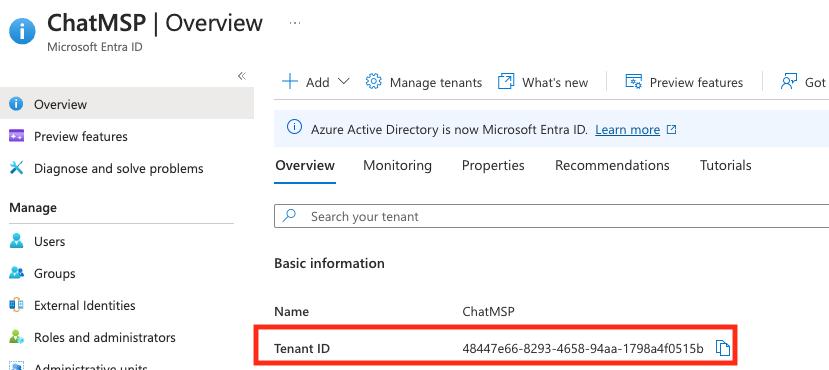
## 1. Find the tenant ID
Use the tenant ID when authenticating the Neo Automations app.
 ## 2. Add the company in Neo Dashboard
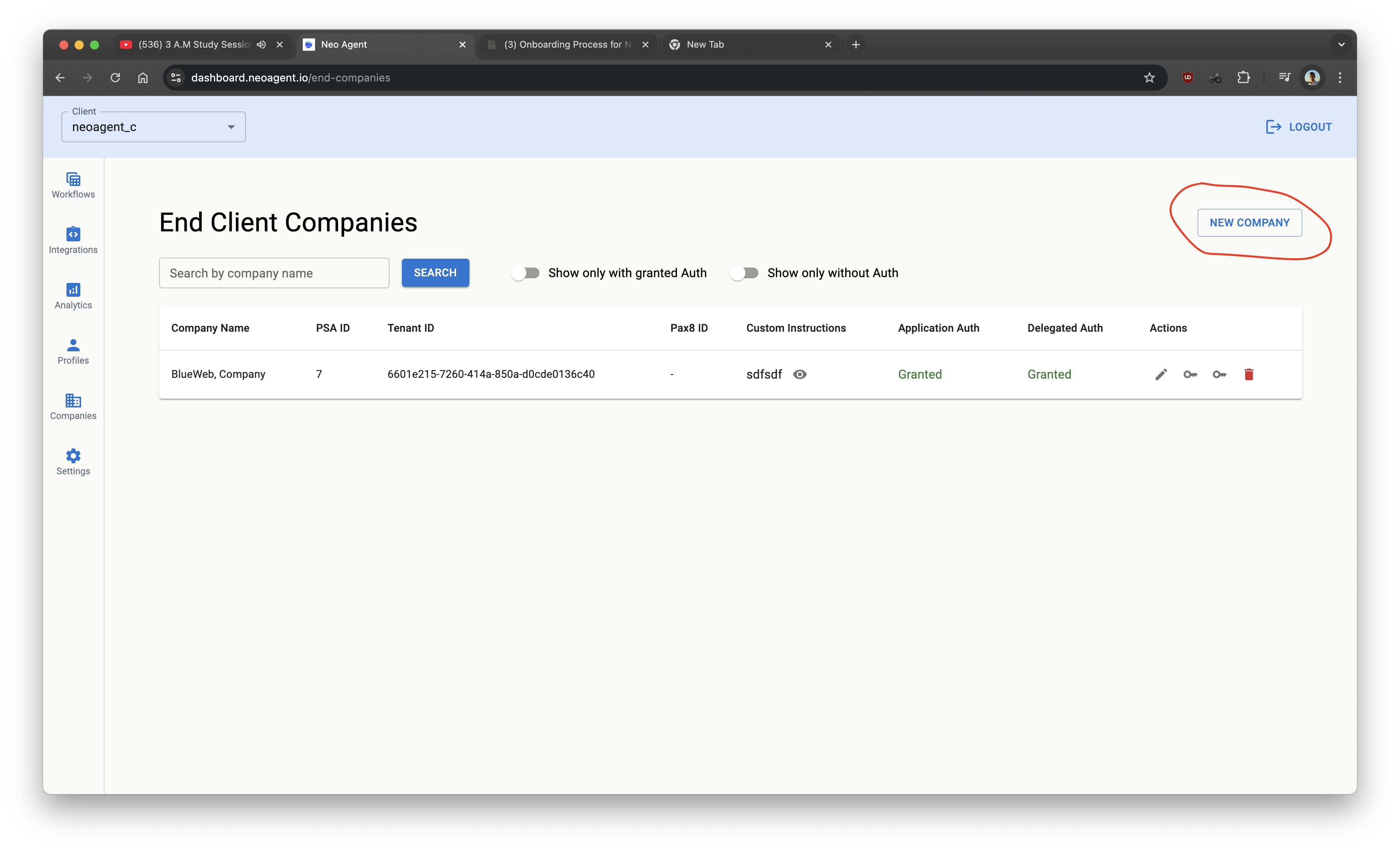
1. Go to `https://dashboard.neoagent.io/end-companies` and select New Company
## 2. Add the company in Neo Dashboard
1. Go to `https://dashboard.neoagent.io/end-companies` and select New Company
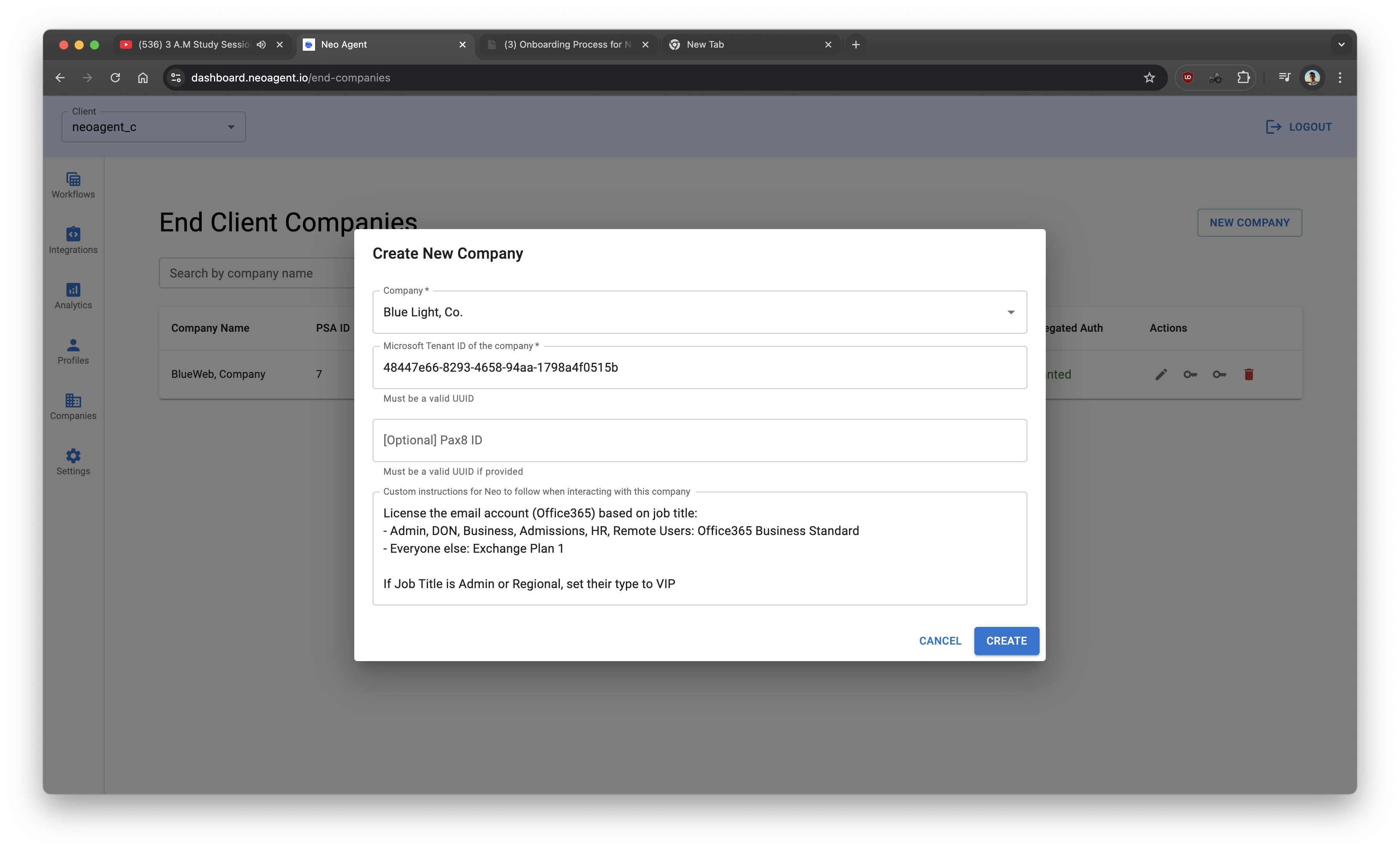
 2. Fill details
* Pax8 is optional (only if you manage Microsoft licenses via Pax8)
* Custom instructions are optional for onboarding/offboarding policies
3. Click Create
2. Fill details
* Pax8 is optional (only if you manage Microsoft licenses via Pax8)
* Custom instructions are optional for onboarding/offboarding policies
3. Click Create
 4. Click both key icons to grant Application and Delegated access to Neo.
* Sign in as a tenant admin with one of: Global administrator, Privileged authentication administrator, Authentication administrator
* Complete the standard Microsoft consent flow
4. Click both key icons to grant Application and Delegated access to Neo.
* Sign in as a tenant admin with one of: Global administrator, Privileged authentication administrator, Authentication administrator
* Complete the standard Microsoft consent flow
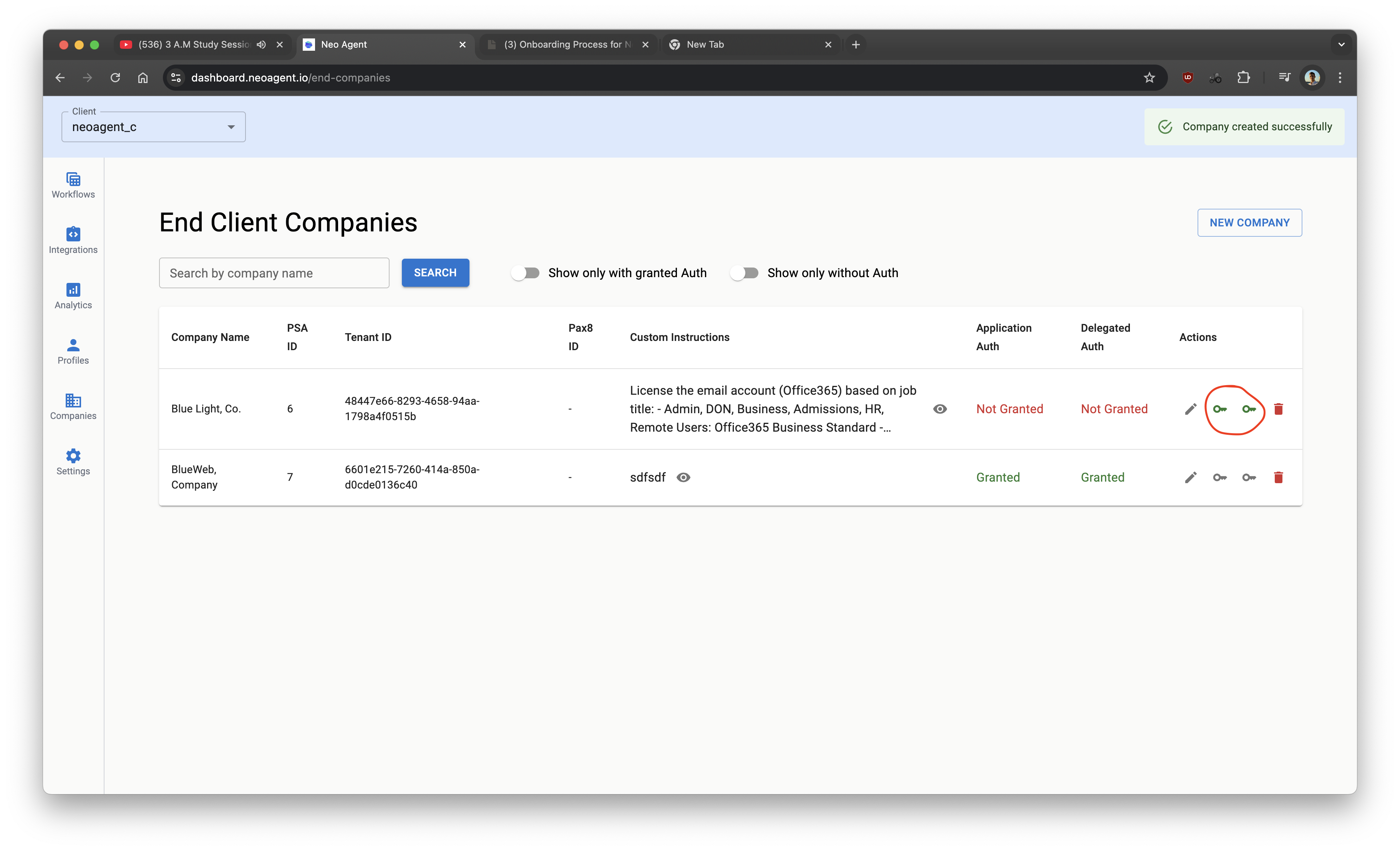 Application access lets Neo perform actions like creating users and assigning licenses.
Delegated access lets Neo perform actions on behalf of a signed-in admin for tasks like password resets and disabling users.
Neo automatically assigns the **Exchange Administrator** role to the Neo Automations app after consent, so mailbox actions (shared mailboxes, forwarding, delegation) work out of the box. No manual role assignment is needed.
Neo keeps delegated access alive automatically. Microsoft expires delegated refresh tokens after 90 days of inactivity, so Neo runs a background job that rotates each tenant's token well inside that window. No MSP action is required to maintain access — if a refresh ever fails terminally (e.g. an admin revoked consent in the Entra portal), Neo will notify you in the dashboard inbox with re-authorization instructions.
## Re-granting access after permission updates
Neo occasionally adds new Microsoft Graph permissions to the Neo Automations app as capabilities expand. A tenant's consent only covers the permissions that existed when access was granted — to pick up additions, re-run the **Grant access** flow (the same key icons) for that company. Existing automation keeps working in the meantime; only the newest capabilities stay unavailable until you re-consent.
For example, tenants consented before June 2026 are missing `User-PasswordProfile.ReadWrite.All`, which lets the agent set a user's password and the *require password change at next sign-in* flag in a single call. Without it, password resets still work through the delegated fallback, but the force-change flag has to be set manually by a technician in the Entra portal.
You've completed permissions. Neo can now perform actions across Microsoft Graph and Exchange Online.
Application access lets Neo perform actions like creating users and assigning licenses.
Delegated access lets Neo perform actions on behalf of a signed-in admin for tasks like password resets and disabling users.
Neo automatically assigns the **Exchange Administrator** role to the Neo Automations app after consent, so mailbox actions (shared mailboxes, forwarding, delegation) work out of the box. No manual role assignment is needed.
Neo keeps delegated access alive automatically. Microsoft expires delegated refresh tokens after 90 days of inactivity, so Neo runs a background job that rotates each tenant's token well inside that window. No MSP action is required to maintain access — if a refresh ever fails terminally (e.g. an admin revoked consent in the Entra portal), Neo will notify you in the dashboard inbox with re-authorization instructions.
## Re-granting access after permission updates
Neo occasionally adds new Microsoft Graph permissions to the Neo Automations app as capabilities expand. A tenant's consent only covers the permissions that existed when access was granted — to pick up additions, re-run the **Grant access** flow (the same key icons) for that company. Existing automation keeps working in the meantime; only the newest capabilities stay unavailable until you re-consent.
For example, tenants consented before June 2026 are missing `User-PasswordProfile.ReadWrite.All`, which lets the agent set a user's password and the *require password change at next sign-in* flag in a single call. Without it, password resets still work through the delegated fallback, but the force-change flag has to be set manually by a technician in the Entra portal.
You've completed permissions. Neo can now perform actions across Microsoft Graph and Exchange Online.