> ## Documentation Index
> Fetch the complete documentation index at: https://docs.neoagent.io/llms.txt
> Use this file to discover all available pages before exploring further.
# Lexful
> Connect Lexful for documentation sync and direct API access from Neo agents
Neo Agent integrates with Lexful to synchronize your documentation and give agents direct API access to your Lexful account. Once connected, Neo indexes every asset type your account holds — documents, configurations, contacts, locations, domains, and any custom types you've defined — so agents can pull the right record while resolving a ticket.
## Connect Lexful
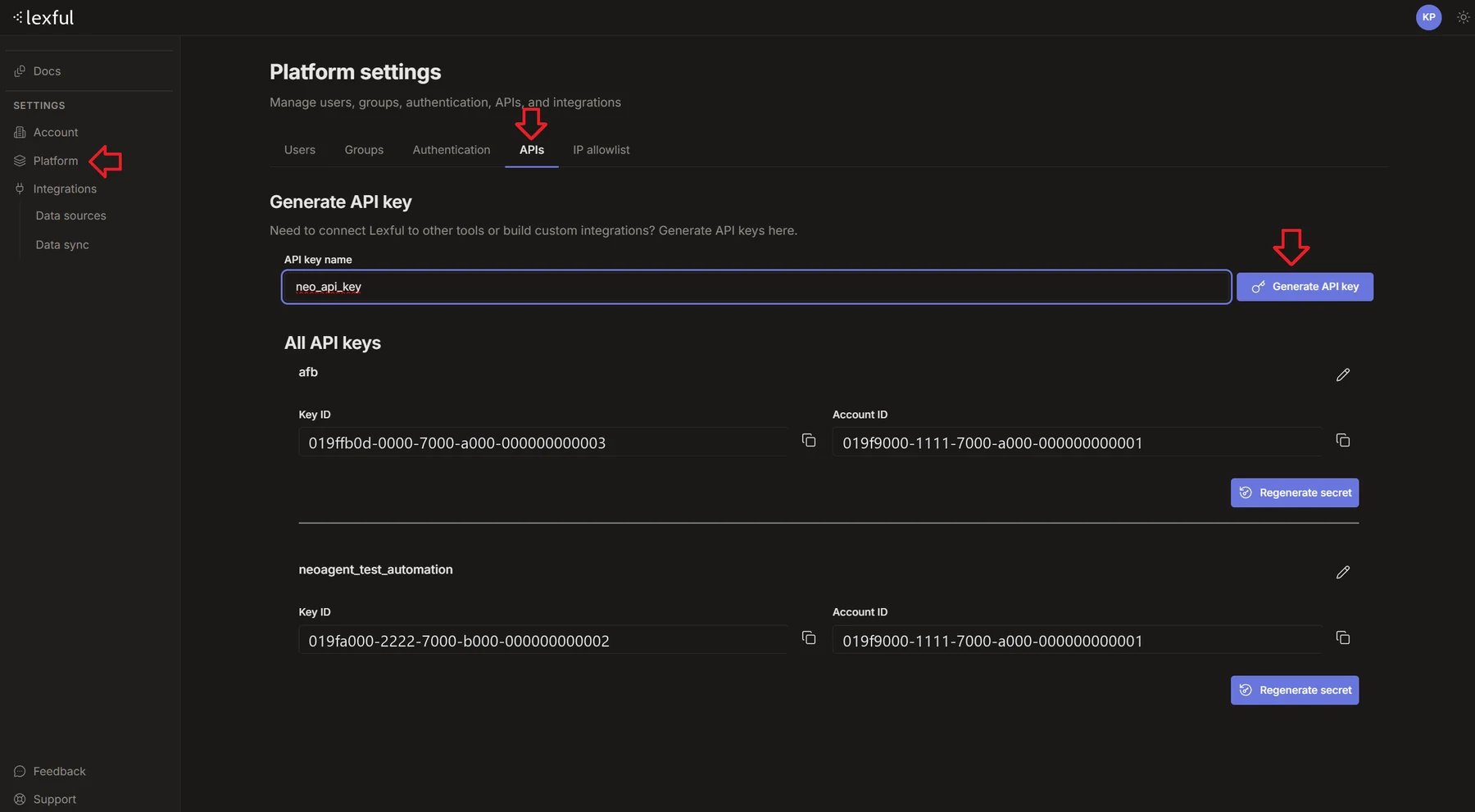
1. In Lexful, open **Settings** → **Platform**, then the **APIs** tab.
2. Under **Generate API key**, give the key a name (for example `neo_api_key`) and click **Generate API key**.
3. Copy the **secret** Lexful shows you. It appears once. If you lose it, use **Regenerate secret** on that key.
4. Under **All API keys**, find your new key and copy its **Key ID** and **Account ID**.
 Documentation sync reads your organizations, asset types, and assets, and nothing else. Agent access uses the same key, so anything you let an agent do in Lexful has to be within that key's reach.
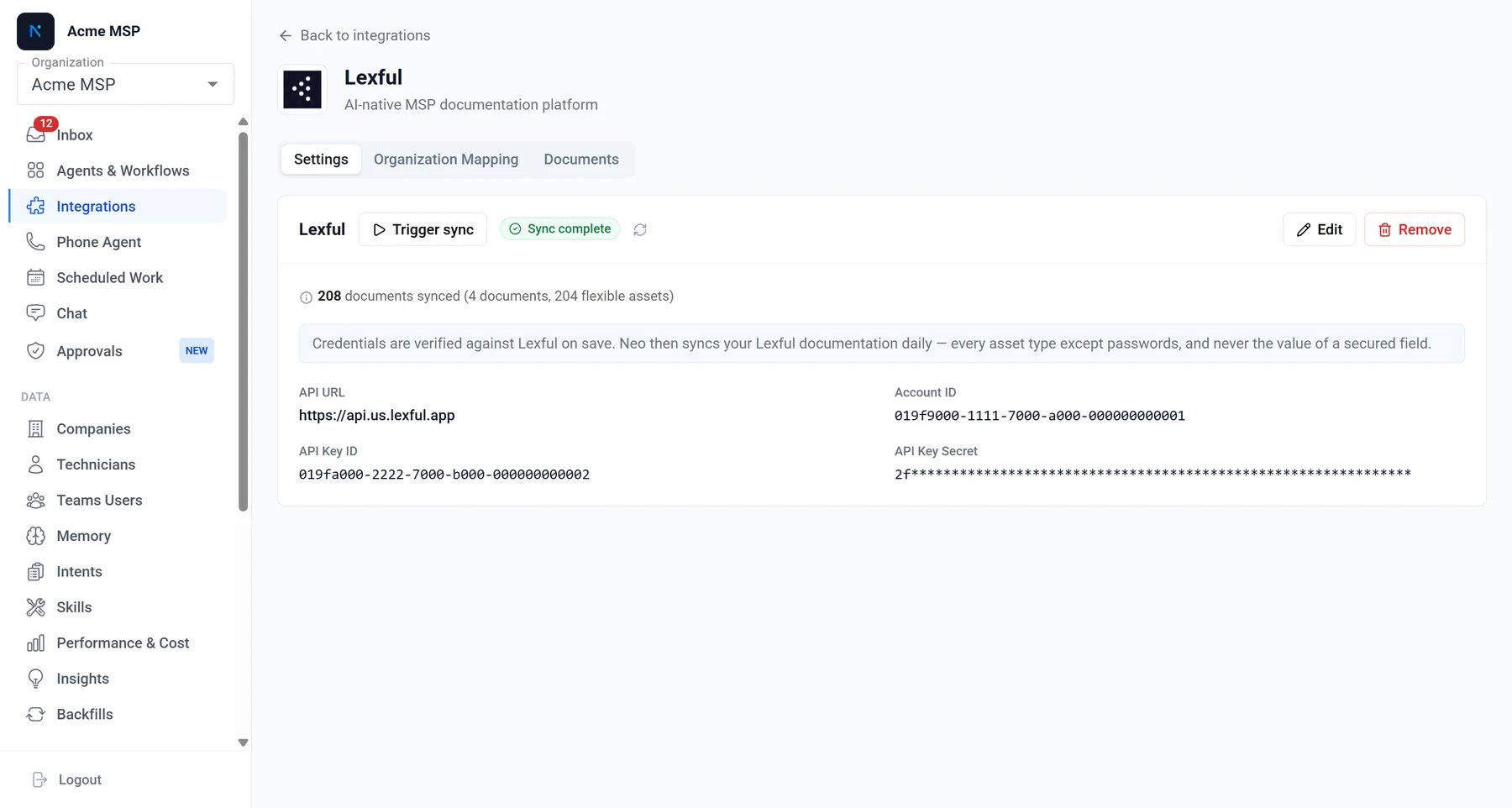
In the Neo Dashboard, open [**Integrations**](https://dashboard.neoagent.io/integrations?open=lexful) → the **Directory** tab → **Documentation**, and click the **Lexful** tile.
Documentation sync reads your organizations, asset types, and assets, and nothing else. Agent access uses the same key, so anything you let an agent do in Lexful has to be within that key's reach.
In the Neo Dashboard, open [**Integrations**](https://dashboard.neoagent.io/integrations?open=lexful) → the **Directory** tab → **Documentation**, and click the **Lexful** tile.
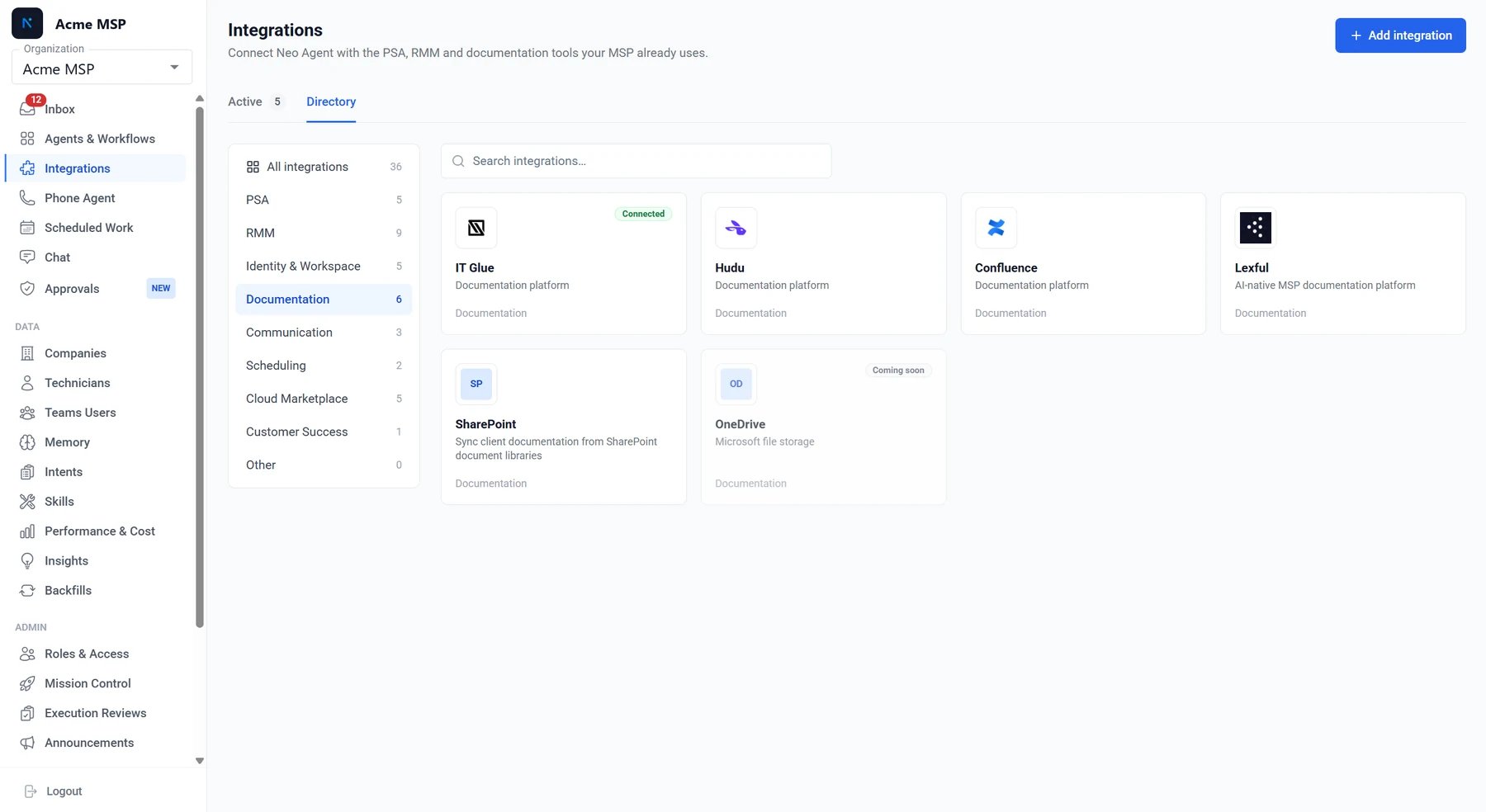 Fill in four values:
| Field | Where it comes from |
| ------------------ | ------------------------------------------------------------------------------------------------------------ |
| **API Key ID** | Shown next to the key in Lexful |
| **API Key Secret** | Shown only once, when the key is created |
| **Account ID** | Your Lexful account identifier |
| **API URL** | Prefilled with `https://api.us.lexful.app`. Change it only if your Lexful API settings show a different host |
Fill in four values:
| Field | Where it comes from |
| ------------------ | ------------------------------------------------------------------------------------------------------------ |
| **API Key ID** | Shown next to the key in Lexful |
| **API Key Secret** | Shown only once, when the key is created |
| **Account ID** | Your Lexful account identifier |
| **API URL** | Prefilled with `https://api.us.lexful.app`. Change it only if your Lexful API settings show a different host |
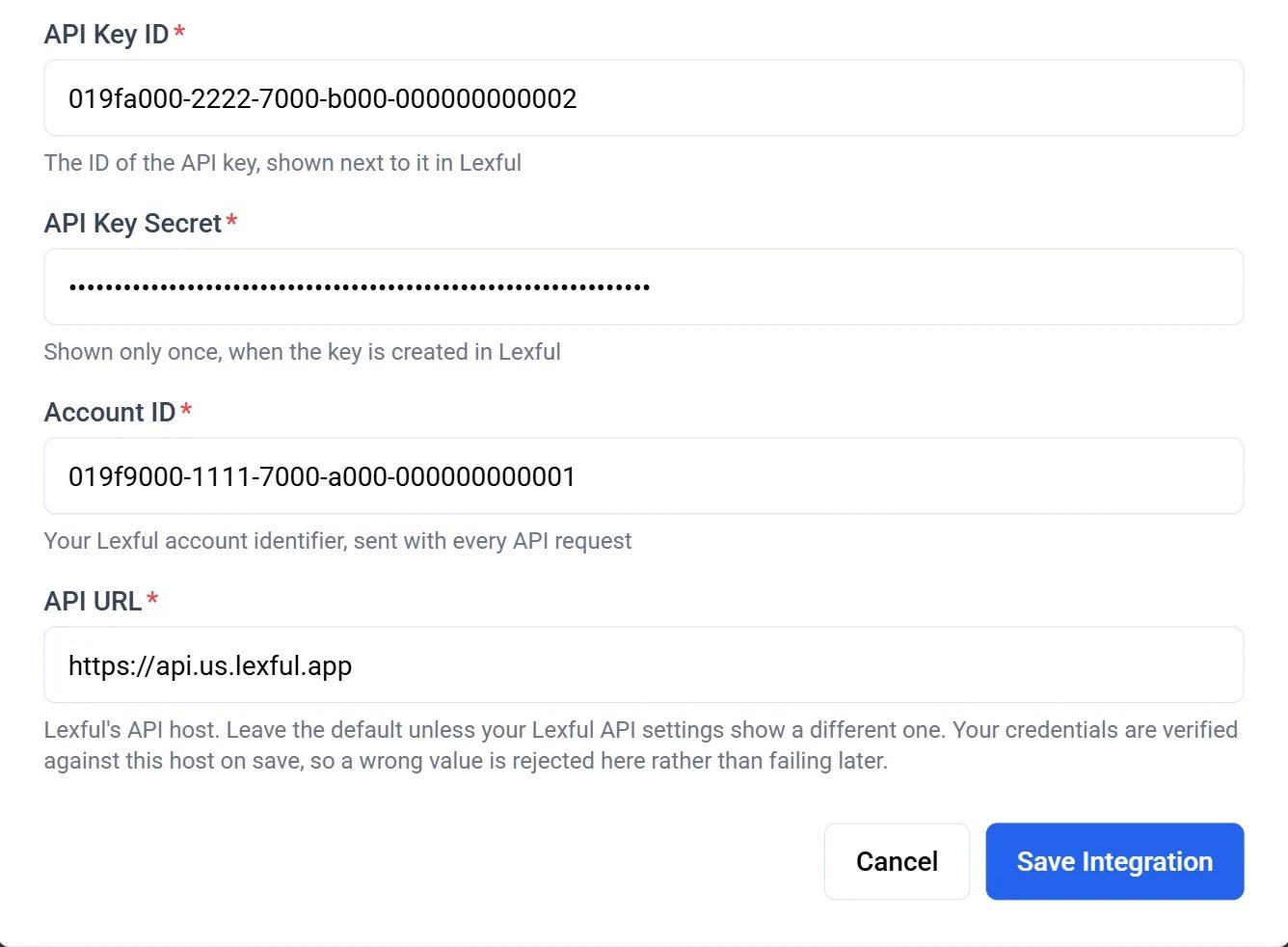 Neo verifies all four against Lexful before it saves them, so a wrong value is refused here rather than failing quietly on the first sync.
Saving the credentials enables Lexful sync and triggers the first run immediately. Syncs then run daily.
Nothing else to switch on. Once the first run finishes, your Lexful content is searchable through the agent's **Find Documentation** tool alongside every other documentation source you've connected.
## What gets synced
Neo reads your asset types from Lexful at the start of every run, rather than working from a fixed list — so a custom asset type you add is picked up on the next sync with no work on either side.
| Content | Status |
| ------------------------------------------------ | -------------------------------------------------------------------------------- |
| **Documents** | Synced — the richtext body is converted to clean text for search |
| **Configurations, Contacts, Locations, Domains** | Synced — every non-secured property on the record |
| **Custom asset types** | Synced, the same way as the built-in ones |
| **Passwords** | Never synced — see below |
| **Secured property values** | Never synced — see below |
| **File attachments** | Not synced — an asset's own properties are indexed, files attached to it are not |
Each indexed record carries a link back to the asset in Lexful, the organization it belongs to, and the name of the person who last changed it.
## What is never synced
Credentials stay in Lexful. Neo's documentation index is shared with end-user-facing search, so anything that is half a credential is kept out of it entirely.
* **The `system.password` asset type is excluded whole** — not only its secret fields. Neo never requests it.
* **Any property Lexful types as `secret` or `totp` is excluded on every asset type** — a location's door code, a custom type's secret field. The exclusion works from the property's type in your Lexful schema, so a new secured field is excluded the day you add it. Neo lists the *names* of an asset's secured properties on the indexed record, so an agent knows a credential exists there, and never the values.
An agent can still read a credential live, if you deliberately allow it — that runs through the [Lexful API tool](/agents/tools/documentation/lexful-api), where it needs its own permission group and technician approval.
## Company mapping
Neo matches your Lexful organizations to companies in your PSA, so documentation is scoped to the right customer in search. Lexful's API carries no PSA identifier, so every match is inferred, in this order:
1. **Exact name** — the organization name matches a PSA company's.
2. **Name without legal suffix** — "Contoso Contractors Ltd" matches "Contoso Contractors".
3. **Website domain** — the organization's website matches the company's, where your PSA records one.
4. **AI match** — a last resort for the long tail the first three miss.
Open the **Organization Mapping** tab on the connected Lexful card to see how each organization resolved, which method matched it, and which ones came back **Unmapped**. You can set or correct a mapping there by hand, and your choice survives every later sync.
Neo verifies all four against Lexful before it saves them, so a wrong value is refused here rather than failing quietly on the first sync.
Saving the credentials enables Lexful sync and triggers the first run immediately. Syncs then run daily.
Nothing else to switch on. Once the first run finishes, your Lexful content is searchable through the agent's **Find Documentation** tool alongside every other documentation source you've connected.
## What gets synced
Neo reads your asset types from Lexful at the start of every run, rather than working from a fixed list — so a custom asset type you add is picked up on the next sync with no work on either side.
| Content | Status |
| ------------------------------------------------ | -------------------------------------------------------------------------------- |
| **Documents** | Synced — the richtext body is converted to clean text for search |
| **Configurations, Contacts, Locations, Domains** | Synced — every non-secured property on the record |
| **Custom asset types** | Synced, the same way as the built-in ones |
| **Passwords** | Never synced — see below |
| **Secured property values** | Never synced — see below |
| **File attachments** | Not synced — an asset's own properties are indexed, files attached to it are not |
Each indexed record carries a link back to the asset in Lexful, the organization it belongs to, and the name of the person who last changed it.
## What is never synced
Credentials stay in Lexful. Neo's documentation index is shared with end-user-facing search, so anything that is half a credential is kept out of it entirely.
* **The `system.password` asset type is excluded whole** — not only its secret fields. Neo never requests it.
* **Any property Lexful types as `secret` or `totp` is excluded on every asset type** — a location's door code, a custom type's secret field. The exclusion works from the property's type in your Lexful schema, so a new secured field is excluded the day you add it. Neo lists the *names* of an asset's secured properties on the indexed record, so an agent knows a credential exists there, and never the values.
An agent can still read a credential live, if you deliberately allow it — that runs through the [Lexful API tool](/agents/tools/documentation/lexful-api), where it needs its own permission group and technician approval.
## Company mapping
Neo matches your Lexful organizations to companies in your PSA, so documentation is scoped to the right customer in search. Lexful's API carries no PSA identifier, so every match is inferred, in this order:
1. **Exact name** — the organization name matches a PSA company's.
2. **Name without legal suffix** — "Contoso Contractors Ltd" matches "Contoso Contractors".
3. **Website domain** — the organization's website matches the company's, where your PSA records one.
4. **AI match** — a last resort for the long tail the first three miss.
Open the **Organization Mapping** tab on the connected Lexful card to see how each organization resolved, which method matched it, and which ones came back **Unmapped**. You can set or correct a mapping there by hand, and your choice survives every later sync.
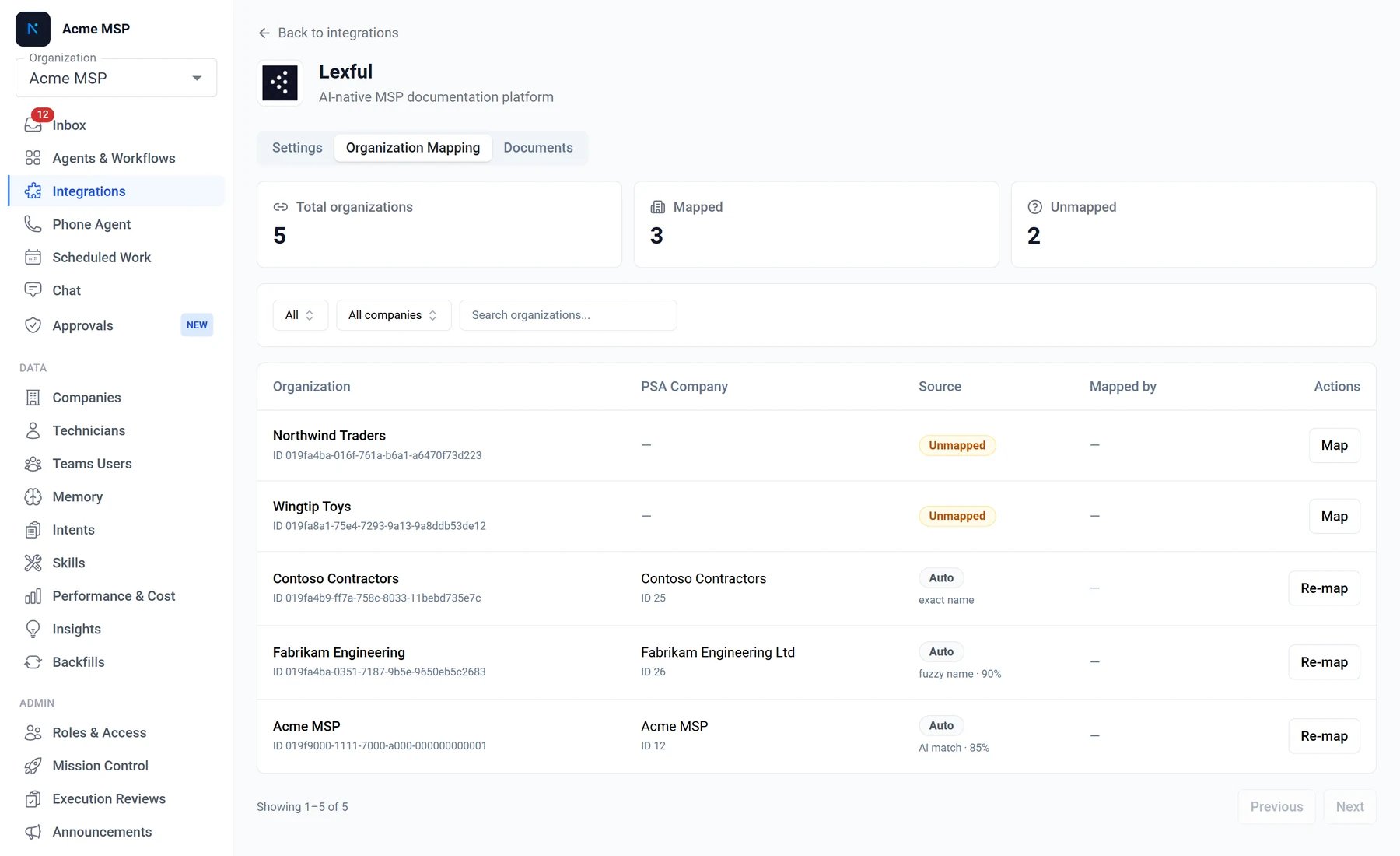 Documents belonging to an unmapped organization are still indexed and still searchable — they simply aren't scoped to a company.
## Re-sync and see what Neo holds
Neo re-syncs Lexful daily. To pull changes in immediately, open the Lexful tile and click **Trigger sync** — the status row shows the current run.
Documents belonging to an unmapped organization are still indexed and still searchable — they simply aren't scoped to a company.
## Re-sync and see what Neo holds
Neo re-syncs Lexful daily. To pull changes in immediately, open the Lexful tile and click **Trigger sync** — the status row shows the current run.
 The **Documents** tab lists what Neo has indexed from Lexful, so you can confirm a record arrived without running a search.
## Agent access to Lexful
Sync makes your documentation searchable. To let an agent read and write Lexful records directly during ticket resolution — live values, non-document asset types, file attachments, or an update it writes back — enable the **Lexful API** tool on the agent and choose its permission groups. See [Lexful API](/agents/tools/documentation/lexful-api).
## Troubleshooting
When a sync can't get what it needs, Neo records it in your dashboard inbox:
* **Lexful refused the request.** Either your API key was rejected, or Neo's IP address isn't allowed. The message names which. A rejected key is fixed in the integration settings; a blocked IP is fixed by adding Neo's addresses under **Settings** → **Platform** → **IP allowlist** in Lexful — see [IP whitelisting](/integrations/ip-whitelisting). Neo also emails your admins if this persists across two consecutive runs.
* **Lexful was unreachable.** The connection timed out or was refused. This is normally a short Lexful outage, so Neo records it without emailing anyone, and the next daily sync recovers on its own. If it persists, check that the API URL in the integration matches the host in your Lexful API settings.
## Security
* Your API key secret is stored in Azure Key Vault, encrypted at rest, and never returned to the dashboard in plaintext.
* Documentation sync only reads from Lexful. Write access is needed for agent actions, never for sync.
* Passwords and secured property values are never indexed, and never leave Lexful through sync.
* Agent write access is opt-in per permission group, and any write that sets a credential requires technician approval.
* All API traffic is over HTTPS.
The **Documents** tab lists what Neo has indexed from Lexful, so you can confirm a record arrived without running a search.
## Agent access to Lexful
Sync makes your documentation searchable. To let an agent read and write Lexful records directly during ticket resolution — live values, non-document asset types, file attachments, or an update it writes back — enable the **Lexful API** tool on the agent and choose its permission groups. See [Lexful API](/agents/tools/documentation/lexful-api).
## Troubleshooting
When a sync can't get what it needs, Neo records it in your dashboard inbox:
* **Lexful refused the request.** Either your API key was rejected, or Neo's IP address isn't allowed. The message names which. A rejected key is fixed in the integration settings; a blocked IP is fixed by adding Neo's addresses under **Settings** → **Platform** → **IP allowlist** in Lexful — see [IP whitelisting](/integrations/ip-whitelisting). Neo also emails your admins if this persists across two consecutive runs.
* **Lexful was unreachable.** The connection timed out or was refused. This is normally a short Lexful outage, so Neo records it without emailing anyone, and the next daily sync recovers on its own. If it persists, check that the API URL in the integration matches the host in your Lexful API settings.
## Security
* Your API key secret is stored in Azure Key Vault, encrypted at rest, and never returned to the dashboard in plaintext.
* Documentation sync only reads from Lexful. Write access is needed for agent actions, never for sync.
* Passwords and secured property values are never indexed, and never leave Lexful through sync.
* Agent write access is opt-in per permission group, and any write that sets a credential requires technician approval.
* All API traffic is over HTTPS.