> ## Documentation Index
> Fetch the complete documentation index at: https://docs.neoagent.io/llms.txt
> Use this file to discover all available pages before exploring further.
# Triggered workflows
> Trigger a workflow on PSA events (ticket created, status changed, time entry posted), and how custom fields / UDFs work in triggers and filters. Covers multiple triggers via OR, run-once-per-ticket, sequential processing, and business-hours / weekend execution windows.
## What it is
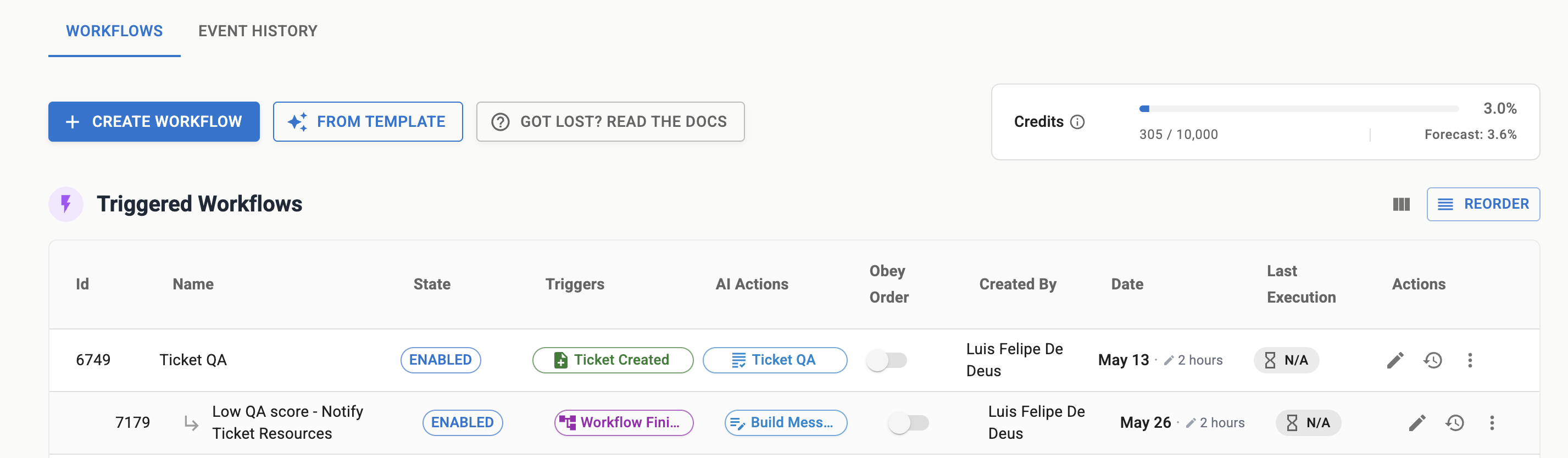
Triggered workflows start automatically when a specific event occurs in your PSA, such as a ticket being created, updated, or closed, or when a time entry is posted. They enable near-real-time automation.
 ## Common use cases
* Auto-assign new incidents by queue, priority, or keywords
* Route after-hours requests to on-call channels
* Add comments when tickets lack required information
* Enforce required fields when closing tickets
## How it runs
Your PSA emits an event (for example, ticket created). NeoAgent receives the event.
Deterministic rules run first, then optional AI filters. If an item matches, the workflow proceeds.
Actions run in order. Use safe ordering (validate, comment, then modify fields) to reduce risk.
Outputs and any errors appear in Event History for traceability.
## Verification
Create a test ticket that matches your filters. Confirm the workflow appears in Event History, and the expected actions completed in sequence.
## Configuration options
Beyond selecting the trigger event, you have several options to fine-tune when and how your triggered workflow executes:
### Multiple triggers
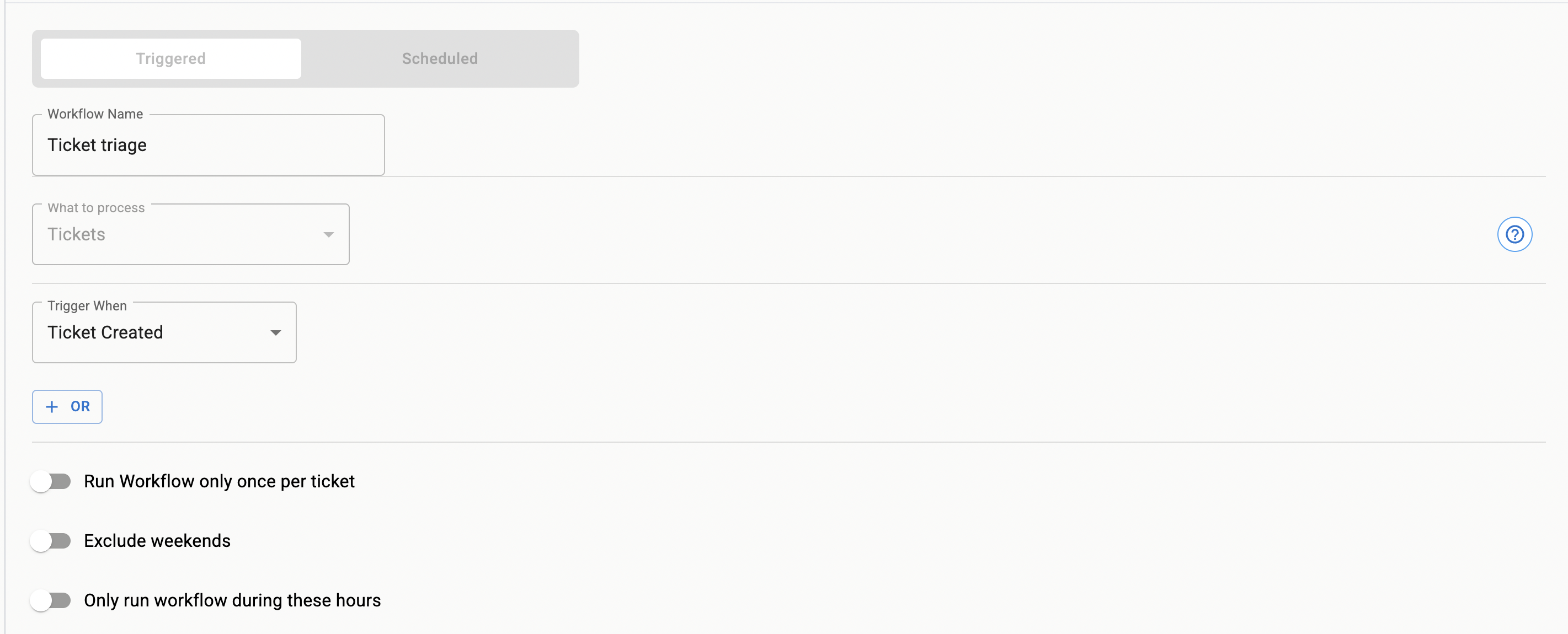
You can define multiple trigger conditions for a ticket using the `+ OR` button. For example, a workflow could run if:
* A ticket is created, OR
* Its status changes to "Pending Customer"
### Run once per ticket
Enable this option to ensure a workflow runs only once for each unique ticket, even if the trigger condition is met multiple times for that same ticket. This prevents repeated executions for the same underlying cause on the same ticket.
### Process entities sequentially
Enable this option to process entities (tickets, time entries, etc.) in the order they are received, one by one. This is crucial for workflows where the outcome of processing one entity can affect how subsequent entities should be handled, or where simultaneous processing could lead to conflicts.
Sequential processing is especially important for ticket dispatch and merge operations where timing and order matter.
Here are some examples where sequential processing is beneficial:
When multiple new tickets arrive around the same time, processing them sequentially ensures that the dispatch logic has the most up-to-date information about technician availability and current workload. This prevents scenarios where multiple tickets are assigned to the same technician simultaneously because the system hasn't yet registered the first assignment.
If two tickets (Ticket A and Ticket B) are created very close in time and are candidates for merging, sequential processing prevents a race condition. Without it, the system might try to merge Ticket A into Ticket B, and simultaneously merge Ticket B into Ticket A, leading to errors or an inconsistent state.
### Execution window
* **Exclude weekends**: Prevent the workflow from running on Saturdays and Sundays
* **Only run during these hours**: Define a specific time window (e.g., 9:00 AM to 5:00 PM) during which the workflow is allowed to execute. If a trigger event occurs outside these hours, it will be ignored
* **Timezone**: Specify the timezone that the "Exclude Weekends" and "Only run during these hours" restrictions should adhere to. This ensures consistent behavior across different geographical locations
## Supported trigger events
A triggered workflow fires on one of a fixed set of PSA events. When you configure a trigger, you choose from:
* **Ticket created**
* **Ticket updated** — any change, or narrowed to a change of one **standard field**: status, priority, board / queue, or ticket type
* **Customer replied** to the ticket
* **Technician replied** to the customer
* **Note added** to the ticket
* **Time entry created** on the ticket (see [Time entry triggers](/core/triggers-and-schedules/advanced-time-entry-triggers))
* **Another workflow finished** — chain one workflow off another
This list is exhaustive: if an event isn't on it, Neo can't trigger on it.
### Custom fields and UDFs are not trigger events
There is no "custom field changed" trigger, and a custom field / UDF cannot be the standard field that narrows a **Ticket updated** trigger — that is limited to status, priority, board / queue, and type.
To act on a custom field, trigger on **Ticket created** or **Ticket updated** and add a **filter condition** on it. Filter conditions match any PSA field by its exact name, including custom fields and UDFs — see [Filter tickets](/core/filter-tickets) and the [Configuration reference](/core/configuration-reference).
A filter condition checks a custom field's **current value** (for example, `My UDF equals "Yes"`) — it does not detect that the field just changed. A **Ticket updated** trigger with a UDF filter runs whenever the ticket is updated and the UDF currently matches, not only when the UDF itself was the field that changed.
## Gotchas and tips
When multiple workflows target the same field, set clear ordering and use conditions to prevent ping-pong updates.
Design actions so re-running them is safe. Use markers like labels or comments to detect previous runs.
Start with a tight scope (specific queue or company) to validate. Expand only after consistent results.
If required fields are absent, prefer commenting and requesting info rather than failing silently.
## Visual confirmation
## Common use cases
* Auto-assign new incidents by queue, priority, or keywords
* Route after-hours requests to on-call channels
* Add comments when tickets lack required information
* Enforce required fields when closing tickets
## How it runs
Your PSA emits an event (for example, ticket created). NeoAgent receives the event.
Deterministic rules run first, then optional AI filters. If an item matches, the workflow proceeds.
Actions run in order. Use safe ordering (validate, comment, then modify fields) to reduce risk.
Outputs and any errors appear in Event History for traceability.
## Verification
Create a test ticket that matches your filters. Confirm the workflow appears in Event History, and the expected actions completed in sequence.
## Configuration options
Beyond selecting the trigger event, you have several options to fine-tune when and how your triggered workflow executes:
### Multiple triggers
You can define multiple trigger conditions for a ticket using the `+ OR` button. For example, a workflow could run if:
* A ticket is created, OR
* Its status changes to "Pending Customer"
### Run once per ticket
Enable this option to ensure a workflow runs only once for each unique ticket, even if the trigger condition is met multiple times for that same ticket. This prevents repeated executions for the same underlying cause on the same ticket.
### Process entities sequentially
Enable this option to process entities (tickets, time entries, etc.) in the order they are received, one by one. This is crucial for workflows where the outcome of processing one entity can affect how subsequent entities should be handled, or where simultaneous processing could lead to conflicts.
Sequential processing is especially important for ticket dispatch and merge operations where timing and order matter.
Here are some examples where sequential processing is beneficial:
When multiple new tickets arrive around the same time, processing them sequentially ensures that the dispatch logic has the most up-to-date information about technician availability and current workload. This prevents scenarios where multiple tickets are assigned to the same technician simultaneously because the system hasn't yet registered the first assignment.
If two tickets (Ticket A and Ticket B) are created very close in time and are candidates for merging, sequential processing prevents a race condition. Without it, the system might try to merge Ticket A into Ticket B, and simultaneously merge Ticket B into Ticket A, leading to errors or an inconsistent state.
### Execution window
* **Exclude weekends**: Prevent the workflow from running on Saturdays and Sundays
* **Only run during these hours**: Define a specific time window (e.g., 9:00 AM to 5:00 PM) during which the workflow is allowed to execute. If a trigger event occurs outside these hours, it will be ignored
* **Timezone**: Specify the timezone that the "Exclude Weekends" and "Only run during these hours" restrictions should adhere to. This ensures consistent behavior across different geographical locations
## Supported trigger events
A triggered workflow fires on one of a fixed set of PSA events. When you configure a trigger, you choose from:
* **Ticket created**
* **Ticket updated** — any change, or narrowed to a change of one **standard field**: status, priority, board / queue, or ticket type
* **Customer replied** to the ticket
* **Technician replied** to the customer
* **Note added** to the ticket
* **Time entry created** on the ticket (see [Time entry triggers](/core/triggers-and-schedules/advanced-time-entry-triggers))
* **Another workflow finished** — chain one workflow off another
This list is exhaustive: if an event isn't on it, Neo can't trigger on it.
### Custom fields and UDFs are not trigger events
There is no "custom field changed" trigger, and a custom field / UDF cannot be the standard field that narrows a **Ticket updated** trigger — that is limited to status, priority, board / queue, and type.
To act on a custom field, trigger on **Ticket created** or **Ticket updated** and add a **filter condition** on it. Filter conditions match any PSA field by its exact name, including custom fields and UDFs — see [Filter tickets](/core/filter-tickets) and the [Configuration reference](/core/configuration-reference).
A filter condition checks a custom field's **current value** (for example, `My UDF equals "Yes"`) — it does not detect that the field just changed. A **Ticket updated** trigger with a UDF filter runs whenever the ticket is updated and the UDF currently matches, not only when the UDF itself was the field that changed.
## Gotchas and tips
When multiple workflows target the same field, set clear ordering and use conditions to prevent ping-pong updates.
Design actions so re-running them is safe. Use markers like labels or comments to detect previous runs.
Start with a tight scope (specific queue or company) to validate. Expand only after consistent results.
If required fields are absent, prefer commenting and requesting info rather than failing silently.
## Visual confirmation