> ## Documentation Index
> Fetch the complete documentation index at: https://docs.neoagent.io/llms.txt
> Use this file to discover all available pages before exploring further.
# Technician-in-the-Loop
> Pause Neo before risky actions (emails, scripts, PSA edits) and require technician approval via Teams card or Neo Inbox. Set up approvers, flag sensitive tools, and review the approve / reject / feedback flow.
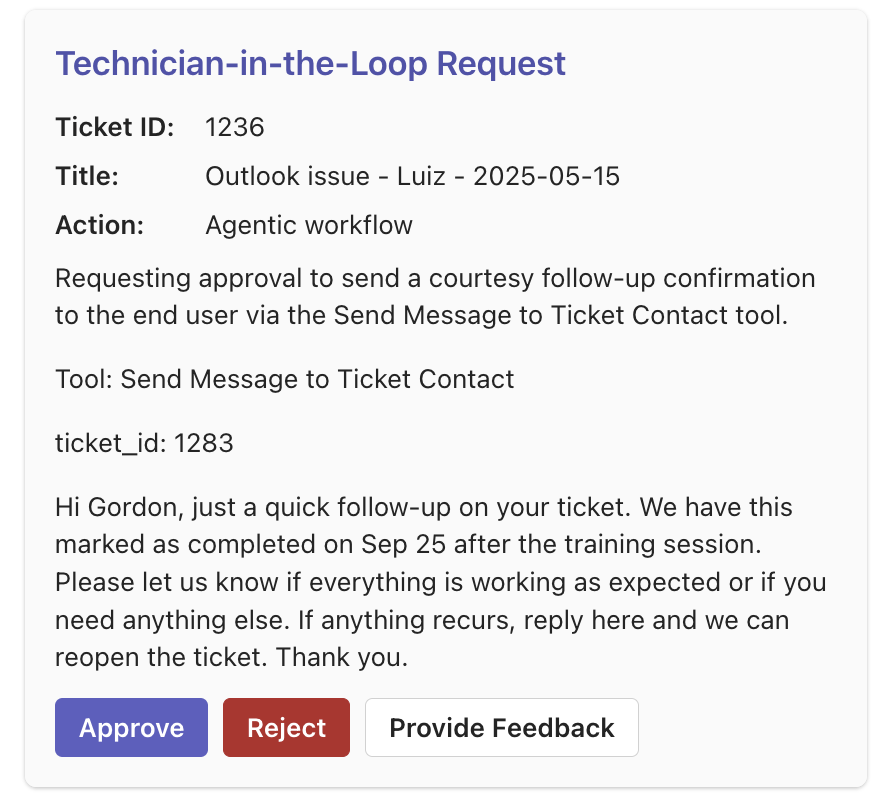
Technician-in-the-Loop (TIL) pauses Neo before risky actions—sending emails, running scripts, editing PSA records—and waits for a technician to approve, reject, or comment. Every decision is logged on the ticket.
 ## Quick setup
1. **Add approvers** – Enable the *Request Technician-in-the-Loop* tool and pick who receives cards.
2. **Flag tools** – Toggle **Require technician approval** on sensitive tools (Send Message, Execute RMM Script, etc.).
## What happens next
* **Approve** – Neo immediately executes the action.
* **Reject** – The workflow stops and logs the rejection.
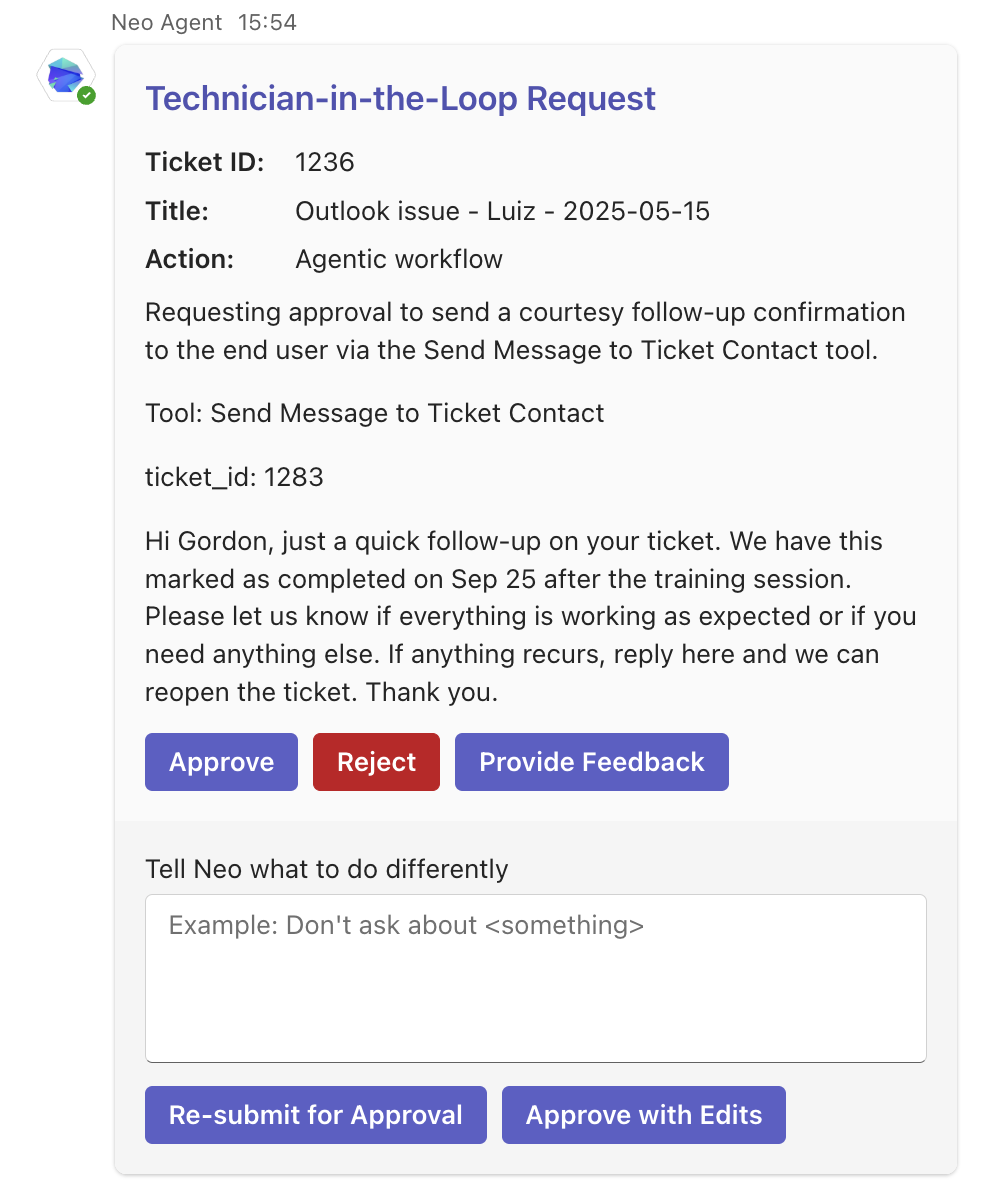
* **Provide Feedback** – Opens a comment box with two options:
* *Re-submit for Approval* – Neo incorporates your comment and retries; you review the updated attempt.
* *Approve with Edits* – Neo incorporates your comment and executes the action immediately.
Approval cards show the **ticket number** you recognise (e.g. `T20260319.0091`), not an internal id.
## Approvals in the dashboard
Beyond the Teams card and Neo Inbox, the dashboard has a dedicated **Approvals** page that lists every request waiting on a decision, so you can act on them in one place instead of hunting through chats.
* **Pending / Resolved / All** tabs, with the agent, ticket, and request detail for each.
* **Approve** or **Reject** inline, with an optional note (a note on an approval is recorded as a comment, the same as *Approve with Edits*).
* **Who sees what** – Technicians see the requests they're an eligible approver on; admins see every request for the team, including who is eligible to approve each one.
Decisions made here resolve the request everywhere — the Teams card updates and the agent resumes — exactly as if you'd clicked the card.
## Quick setup
1. **Add approvers** – Enable the *Request Technician-in-the-Loop* tool and pick who receives cards.
2. **Flag tools** – Toggle **Require technician approval** on sensitive tools (Send Message, Execute RMM Script, etc.).
## What happens next
* **Approve** – Neo immediately executes the action.
* **Reject** – The workflow stops and logs the rejection.
* **Provide Feedback** – Opens a comment box with two options:
* *Re-submit for Approval* – Neo incorporates your comment and retries; you review the updated attempt.
* *Approve with Edits* – Neo incorporates your comment and executes the action immediately.
Approval cards show the **ticket number** you recognise (e.g. `T20260319.0091`), not an internal id.
## Approvals in the dashboard
Beyond the Teams card and Neo Inbox, the dashboard has a dedicated **Approvals** page that lists every request waiting on a decision, so you can act on them in one place instead of hunting through chats.
* **Pending / Resolved / All** tabs, with the agent, ticket, and request detail for each.
* **Approve** or **Reject** inline, with an optional note (a note on an approval is recorded as a comment, the same as *Approve with Edits*).
* **Who sees what** – Technicians see the requests they're an eligible approver on; admins see every request for the team, including who is eligible to approve each one.
Decisions made here resolve the request everywhere — the Teams card updates and the agent resumes — exactly as if you'd clicked the card.