> ## Documentation Index
> Fetch the complete documentation index at: https://docs.neoagent.io/llms.txt
> Use this file to discover all available pages before exploring further.
# Supervised mode
> Run an agent on real tickets and approve every change before it happens. How it differs from test mode, how to supervise one run or every run, and what each approval covers.
Supervised mode is the step between testing an agent and trusting it. The agent works on real tickets, reads real data and proposes real changes, and it stops for a technician's approval before every single change it makes.
Use it for an agent you have just built, or one whose instructions you have just rewritten. You see what it decided and why, one change at a time, before anything reaches your PSA.
It is 100% safe: Neo asks you before every write operation. That makes it the first step of the loop from a new agent to a trusted one. Run the agent in Supervised mode on a real ticket, and approve, reject or comment on each card as it works. When the ticket is done, click **Train** on the run in [Executions](/product/executions), say what should change, and send. Neo Support reviews the run and your decisions, and updates the agent when you confirm the edit it proposes. Repeat until the runs need no corrections, then let the agent run alone.
## Supervised mode is not test mode
The two answer different questions, and an agent can only be in one of them.
| | Test mode | Supervised mode |
| ------------------------ | ------------------------------------------------------------------------ | --------------------------------------------------------- |
| Does it change anything? | No. Every write is simulated. | Yes, once you approve each one. |
| What is it for? | Checking the agent reads a ticket correctly and reaches a sensible plan. | Watching it do the real work before you let it run alone. |
| What do you do? | Read the report afterwards. | Approve or reject each change as it happens. |
| What does it cost? | A normal run. | A normal run. Approvals are free. |
Test mode wins wherever both are set, so an agent in test mode runs as a test whatever its supervision setting says. In the editor, turning one on turns the other off.
## Supervise one run, or every run
**One run.** Open the agent in [Executions](/product/executions), choose **Run now**, and turn on **Supervised run**. Pick who approves that run. Those technicians receive the cards for this run in place of the agent's own approvers, and your choice is remembered in your browser for the next one. The agent's saved settings do not change, so its scheduled and triggered runs are unaffected.
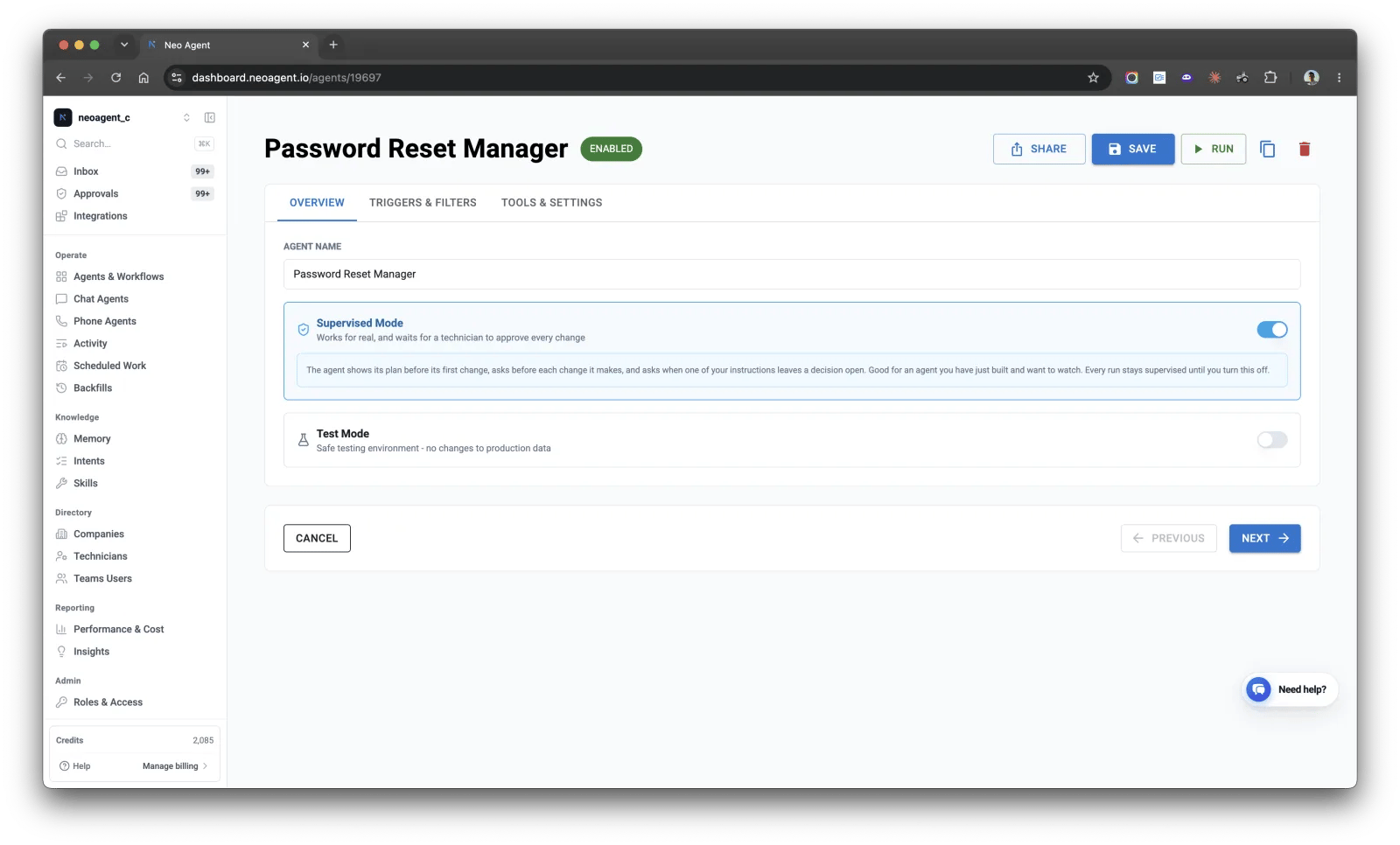 **Every run.** Open the agent and turn on **Supervised Mode** on its **Overview** tab. The setting stays on until you turn it off, and the agents list shows a **Supervised** label on each agent it is working on.
You can also set `agent_settings.supervised` through the [public API](/developers/introduction), or ask the [Neo Support agent](/chat-agents/neo-support-agent), for example "turn on supervised runs for my onboarding agent".
## What the agent does on a supervised run
1. **It shows its plan first.** Before its first change, it sends a card with how it reads the ticket and its instructions, and every change it intends to make. Approve it, or ask for changes and it sends a revised plan.
2. **Every change asks on its own**, whatever the agent's permission groups and tool settings say, with a card in three parts: the **Action**, the instruction it follows (**Because**), and what it read to decide (**Evidence**).
3. **It asks when your instructions leave a decision open**: when two instructions conflict, when one can be read two ways, or when none covers a choice on which MSPs differ. The card shows each choice, the one it will follow if you approve, and suggested wording for your instructions.
Approving the plan or answering a question never approves a change. [Supervised run checkpoints](/agents/tools/approvals/supervised-run-checkpoints) has what each card shows and how the agent reads each answer.
An approval covers that change on that ticket, and it keeps covering it. If the agent proposes exactly the same change on the same ticket again, in this run or a later one, your earlier approval still answers for it. This is how every approval works, supervised or not.
## What supervision does not cover
* **Another agent or workflow.** You approve the start, and what it runs then follows its own settings. Supervision covers the agent you switched it on for.
* **[The sandbox](/agents/tools/built-in/sandbox).** You approve the command before it runs, not each change inside it, so one approval can cover several changes.
* **Chat agents.** The person in the conversation already approves each change, so the setting does not apply.
The agent also does all of its own work, without subagents, so every change stays in one approval stream.
## Before you turn it on
**Somebody has to be able to approve.** Supervision works through the Request Technician Approval tool. A one-off supervised run adds that tool for the run and uses the approvers you pick at **Run now**, so there is nothing to set up first. The saved Supervised Mode setting does need the tool on the agent with at least one approver. You can save such an agent as disabled without one, but not as enabled.
**It cannot run alongside sequential processing.** Both hold the same lock. Turning Supervised Mode on turns sequential processing off and tells you it did. Going the other way, the sequential setting stays unavailable while the Request Technician Approval tool is enabled, so turn Supervised Mode off first.
**A run already under way cannot be supervised.** An agent has one run at a time on a ticket, and supervision has to be set before that run starts. If the agent is still working, wait for it to finish or stop it, then start the supervised run.
What the plan card and the instruction question show
The approval system supervision runs on
**Every run.** Open the agent and turn on **Supervised Mode** on its **Overview** tab. The setting stays on until you turn it off, and the agents list shows a **Supervised** label on each agent it is working on.
You can also set `agent_settings.supervised` through the [public API](/developers/introduction), or ask the [Neo Support agent](/chat-agents/neo-support-agent), for example "turn on supervised runs for my onboarding agent".
## What the agent does on a supervised run
1. **It shows its plan first.** Before its first change, it sends a card with how it reads the ticket and its instructions, and every change it intends to make. Approve it, or ask for changes and it sends a revised plan.
2. **Every change asks on its own**, whatever the agent's permission groups and tool settings say, with a card in three parts: the **Action**, the instruction it follows (**Because**), and what it read to decide (**Evidence**).
3. **It asks when your instructions leave a decision open**: when two instructions conflict, when one can be read two ways, or when none covers a choice on which MSPs differ. The card shows each choice, the one it will follow if you approve, and suggested wording for your instructions.
Approving the plan or answering a question never approves a change. [Supervised run checkpoints](/agents/tools/approvals/supervised-run-checkpoints) has what each card shows and how the agent reads each answer.
An approval covers that change on that ticket, and it keeps covering it. If the agent proposes exactly the same change on the same ticket again, in this run or a later one, your earlier approval still answers for it. This is how every approval works, supervised or not.
## What supervision does not cover
* **Another agent or workflow.** You approve the start, and what it runs then follows its own settings. Supervision covers the agent you switched it on for.
* **[The sandbox](/agents/tools/built-in/sandbox).** You approve the command before it runs, not each change inside it, so one approval can cover several changes.
* **Chat agents.** The person in the conversation already approves each change, so the setting does not apply.
The agent also does all of its own work, without subagents, so every change stays in one approval stream.
## Before you turn it on
**Somebody has to be able to approve.** Supervision works through the Request Technician Approval tool. A one-off supervised run adds that tool for the run and uses the approvers you pick at **Run now**, so there is nothing to set up first. The saved Supervised Mode setting does need the tool on the agent with at least one approver. You can save such an agent as disabled without one, but not as enabled.
**It cannot run alongside sequential processing.** Both hold the same lock. Turning Supervised Mode on turns sequential processing off and tells you it did. Going the other way, the sequential setting stays unavailable while the Request Technician Approval tool is enabled, so turn Supervised Mode off first.
**A run already under way cannot be supervised.** An agent has one run at a time on a ticket, and supervision has to be set before that run starts. If the agent is still working, wait for it to finish or stop it, then start the supervised run.
What the plan card and the instruction question show
The approval system supervision runs on