> ## Documentation Index
> Fetch the complete documentation index at: https://docs.neoagent.io/llms.txt
> Use this file to discover all available pages before exploring further.
# Channels
> Put a chat agent in Microsoft Teams — for your own technicians (Internal) or your clients' employees (End-user)
A **channel** puts one of your chat agents in Microsoft Teams as a branded bot people message directly. It binds a single chat agent to a transport, carries the branding people see — display name, icon, welcome message — and declares an **audience**: your **own technicians** (Internal) or your **clients' employees** (End-user). The two are equally first-class; the audience is what decides where the bot installs and what the agent can reach.
**Microsoft Teams is the available transport today.** Slack and Portal are reserved for future releases.
## Audience: who the channel serves
Every channel has an **Audience**, which must match its agent's:
* **Internal** — a bot for your **own technicians**, installed into your **own** Microsoft 365 tenant and running with the **full MSP toolbox** you give the agent (it can work across all your companies). Deploy it with the [custom internal bot guide](/integrations/teams/internal-bot).
* **End-user** — a white-label bot for your **clients' employees**, installed into **each client's** Microsoft 365 tenant and **scoped to one company** per conversation. Deploy it with the [end-user bot guide](/integrations/teams/end-user-bot).
You set the audience first in the **New Channel** dialog, and it filters the agent picker to matching agents (an agent's audience is fixed when you build it). The two serve different [trust domains](/chat-agents/how-end-user-bots-work#two-trust-domains), so a channel can't mix them.
This page covers what's **shared** by both — the channel record, branding, and management. The audience-specific parts (where the bot installs, how it's scoped, how to test) live in the two deploy guides linked above. Where a section below is end-user-only, it says so.
## How it fits together
```
Internal: Technician (your tenant) ──> Your branded bot ──> Channel (Internal) ──> Your chat agent · full MSP toolbox, all companies
End-user: Employee (client tenant) ──> Your branded bot ──> Channel (End-user) ──> Your chat agent · locked to that one company
```
The channel decides which agent answers and how the bot presents itself; the **audience** decides the rest. You are always the [owner](/chat-agents/overview#whos-talking-to-whom) — your configuration applies and usage bills to you — but the user differs:
* **Internal** — the user is one of your technicians, in your own tenant. The agent runs with your full MSP toolbox, across your whole client base.
* **End-user** — the user's company is recognized automatically from the Microsoft 365 tenant their message comes from, via the tenant ID on the [Company](https://dashboard.neoagent.io/end-companies) record, and every conversation is scoped to that company with a narrower toolbox ([per-company instructions](/chat-agents/building-a-chat-agent#per-client-instructions-for-end-user-agents) apply; the why and how: [how end-user bots work](/chat-agents/how-end-user-bots-work)).
## Managing channels
[**Chat** → **Channels**](https://dashboard.neoagent.io/chat?tab=channels) → **New Channel**.
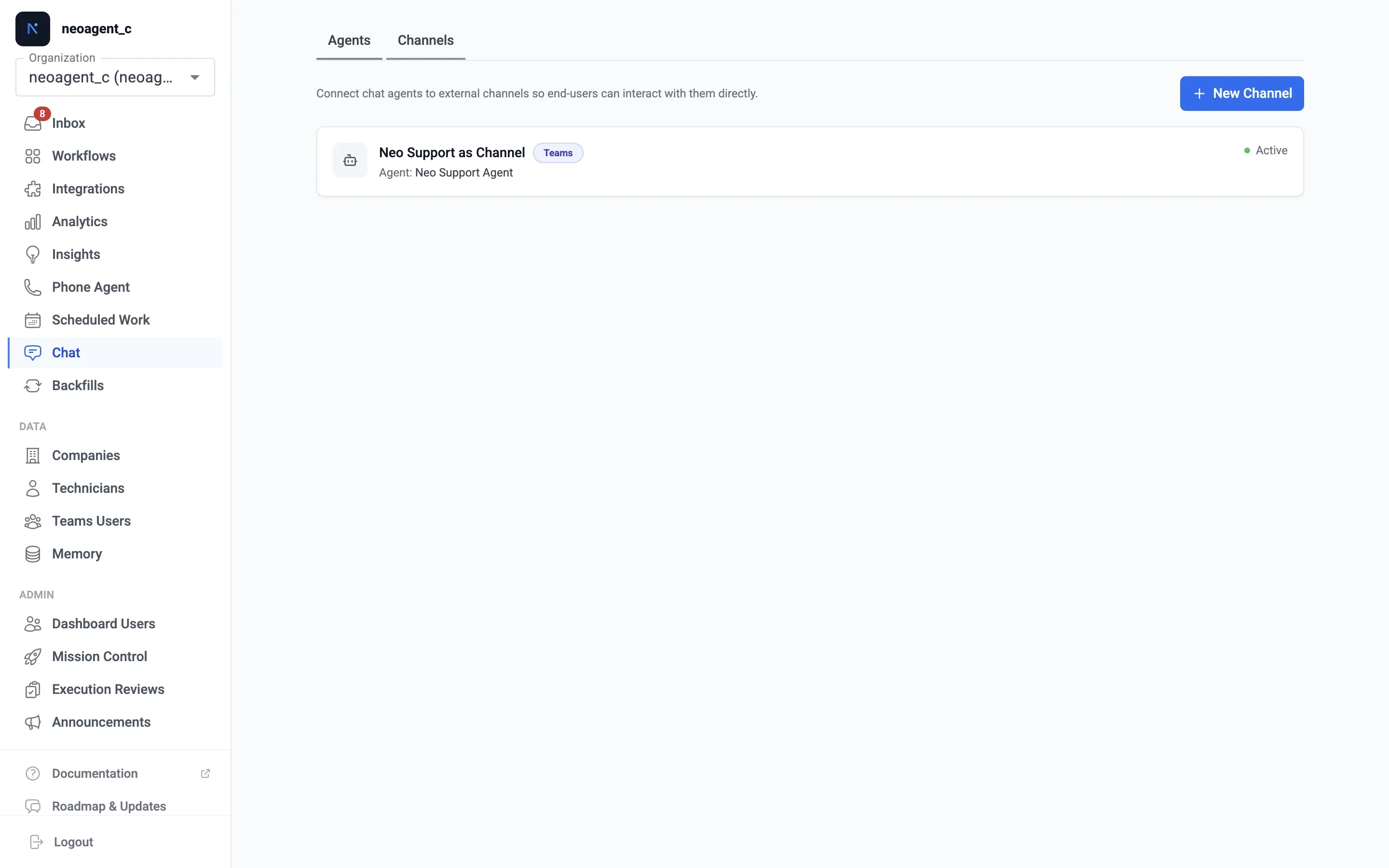 | Field | Meaning |
| --------- | ------------------------------------------------------------------------------------------------------------------------------------------------------------------------------------ |
| Name | Internal label, never shown to end users |
| Audience | **Internal** (your technicians) or **End-user** (your clients' employees) — must match the agent. See [Audience](#audience-who-the-channel-serves). |
| Transport | Teams (others coming soon) |
| Agent | **Required** — the conversational chat agent that answers. Every channel has one. |
| Status | **Active** (the default for new channels) — live, inbound messages reach the agent. **Disconnected** — paused; the bot stays installed in client tenants but messages aren't routed. |
Deleting a channel is reversible on Neo's side (soft delete), but end users in client tenants will get no response until the bot app is also removed there.
### Branding
The channel dialog's **Branding** section holds the display name, description, welcome message, and the two icons end users see in Teams. **Everything is optional** — any field you leave blank uses the Neo default, so a channel works the moment you create it. Clearing a field just restores its default.
| Field | Meaning |
| --------- | ------------------------------------------------------------------------------------------------------------------------------------------------------------------------------------ |
| Name | Internal label, never shown to end users |
| Audience | **Internal** (your technicians) or **End-user** (your clients' employees) — must match the agent. See [Audience](#audience-who-the-channel-serves). |
| Transport | Teams (others coming soon) |
| Agent | **Required** — the conversational chat agent that answers. Every channel has one. |
| Status | **Active** (the default for new channels) — live, inbound messages reach the agent. **Disconnected** — paused; the bot stays installed in client tenants but messages aren't routed. |
Deleting a channel is reversible on Neo's side (soft delete), but end users in client tenants will get no response until the bot app is also removed there.
### Branding
The channel dialog's **Branding** section holds the display name, description, welcome message, and the two icons end users see in Teams. **Everything is optional** — any field you leave blank uses the Neo default, so a channel works the moment you create it. Clearing a field just restores its default.
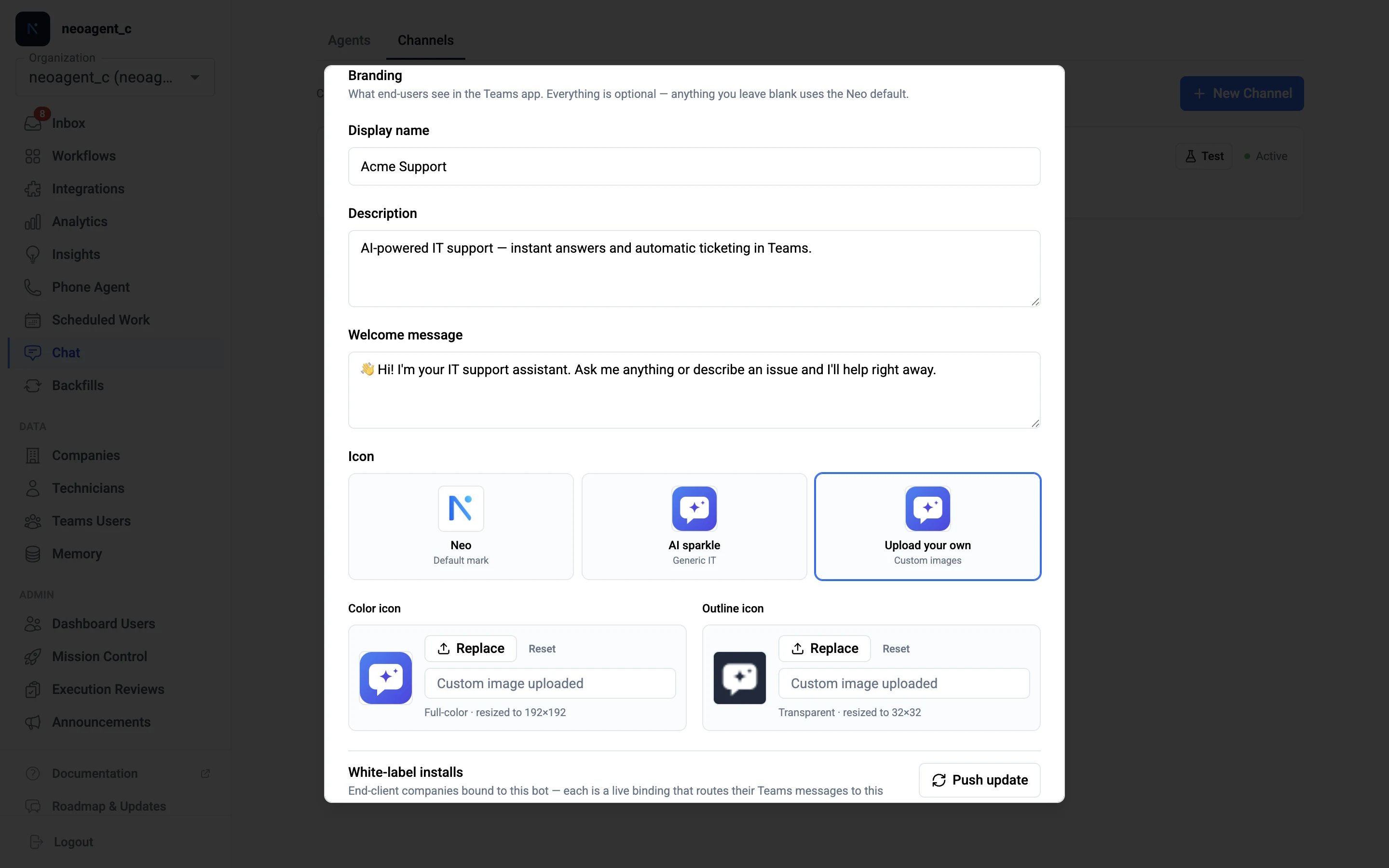 For each icon (color, 192×192; outline, 32×32) the preview shows the **effective** image — your custom one, or the Neo default. Paste an image URL or **Upload** a file (Neo resizes and stores it); **Reset** restores the Neo mark.
Branding lives in two places, which matters once the bot is installed in client tenants:
* **Welcome message** is served at runtime — edits apply immediately, everywhere.
* **Display name, description, and icons** are baked into the installed Teams app — edits need the app re-published in each client tenant. **Push update** re-publishes to every link-installed tenant at once; see [updating the bot](/integrations/teams/end-user-bot#updating-the-bot-after-rollout).
### Testing as an end-client
Before rolling a bot out to a client, chat with the end-user agent **as a real end-user at that company** — the same [per-company instructions](/chat-agents/building-a-chat-agent#per-client-instructions-for-end-user-agents) and the same restricted end-user toolbox apply, scoped to that person's own tickets, just as they'd experience it — without installing anything in their tenant, and without needing a channel at all. It's the fastest way to tune an agent's per-client behavior. The test is reached from the **Agents** tab, because it tests the *agent*, not the channel. Admins and super-admins only, since the test acts as a real end-user.
For each icon (color, 192×192; outline, 32×32) the preview shows the **effective** image — your custom one, or the Neo default. Paste an image URL or **Upload** a file (Neo resizes and stores it); **Reset** restores the Neo mark.
Branding lives in two places, which matters once the bot is installed in client tenants:
* **Welcome message** is served at runtime — edits apply immediately, everywhere.
* **Display name, description, and icons** are baked into the installed Teams app — edits need the app re-published in each client tenant. **Push update** re-publishes to every link-installed tenant at once; see [updating the bot](/integrations/teams/end-user-bot#updating-the-bot-after-rollout).
### Testing as an end-client
Before rolling a bot out to a client, chat with the end-user agent **as a real end-user at that company** — the same [per-company instructions](/chat-agents/building-a-chat-agent#per-client-instructions-for-end-user-agents) and the same restricted end-user toolbox apply, scoped to that person's own tickets, just as they'd experience it — without installing anything in their tenant, and without needing a channel at all. It's the fastest way to tune an agent's per-client behavior. The test is reached from the **Agents** tab, because it tests the *agent*, not the channel. Admins and super-admins only, since the test acts as a real end-user.
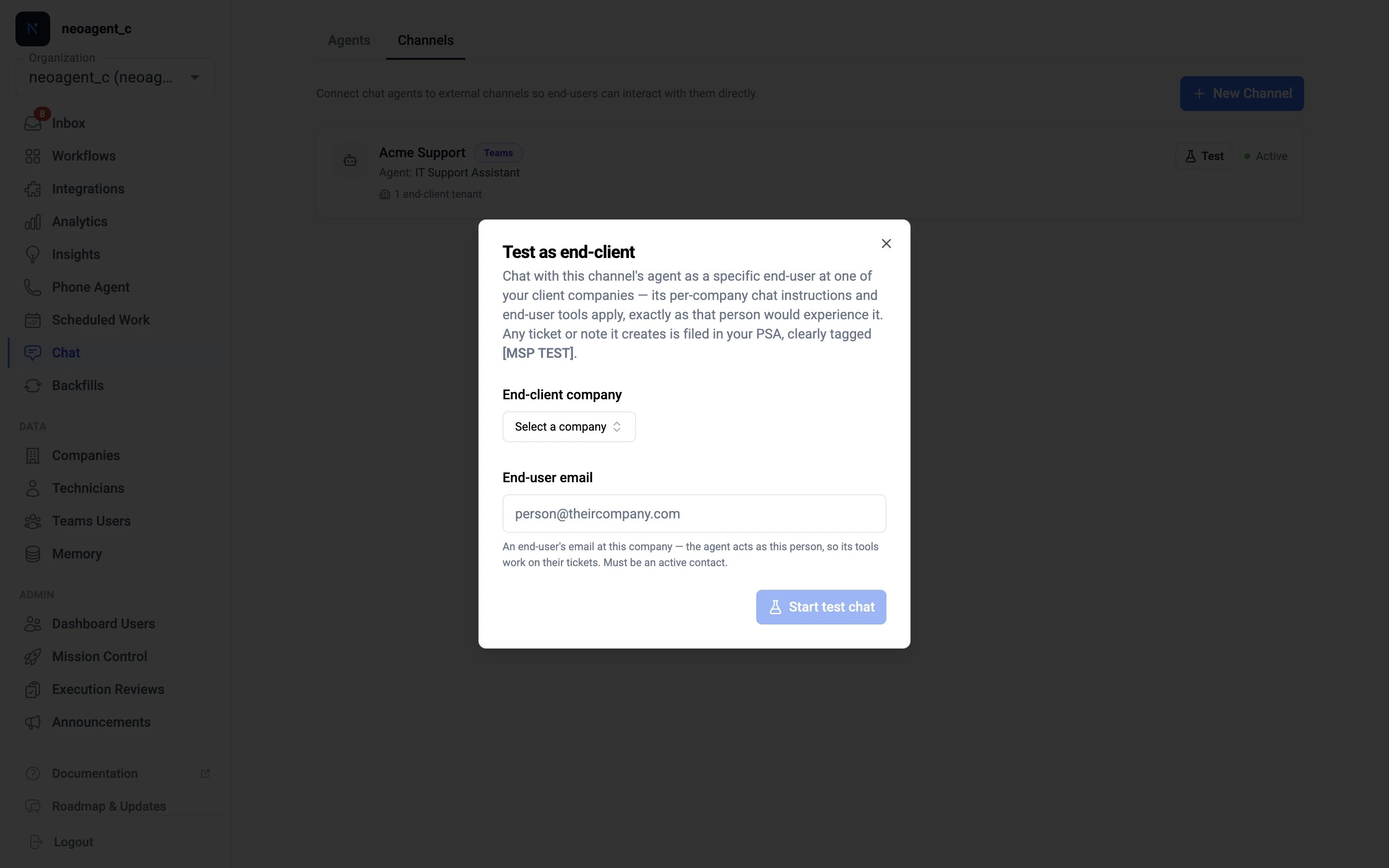 On [**Chat** → **Agents**](https://dashboard.neoagent.io/chat?tab=agents), click **Test** on the end-user agent's row (or open the row's **⋮** menu → **Test as end-client**). Internal agents show **Chat** here instead — they have no end-client to act as.
In **Test as end-client**, pick the **End-client company**, then enter an **End-user email** — a real, active [contact](https://dashboard.neoagent.io/end-companies) at that company. The agent acts as this person, so its tools resolve to *their* tickets.
**Start test chat** opens a normal dashboard chat. A banner — *acting as \ at \* — stays pinned above the conversation so the identity is always clear. Open the agent's **Test** again any time to start a fresh session as a different company or contact.
The agent behaves exactly as it would for that end-user: it answers from your customer-facing knowledge and runs the [end-user tools](/agents/tools/end-user/overview) you've added — look up and report the contact's ticket status, file a ticket, post a reply — and nothing that reaches across your client base ([why](/chat-agents/how-end-user-bots-work)).
Anything the agent files lands in your PSA as a **real** record, but unmistakably tagged: ticket titles get an **\[MSP TEST]** prefix and a body line noting the ticket came from a dashboard test, not a real end-user. Test sessions bill like any other dashboard chat.
This checks the agent's *behavior*. To test the actual **Teams experience** — branding, the welcome message, adaptive and approval cards, proactive messages — install the bot into your own tenant first: see [test in your own tenant first](/integrations/teams/end-user-bot#test-in-your-own-tenant-first).
#### Troubleshooting
| What you see | Why | Fix |
| --------------------------------------------------- | ------------------------------------------------------------------------------------------------------------------------------------ | ------------------------------------------------------------------------------------------------------------------------------------------------ |
| **Test** is missing or disabled on the agent's row | It's for **end-user** agents only, and acting as a real end-user is admin-only — Internal agents show **Chat** instead | Sign in as an admin or super-admin; if the agent is Internal, use **Chat** (it has no end-client to act as) |
| *No active contact with that email at this company* | The email must match an **active** [contact synced from your PSA](/integrations/psa/end-user-communication) under the chosen company | Use an email that exists and is active for that company — re-sync contacts if it's missing — or pick the company the contact actually belongs to |
| The agent can't see the contact's tickets | The contact resolved but the tickets live under a different company | Pick the company the contact's tickets belong to |
## Installing the bot
Where the bot installs follows the audience. Both produce a branded Teams app and bind routing to this channel; the full step-by-step lives in each guide.
### Internal — into your own tenant
An **Internal** channel installs into your **own** Microsoft 365 tenant for your technicians. From the saved channel, **Generate install link** and open it yourself as a Teams/Global admin (or download the **Teams app package** and sideload it). Full walkthrough: the [custom internal bot guide](/integrations/teams/internal-bot). An Internal channel can **only** be installed in your own tenant — Neo refuses a client tenant, because it runs your full cross-company toolbox.
### End-user — into client tenants
The quickest path is a **magic install link**: pick the client company under **White-label installs**, click **Generate install link**, and send it to a **Teams or Global administrator** of the client's Microsoft 365 tenant. They sign in once and approve; Neo publishes your branded app into their tenant *and* registers routing together — no zip upload. **One branded bot per client** — a company already bound to another channel can't be added. (No admin access, or the app already installed? Register routing directly and upload the **Teams app package** manually instead.) Channel cards on the **Channels** tab show each channel's bound-tenant count at a glance.
The full step-by-step procedure — including the Teams admin center walk-through, verification, updates, and troubleshooting — is the [end-user bot deployment guide](/integrations/teams/end-user-bot).
The company picker uses the Microsoft 365 **tenant ID** set on each [Company](https://dashboard.neoagent.io/end-companies) — a company without one can't be added until you set it there.
## What people experience in Teams
This is the same for both audiences: your bot, your name and icon — Neo isn't visible. The welcome message greets them on first contact; 1:1 chats always respond, group chats follow the agent's [mention mode](/chat-agents/building-a-chat-agent#settings-that-work-differently-in-chat); `/reset` or `/new` starts a fresh conversation.
While the bot works on a reply it shows a live **"working…"** card listing the steps it's taking, so a longer answer never looks stuck. If you'd rather people just see the final answer, turn off **Show progress updates** in the channel's settings — the card disappears and the bot's answers are unchanged.
On an **end-user** channel, when a technician's reply on a ticket is [relayed into the chat](/integrations/teams/end-user-bot#live-ticket-updates-in-the-chat), it's labelled as coming from a person — with the ticket number and current status — so employees know it isn't the AI. Adjust the wording, pick another language, or switch the label off under **Label relayed technician messages** in the channel's settings.
**End-user channels only:** the bot is messaging-only in client tenants — no Microsoft Graph access there. Anything the agent does happens through **your** integrations under **your** permissions — and every end-user session is **scoped to the end user's company**: tools that operate across your whole client base (MSP-wide ticket search, company listings, generic API access) never run for end users, regardless of the agent's toolbox — see [what end users can access](/integrations/teams/end-user-bot#what-end-users-can-access). (An **Internal** channel is the opposite by design: it runs your full MSP toolbox across all companies.) The magic-link install does have the client's Teams admin sign in once, but that authorizes a separate **Neo Installer** app only to publish the app to their catalog — it grants the bot no standing access to their data.
On [**Chat** → **Agents**](https://dashboard.neoagent.io/chat?tab=agents), click **Test** on the end-user agent's row (or open the row's **⋮** menu → **Test as end-client**). Internal agents show **Chat** here instead — they have no end-client to act as.
In **Test as end-client**, pick the **End-client company**, then enter an **End-user email** — a real, active [contact](https://dashboard.neoagent.io/end-companies) at that company. The agent acts as this person, so its tools resolve to *their* tickets.
**Start test chat** opens a normal dashboard chat. A banner — *acting as \ at \* — stays pinned above the conversation so the identity is always clear. Open the agent's **Test** again any time to start a fresh session as a different company or contact.
The agent behaves exactly as it would for that end-user: it answers from your customer-facing knowledge and runs the [end-user tools](/agents/tools/end-user/overview) you've added — look up and report the contact's ticket status, file a ticket, post a reply — and nothing that reaches across your client base ([why](/chat-agents/how-end-user-bots-work)).
Anything the agent files lands in your PSA as a **real** record, but unmistakably tagged: ticket titles get an **\[MSP TEST]** prefix and a body line noting the ticket came from a dashboard test, not a real end-user. Test sessions bill like any other dashboard chat.
This checks the agent's *behavior*. To test the actual **Teams experience** — branding, the welcome message, adaptive and approval cards, proactive messages — install the bot into your own tenant first: see [test in your own tenant first](/integrations/teams/end-user-bot#test-in-your-own-tenant-first).
#### Troubleshooting
| What you see | Why | Fix |
| --------------------------------------------------- | ------------------------------------------------------------------------------------------------------------------------------------ | ------------------------------------------------------------------------------------------------------------------------------------------------ |
| **Test** is missing or disabled on the agent's row | It's for **end-user** agents only, and acting as a real end-user is admin-only — Internal agents show **Chat** instead | Sign in as an admin or super-admin; if the agent is Internal, use **Chat** (it has no end-client to act as) |
| *No active contact with that email at this company* | The email must match an **active** [contact synced from your PSA](/integrations/psa/end-user-communication) under the chosen company | Use an email that exists and is active for that company — re-sync contacts if it's missing — or pick the company the contact actually belongs to |
| The agent can't see the contact's tickets | The contact resolved but the tickets live under a different company | Pick the company the contact's tickets belong to |
## Installing the bot
Where the bot installs follows the audience. Both produce a branded Teams app and bind routing to this channel; the full step-by-step lives in each guide.
### Internal — into your own tenant
An **Internal** channel installs into your **own** Microsoft 365 tenant for your technicians. From the saved channel, **Generate install link** and open it yourself as a Teams/Global admin (or download the **Teams app package** and sideload it). Full walkthrough: the [custom internal bot guide](/integrations/teams/internal-bot). An Internal channel can **only** be installed in your own tenant — Neo refuses a client tenant, because it runs your full cross-company toolbox.
### End-user — into client tenants
The quickest path is a **magic install link**: pick the client company under **White-label installs**, click **Generate install link**, and send it to a **Teams or Global administrator** of the client's Microsoft 365 tenant. They sign in once and approve; Neo publishes your branded app into their tenant *and* registers routing together — no zip upload. **One branded bot per client** — a company already bound to another channel can't be added. (No admin access, or the app already installed? Register routing directly and upload the **Teams app package** manually instead.) Channel cards on the **Channels** tab show each channel's bound-tenant count at a glance.
The full step-by-step procedure — including the Teams admin center walk-through, verification, updates, and troubleshooting — is the [end-user bot deployment guide](/integrations/teams/end-user-bot).
The company picker uses the Microsoft 365 **tenant ID** set on each [Company](https://dashboard.neoagent.io/end-companies) — a company without one can't be added until you set it there.
## What people experience in Teams
This is the same for both audiences: your bot, your name and icon — Neo isn't visible. The welcome message greets them on first contact; 1:1 chats always respond, group chats follow the agent's [mention mode](/chat-agents/building-a-chat-agent#settings-that-work-differently-in-chat); `/reset` or `/new` starts a fresh conversation.
While the bot works on a reply it shows a live **"working…"** card listing the steps it's taking, so a longer answer never looks stuck. If you'd rather people just see the final answer, turn off **Show progress updates** in the channel's settings — the card disappears and the bot's answers are unchanged.
On an **end-user** channel, when a technician's reply on a ticket is [relayed into the chat](/integrations/teams/end-user-bot#live-ticket-updates-in-the-chat), it's labelled as coming from a person — with the ticket number and current status — so employees know it isn't the AI. Adjust the wording, pick another language, or switch the label off under **Label relayed technician messages** in the channel's settings.
**End-user channels only:** the bot is messaging-only in client tenants — no Microsoft Graph access there. Anything the agent does happens through **your** integrations under **your** permissions — and every end-user session is **scoped to the end user's company**: tools that operate across your whole client base (MSP-wide ticket search, company listings, generic API access) never run for end users, regardless of the agent's toolbox — see [what end users can access](/integrations/teams/end-user-bot#what-end-users-can-access). (An **Internal** channel is the opposite by design: it runs your full MSP toolbox across all companies.) The magic-link install does have the client's Teams admin sign in once, but that authorizes a separate **Neo Installer** app only to publish the app to their catalog — it grants the bot no standing access to their data.