> ## Documentation Index
> Fetch the complete documentation index at: https://docs.neoagent.io/llms.txt
> Use this file to discover all available pages before exploring further.
# Version history
> Track workflow changes and roll back if needed
Neo Agent automatically tracks changes to your workflows, providing a comprehensive version history. This feature is crucial for:
* Auditing changes for compliance and troubleshooting
* Safely rolling back to a previous, stable version if an update causes unexpected behavior
* Facilitating team collaboration by providing transparency on who changed what and when
## Accessing version history
You can access the version history for any workflow directly from the main Workflows page:
Navigate to the **Workflows** section in Neo Agent.
Locate the workflow you want to inspect.
Click on the three-dots menu (kebab menu) on the right side of the workflow row.
Select **"Version History"** from the dropdown menu.
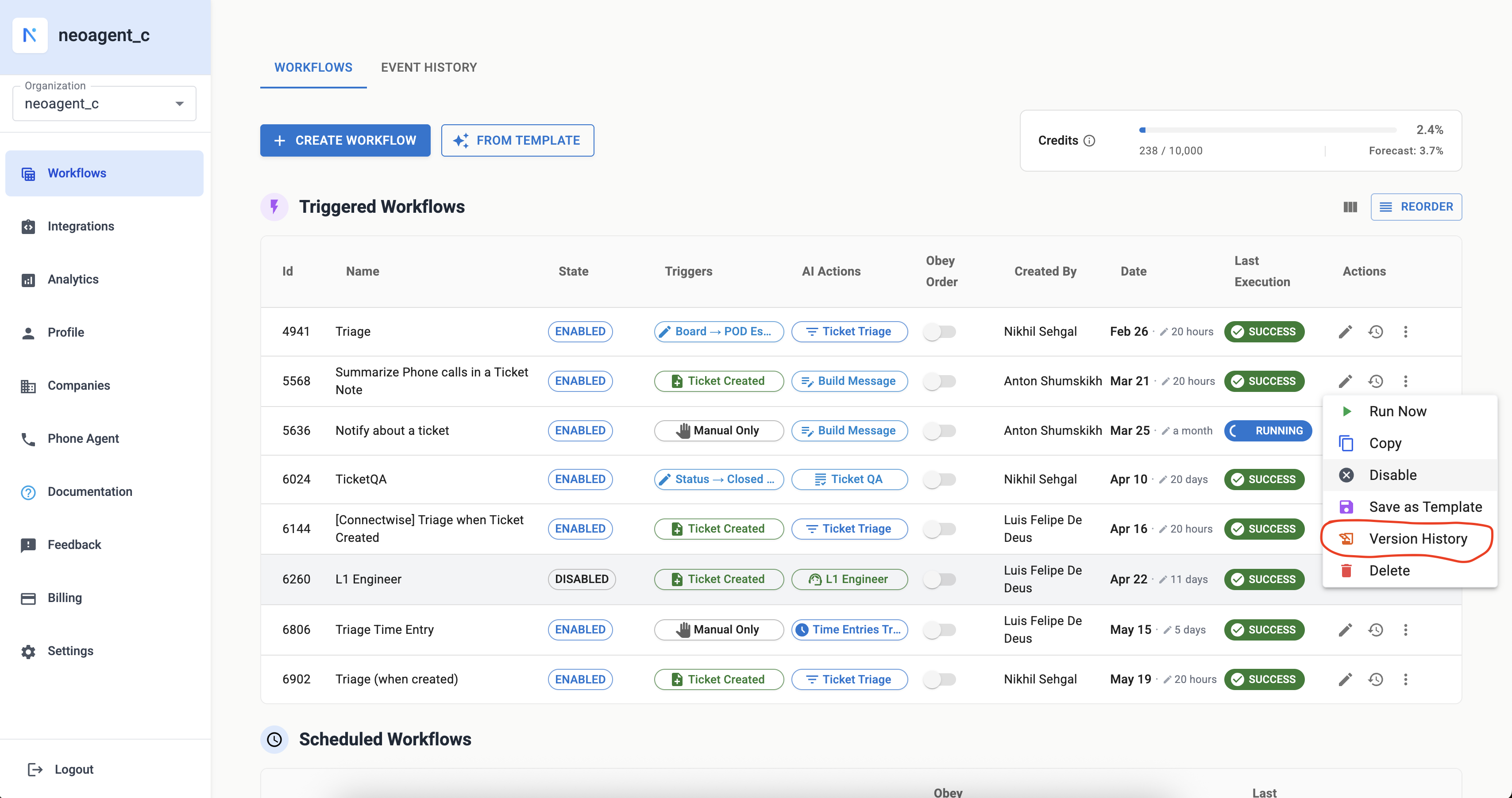 This will open a dialog displaying all saved versions of the workflow.
## Understanding the version history dialog
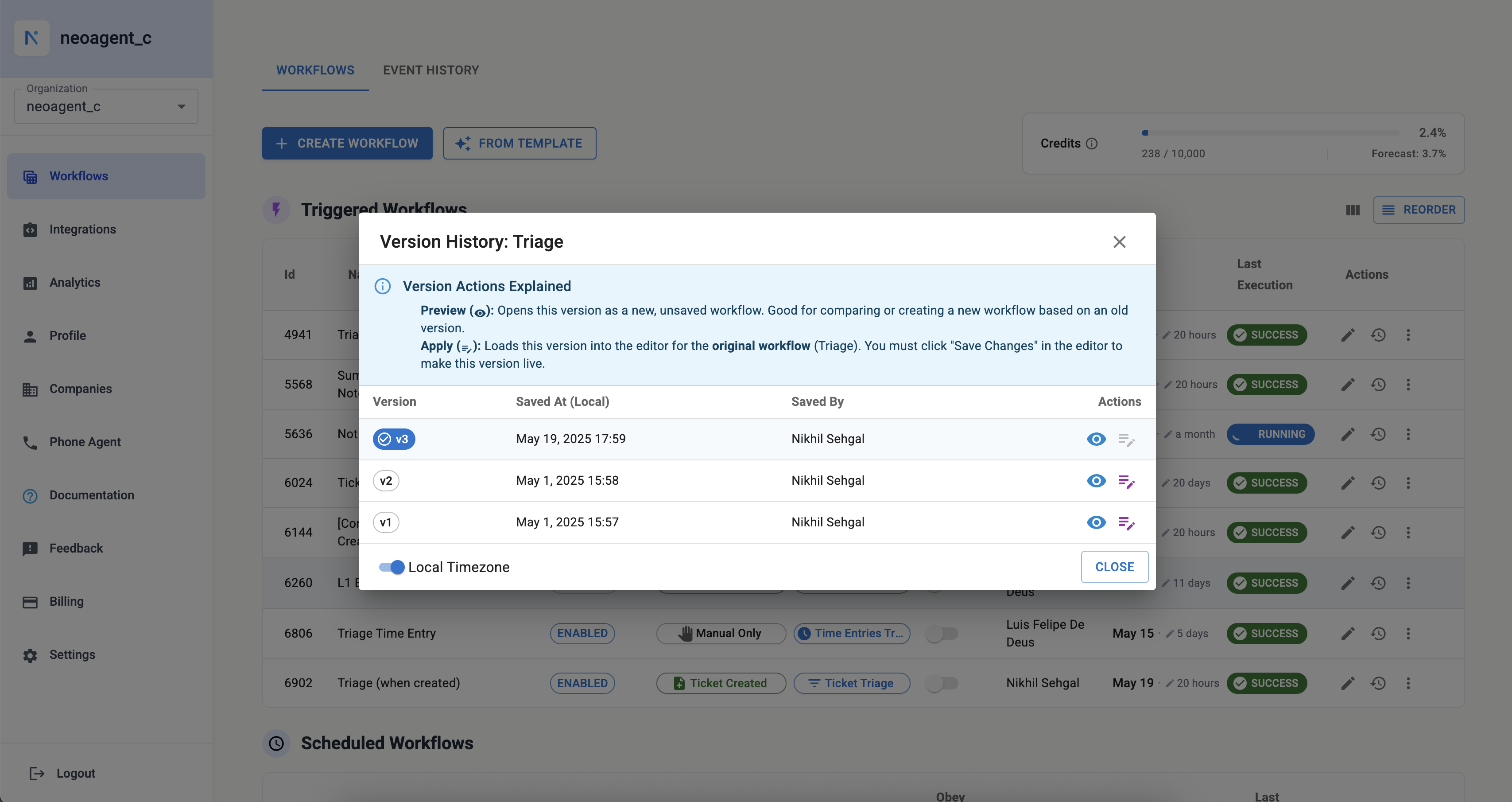
The Version History dialog lists all versions of the selected workflow, with the most recent version at the top. For each version, you can see:
An identifier for the version (e.g., v8, v2, v1)
The timestamp when this version was saved. The timezone displayed is your local timezone.
The user who made the changes and saved this version
Available actions for each version:
* **Preview (eye icon):** Opens this version of the workflow in a read-only mode. This is useful for comparing different versions or understanding the configuration of an older version without making it active.
* **Apply (up arrow icon):** Loads this version into the workflow editor. You must click "Save Changes" in the editor to make this version the current, live version of the workflow.
This will open a dialog displaying all saved versions of the workflow.
## Understanding the version history dialog
The Version History dialog lists all versions of the selected workflow, with the most recent version at the top. For each version, you can see:
An identifier for the version (e.g., v8, v2, v1)
The timestamp when this version was saved. The timezone displayed is your local timezone.
The user who made the changes and saved this version
Available actions for each version:
* **Preview (eye icon):** Opens this version of the workflow in a read-only mode. This is useful for comparing different versions or understanding the configuration of an older version without making it active.
* **Apply (up arrow icon):** Loads this version into the workflow editor. You must click "Save Changes" in the editor to make this version the current, live version of the workflow.
 ## How versioning works
Neo Agent's versioning mechanism is designed to capture a snapshot of your workflow whenever it's modified.
### Automatic version creation
Every time a workflow is updated and saved, a new version is automatically logged in the `workflows_updates_log` table in the database.
### Data logged
Each entry in the log includes:
* The `workflow_id` to link it to the specific workflow
* A complete snapshot of the workflow's configuration at that point in time, including its `name`, `state`, `trigger_type`, `schedule`, `actions`, and other settings
* The `client_id` and `client_name` for organizational context
* Information about the `created_by_user` (who made the update)
* The `version_timestamp`, indicating precisely when this version was created
### Retrieval
When you open the "Version History" dialog, Neo Agent queries this log table, filtering by the current `workflow_id`, `environment`, and `client_id`, and orders the results by `version_timestamp` in descending order to show the newest versions first.
## Key benefits
Maintain a clear record of all modifications, essential for change management and compliance.
If a new workflow configuration introduces issues, you can easily revert to a previously known good state by previewing an older version and then applying it.
Feel more confident experimenting with workflow changes, knowing you can always go back.
Understand the evolution of a workflow, especially when multiple team members are involved in its development and maintenance.
## Best practices
Regularly review version history, especially after making significant changes, to ensure automations are behaving as expected.
If you encounter an issue, the version history is your first stop for diagnosis and potential rollback.
When making significant changes, consider adding comments or notes about what was changed and why.
Always use the preview function to review older versions before applying them to understand the differences.
Regularly review version history, especially after making significant changes, to ensure automations are behaving as expected. If you encounter an issue, the version history is your first stop for diagnosis and potential rollback.
## How versioning works
Neo Agent's versioning mechanism is designed to capture a snapshot of your workflow whenever it's modified.
### Automatic version creation
Every time a workflow is updated and saved, a new version is automatically logged in the `workflows_updates_log` table in the database.
### Data logged
Each entry in the log includes:
* The `workflow_id` to link it to the specific workflow
* A complete snapshot of the workflow's configuration at that point in time, including its `name`, `state`, `trigger_type`, `schedule`, `actions`, and other settings
* The `client_id` and `client_name` for organizational context
* Information about the `created_by_user` (who made the update)
* The `version_timestamp`, indicating precisely when this version was created
### Retrieval
When you open the "Version History" dialog, Neo Agent queries this log table, filtering by the current `workflow_id`, `environment`, and `client_id`, and orders the results by `version_timestamp` in descending order to show the newest versions first.
## Key benefits
Maintain a clear record of all modifications, essential for change management and compliance.
If a new workflow configuration introduces issues, you can easily revert to a previously known good state by previewing an older version and then applying it.
Feel more confident experimenting with workflow changes, knowing you can always go back.
Understand the evolution of a workflow, especially when multiple team members are involved in its development and maintenance.
## Best practices
Regularly review version history, especially after making significant changes, to ensure automations are behaving as expected.
If you encounter an issue, the version history is your first stop for diagnosis and potential rollback.
When making significant changes, consider adding comments or notes about what was changed and why.
Always use the preview function to review older versions before applying them to understand the differences.
Regularly review version history, especially after making significant changes, to ensure automations are behaving as expected. If you encounter an issue, the version history is your first stop for diagnosis and potential rollback.