> ## Documentation Index
> Fetch the complete documentation index at: https://docs.neoagent.io/llms.txt
> Use this file to discover all available pages before exploring further.
# Templates
> Start quickly with curated workflow templates
Workflow Templates in Neo Agent are pre-built automations designed by the Neo team to address common Managed Service Provider (MSP) challenges. They provide a quick and effective way to implement powerful workflows, infused with industry best practices, allowing you to automate tasks and streamline your operations with minimal setup.
## Accessing workflow templates
You can create new workflows from templates directly within the Neo Agent platform.
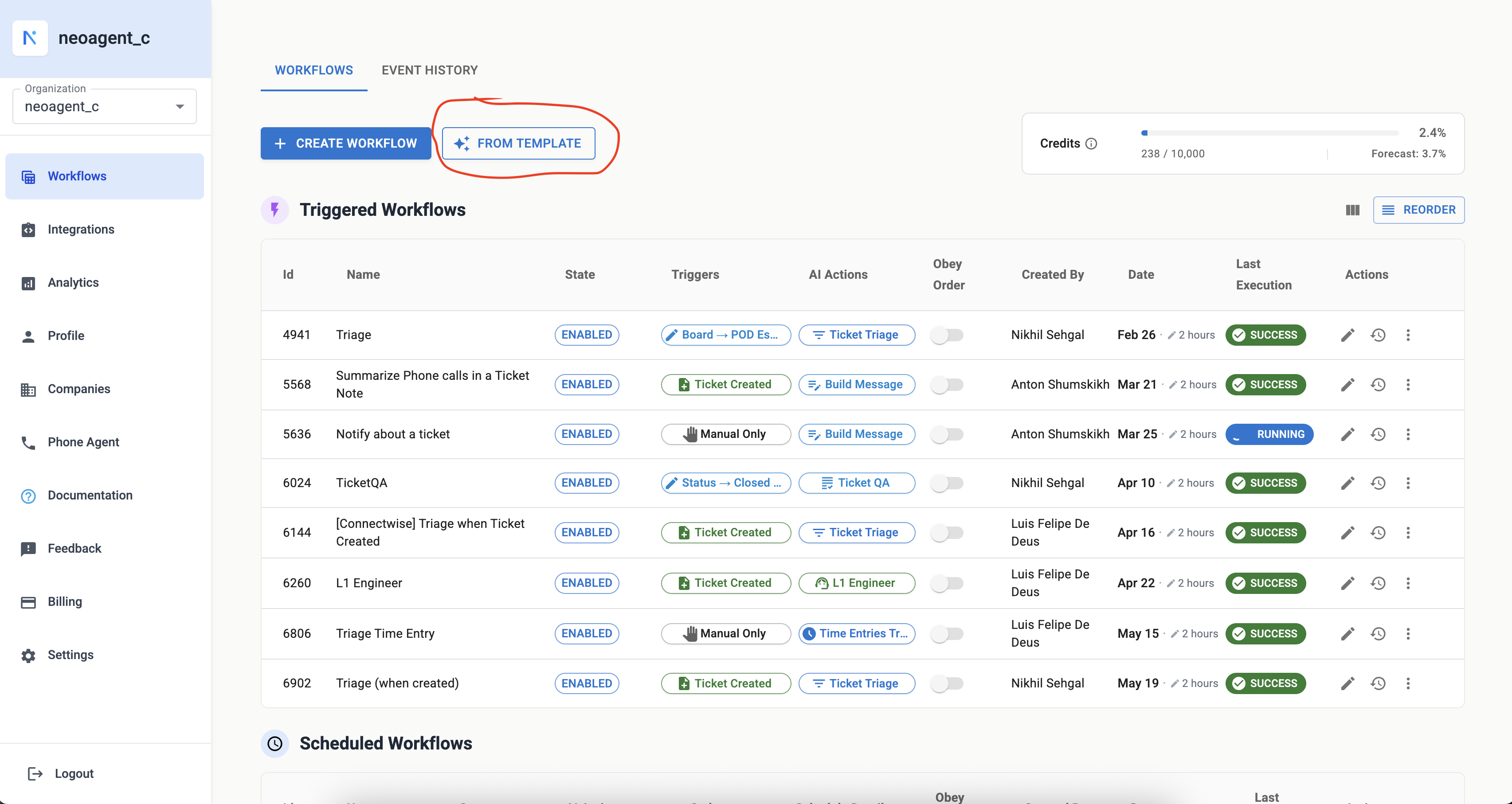
Navigate to the **Workflows** section in your Neo Agent dashboard.
Click the **"+ Create Workflow"** button.
In the dropdown, select **"FROM TEMPLATE"**.
 ## Choosing a template
After selecting "FROM TEMPLATE", a modal will appear, showcasing a library of available templates.
## Choosing a template
After selecting "FROM TEMPLATE", a modal will appear, showcasing a library of available templates.
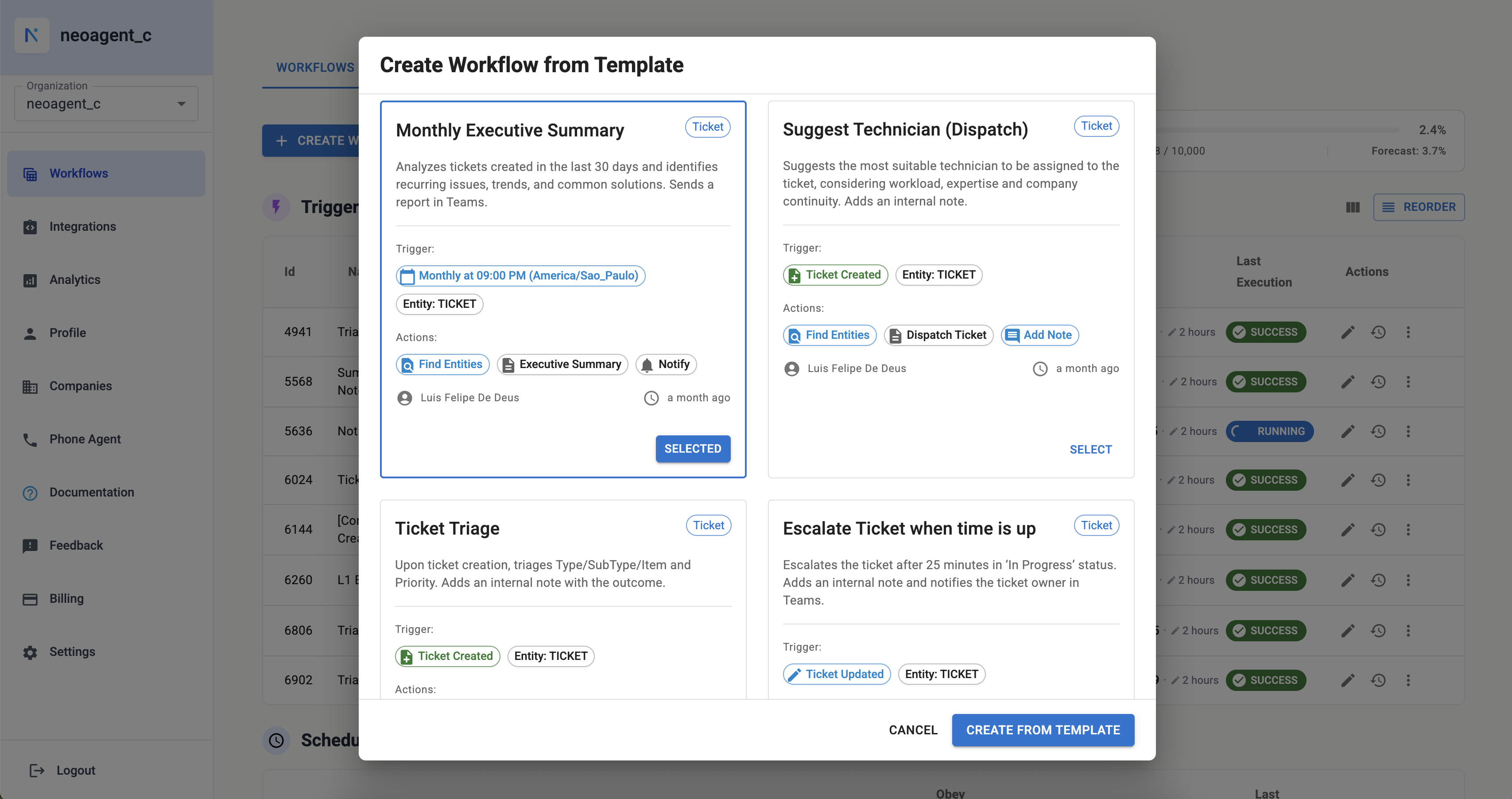 In this modal, you can:
* Browse through various templates curated by the Neo Agent team
* View the **Name** and a brief **Description** of each template
* See the primary **Trigger** (e.g., "Ticket Created", "Monthly at 09:00 PM") and the main **Actions** the template performs
* Identify templates suitable for your specific PSA (e.g., ConnectWise, Autotask), as templates are often tailored for particular ITSM systems
Once you find a template that fits your needs, click the **"SELECT"** button next to it. This will open the workflow configuration screen, pre-populated with the template's settings.
## What are workflow templates?
Workflow Templates are essentially blueprints for your automations. They are:
Each template comes with a defined trigger, a sequence of actions, and initial settings.
Crafted by the Neo Agent team, incorporating effective strategies for common MSP scenarios.
Many templates are optimized for popular PSA platforms, ensuring compatibility and relevance.
Examples include Monthly Executive Summary, Suggest Technician (Dispatch), Ticket Triage, and Escalate Ticket when time is up.
### Common template examples
* **Monthly Executive Summary:** Analyzes tickets and identifies trends
* **Suggest Technician (Dispatch):** Assigns tickets based on workload and skills
* **Ticket Triage:** Automatically categorizes and prioritizes incoming tickets
* **Escalate Ticket when time is up:** Manages ticket SLAs by escalating overdue tickets
## How templates work
When you select a template, Neo Agent doesn't just link to it; it creates a brand new, fully independent workflow in your account based on that template's design.
You choose a template from the library.
A new workflow is created in your workspace, copying all the settings from the template – including its trigger, actions, and any pre-filled parameters.
This new workflow is now yours to modify. You can:
* Adjust the trigger conditions (e.g., change the schedule, specify different boards/statuses)
* Reconfigure actions (e.g., change notification recipients, modify an AI action's custom instructions)
* Add new actions to the sequence
* Remove actions that aren't relevant
* Rename the workflow
Think of it like using a document template: you start with a pre-formatted structure and then fill in your own details.
## Current availability and future plans
Currently, all Workflow Templates are curated and provided by the Neo Agent team. This approach ensures that every template is well-tested, adheres to best practices, and offers significant value out-of-the-box.
We are actively working on exciting new features that will empower users to:
1. **Create your own templates:** Save your successful custom workflows as templates for reuse within your organization.
2. **Share with the community:** Optionally share your templates with other Neo Agent users, and benefit from templates shared by others.
Stay tuned for updates on these upcoming enhancements!
## Best practices for using templates
Before selecting a template, make sure you understand the problem it solves and the actions it performs.
After creating a workflow from a template, thoroughly review its configuration. Test it with non-critical data or in a development environment before enabling it for live operations.
Don't treat templates as rigid solutions. Continuously monitor their performance and adapt them as your business processes evolve.
Use the Event History to monitor how workflows created from templates are executing and to troubleshoot any issues.
### Multi-workflow templates
Some templates include two or more workflows that work together (e.g., categorize a ticket, then take action based on the category). This enables advanced automation with minimal setup.
Start with a template, then iterate as you learn what works best for your business.
By leveraging Workflow Templates, you can significantly accelerate your automation journey with Neo Agent, implement robust solutions quickly, and focus on what matters most – delivering excellent service.
In this modal, you can:
* Browse through various templates curated by the Neo Agent team
* View the **Name** and a brief **Description** of each template
* See the primary **Trigger** (e.g., "Ticket Created", "Monthly at 09:00 PM") and the main **Actions** the template performs
* Identify templates suitable for your specific PSA (e.g., ConnectWise, Autotask), as templates are often tailored for particular ITSM systems
Once you find a template that fits your needs, click the **"SELECT"** button next to it. This will open the workflow configuration screen, pre-populated with the template's settings.
## What are workflow templates?
Workflow Templates are essentially blueprints for your automations. They are:
Each template comes with a defined trigger, a sequence of actions, and initial settings.
Crafted by the Neo Agent team, incorporating effective strategies for common MSP scenarios.
Many templates are optimized for popular PSA platforms, ensuring compatibility and relevance.
Examples include Monthly Executive Summary, Suggest Technician (Dispatch), Ticket Triage, and Escalate Ticket when time is up.
### Common template examples
* **Monthly Executive Summary:** Analyzes tickets and identifies trends
* **Suggest Technician (Dispatch):** Assigns tickets based on workload and skills
* **Ticket Triage:** Automatically categorizes and prioritizes incoming tickets
* **Escalate Ticket when time is up:** Manages ticket SLAs by escalating overdue tickets
## How templates work
When you select a template, Neo Agent doesn't just link to it; it creates a brand new, fully independent workflow in your account based on that template's design.
You choose a template from the library.
A new workflow is created in your workspace, copying all the settings from the template – including its trigger, actions, and any pre-filled parameters.
This new workflow is now yours to modify. You can:
* Adjust the trigger conditions (e.g., change the schedule, specify different boards/statuses)
* Reconfigure actions (e.g., change notification recipients, modify an AI action's custom instructions)
* Add new actions to the sequence
* Remove actions that aren't relevant
* Rename the workflow
Think of it like using a document template: you start with a pre-formatted structure and then fill in your own details.
## Current availability and future plans
Currently, all Workflow Templates are curated and provided by the Neo Agent team. This approach ensures that every template is well-tested, adheres to best practices, and offers significant value out-of-the-box.
We are actively working on exciting new features that will empower users to:
1. **Create your own templates:** Save your successful custom workflows as templates for reuse within your organization.
2. **Share with the community:** Optionally share your templates with other Neo Agent users, and benefit from templates shared by others.
Stay tuned for updates on these upcoming enhancements!
## Best practices for using templates
Before selecting a template, make sure you understand the problem it solves and the actions it performs.
After creating a workflow from a template, thoroughly review its configuration. Test it with non-critical data or in a development environment before enabling it for live operations.
Don't treat templates as rigid solutions. Continuously monitor their performance and adapt them as your business processes evolve.
Use the Event History to monitor how workflows created from templates are executing and to troubleshoot any issues.
### Multi-workflow templates
Some templates include two or more workflows that work together (e.g., categorize a ticket, then take action based on the category). This enables advanced automation with minimal setup.
Start with a template, then iterate as you learn what works best for your business.
By leveraging Workflow Templates, you can significantly accelerate your automation journey with Neo Agent, implement robust solutions quickly, and focus on what matters most – delivering excellent service.