> ## Documentation Index
> Fetch the complete documentation index at: https://docs.neoagent.io/llms.txt
> Use this file to discover all available pages before exploring further.
# Creating & Managing Skills
> Ask Neo Support to build a skill from a description or a past run, then view and fine-tune it in the Skills tab
You don't write skills by hand. You create them by **asking [Neo Support](/chat-agents/neo-support-agent)** — the chat assistant built into your dashboard — and you read and fine-tune them in the **Skills** tab.
**Rolling out now.** The Skills tab is being released gradually. If you don't see it in your dashboard yet, ask your account manager to switch it on. Creating a skill by asking Neo Support works today, regardless.
## Creating a skill
Open Neo Support — the **Need help?** button in the bottom-right corner of any dashboard page, or the first card on the [**Chat**](https://dashboard.neoagent.io/chat) page — and ask it to build a skill. There are two ways to do it.
### From a past run (recommended)
The best skills come from a job an agent has already done well. If a run produced exactly the output you want, ask Neo Support to turn that exact run into a reusable skill. It reads what the run actually did — the steps it took and the code it ran — and distills it into a skill, then tests the skill before saving it.
Open [**Event History**](/product/event-history) and find the run that did the job well. Copy its link or run ID.
Paste the run into a Neo Support chat and ask for a skill. For example:
> Turn this run into a reusable skill so my weekly ticket summary comes out the same way every time: `https://dashboard.neoagent.io/execution-reviews/…`
Neo Support writes the procedure and the code, runs the new skill once to make sure it works, and saves it. It'll tell you the skill's name when it's done — you'll find it in the Skills tab.
### From a description
If you don't have a run to point at, describe the procedure in plain English and let Neo Support build it from scratch:
> Build a skill that, every Monday, lists our open tickets grouped by client and priority, with totals and the ten oldest tickets, and formats it as a short summary.
Pointing Neo Support at a real run almost always gives a better skill than describing one from memory — the run shows it exactly which data to pull and how, so there's nothing to guess.
## Viewing and editing your skills
Open the [**Skills**](https://dashboard.neoagent.io/skills) tab to see every skill in your tenant. The left side lists your skills; click one to expand it and see its files — the `SKILL.md` procedure and any scripts. Click a file to open it on the right.
### Editing the procedure
`SKILL.md` — the plain-English procedure — is fully editable. Tweak the wording, add a step, or adjust how the output should be formatted, then click **Save**.
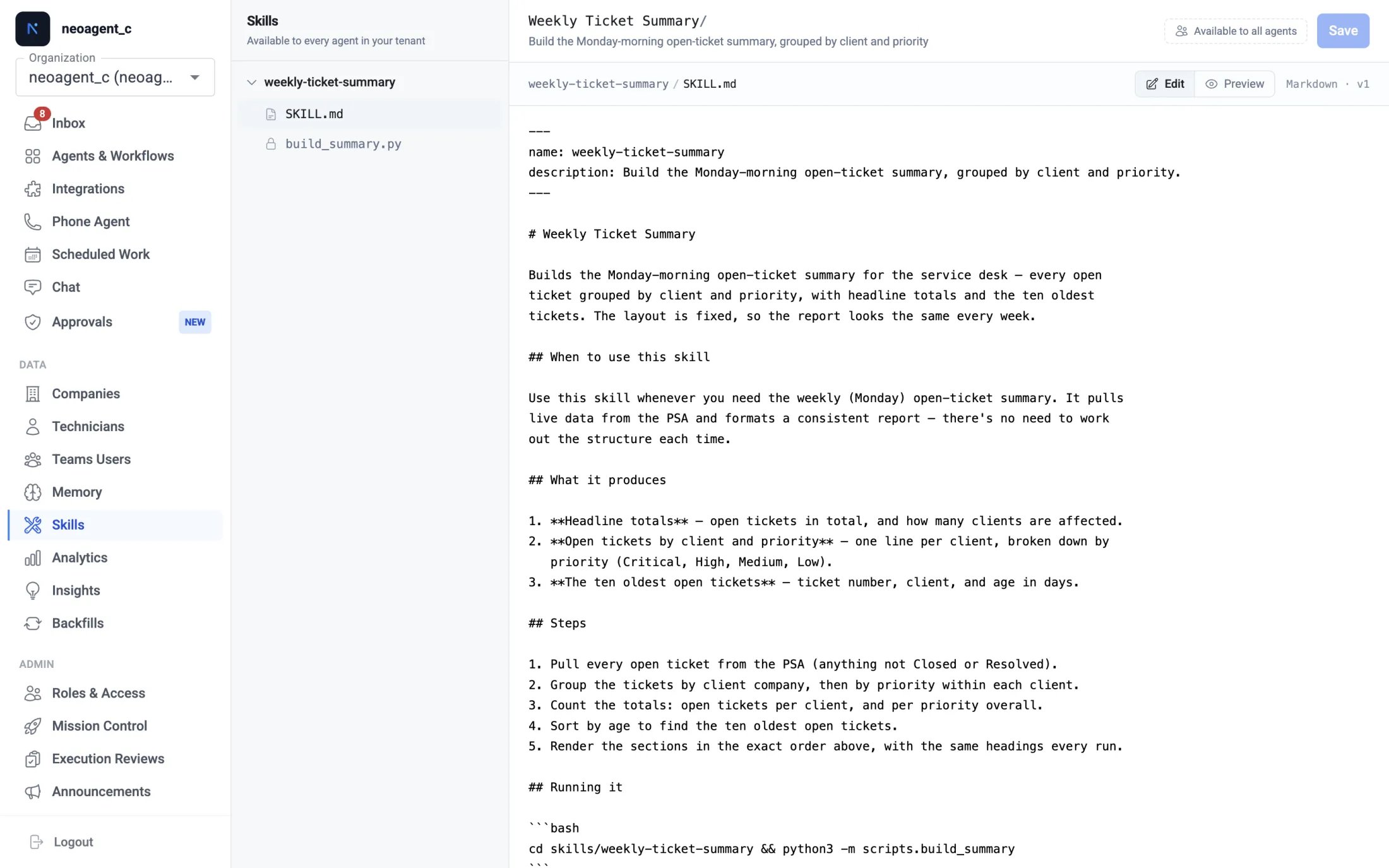 Use the **Edit** / **Preview** toggle to switch between editing the raw text and seeing the formatted result. Each save creates a new version (v1, v2, v3…), shown next to the file name — so you always have a record of what changed.
### Scripts are read-only
The scripts inside a skill open in a read-only viewer, marked with a **Read-only** chip and a lock icon in the file tree. This keeps a tested skill working exactly as it was verified.
Use the **Edit** / **Preview** toggle to switch between editing the raw text and seeing the formatted result. Each save creates a new version (v1, v2, v3…), shown next to the file name — so you always have a record of what changed.
### Scripts are read-only
The scripts inside a skill open in a read-only viewer, marked with a **Read-only** chip and a lock icon in the file tree. This keeps a tested skill working exactly as it was verified.
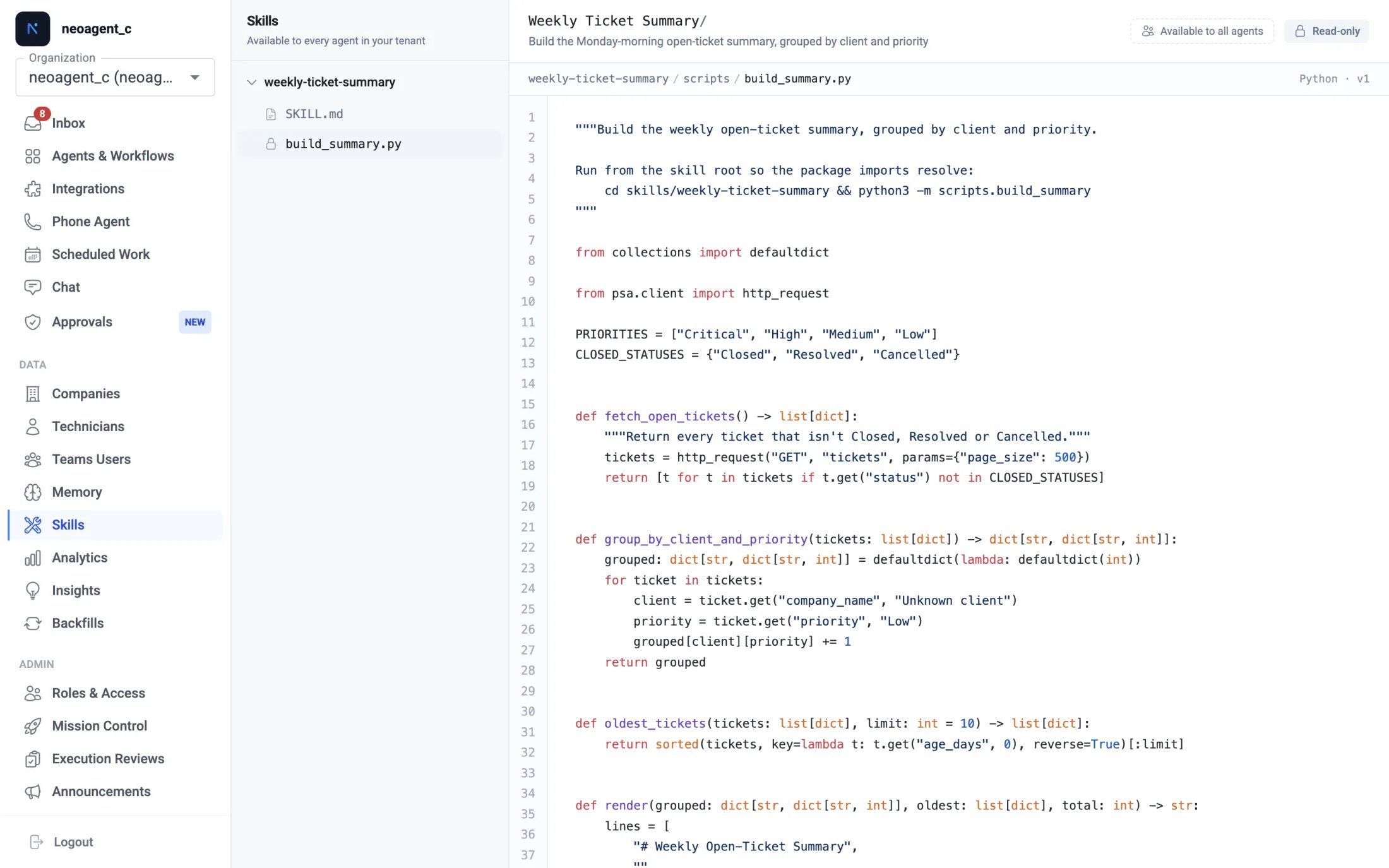 To change a script — fix something, add a step, adjust a calculation — just ask Neo Support, the same way you created the skill. It updates the code, re-tests it, and saves a new version.
### Available to all agents
Every skill shows an **Available to all agents** label. That's the rule for custom skills: once a skill exists, every agent in your tenant can load and use it, automatically. There's no per-agent toggle to manage.
## Keeping your skills healthy
Neo Support tests a skill before saving it, but it's always worth watching the first real run after you create or edit one — open it in [Event History](/product/event-history) and confirm the output is what you expect.
A skill works best when it does one well-defined thing (one report, one reconciliation). If a procedure is really two jobs, ask Neo Support to split it into two skills.
Small wording and formatting tweaks: edit `SKILL.md` yourself and save. Anything that changes what the code does: ask Neo Support, so the change is tested before it goes live.
For a [scheduled agent](/core/scheduled-agents) whose whole job is one procedure, name the skill in its custom instructions (e.g. *"Load and run the `weekly-ticket-summary` skill"*) so it's used on every run.
New to custom skills? Start with the concept page.
To change a script — fix something, add a step, adjust a calculation — just ask Neo Support, the same way you created the skill. It updates the code, re-tests it, and saves a new version.
### Available to all agents
Every skill shows an **Available to all agents** label. That's the rule for custom skills: once a skill exists, every agent in your tenant can load and use it, automatically. There's no per-agent toggle to manage.
## Keeping your skills healthy
Neo Support tests a skill before saving it, but it's always worth watching the first real run after you create or edit one — open it in [Event History](/product/event-history) and confirm the output is what you expect.
A skill works best when it does one well-defined thing (one report, one reconciliation). If a procedure is really two jobs, ask Neo Support to split it into two skills.
Small wording and formatting tweaks: edit `SKILL.md` yourself and save. Anything that changes what the code does: ask Neo Support, so the change is tested before it goes live.
For a [scheduled agent](/core/scheduled-agents) whose whole job is one procedure, name the skill in its custom instructions (e.g. *"Load and run the `weekly-ticket-summary` skill"*) so it's used on every run.
New to custom skills? Start with the concept page.